
Situatie
A corrupted file is a file that has been damaged so that Windows 11 or the program associated with it can no longer read it correctly. Instead of opening as expected, the file may trigger errors, freeze the application, or appear blank or incomplete.
Solutie
Before you begin, make sure you’re signed in with administrator privileges on Windows 11. Several of the repair tools you’ll be using (like Command Prompt, SFC, and DISM) require admin rights to run. Without them, the commands won’t work and you won’t be able to properly repair corrupted files.
Once you’re ready, follow these methods in order — starting with Windows’ built-in tools and moving to advanced options if needed.
1. Use the System File Checker (SFC) tool
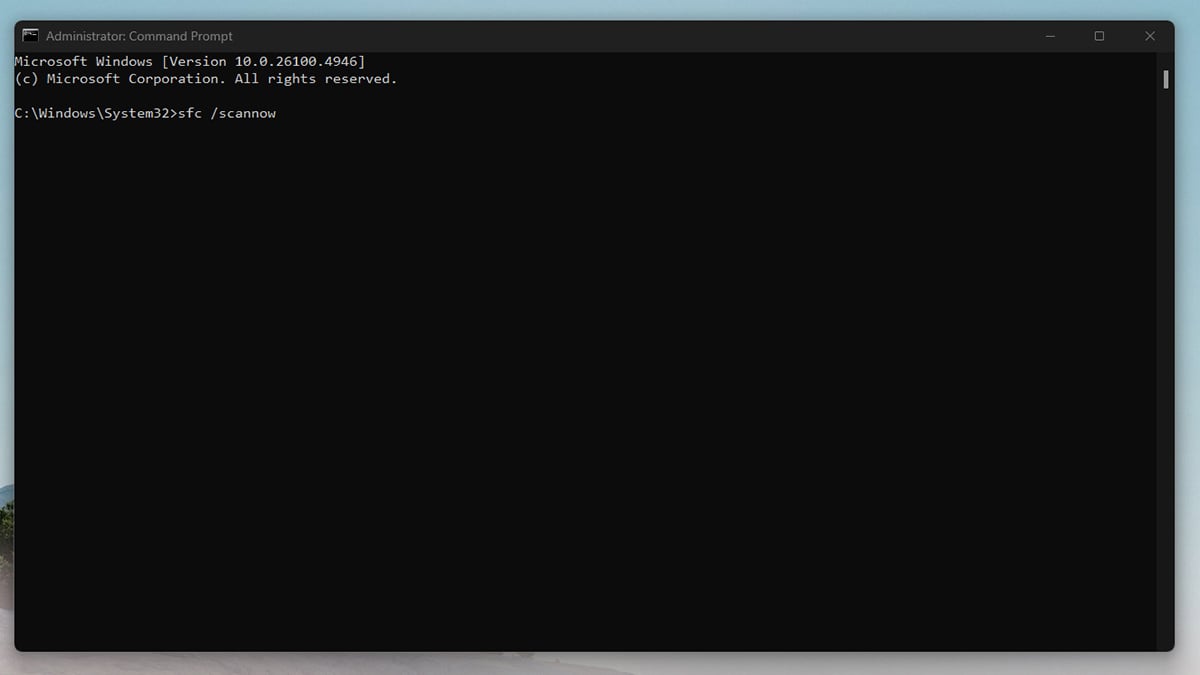
The System File Checker scans your Windows installation for corrupted or missing system files and replaces them with fresh copies. While SFC primarily repairs Windows files, fixing those can also solve problems with apps and documents that rely on them.
Steps:
- Press Start, type cmd, then right-click Command Prompt and select Run as administrator.
- In the Command Prompt window, type: sfc /scannow
- Press Enter and wait for the scan to finish (this can take several minutes).
What happens next:
- If issues are found, Windows will automatically repair them.
- If nothing is found, move on to the next method.
2. Run the DISM tool (deep system repair)
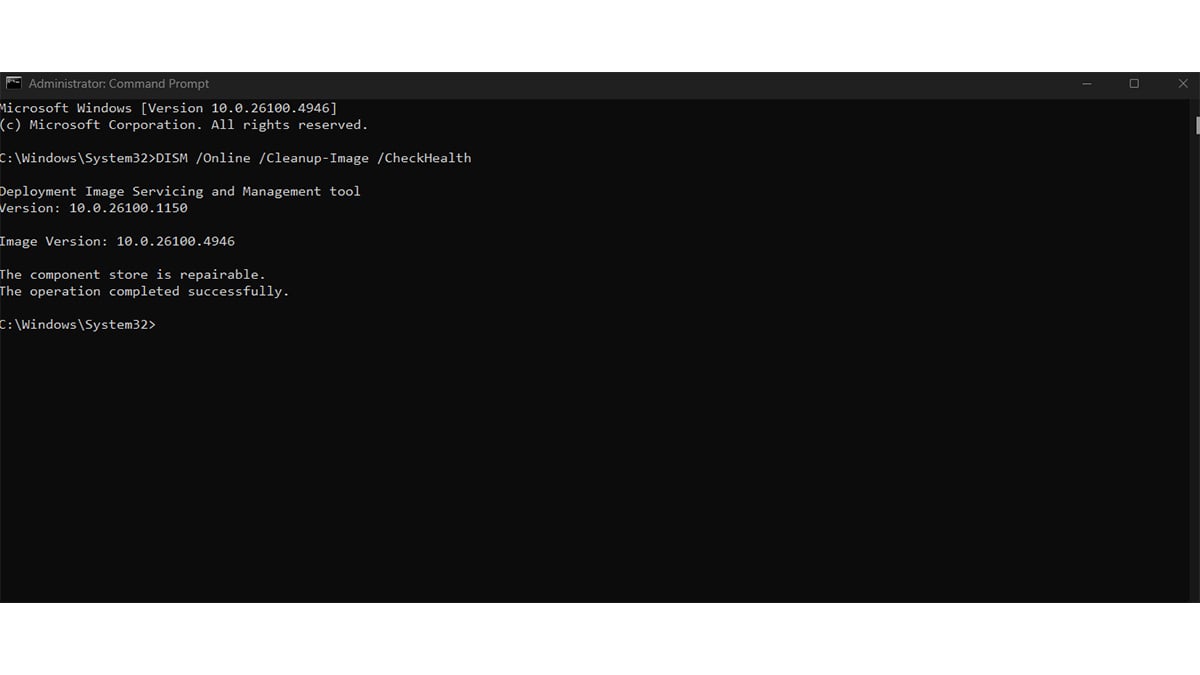
If SFC doesn’t solve the issue, use Deployment Image Servicing and Management (DISM). This tool repairs deeper system-level corruption, such as damage to the Windows image itself.
Steps:
- Open Command Prompt as administrator.
- Enter the following commands one by one, pressing Enter after each:
- DISM /Online /Cleanup-Image /CheckHealth
- DISM /Online /Cleanup-Image /ScanHealth
- DISM /Online /Cleanup-Image /RestoreHealth
- Wait for the process to complete (it may take 10–20 minutes).
Tip: After DISM finishes, rerun sfc /scannow to make sure all repairs are complete.
3. Try system restore in Windows 11
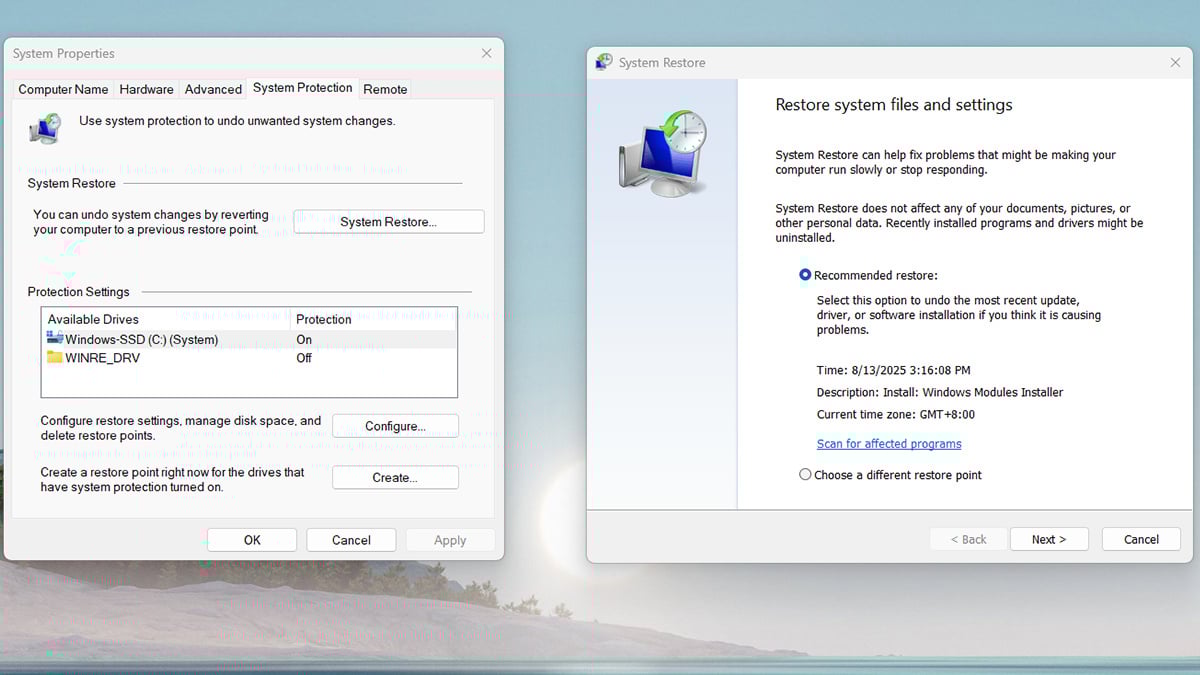
If your corrupted file issue started recently, rolling your system back to an earlier restore point may resolve it. This works best if you had System Restore enabled before the corruption occurred.
Steps:
- Press Start, search for Create a restore point, and open it.
- In the System Properties window, click System Restore.
- Choose a restore point created before the file corruption happened.
- Follow the on-screen instructions to complete the restore.
4. Reset or repair the app linked to the file
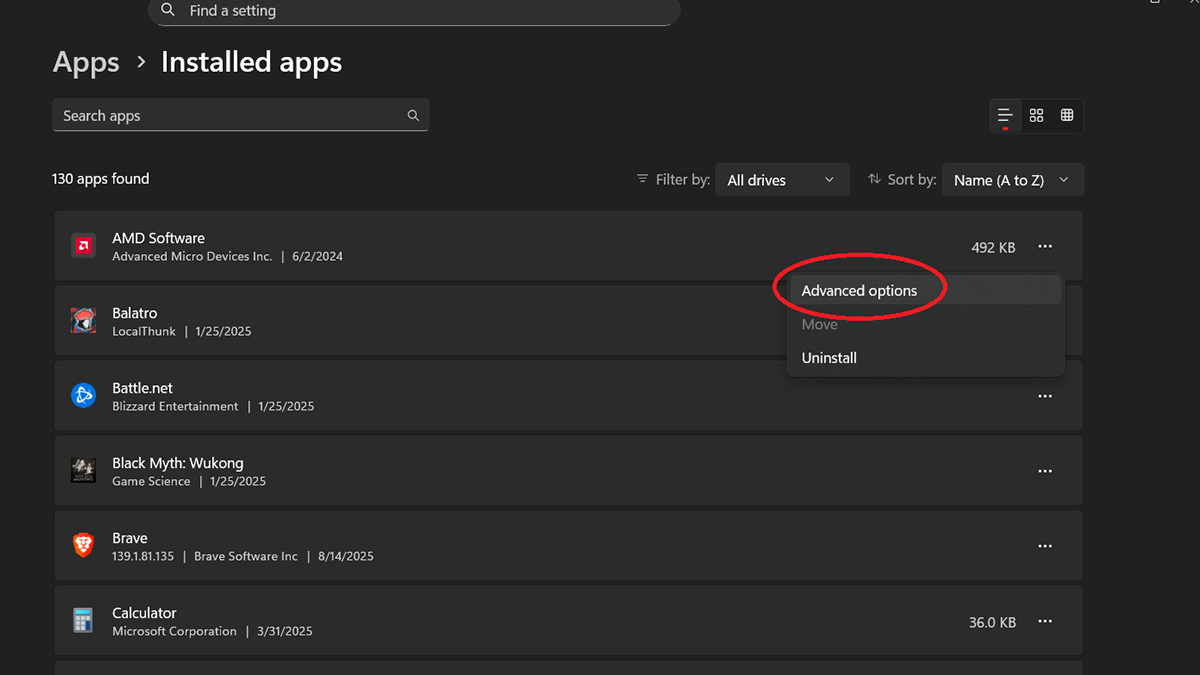
Sometimes the issue isn’t the file itself but the app used to open it. Resetting or repairing the application can solve these cases.
Steps:
- Go to Settings > Apps > Installed apps.
- Find the app (e.g., Word, Photos, or Excel).
- Click the three dots > Advanced options.
- Select Repair first. If that doesn’t work, select Reset.
Leave A Comment?