
Situatie
Solutie
Pasi de urmat
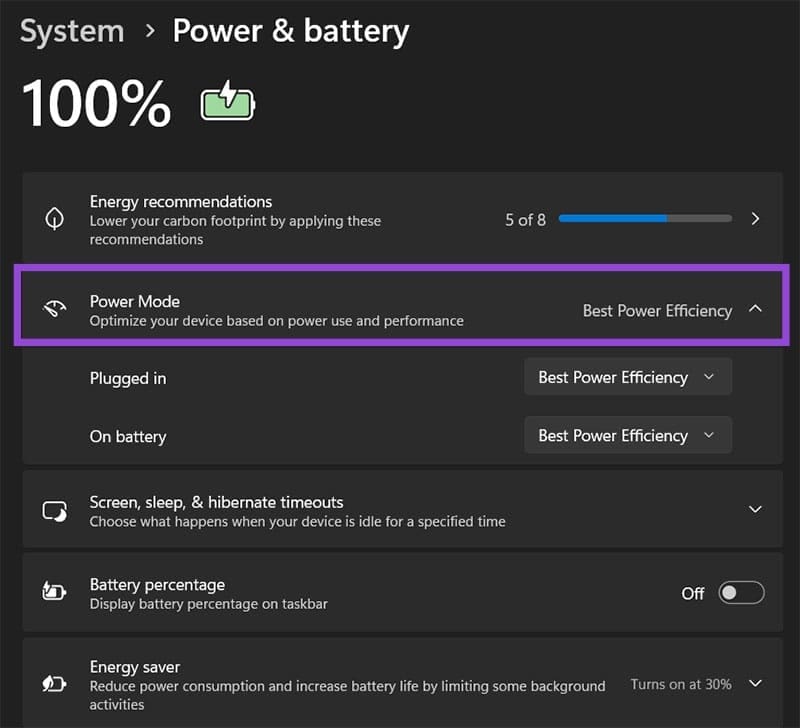
Both Windows and macOS have a few settings that allow them to automatically prioritize the battery’s charge over laptop performance. For Windows, this is the Power Management screen. For Mac, it’s the Battery Settings. Here’s how to access the settings on a Windows laptop.
- Click on the battery icon in the bottom-right corner, then click on the battery icon in the pop-out menu. You’ll go to Battery Settings.
- Use the “Energy recommendations” to automatically set up your system to use less power by reducing the time it spends idle with the screen on.
- Go to “Power Mode” and put it to “Best Power Efficiency.”
Remove Background Processes
While it might not seem obvious, operating systems will have a lot of background apps and processes, some of which are just full-fledged apps being minimized or launchers waiting for the app proper to run.
For Windows, you can even find which apps consumed the most power by going to the Battery & Power section of Settings (see Option 1) and then to “Battery usage.” The apps that used the most battery will be listed below.
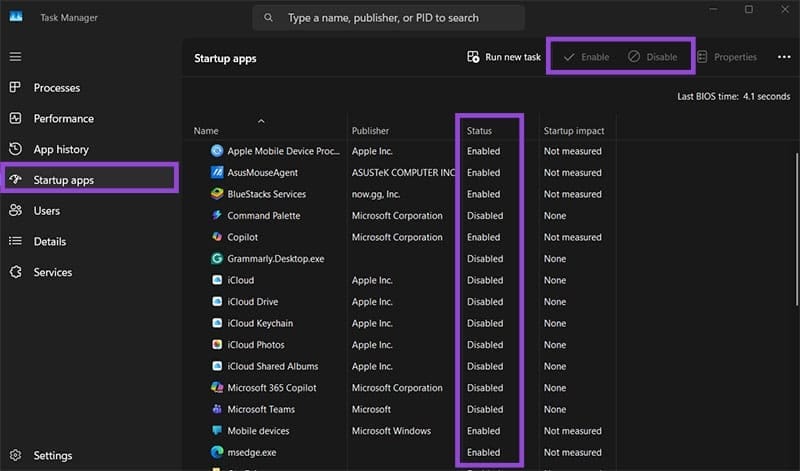
You can then use Task Manager to close unnecessary programs. Notably, you may also want to disable startup apps (in the tab named “Startup apps”), such as launchers, which automatically turn on some apps.
Turn Off Bluetooth and Other Services
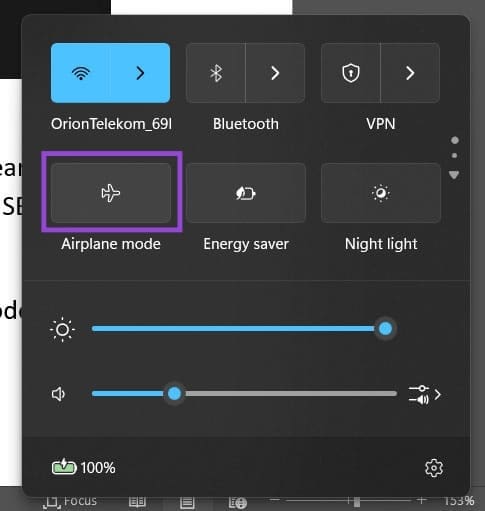
Bluetooth is a huge power draw on the system when turned on, since it repeatedly scans for nearby devices to pair with. If you want to keep things simple and don’t need internet access, you can turn on “Airplane mode” from the toolbar to disable every connection service at once (click on the battery icon to access the menu).
Laptops don’t handle heat well, and constricting their airflow means they have to work overtime to cool down, which drains battery.
While they were originally designed for laps, you shouldn’t actually use them on your lap since your legs don’t conduct heat very well and if you sweat you may make things worse. Instead, lay the laptop on a flat surface or, even better, use a dedicated stand to lift it and create more airflow.
The battery health report provides information on the battery’s current and remaining maximum charge, indicating how degraded it got from repeated charging. For Windows, you can use the console command: powercfg /batteryreport /output “C:\battery-report.html.”
This will generate a file that displays all the information Windows can find on the battery.
Leave A Comment?