
Situatie
Your iPhone can read texts and other notifications in circumstances where you’re unable to see your screen. This can be useful when you’re listening to music on your AirPods or Beats headphones, but it can be annoying. You can stop AirPods from reading texts completely, but you also have a few other options to make Siri less noisy. You can instead reduce the number of texts (and other notifications) your iPhone reads or have it only read texts while you’re driving.
Solutie
How to Get AirPods to Stop Reading Texts
To turn off the AirPods reading texts feature, you will need to disable “Announce Notifications.” Siri will then stop reading texts on your AirPods. Siri will also stop reading other notifications, including calendar appointments and notifications from third-party apps. To stop your iPhone from reading notifications over your AirPods, head to Settings > Notifications > Announce Notifications.
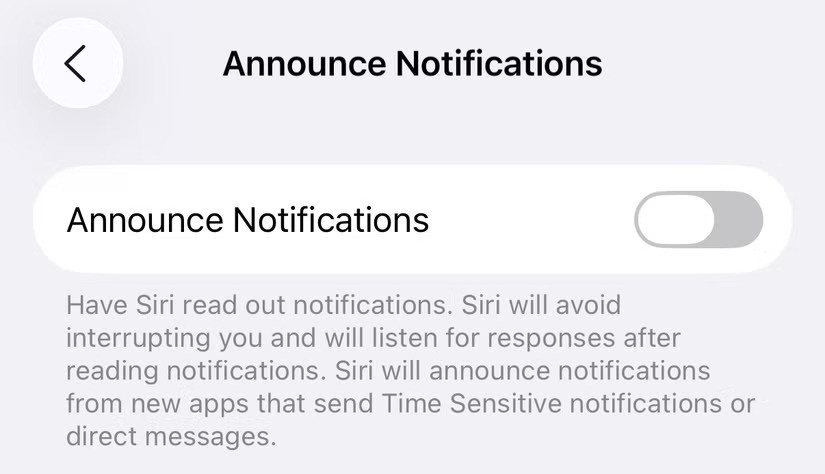
To stop your iPhone from reading anything over your AirPods, disable “Announce Notifications.” Your iPhone will stop reading texts both when you’re using headphones and when you’re using CarPlay.This setting applies to compatible AirPods models (second-generation AirPods onwards, including Pro and Max), plus certain Beats models.
Your iPhone won’t read texts over standard Bluetooth headphones or external speakers.If you want your iPhone to read texts while you’re using CarPlay, you can enable “Announce Notifications” but disable the “Headphones” option.

Tap on “CarPlay” to make further changes to the way incoming texts and other messages are announced.

How to Customize What Siri Reads on AirPods
Siri’s ability to announce texts and other notifications can be very handy, but its utility largely depends on how it’s used. It’s far less disruptive if you’re careful about which texts and other notifications are announced so that you aren’t getting unimportant notifications from apps like games or social networks.
You can customize which apps are announced under Settings > Notifications > Announce Notifications by scrolling down. You’ll see a list of installed apps. Tap on an app to enable or disable “Announce Notifications” for that particular software.
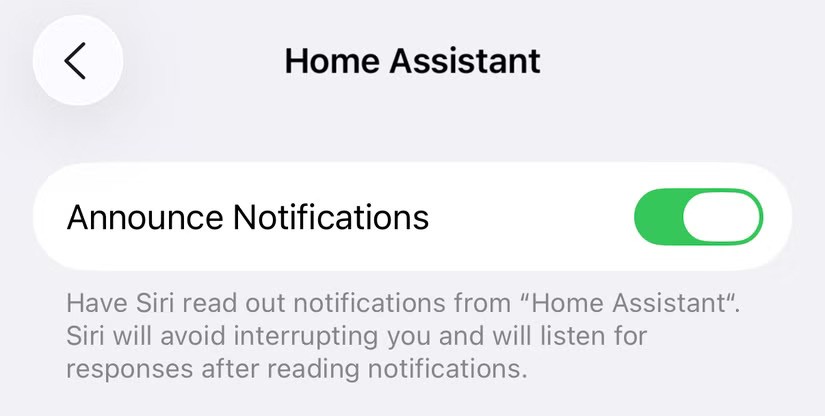
Some apps let you differentiate “Priority Notifications” and “Time Sensitive and Direct Messages” from regular notifications so that only the most important alerts are read out. If you enable this setting for an app that doesn’t already have notifications enabled (in the Settings > Notifications menu), notifications will be turned on.

How to Get AirPods to Stop Announcing Calls
In addition to notifications, your Apple or Beats headphones may also start announcing calls out loud. As helpful as this is, not everyone wants Siri talking over whatever they’re listening to, and a vibrating alert or ringer might be all you need. To disable this feature, head to Settings > Apps > Phone. Alternatively, you can open the Phone app and use this neat Shortcuts workflow to jump straight to the Settings page from Control Center.
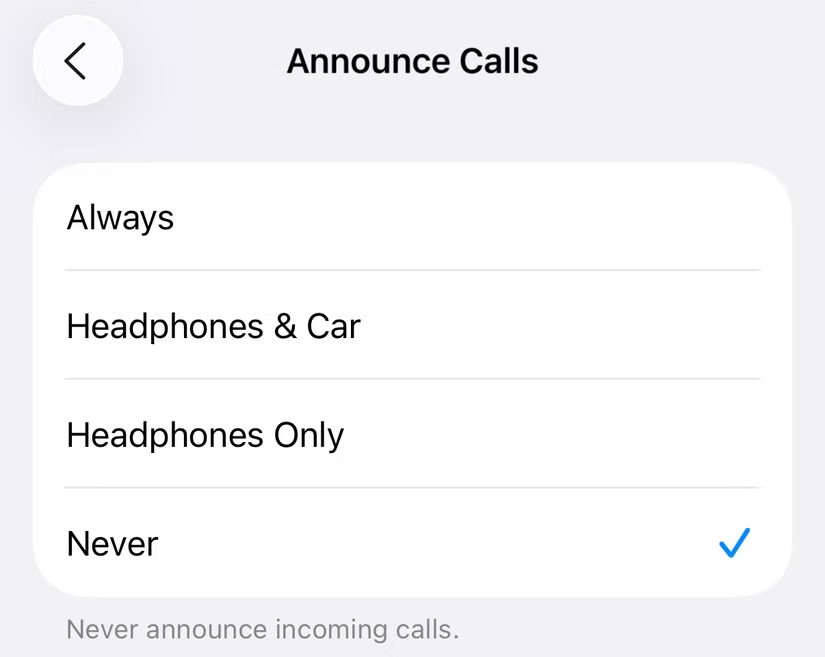
Scroll down and tap on “Announce Calls” to bring up a list of options. Here you can decide between always, never, and options for CarPlay and headphone settings.
Balancing iPhone Notifications
Notifications are arguably one of the most useful features on any smartphone. They alert you to important email messages and online developments in real time, but striking a balance between being informed and being overwhelmed is essential. Learning how to master iPhone notifications lets you eliminate annoying notifications and make sure you don’t miss the ones that matter. If you have an Apple Watch, it’s a good idea to fine-tune the notifications you receive on your Apple Watch too.
Leave A Comment?