
Situatie
The usual method to debloat an Android phone requires setting up an ADB connection with a computer and sending commands from the terminal. It’s not the fastest or the safest way to get the job done. Let me show you a faster and safer method.
Why you can’t remove bloatware easily
You might have noticed that many apps (not counting system apps) were already on your phone when you bought it, and there is no way to remove them. Their ‘uninstall’ or ‘disable’ buttons are greyed out. The usual way of getting rid of such apps is to connect your phone to a computer with a USB cable and send ADB commands through a terminal.
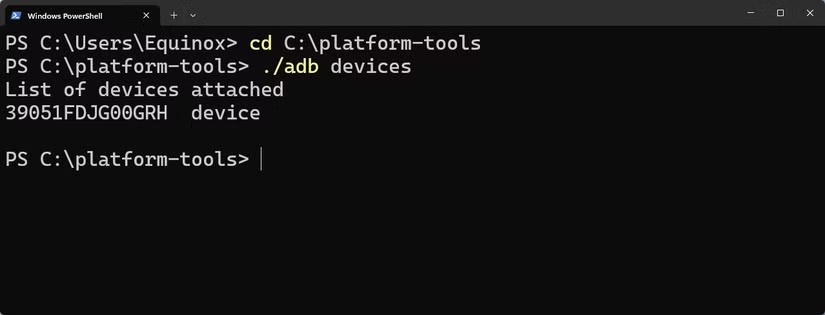
It’s a cumbersome process, especially if you’re not used to the terminal. The other method is to root the device in order to gain access to the restricted system space and delete stubborn bloatware directly from the phone. I wouldn’t recommend it unless your phone is already rooted. It’s not worth voiding your warranty or borking the firmware. Lucky for us, there’s a better way. You don’t need a computer, and you don’t need to type any commands into a terminal box. It can all be done on your phone with a simple app.
Solutie
Getting and setting up Shizuku
Shizuku is a free and open source tool that allows other apps to gain system-level access (like the kind available on a terminal running ADB commands). It’s kind of like having root access without actually rooting the device.
Start by opening the Settings app and enabling Developer Options. If you can’t find Developer Options, go to the About Device section and tap the ‘Build Number’ 7 times. Under Developer Options, enable the following two toggles:
1. USB Debugging
2. Wireless Debugging
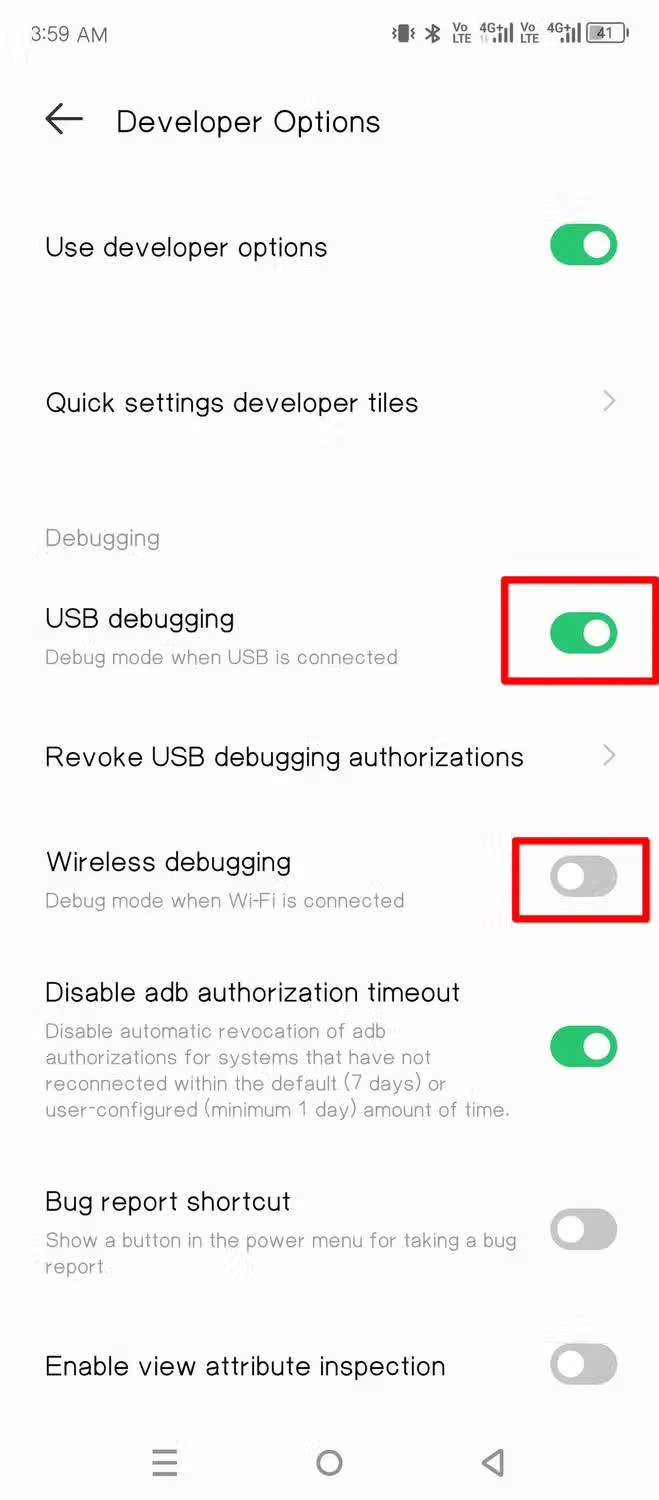
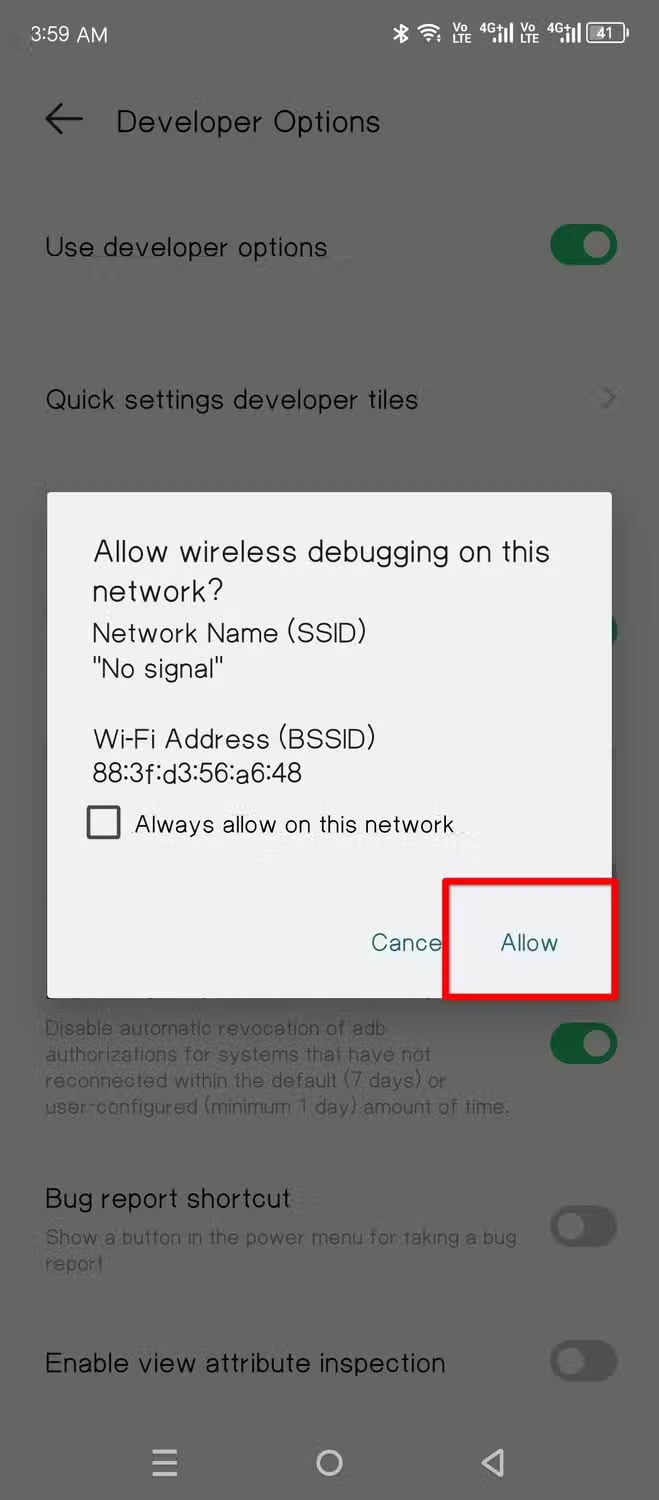
Tap ‘Allow’ when prompted.
Now let’s install Shizuku from the Play Store. Once it’s installed, let’s launch it.
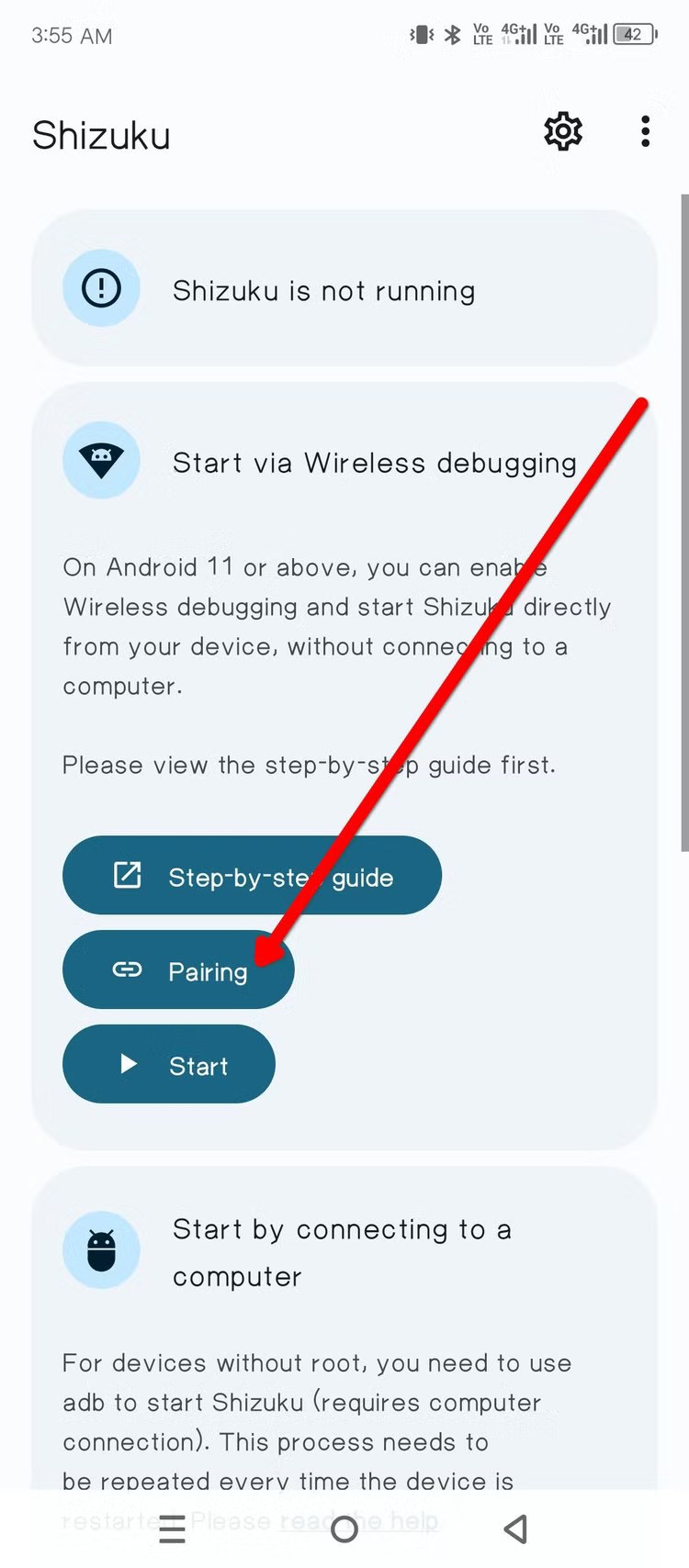
Look for the ‘Pairing’ button under the Start via Wireless Debugging section. You might be asked to grant notification access to Shizuku. Toggle it on if needed.

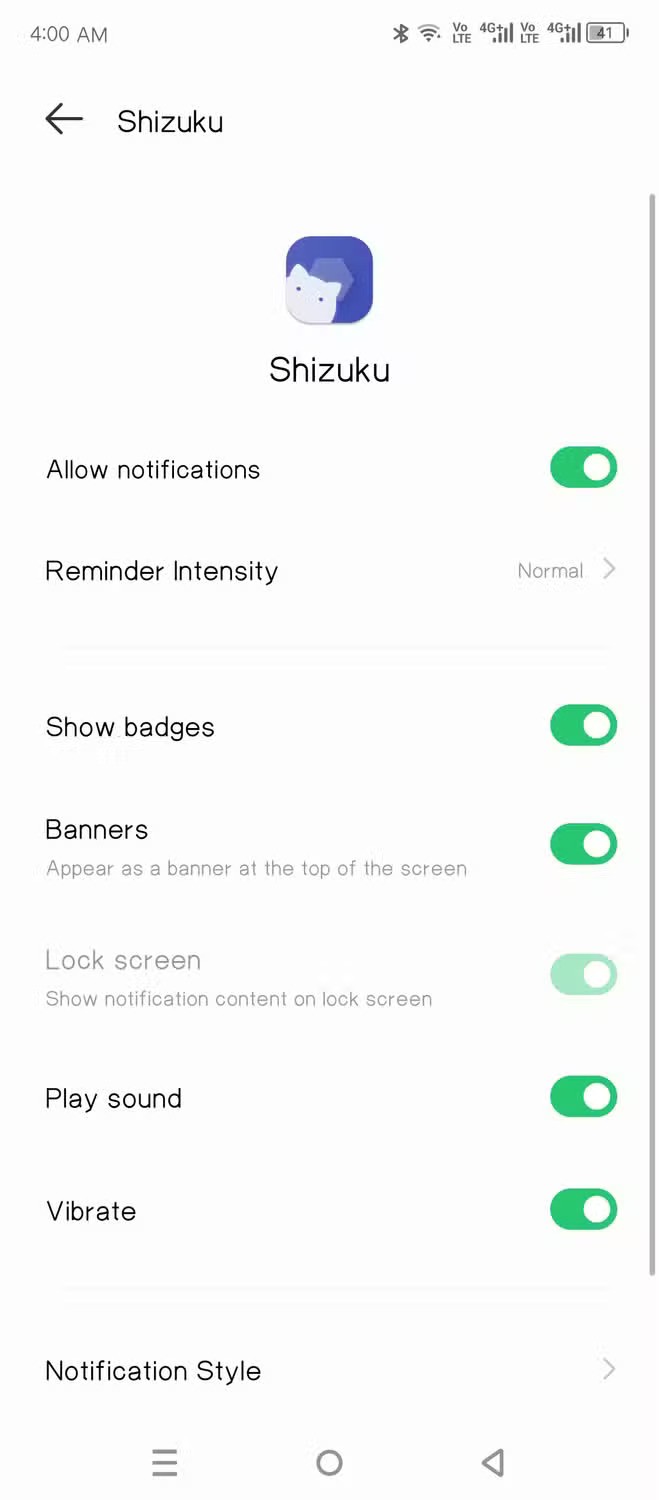
You should see a ‘searching’ notification from Shizuku. Now open Developer Options again and scroll down to Wireless Debugging and tap it.


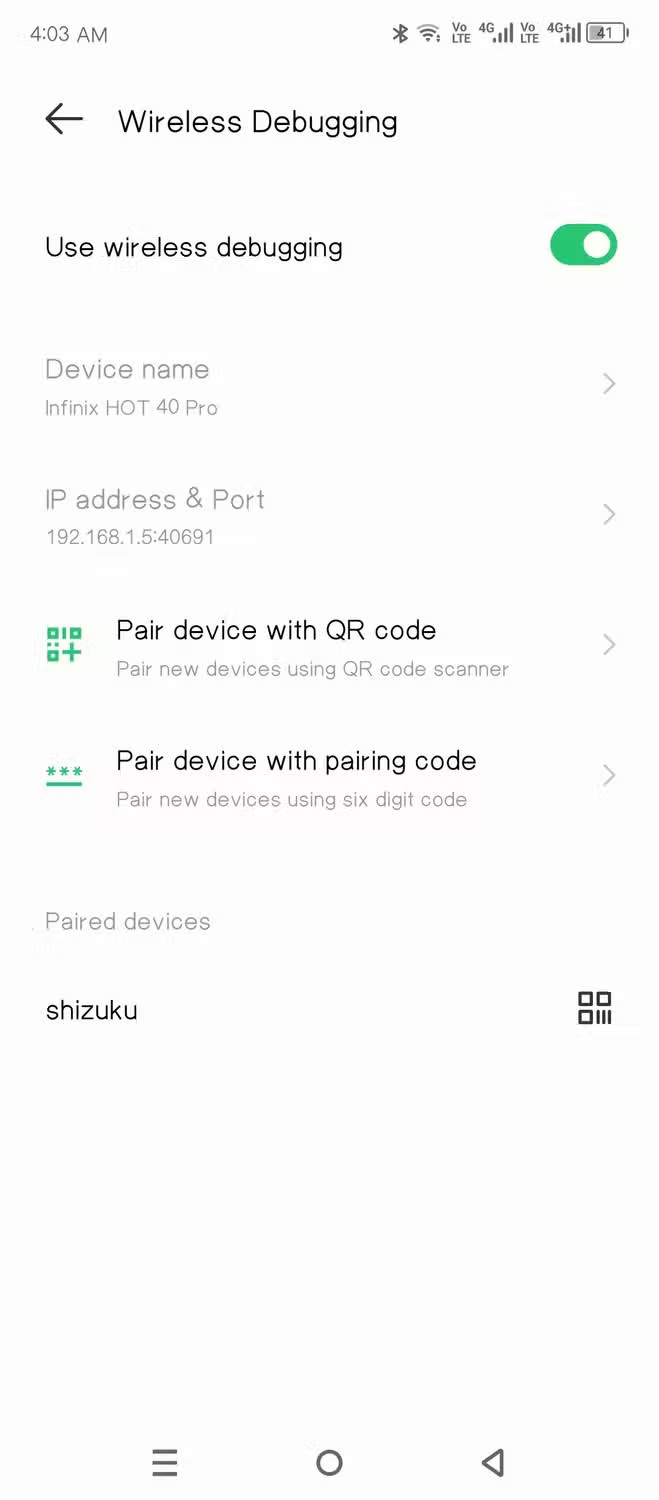
Wireless Debugging is both a menu item and a switch. You can click the text to reveal the extra options. Tap ‘Pair device with pairing code’ to generate a new code. Then pull down the notification shade, and you’ll notice that the Shizuku notification is now prompting you to enter a code.
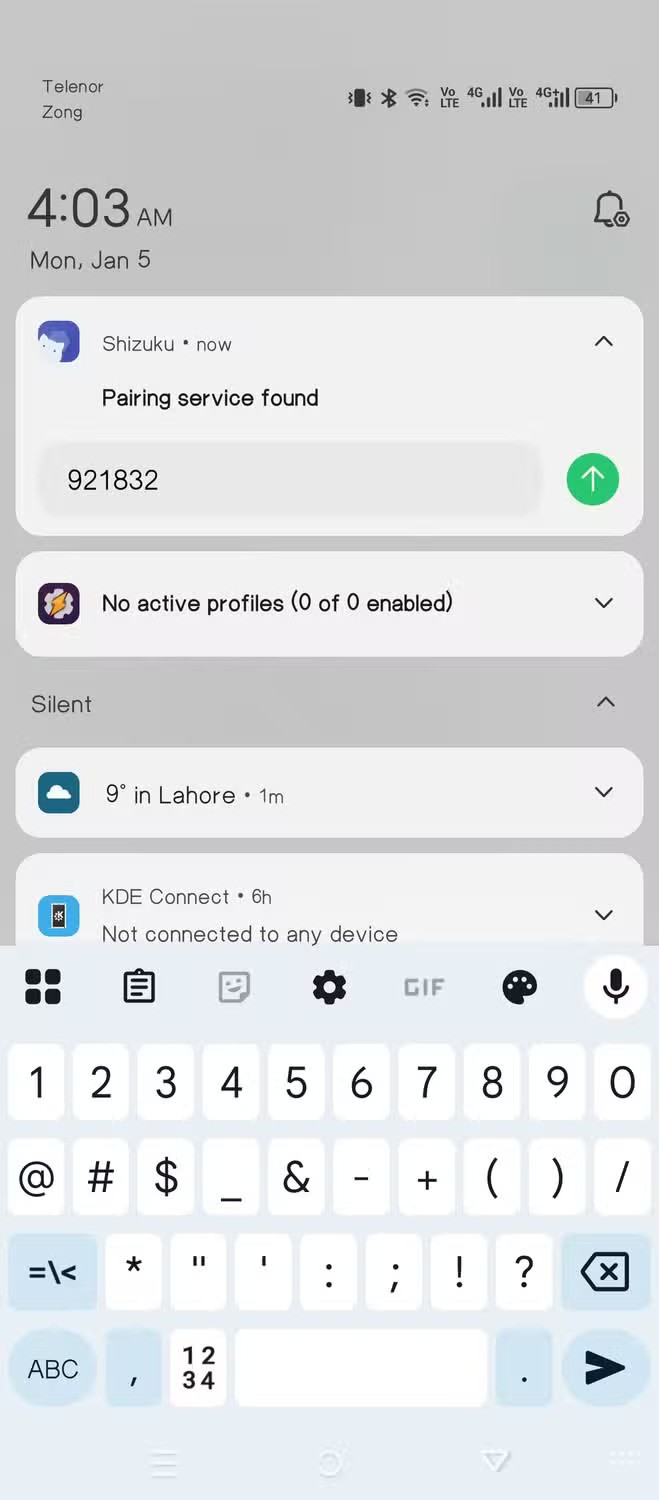
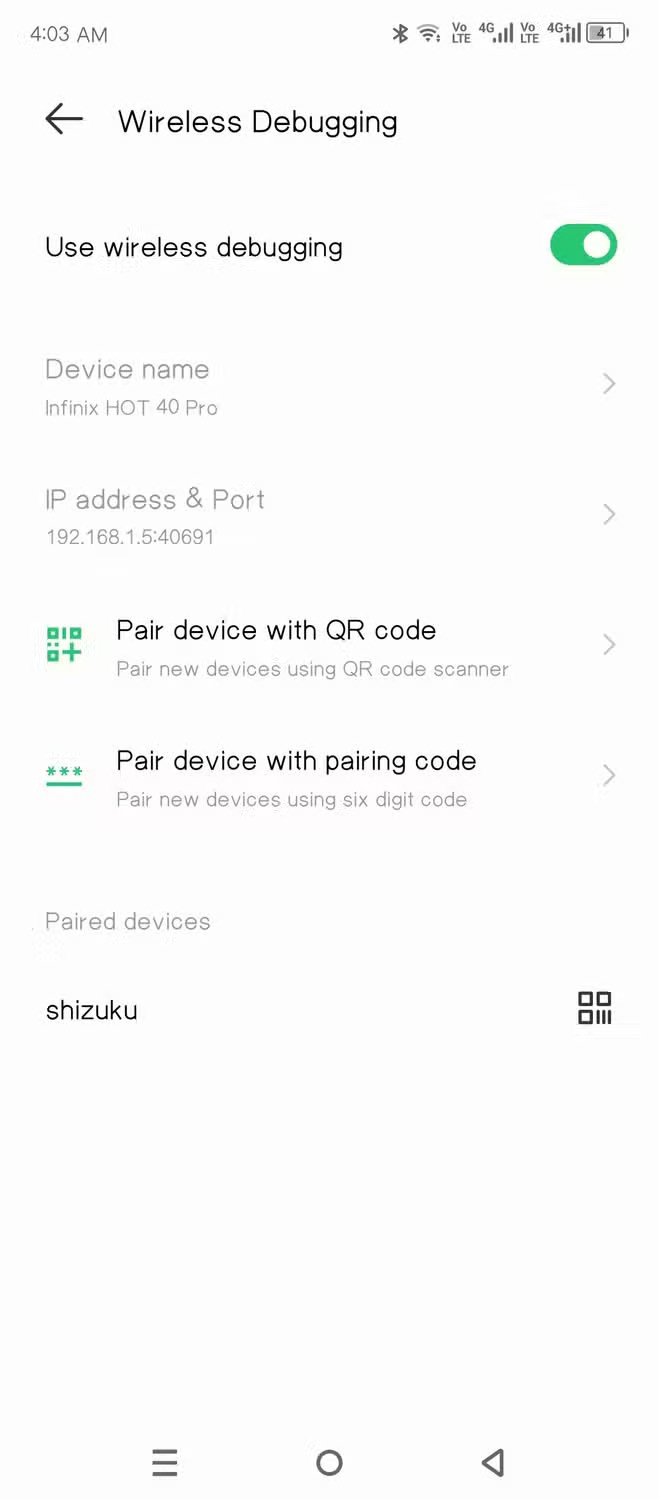
Tap that ‘Enter’ button on the notification, type in the code you just generated and tap the arrow button to complete the pairing. We’re now ready to start Shizuku. Go back to the Shizuku dashboard, but this time, tap Start.

A new window will pop up and disappear. The dashboard should now read ‘Shizuku is running’. I mentioned that Shizuku is a tool that grants elevated privileges to other apps. Canta is one such app that allows you to remove any app from your device with just a single tap.
You can install Canta from the Google Play Store or F-Droid. It’s free and open-source. Once it’s installed, launch it.
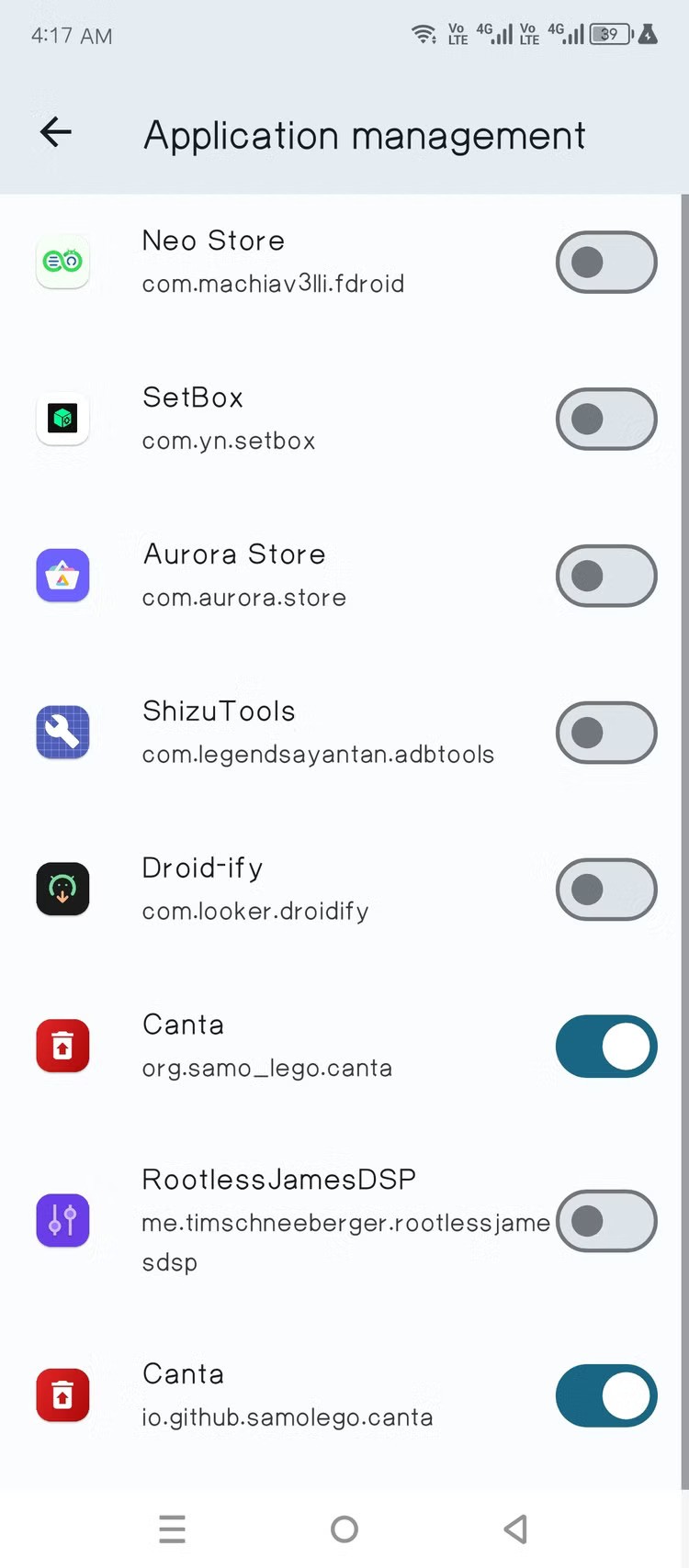
Now open Shizuku again and go to the ‘Authorized Apps’ tab. Make sure Canta is enabled here.
Removing bloatware
We’re now ready to remove unwanted apps with Canta. As you scroll through the list, you’ll notice that apps are tagged. Canta tells you which apps are system apps that shouldn’t be removed and which apps are safe to remove. Apps with the green ‘recommended’ tag are generally safe to remove, but use your best judgment when making system-level modifications like this.
To remove an app, just select it and tap the floating red trash icon. The app should be uninstalled right away.
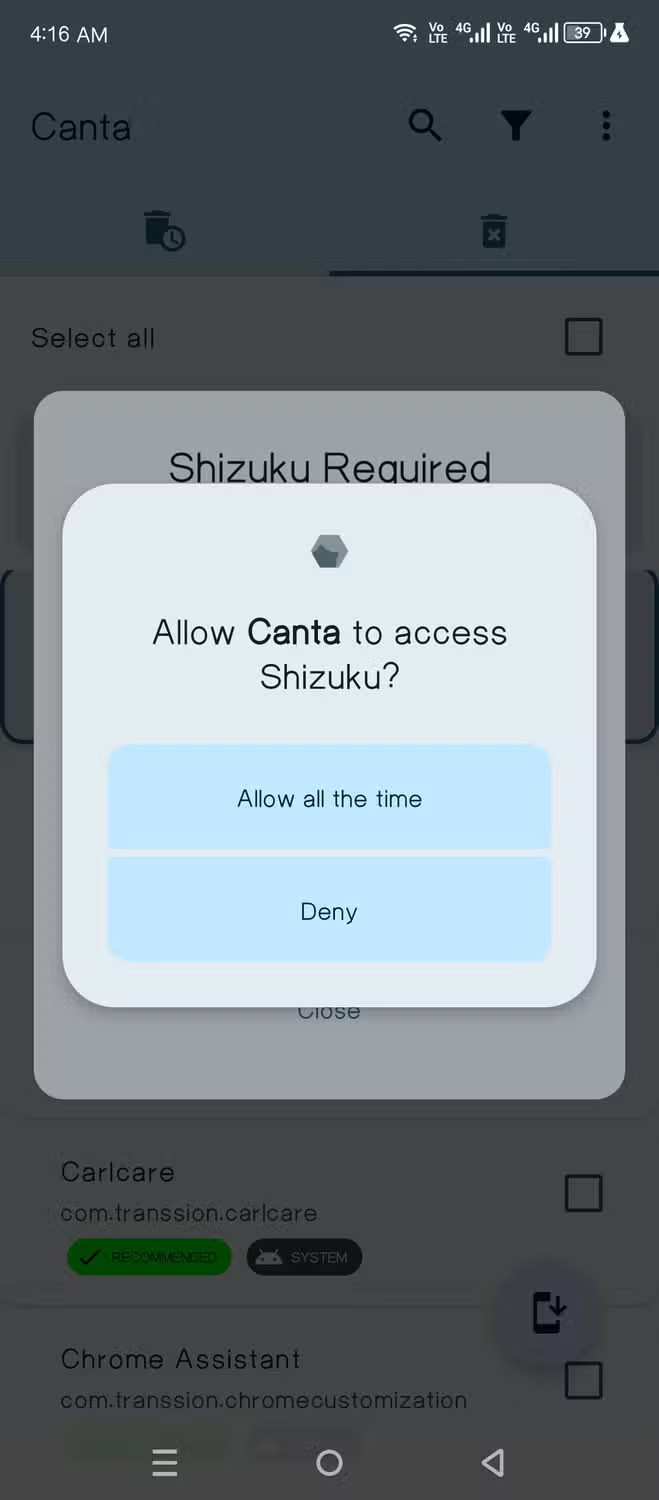
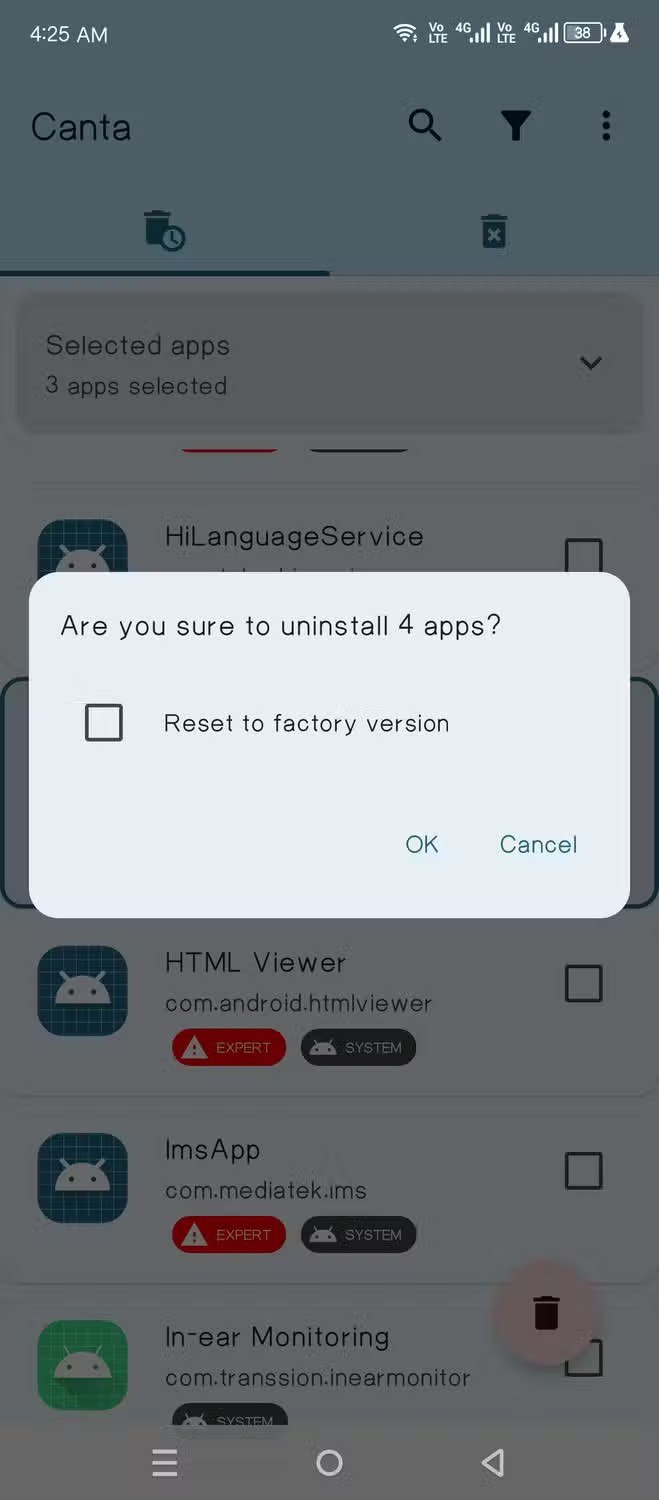
You can also uninstall multiple apps at once by tapping the checkboxes next to the app names. There’s also a search bar if you’re looking for a specific app.
Leave A Comment?