
Situatie
The umbrelOS is a server OS for everybody. People who aren’t familiar with the command-line interface can just start their homelab using umbrelOS without any technical knowledge. And for people who already have one, umbrelOS can make an excellent addition to an existing setup. It feels polished and everything just makes sense. The labels on the buttons are easy to understand.
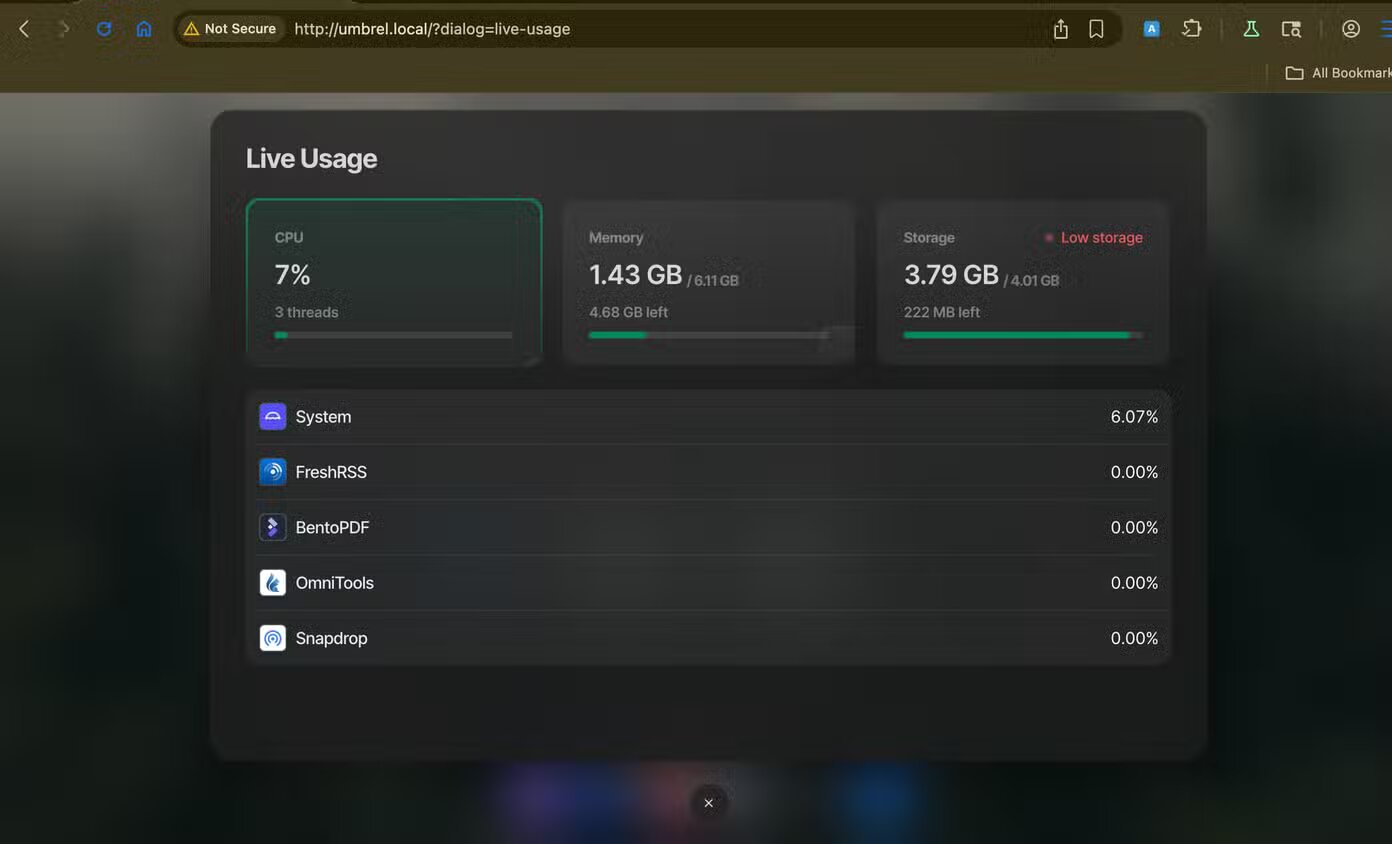
On the dashboard, you have a desktop-like home. Front and center we have the live resource usage stats. Below it, there is a dock.
Upload or browse your files
This file manager looks and feels a lot like the Finder on macOS with tabs for applications, documents, downloads, recents, photos, and videos. Here you can browse files that you’ve already uploaded to umbrelOS.
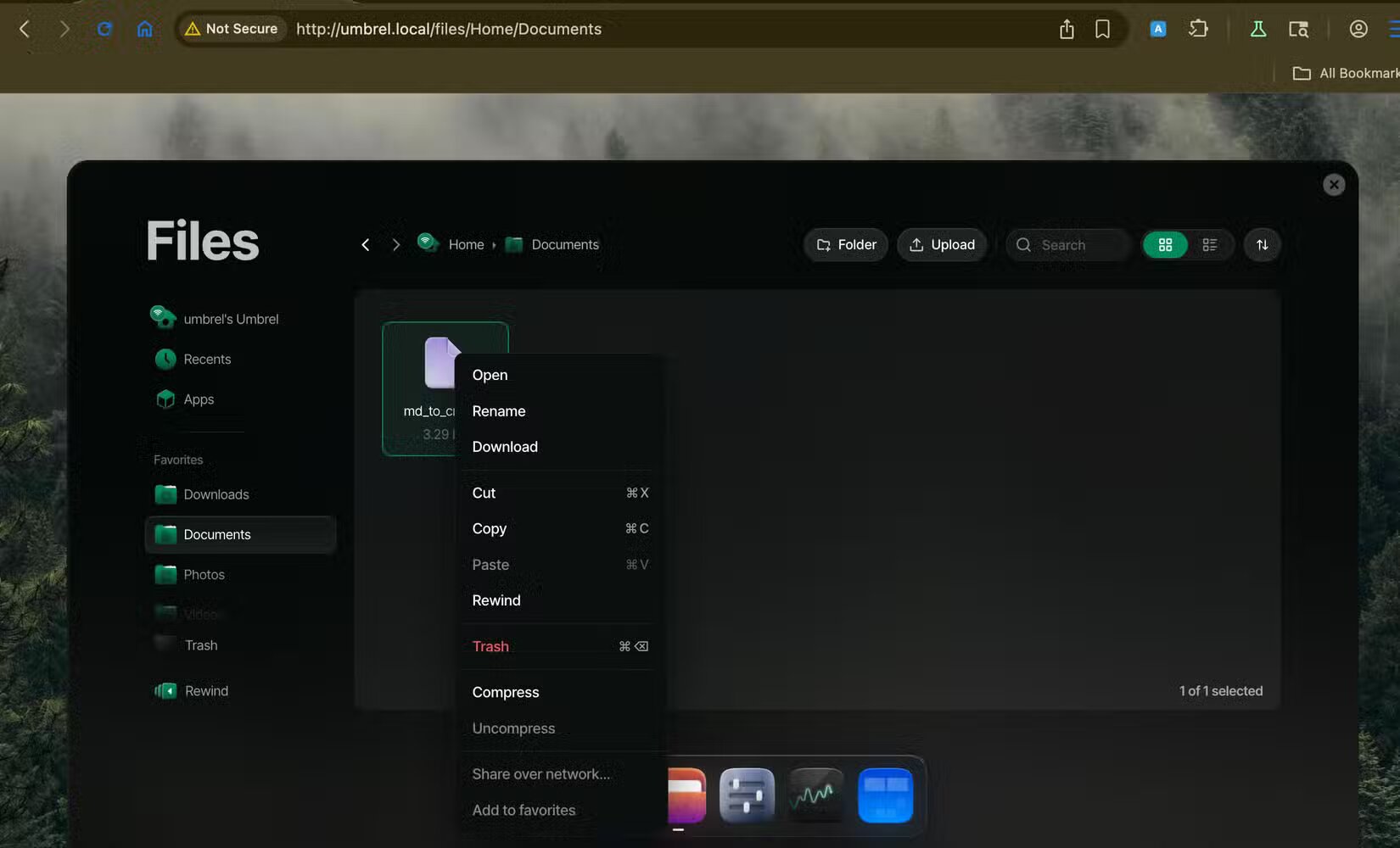
Copying, pasting, creating new files or folders, compress/uncompress work just like on desktop file managers.
Install self-hostable apps with one click
To download and run apps on your home server operating system, you typically use command-line package managers or Docker commands to host them as services on your phone.
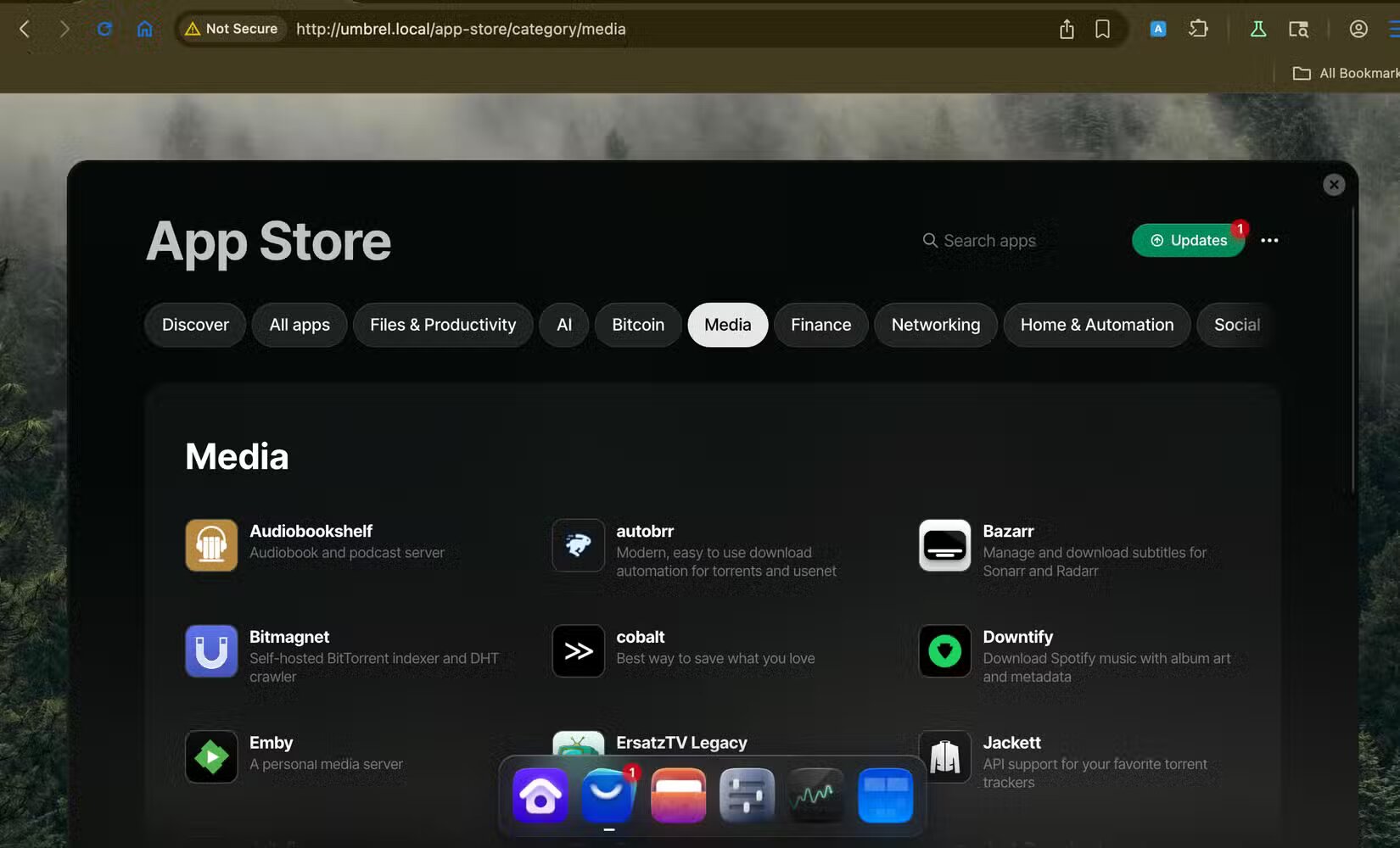
The umbrelOS takes away all that complexity and gives you a simple app store where you can install any of the hundreds of self-hostable apps with a single click. Most apps that most people need are already here, so this store should suffice for most people.
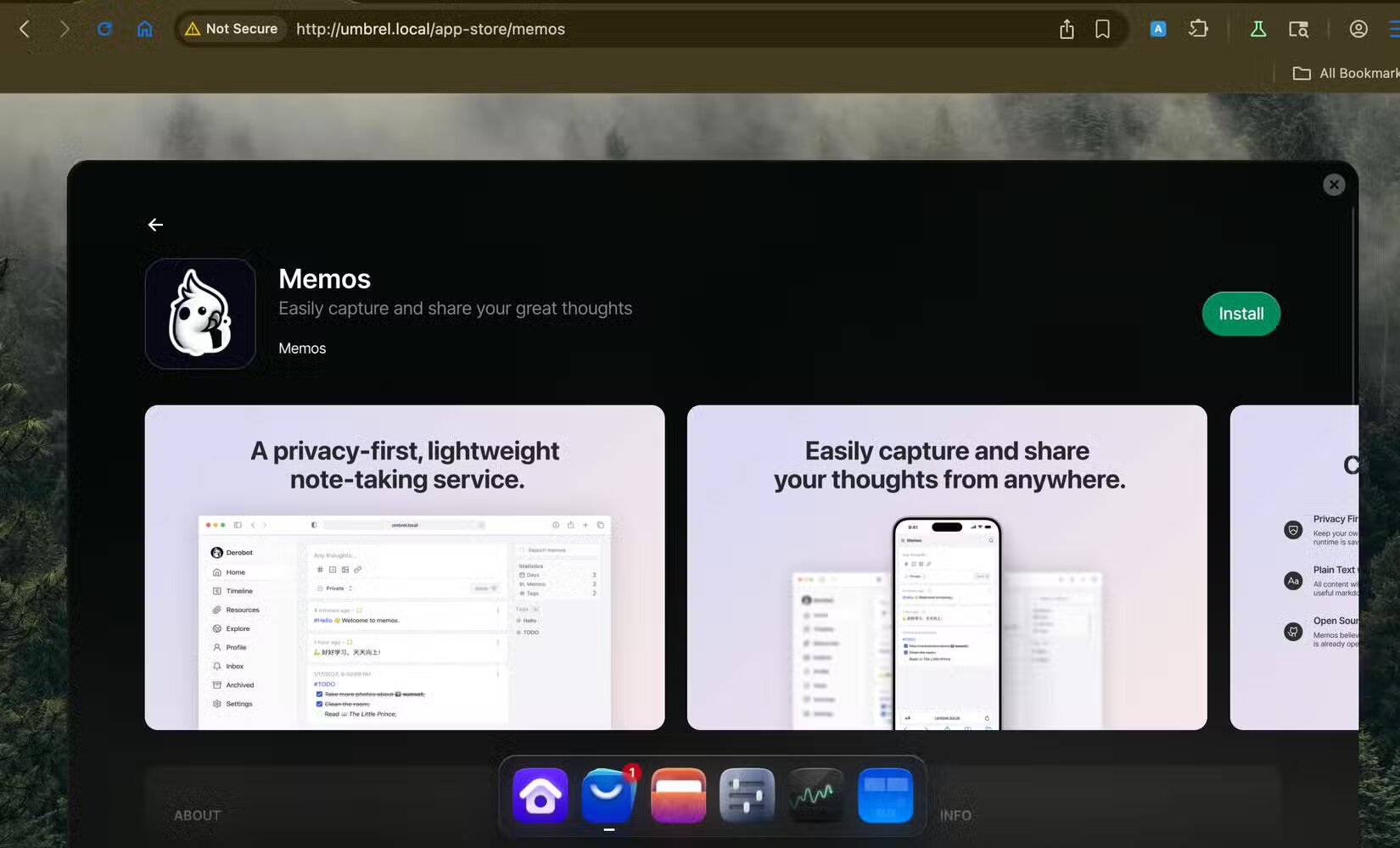
Docker is what makes umbrelOS, and other graphical server operating systems like it possible. Under the hood, the “apps” are just Docker containers.
Quick app launcher
The shortcuts to your installed apps are also on the main dashboard. You can click these shortcuts to open the apps in a new tab. Swipe left if you don’t see them. These shortcuts save you the trouble of having to find and memorize the port numbers or IP addresses of your apps. On umbrelOS, just click the app icon, and it will open in a new tab.
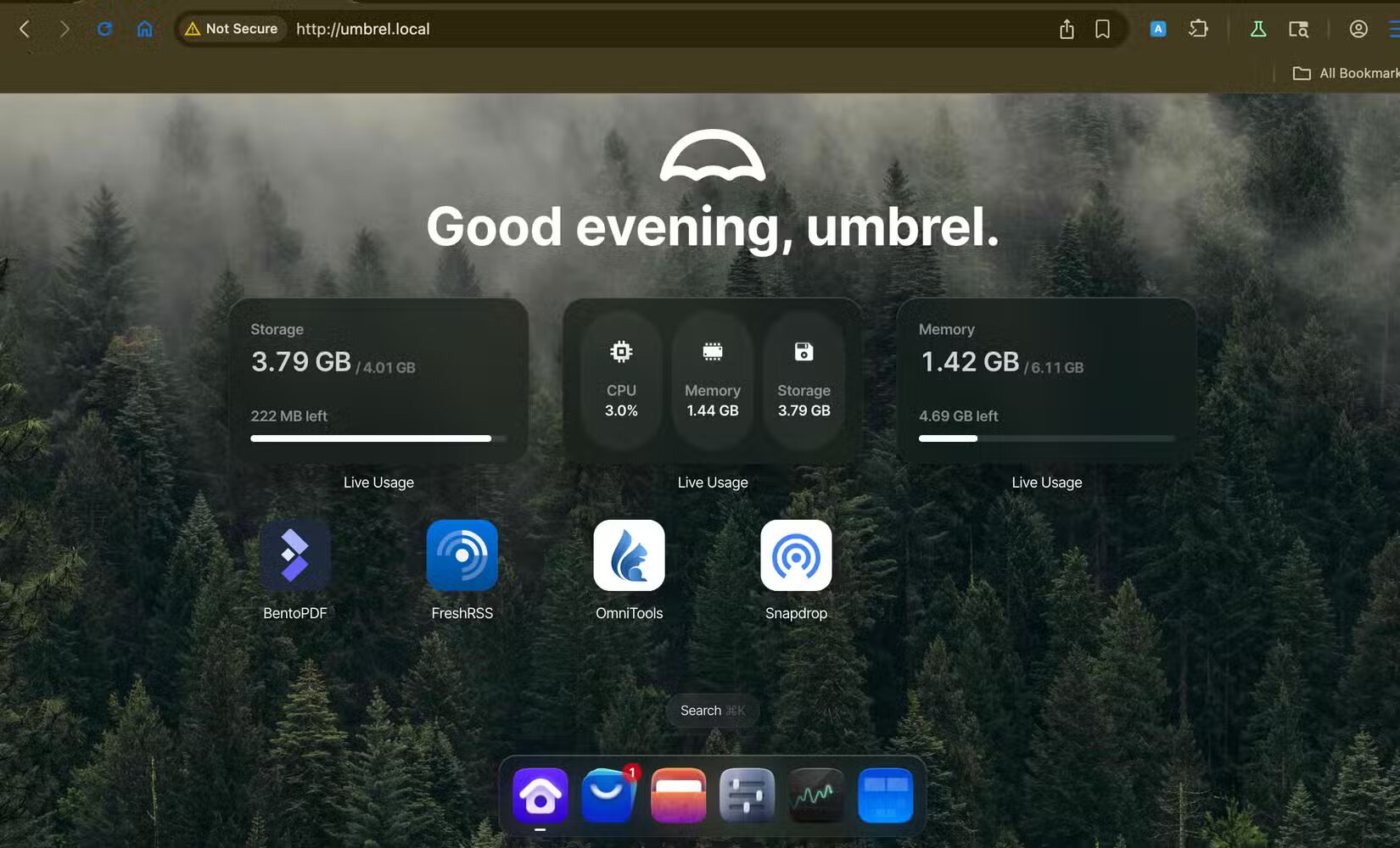
Spotlight-style search
Access settings, files, apps, and more in one place You can press the shortcut Command+K or Ctrl+K to open a search bar. This works like Spotlight search on macOS or the command palette on Windows.
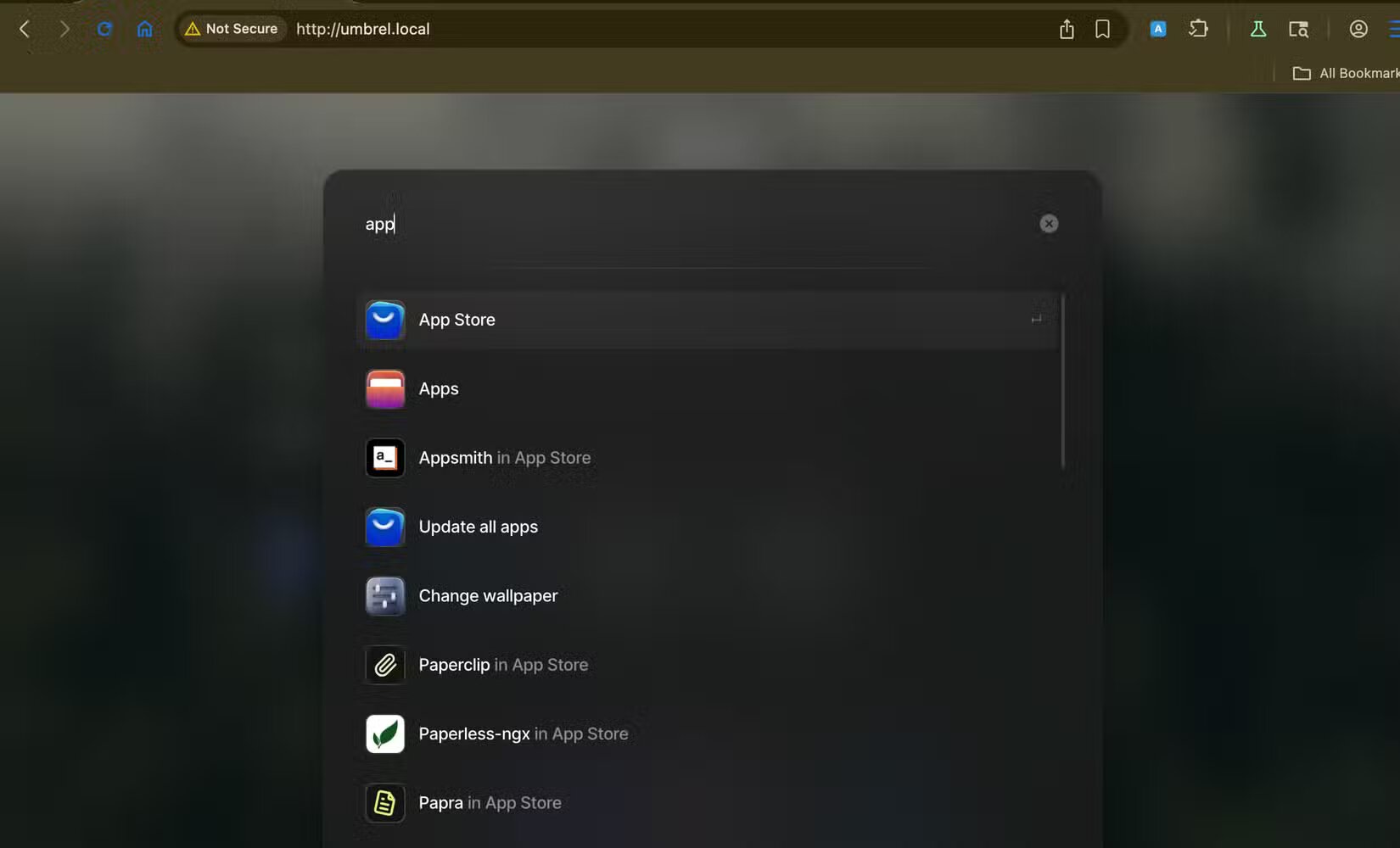
You can use it to launch installed apps or search for apps to install on the app store. It can look up files for you. It can do actions like rebooting the server or creating backups. And, of course, you can search through the files you have on this umbrelOS machine in that search bar.
Easily share files with other devices
You can go through umbrelOS settings to set up file and folder sharing.
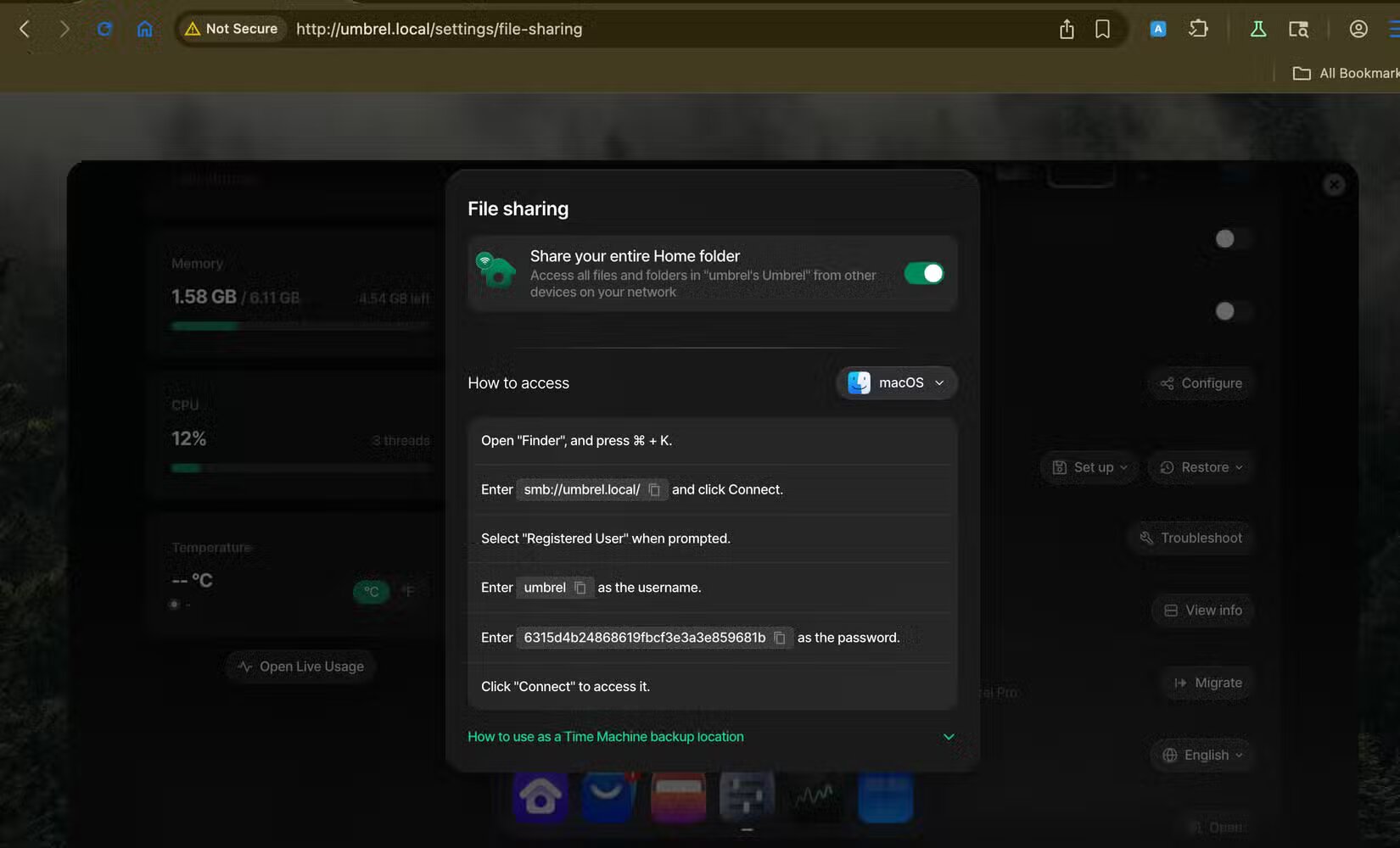
Select which folders you want to share, and then connect using the instructions, alongside the username and password it generates. Then, on the other device where you want to access the shared folders, enter the umbrelOS smb link. Your username and the password as shown in the settings app.
smb://umbrel.local/
Just like that, it’s now showing up as a network drive on my Finder.
Back up your entire server
When you’re trying to host things on your local network, some things are bound to break or fail randomly at some point. When that happens, it’s a good idea to have the right backup system in place. This is another part of the job this OS excels at wonderfully. On the settings menu, there is a backup menu with two buttons.
- Set up > Another Umbrel or NAS > External Drive
- Restore > Full Restore > Rewind
This will back up your umbrelOS machine to another umbrelOS machine on your network, network-attached-storage or (NAS), or a physical USB drive plugged directly into the umbrelOS machine.
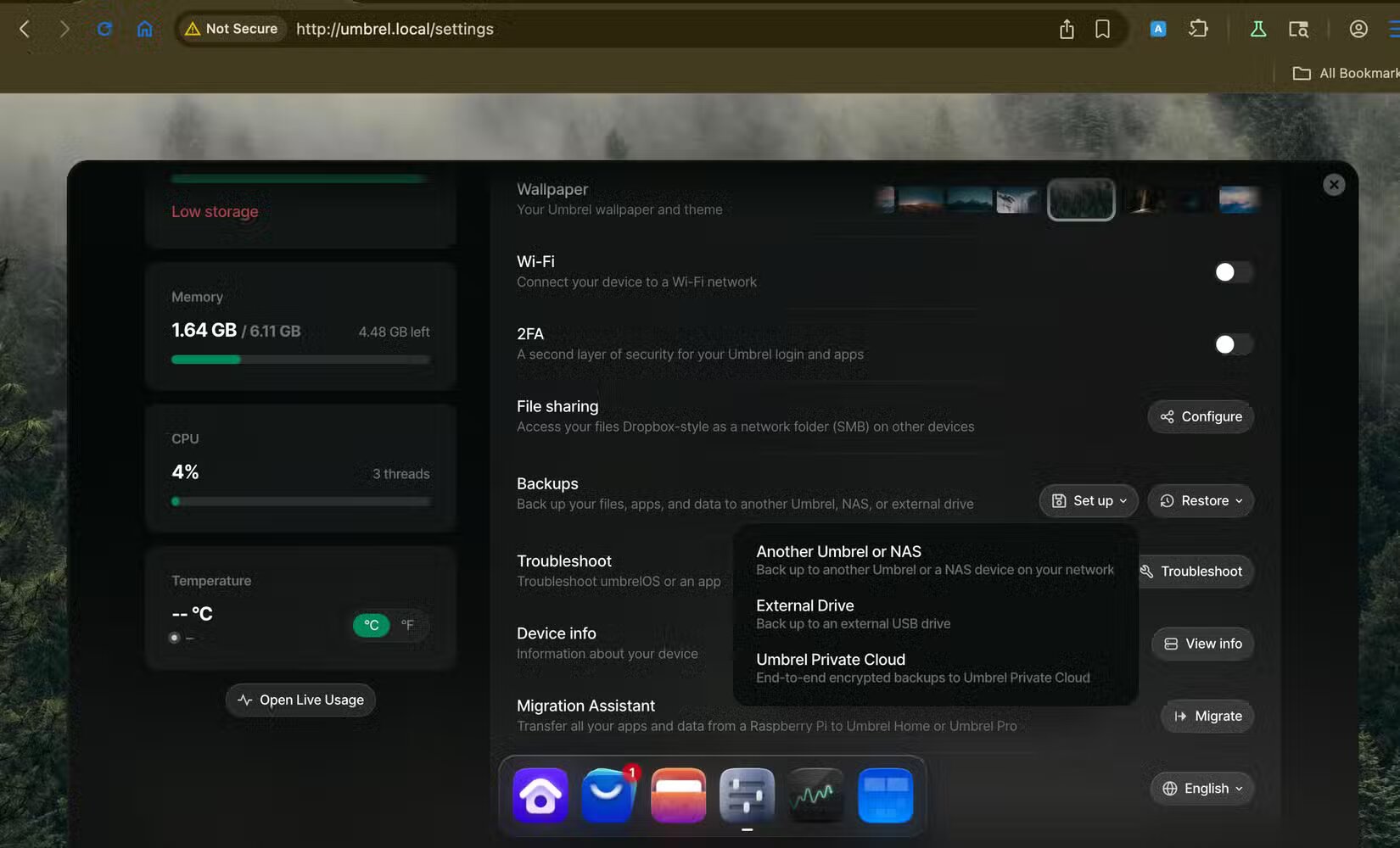
You can restore those automatic backups in two ways.
- Full Restore rebuilds your entire umbrelOS on a new machine.
- Rewind is a “time machine” that restores umbrelOS to a specific save point.
A polished point-and-click user interface for a home server operating system
The umbrelOS is completely free and it’s open-source. It has everything you could need to get a homelab started and make (there are some exceptions like running services which require HTTPS).
Solutie
No need to remember the IP addresses
On umbrelOS, you don’t need to memorize IP addresses to access anything. Once you’ve installed umbrelOS on the server, you can access it on any device that’s on the home network. All you have to do is enter this URL in any browser.
umbrel.local
Leave A Comment?