
Situatie
Microsoft keeps stuffing new features into the Windows 11 Start menu, and with most of them enabled by default, it has become unnecessarily cluttered. Add web search results that have zero value—when I need to search the web, I’ll just open a browser—and you end up with a Start menu that feels bloated rather than helpful. By disabling the following features and options, I turned the Start menu on my Windows 11 PC into a lightweight application launcher and local search interface.
Solutie
Pasi de urmat
I disabled online results in Windows Search
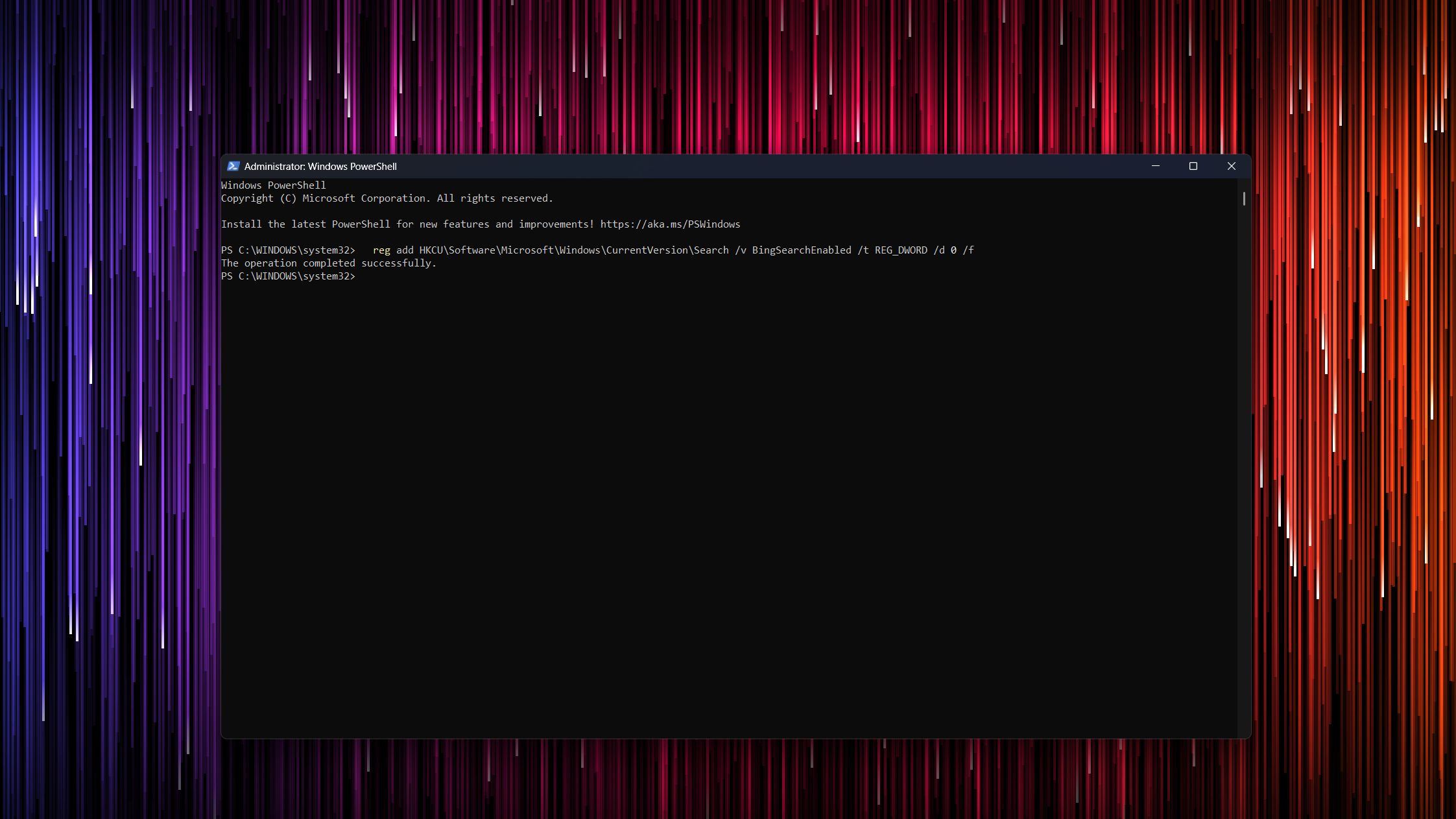
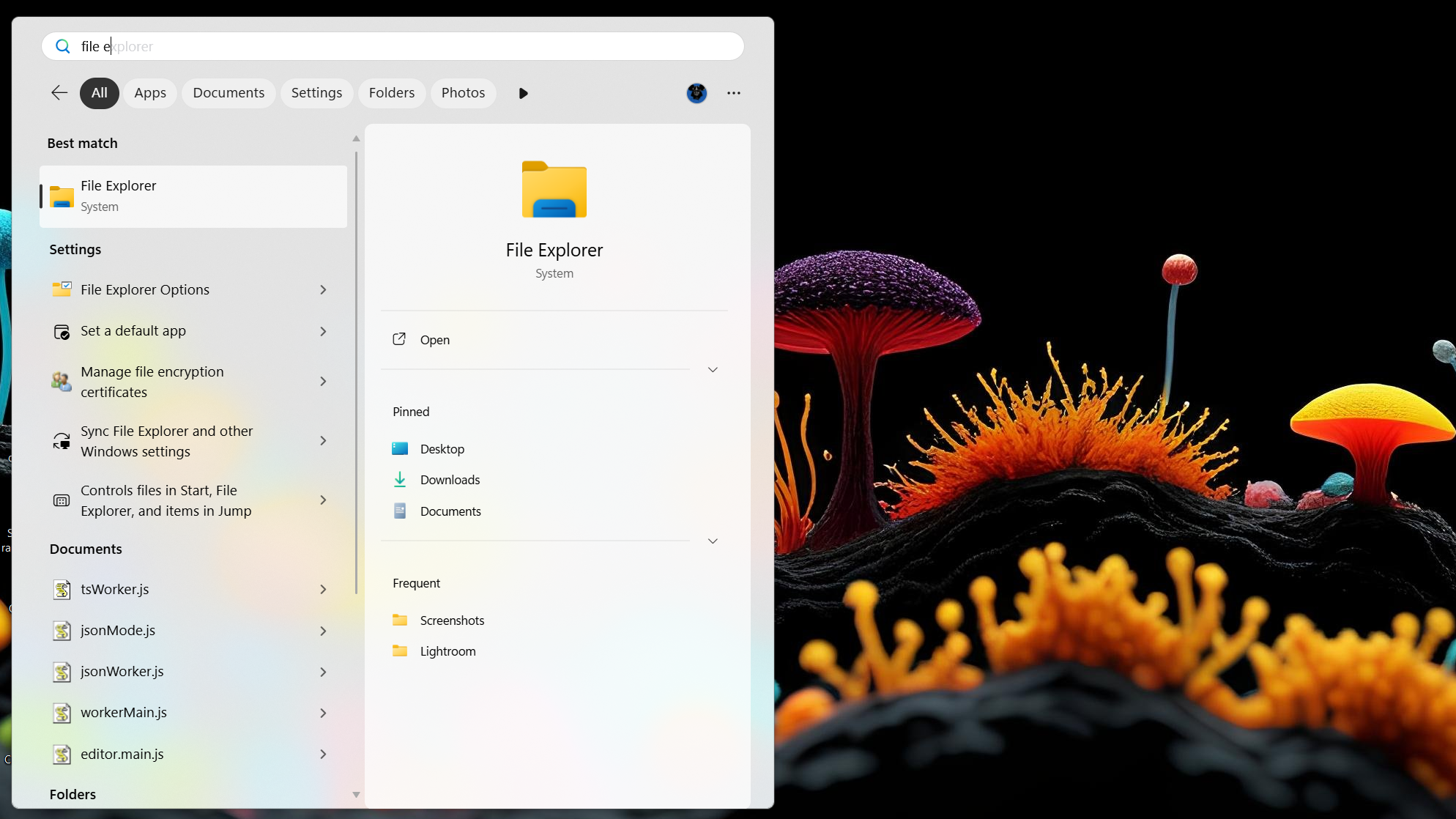
While Microsoft will soon add a setting that lets users disable Bing-powered web results directly from Windows Settings, I disabled online search results in Windows Search a long time ago. Disabling Bing-powered web results is dead simple; all you need to do is open PowerShell and paste the following command:
reg add HKCU\Software\Microsoft\Windows\CurrentVersion\Search /v BingSearchEnabled /t REG_DWORD /d 0 /f
While you won’t have to reboot your PC for the changes to take effect, you’ll likely need to restart Windows Explorer. The only caveat is that you can’t disable Microsoft Store app suggestions from appearing in search results. If nothing else, at least they show up at the very bottom. You can also disable Bing-powered web results from the Registry Editor, but the PowerShell method is faster and simpler.
By default, the Start menu can show app promotions in its Recommended section that serve no purpose other than getting you to install promoted software. Naturally, I disabled this feature the moment Microsoft added it to the Start menu in April 2024.
To disable this feature, open the Settings app, select the Personalization tab, and then click Start. All you have to do now is turn off the “Show recommendations for tips, app promotions, and more” toggle.
By default, Windows pins recently added apps and recommended files—usually recently opened and frequently accessed files—to the Start menu. This can be useful in some situations, but I don’t need those recommendations because all they do is add clutter. So, I disabled both features in Settings.
To do this, open Settings, go to Personalization > Start, and turn off the “Show recently added apps” and “Show recommended files in Start, recent files in File Explorer, and items in Jump Lists” toggles. Note that I don’t recommend disabling the second toggle if you rely on File Explorer and Jump Lists to show recent files. However, since I don’t use the latter and pin all important and frequently accessed folders to File Explorer’s Quick Access, I disabled it.
Windows 11 shows a number of folder shortcuts next to the Power button in the Start menu by default. I don’t need this feature because I’ve pinned all my important folders to Quick Access in File Explorer, so I disabled every folder from appearing next to the Power button. The only button that survived is Settings because, if you ask me, you can never have enough shortcuts to the Settings app.
If you want to do the same, open Settings, navigate to Personalization > Start > Folders, and remove every folder shortcut you don’t want to see next to the Power button.
One of the features Microsoft has added to the Start menu is grouping apps into automatically generated categories. This could’ve worked if you could actually create and edit them, but you can’t, which makes the feature practically unusable. I can’t rename them or move apps and games between categories—I can’t do squat.
The result is a mess of categories that don’t make any sense. For instance, on my PC the Forza Horizon 6 shortcut is placed in the Other folder, the Games folder has a subfolder containing Steam games (that doesn’t include every Steam game installed on my PC), and I also have an Entertainment folder that hosts game launchers—why not put those in the Games folder?—and so on.
So, as soon as I noticed the change (of course Microsoft made Categories the default view after adding it), I reverted to the list app view. To do this, just click the View button and switch to List or Grid, whichever suits you best.
Leave A Comment?