
Situatie
I’m not currently a KDE user—I prefer GNOME, but I’m happy to give kudos where kudos are due. I’ve used KDE on and off over the years, and Dolphin remains the cream of the Linux file manager crop. GNOME Files serves me well, but Dolphin shows me how my file manager could serve me better.
Solutie
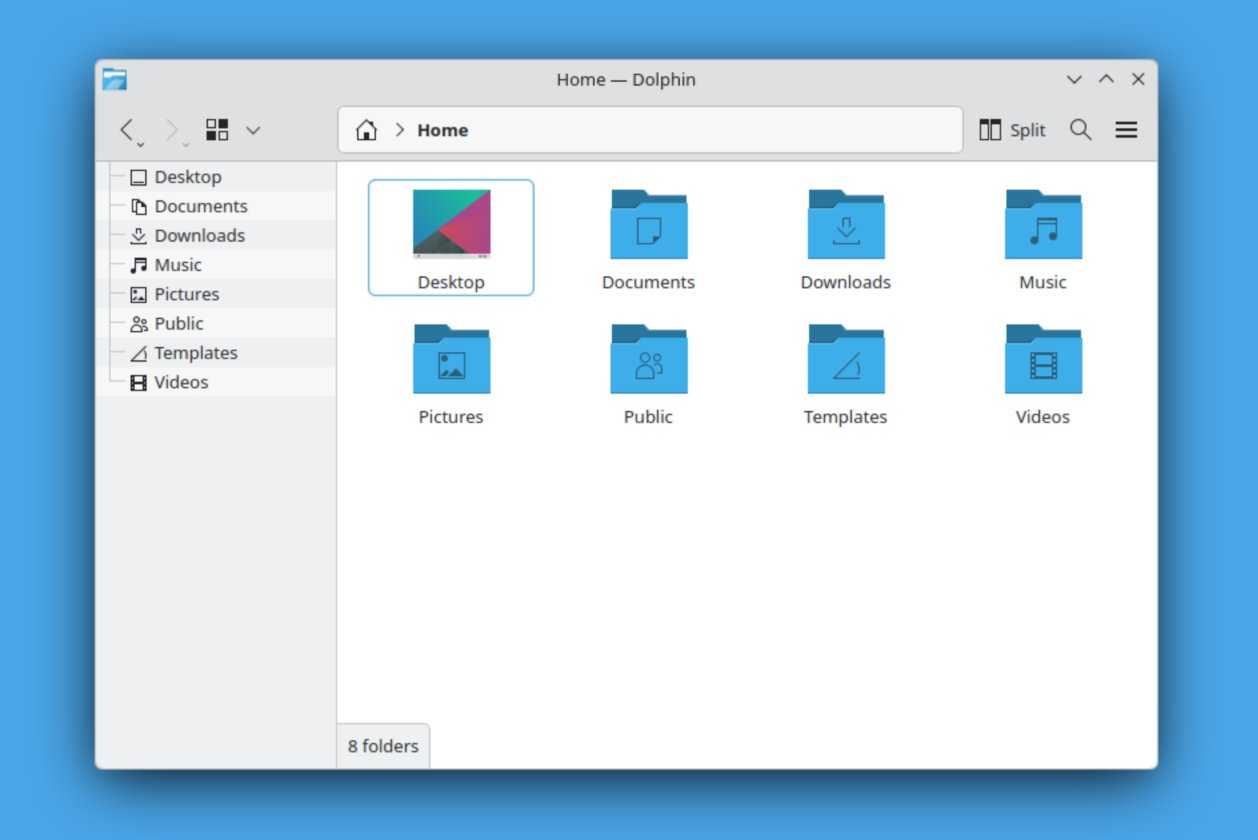
No matter how well-thought-out a design might be, there isn’t a single look and feel that appeals to everyone. If you don’t like the layout in GNOME Files, unless you want to dive into modifying the code, your best option is to seek out an alternative app. Sure, there are ways to configure GNOME Files, but it just doesn’t compare to what’s possible in KDE’s Dolphin.
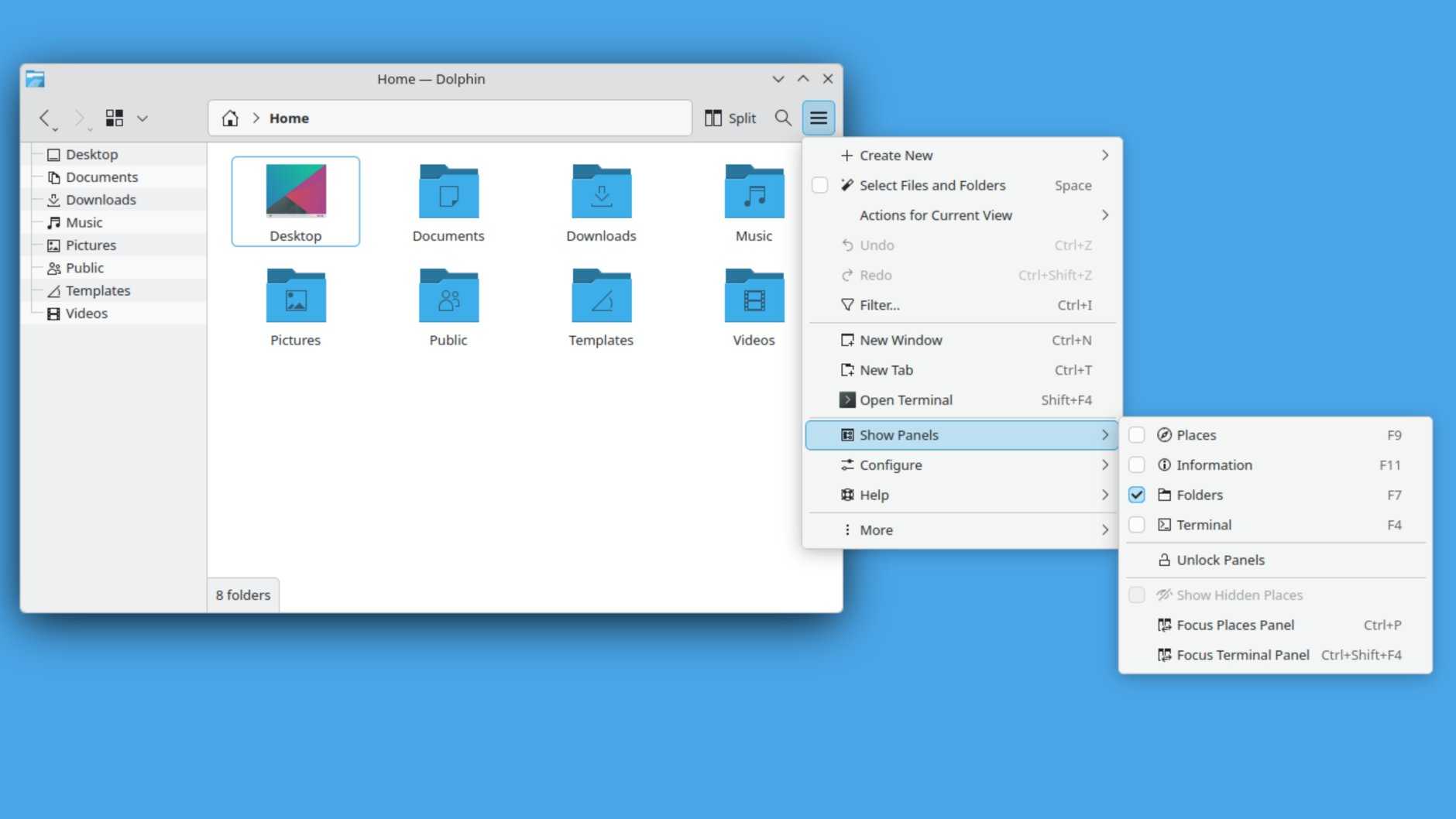
In Dolphin, everything is a panel or a toolbar, and you can decide what you see and what you don’t. Just tap the hamburger menu, select Show Panels, and check the boxes next to the panels you wish to see. If you don’t want the default sidebar, uncheck the Places panel. If you want contextual information on every file or folder, enable the Information panel. Prefer to see Folders instead of Places in the sidebar? You know what to do.
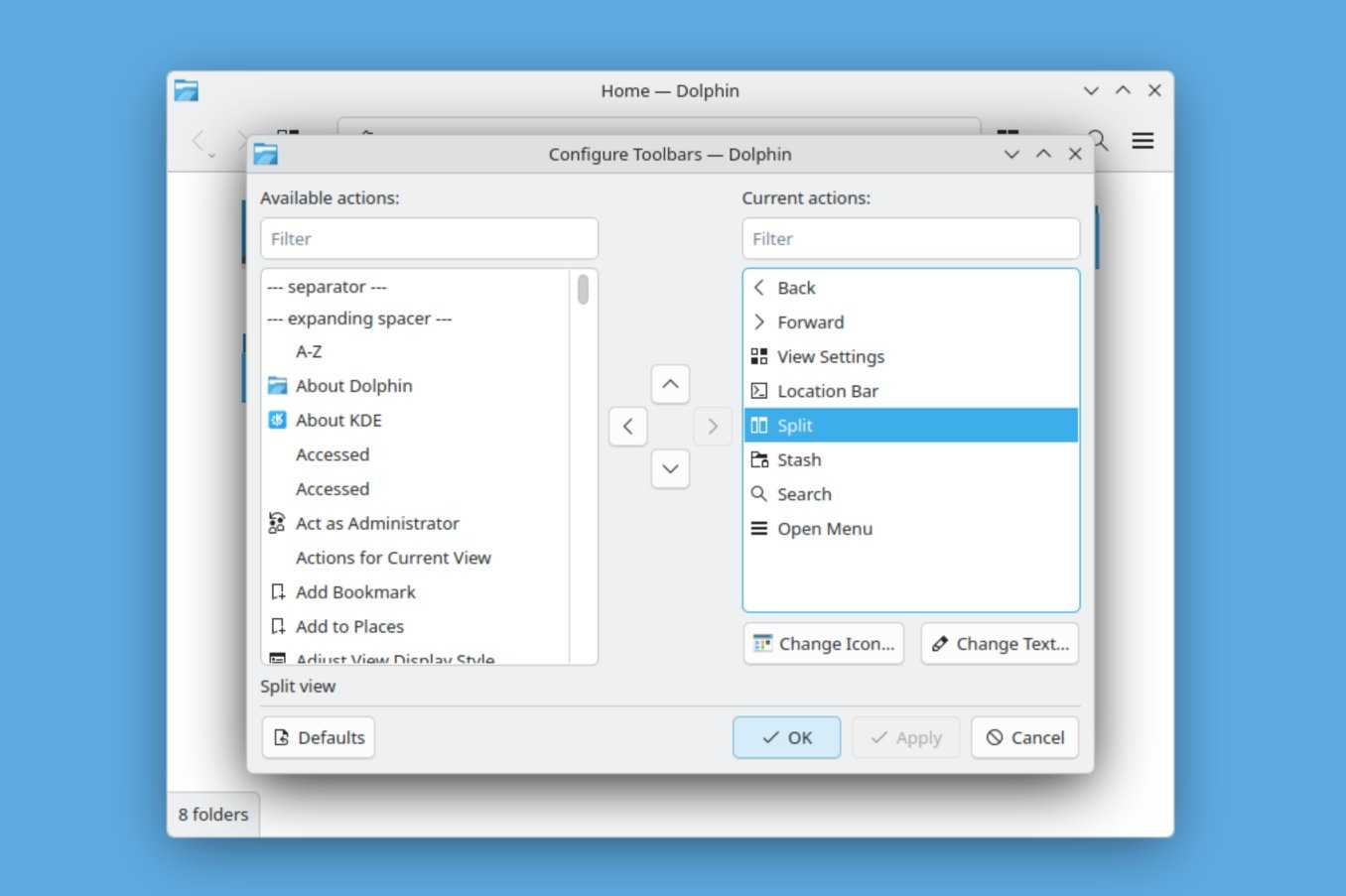
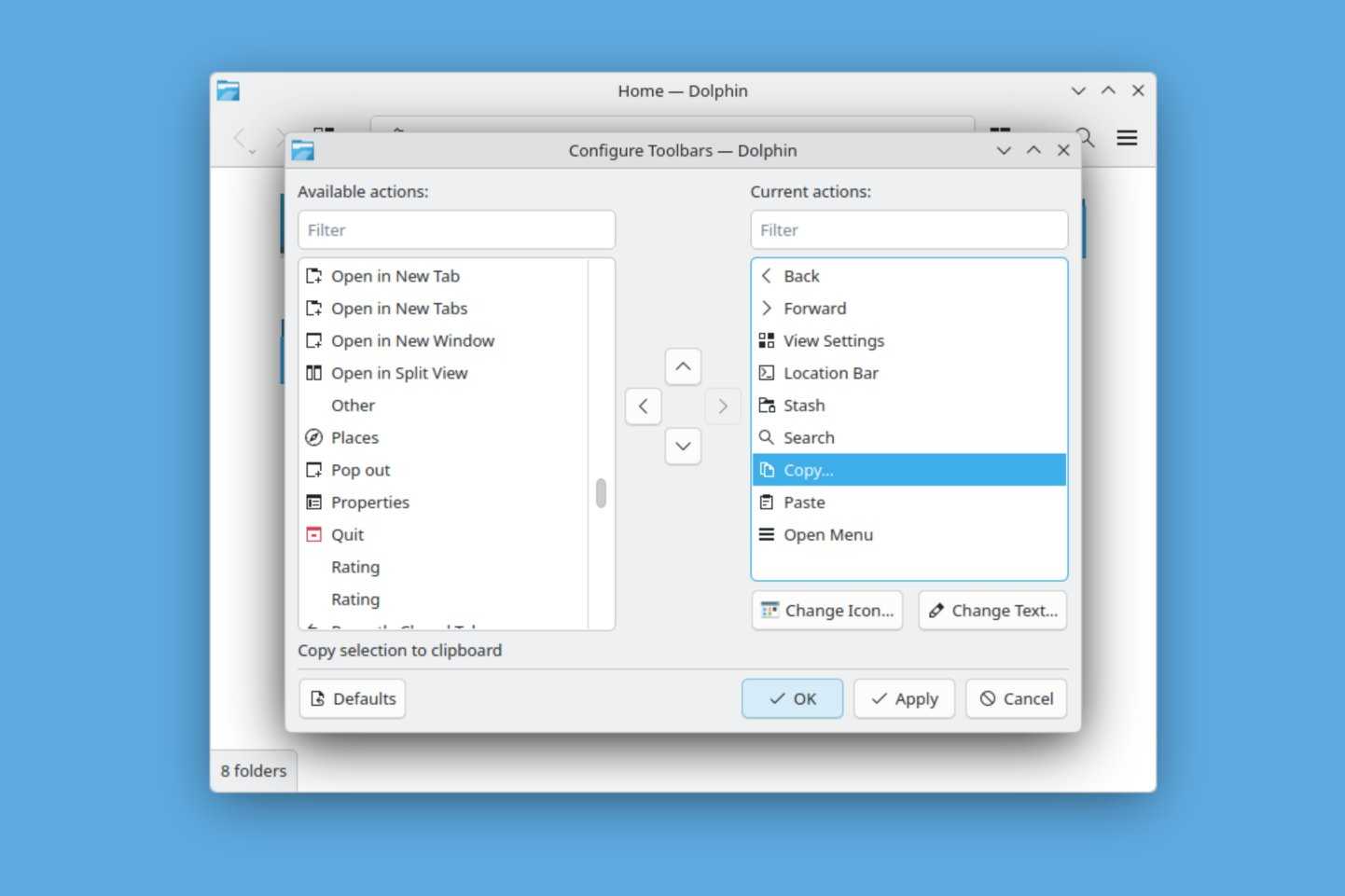
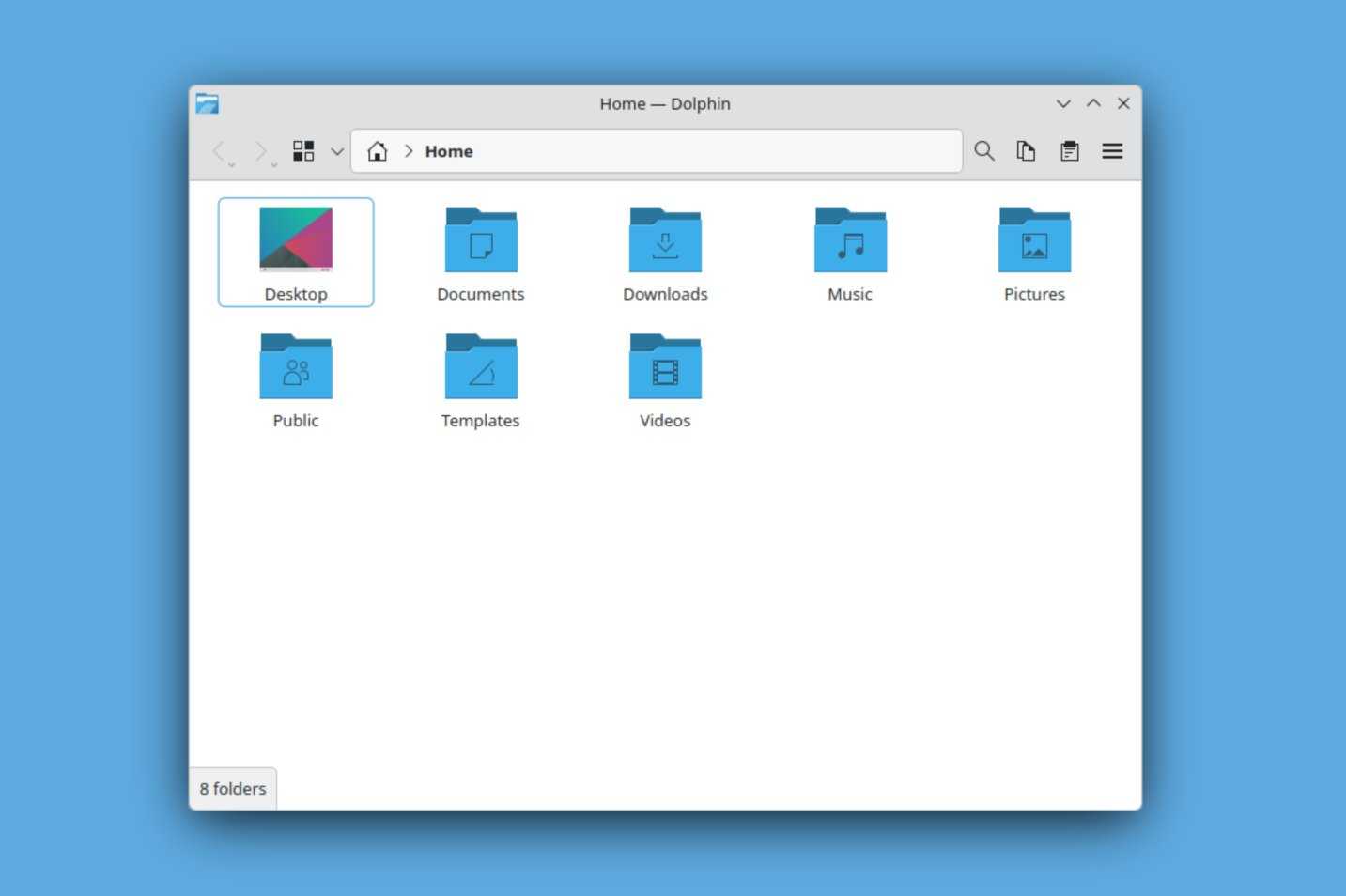
Likewise, I can tweak every aspect of the toolbar. I have complete flexibility to remove, add, or re-arrange the icons present. If I never tap the “Split” icon, I can get rid of it. If I want “copy” and “paste” buttons to be more accessible when using Dolphin on a touchscreen, I can give them a home on the toolbar. The experience is akin to configuring the toolbar in Mozilla Firefox, the default web browser on most versions of Linux, including those you buy pre-installed.
You can integrate a terminal directly into the file manager
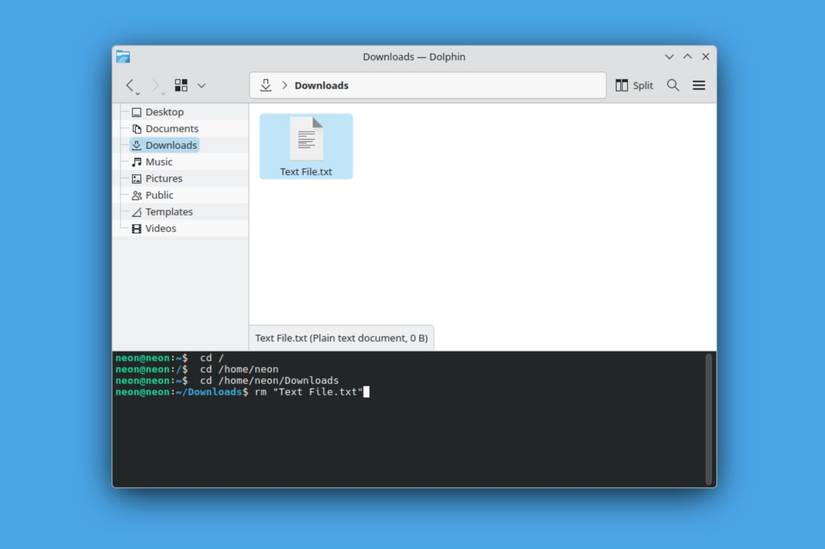
I don’t live in the command line, and I don’t have the file system completely memorized. Whenever I want to navigate to a folder using text, I find myself opening my graphical file manager in order to find the path to the folder I’m looking for. This can really take the fun out of using commands like find.
Many Linux file managers can save me this hassle by allowing me to right-click and open a terminal window in the location I’m in, but this is only convenient when initially open the window. I then need to return to my graphical file manager when accessing other locations.
Dolphin lets me open a terminal window inside Dolphin. The terminal will follow the location as I click around, greatly simplifying the process of hoping back and forth between the two. I don’t need to know or look up locations, because it does that work for me.
I can create network folders directly from Dolphin
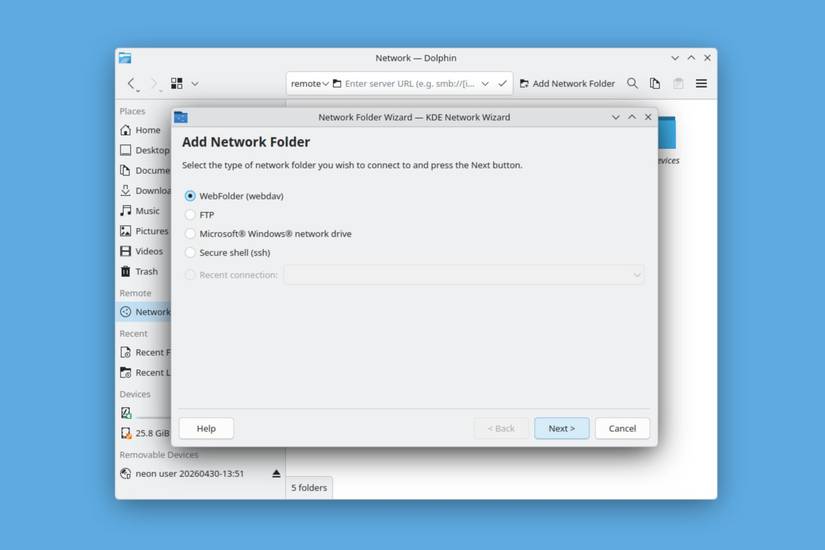
Dolphin presents easy ways to create various types of shared folders, including webdav, FTP, and Samba. Plus, this folder can be placed anywhere on my drive. I’m not limited to the default Public folder in my home directory. This is one area where, in attempting to make things more simple, GNOME Files makes file sharing more confusing instead.
It’s so easy to select many files at once
I don’t need to reach for keyboard shortcuts
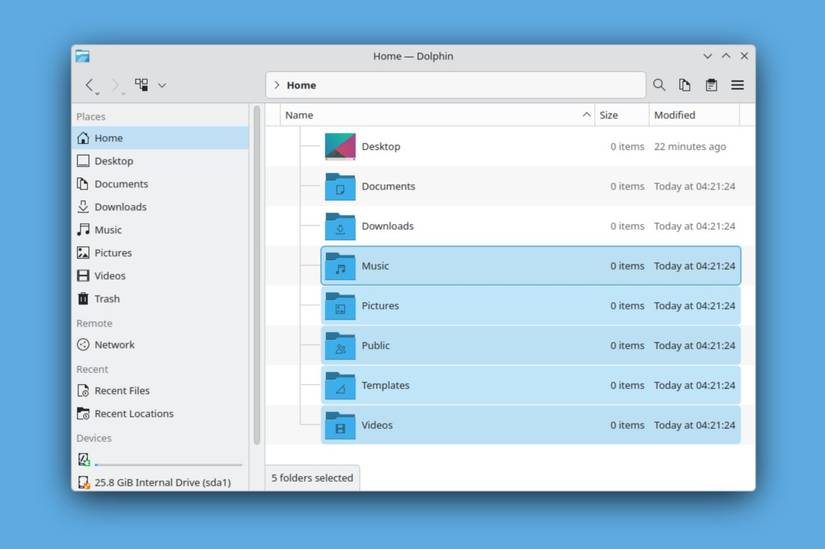
I understand that mastering keyboard shortcuts is the fastest way to navigate a file manager, and I am familiar with them. Press Ctrl-A to select all files, then hold Ctrl while pressing arrow keys to adjust which files are selected. But there still regularly comes a time when I need to reach for the mouse, holding Ctrl while I select specific files. It all feels overly complex.
Leave A Comment?