
Situatie
Solutie
-r or -R: Recursive Copy
You can use the cp command for copying both files and directories. By default, it only works on files. If you try to use it with directories, you’ll get an error that skips copying the directory.
cp dirA/ dirB/
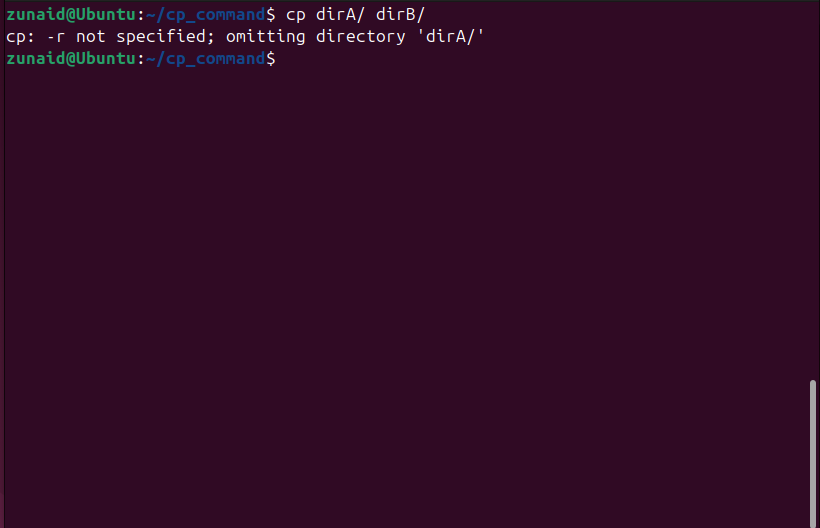
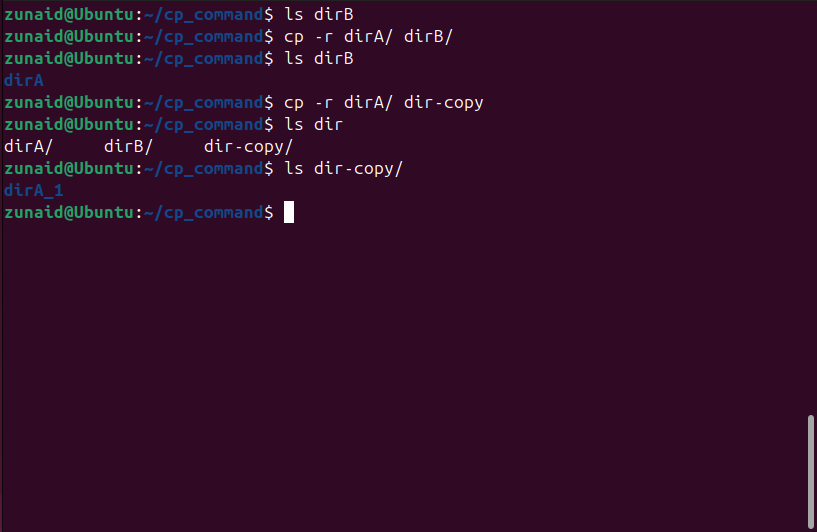
This is where the -r flag comes into play. By using the -r flag, you can also copy directories and files inside them.
cp -r dirA/ dirB/
cp -r dirA/. dirB/
If you just want to create a copy in the same directory, you can, instead, pass a new name as an argument.
cp -r dirA/ dir-copy # copying the directory and renaming it
-u: Copy Only When Source Is Newer
One of the most underrated flags for the cp command is -u. This option tells cp to only copy a file if the source file is newer than the destination or if the destination doesn’t exist yet.
Imagine you’ve got a directory full of project files that you’re backing up to another folder. Running a normal recursive copy every time will overwrite all the files, even the ones that haven’t changed. That’s wasted I/O and, depending on the size of the project, could slow things down considerably.
cp -ru reports/ backup/
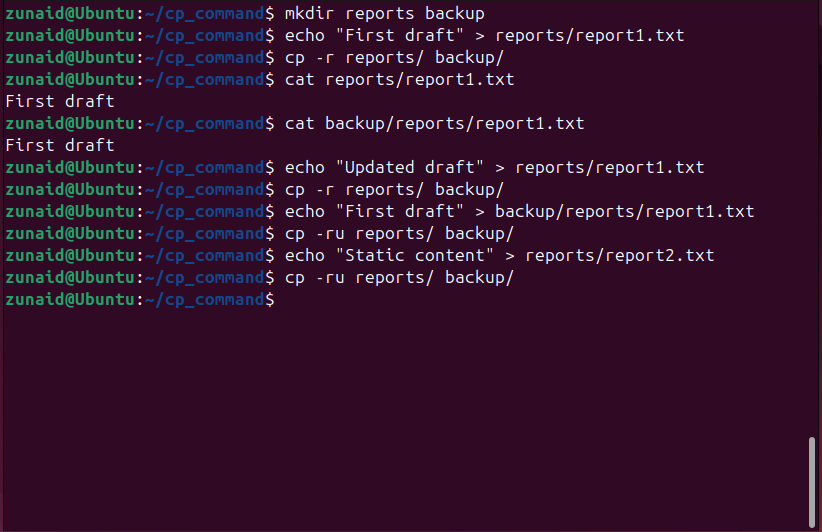
As seen in the above screenshot, I did a little experiment that you can also follow. The first run will copy everything. The second run will copy only the files you’ve touched or created since the last backup. If nothing has changed, the command will finish almost instantly.
-i: Interactive Mode
If you’re forgetful like me, you’ve probably run the cp command without thinking, hit Enter, and suddenly realize you’ve just overwritten a file you really didn’t want to lose. By default, cp won’t ask for confirmation. It’ll just replace the destination file silently. That’s where the -i flag comes in handy. It tells cp to ask before overwriting a file. If a destination file already exists, cp will prompt you with a simple question like:
cp: overwrite 'file.txt'?
cp -i report1.txt reports/
# cp: overwrite 'reports/report1.txt'? n
cp -i report1.txt reports/
# cp: overwrite 'reports/report1.txt'? y
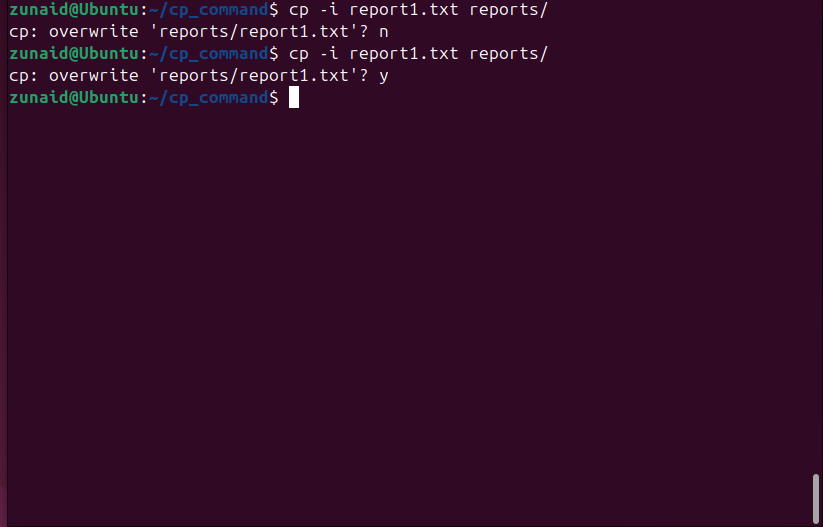
If “reports/report1.txt” already exists, you’ll get asked before replacing it. Without -i, the file would be overwritten without warning. This is particularly useful when copying into locations like “/etc/” or “/var/,” where a wrong overwrite could cause significant issues. In case you want to copy a bunch of files and only some already exist in the target, -i lets you decide case-by-case.
-v: Verbose Mode
The -v flag is pretty common for Linux commands. It enables verbose mode, which is useful to see what happens in the background when you run a command. For the cp command specifically, the -v flag shows what exactly it’s copying. With -v, every file that gets copied is printed to the terminal in the format:
'source' -> 'destination'
cp -v report1.txt backup/
For multiple files, you can use a wildcard:
cp -v *.txt backup/
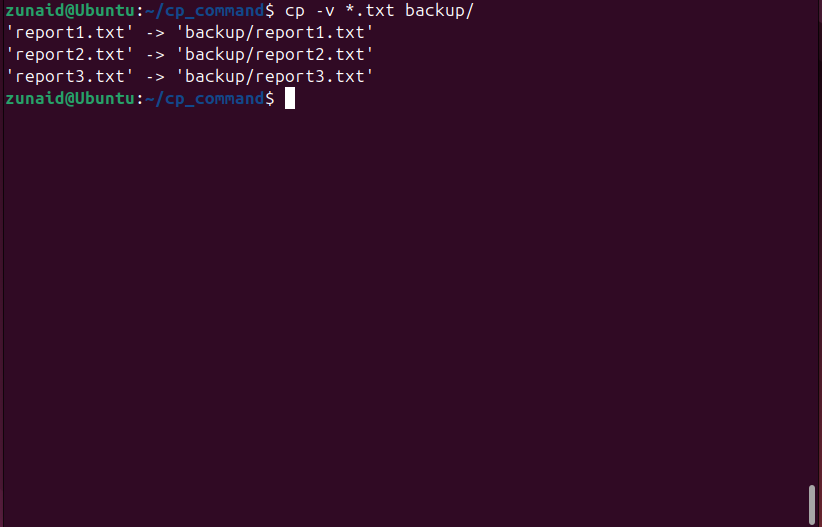
Now you have confirmation that every file actually went where you expected. When you’re copying files in batches, the verbose flag gives you a running log of progress. It’s also useful to catch those small mistakes in case of a failed copy.
-p: Preserve Attributes
By default, the cp command focuses on getting the content of your files from point A to point B. But sometimes the metadata, things like timestamps, file modes, and ownership, are just as important as the file itself. That’s what the -p flag is all about: preserving attributes.
cp -p config.cfg backup/
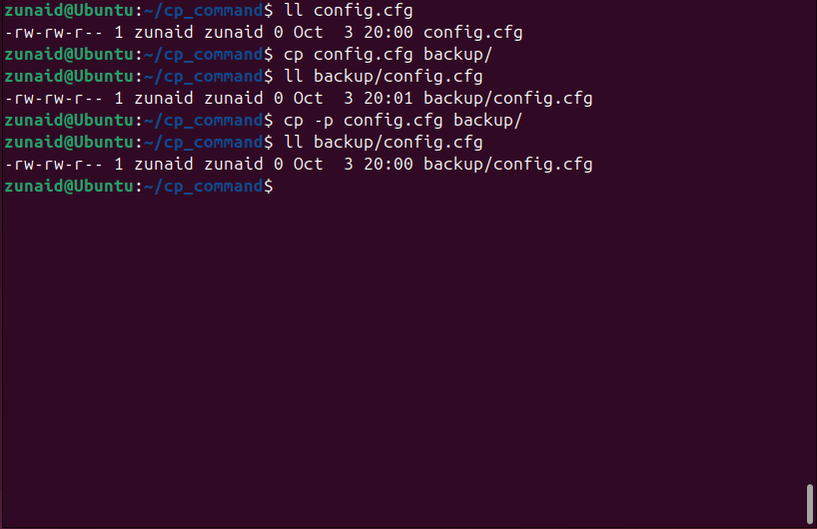
In the case of recursive copying:
cp -rp project/ backup/
This will copy the entire project/ directory, ensuring all files keep their original attributes. If you’re archiving files, you don’t want them to all show today’s date. Preserving the original timestamps helps you know when things actually changed.
Leave A Comment?