
Situatie
Solutie
My previous PC only had a single 500GB SSD that I used as both the boot drive and for installing games, so I had to deal with low storage warnings regularly because the drive was almost always nearly full.
Oftentimes, I was able to free up a good chunk of storage by deleting random subdirectories inside the AppData folder used by apps and games that were taking up multiple gigabytes of space. The command I used to hunt down the folders taking up the storage space was very similar to the following:
Get-ChildItem "path to the location" -Directory | ForEach-Object {
$size = (Get-ChildItem $_.FullName -Recurse -File -ErrorAction SilentlyContinue | Measure-Object Length -Sum).Sum
[PSCustomObject]@{
Folder = $_.FullName
SizeGB = [math]::Round($size / 1GB, 2)
}
} | Sort-Object SizeGB -Descending
All you have to do is replace “path to the location” with the target directory you want to scan. Since the AppData folder is always my first suspect, I usually start the hunt by typing the following location:
"C:\Users\Administrator\AppData"
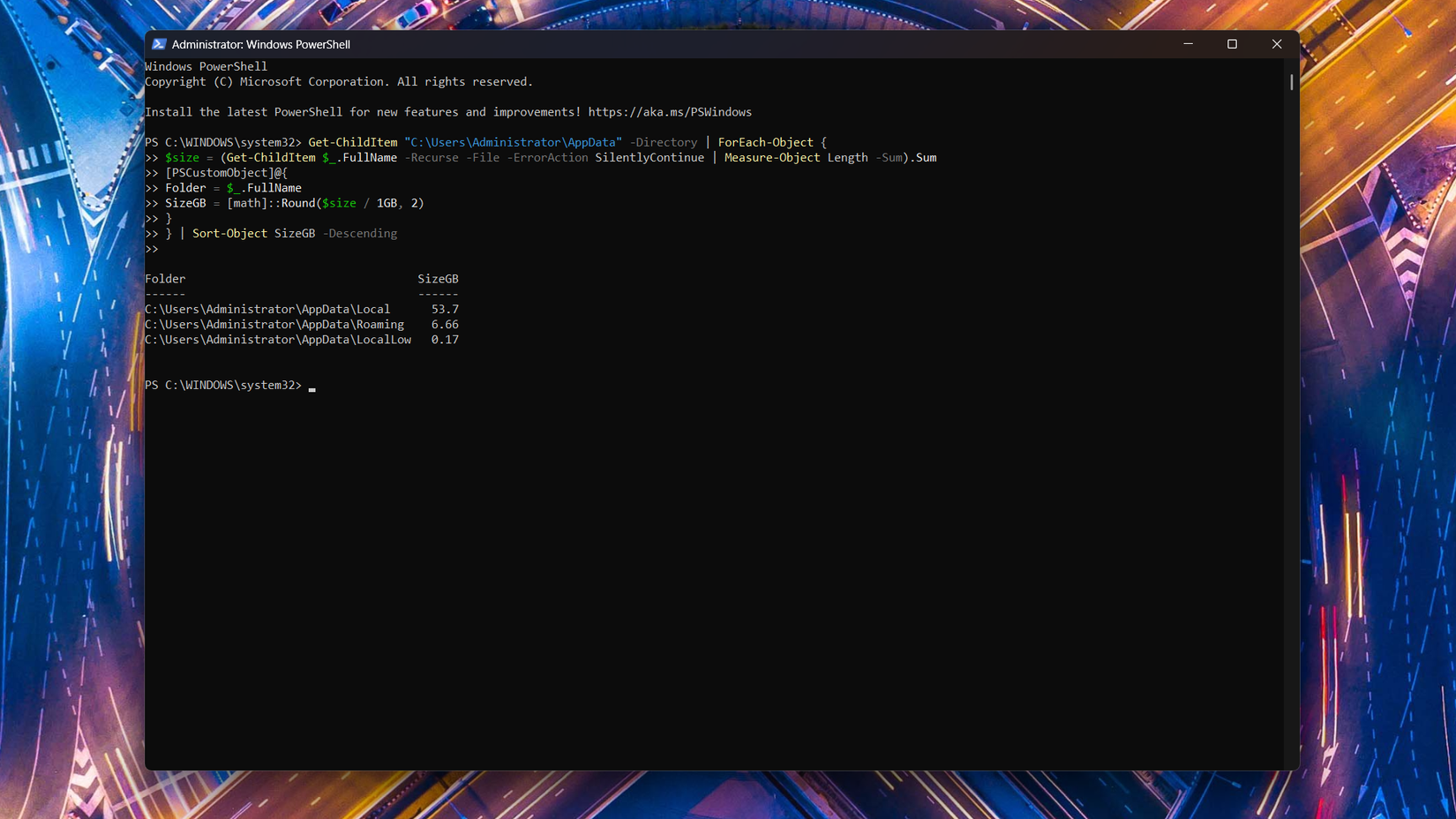
As you can see below, my AppData/Local folder is taking up more than 50GB of space! This isn’t an issue on my current PC since I’ve got a 1TB SSD as my boot drive, along with another 1TB SSD for games, but back when I used a puny 500GB SSD for both Windows and games, this would have been a massive issue.
Once you locate the folder eating up the space, you can go one level deeper and find which subfolders are the real storage sinks. In my case, I’m running the command again, but with the following path:
"C:\Users\Administrator\AppData\Local"
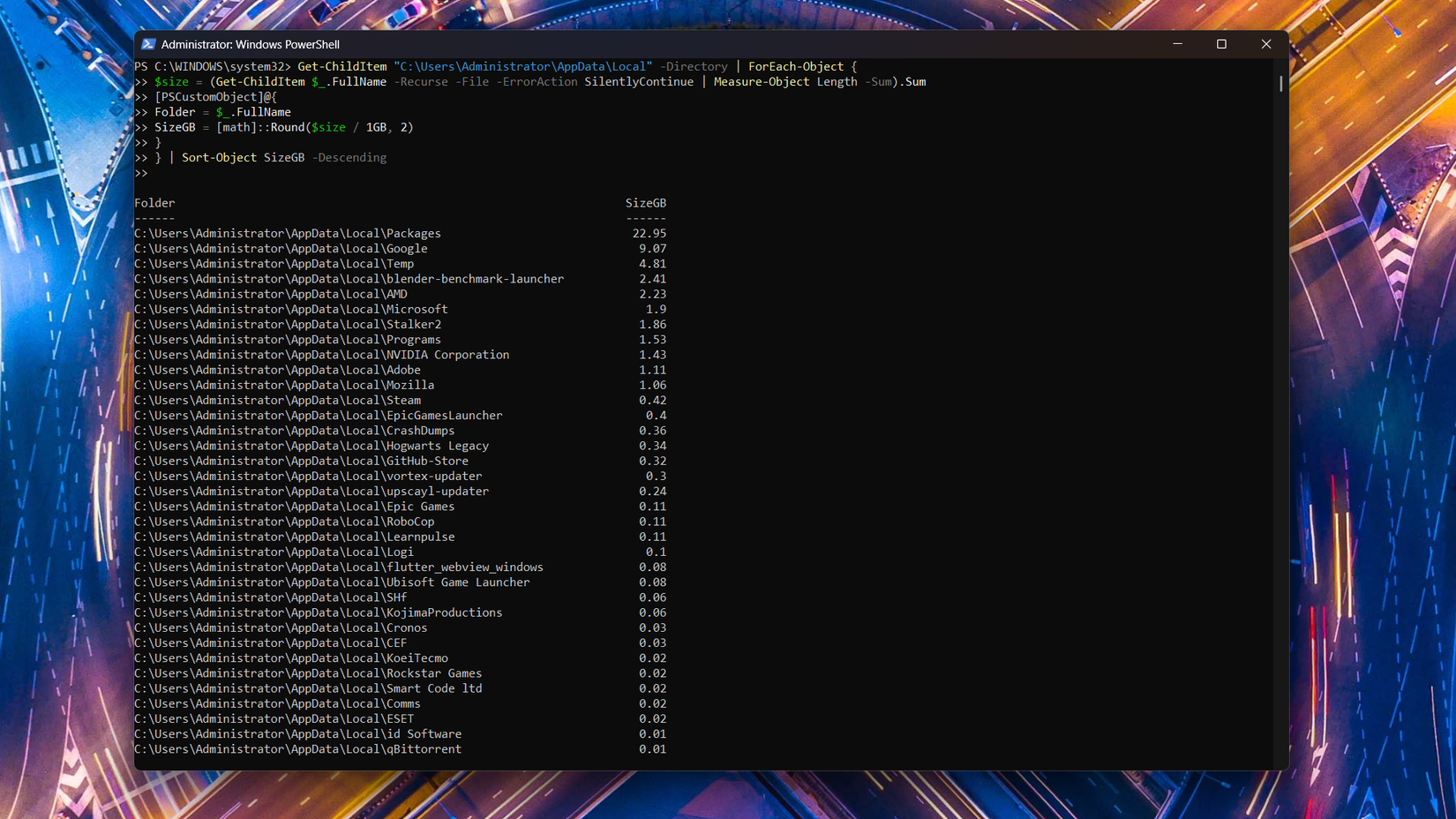
As you can see below, the Packages directory is the worst offender, but a number of other folders are also taking up multiple gigabytes of space. It looks like I’ll have to do some more digging and deleting once I finish writing this piece.
Leave A Comment?