
Situatie
Corruption is bad in any walk of life, but you certainly don’t want it in your computer. Yet when your apps aren’t working correctly, or Windows seems to just crash for no reason, there’s a good chance file corruption is the culprit.
If you’re really lucky, Windows will straight up give you an error message that cites file corruption or alludes to files being unreadable. Either way, there are more than a few ways to quickly restore corrupted Windows system files without doing anything drastic—like a complete hard drive wipe and reinstallation.
Solutie
Pasi de urmat
Understanding why Windows files become corrupted
Corruption is bad in any walk of life, but you certainly don’t want it in your computer. Yet when your apps aren’t working correctly, or Windows seems to just crash for no reason, there’s a good chance file corruption is the culprit.
If you’re really lucky, Windows will straight up give you an error message that cites file corruption or alludes to files being unreadable. Either way, there are more than a few ways to quickly restore corrupted Windows system files without doing anything drastic—like a complete hard drive wipe and reinstallation.
Understanding why Windows files become corrupted
Prevention is always better than the cure, and understanding why your files were corrupted in the first place is a good way to avoid it happening again in the future. These are some common causes:
- Sudden power loss
- Interrupting a critical part of a Windows update while in progress
- Failing storage media
- Malware or malfunctioning software
It really doesn’t take much. Just a few bits and bytes damaged in a critical DLL or other resource file, and Windows will start acting loopy. So how can we fix what’s broken? There are four key tools that aren’t exactly a secret, but they’re also not the most obvious solution if you have no idea why your PC is suddenly messed up.
Running System File Checker (SFC) for basic repairs
The first stop when you suspect your system files are broken is a tool called the “System File Checker” which does exactly what you think based on the name.
All you have to do is open the Command Prompt as an administrator and then type sfc /scannow and then press Enter.
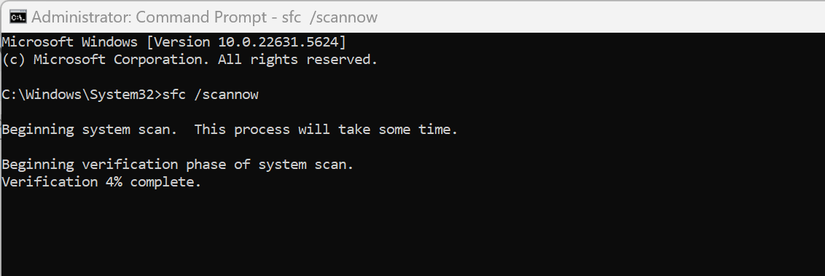
It can take a while depending on how bad things are and how fast or slow your system is. The scan should complete with either a message saying nothing is wrong, that errors were found and fixed, or that some errors could not be fixed.
It’s a good idea to run SFC after something like a disk checking utility. So that any physical data corruption issues with the drive can be detected and hopefully repaired before trying to restore those files using SFC.
Using DISM to fix the Windows component store
So SFC didn’t work, or it sort of worked but says things couldn’t be repaired. So our next port of call is DISM (Deployment Image Servicing and Management).
This tool can repair the master reference list that SFC uses to determine if a file is missing or broken, and all you have to do is open the Command Prompt as an administrator and type DISM /Online /Cleanup-Image /RestoreHealth followed by Enter.
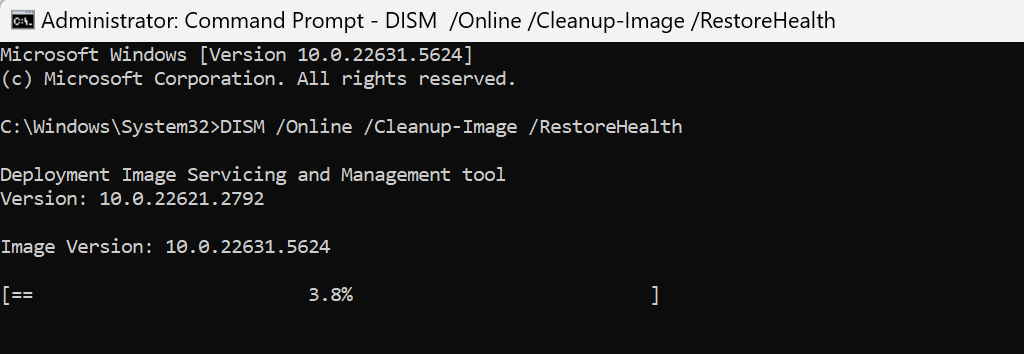
You can run SFC again after this to check if you have a clean bill of health.
Repairing Windows startup and boot files
The tricks we’ve tried so far only work if you can actually get into Windows, but what if your OS doesn’t even start up at all? That’s when we need to look to tools outside the OS to repair what’s gone wrong.
Windows 11 has a feature known as the Windows Recovery Environment (WinRE). You don’t need to do anything special to get into this environment if your computer won’t boot, because, after three failed attempts to boot, WinRE launches automatically. All you have to do is click on the “Startup Repair” option and follow the instructions.
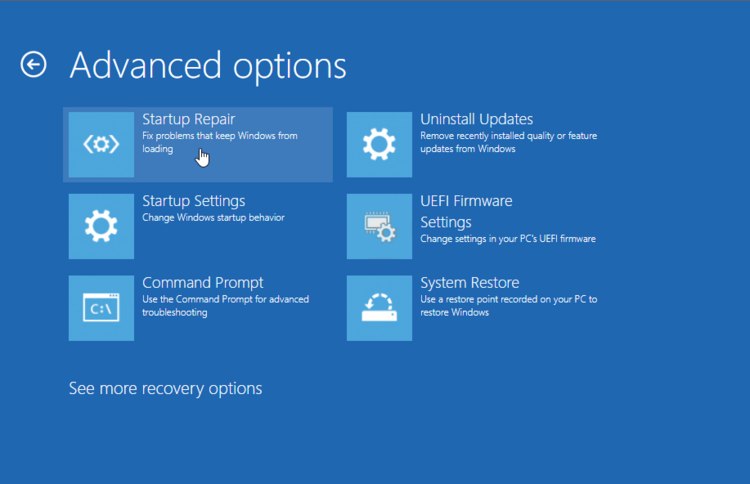
This should identify what’s stopping Windows from booting up and fix the issue. If you are on Windows, but you want to access WinRE, all you have to do is hold the Shift key while selecting Power > Restart.
Using in-place repair installs when tools aren’t enough
If things are so busted that you can’t even get WinRE to work, it’s time to go nuclear, but not so nuclear that you actually lose any of your files.
The answer is to do an in-place “repair installation”, which is basically installing Windows from external media, but keeping your files and even your apps. If you don’t have Windows installation media, the first step is to create a Windows 10 or Windows 11 bootable USB drive using the Windows Media Creation Tool.
From here the process is the same as installing WIndows. Refer to your computer’s manual to determine how to boot from a USB drive. Once the computer boots into the Windows installer, choose to proceed with the installation, and then, instead of choosing a clean installation. Choose “Repair my PC”, which should repair any corrupted files without touching your data.
Leave A Comment?