
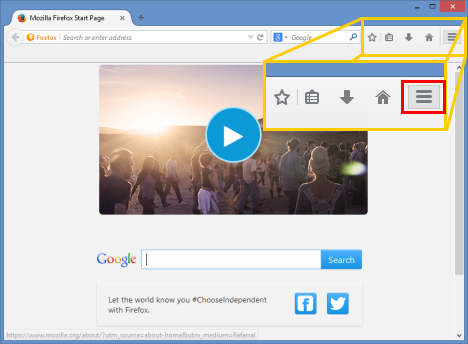
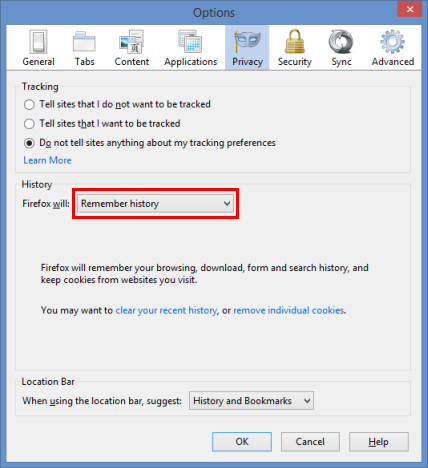
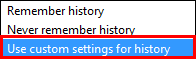
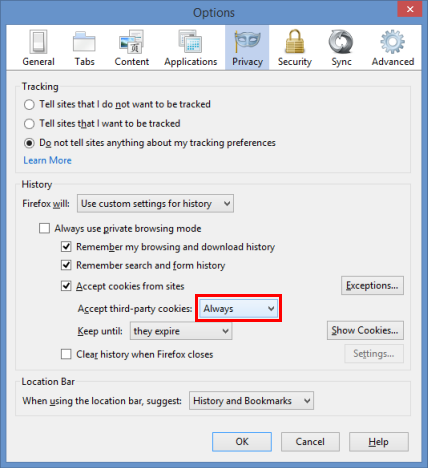
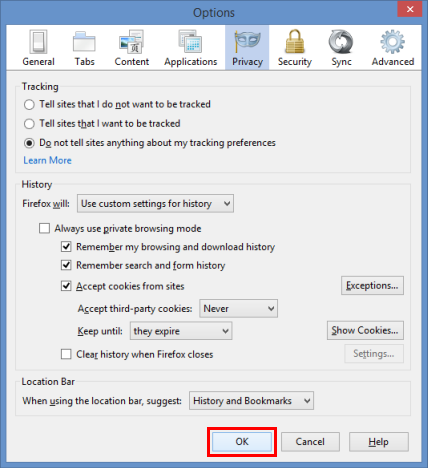
Cum sa dezactivezi “third-party cookies” in Mozilla Firefox Data 22/06/2015 Autor Laurentiu G Categorie Configurare browser, Aplicatii specifice, Stații de lucru -5 1254 Configurare noua (How To) SituatieCum sa dezactivezi “third-party cookies” in Mozilla Firefox Solutie Pasi de urmat Pentru dezactivare trebuie apasam butonul de meniu Apoi apasam butonul “Options”(Optiuni) Schimbam meniul pe “Privacy” In sectiunea de “History” Selectam “Use custom settings for history”(Folosirea setarilor customizate pentru istoric) La optiunea “Accept third-party cookies” Selectam “never” Apoi apasam butonul “OK” pentru finalizare Tip solutiePermanent Voteaza Up Down (23 din 51 persoane apreciaza acest articol) ShareTweetShare Despre Autor Laurentiu G Solutii Asemanatoare Bring your Windows Desktop to life with Wallpaper Engine 7 How to move Taskbar to top or side on Windows 11 3 Arduino Soil Moisture Sensor 5 Review Attack Shark X3Pro mouse 3 Review Attack Shark x85 keyboard 2 Arduino Fingerprint Sensor 6 Leave A Comment? × Cancel Reply Save my name, email, and website in this browser for the next time I comment. one + = six
Leave A Comment?