
Situatie
To enable the old context menu after the update KB5132061, follow these steps:
Solutie
1. Open Start on Windows 11
2. Search for Command Prompt and click the top result to open the shell
Quick tip: The trick here is not to run the terminal elevated
3. Type the following command to enable the old right-click context menu after installing the November 2026 Security Update (KB5132061) and press Enter:
reg add “HKCU\Software\Classes\CLSID\{86ca1aa0-34aa-4e8b-a509-50c905bae2a2}\InprocServer32” /ve /f & reg add “HKCU\Software\Classes\CLSID\{51668040-5e31-4023-bbe3-149163bd80f1}\InprocServer32” /ve /f
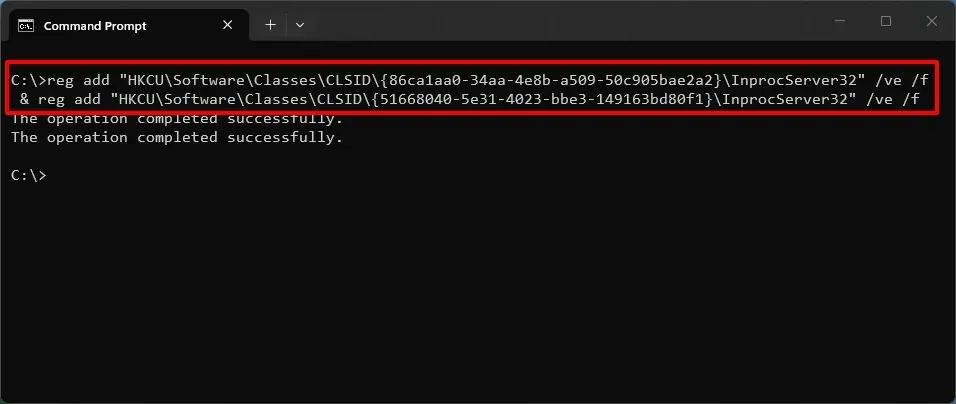
4. Type the following command to terminate the Windows Explorer process and press Enter:
taskkill /f /im explorer.exe
5. Type the following command to restart the Windows Explorer process and press Enter:
start explorer.exe
After you complete the steps, you should be able to access the old right-click menu in File Explorer even after installing the November 2026 update.
Leave A Comment?