Atunci cand nu functioneaza search in Outlook
Am intalnit situatia in care nu mai puteam folosi search in Outlook. Mai jos aveti una dintre rezolvarea acestei probleme.
[mai mult...]
Soluții pentru problemele tale IT

Am intalnit situatia in care nu mai puteam folosi search in Outlook. Mai jos aveti una dintre rezolvarea acestei probleme.
[mai mult...]Daca utilizezi o versiune online pentru Outlook poti folosi functiile de stergere sau exportare pentru cautarile efectuate.
Aceste cautari pot fi sterse din motive de securitate sau exportate pentru analiza datelor sau gasirea unor cautari anterioare.
 [Settings] >
 [PlayStation Network/Account Management] > [Link with Other Services].
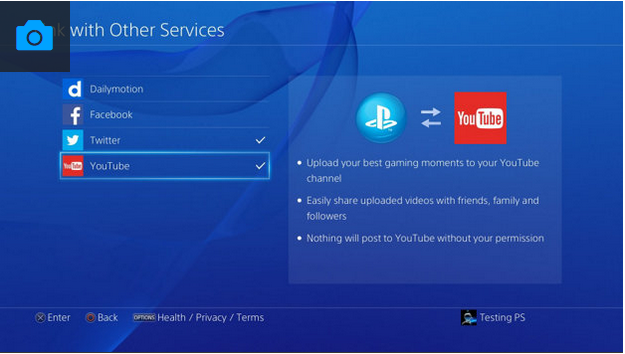
Note: If it is your first broadcast using the YouTube service you will have to agree to the YouTube terms of service to enable streaming. Please follow the instructions on the screen.
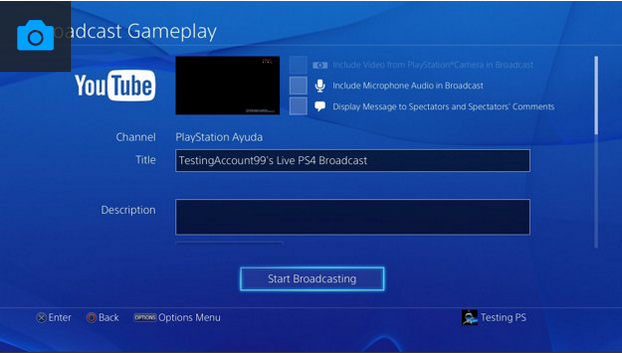
Broadcasting on PS4
You can’t Broadcast in 4K from your PS4 Pro system, but you can Broadcast in up to 1080p (60fps) depending on broadcast service used and bandwidth. HDR is not supported.
Up to 1080p (60fps) is available – quality will depend on YouTube network traffic.
1080p (60fps) is available.
Cum putem utiliza optiunea To-Do Bar din Outlook si unde o putem gasi.
[mai mult...]