

Soluții
How to map a Network Drive in Windows
Map a network drive to get to it from File Explorer in Windows without having to look for it or type its network address each time.
- Open File Explorer from the taskbar or the Start menu, or press the Windows logo key + E.
- Select This PC from the left pane. Then, on the Computer tab, select Map network drive.

- In the Drive list, select a drive letter
- In the Folder box, type the path of the folder or computer, or select Browse to find the folder or computer. To connect every time you sign in to your PC, select Reconnect at sign-in.
- Select Finish.
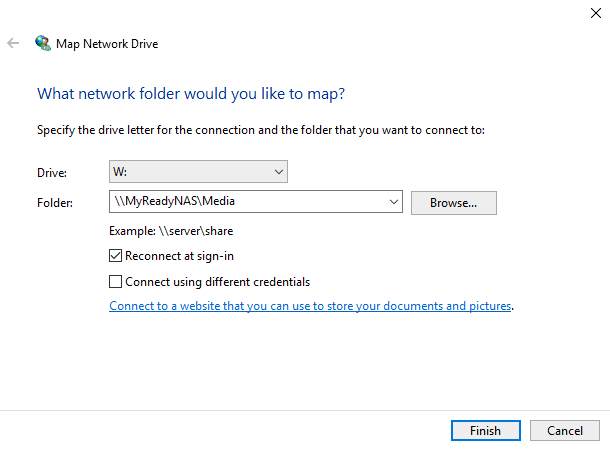
- Your mapped drive is now available under This PC.
Cum remediem un conflict de DHCP
Presupunem că într-o locație ai două laptopuri cu același IP, astfel va apărea un conflict în DHCP, iar unul dintre acestea nu va mai putea primi acces la rețea.
[mai mult...]Cum vezi uptime-ul pe un echipament Cisco
Presupunem că într-o anumită locație există probleme cu anumite echipamente și dorești să verifici dacă problema este de natură electrică urmărind astfel când au fost ultima dată echipamentele restartate electric.
[mai mult...]Cum intri in modul config a mai multor porturi deodata
Vrei să aduci modificări anumitor porturi, dar dorești să le configurezi pe toate deodata.
[mai mult...]How to Unninstall DS4Windows and related drivers
Want a Backup?
If you plan on using DS4Windows again, use the backup section above to make a copy/restore point.
DS4Windows Program
DS4Windows is a portable application, meaning it is not actually “installed”.