Soluții

Cum să actualizați jocurile Nintendo Switch

De-a lungul timpului, majoritatea jocurilor Nintendo Switch primesc actualizări online gratuite care remediază erorile și adaugă noi funcții. Uneori, actualizările adaugă chiar și funcții majore jocului, cum ar fi niveluri noi sau personaje. Iată cum să vă asigurați că jocurile dvs. sunt actualizate.

[mai mult...]

How to Use Windows 10’s “Fresh Start” on the May 2020 Update

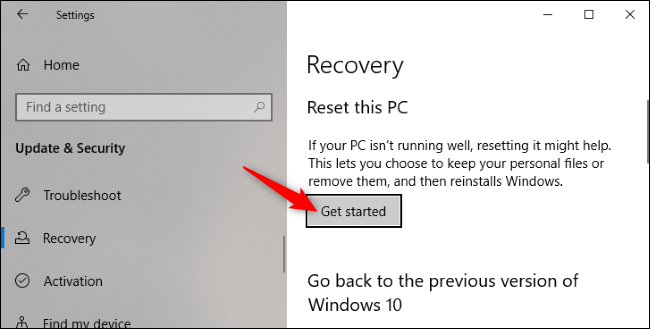
Windows 10’s May 2020 Update moves the “Fresh Start” feature that lets you reinstall Windows while removing any manufacturer-installed bloatware on your laptop or desktop PC. It’s no longer part of the Windows Security application. To get started, head to Settings > Update & Security > Recovery. Click “Get started” under Reset This PC.

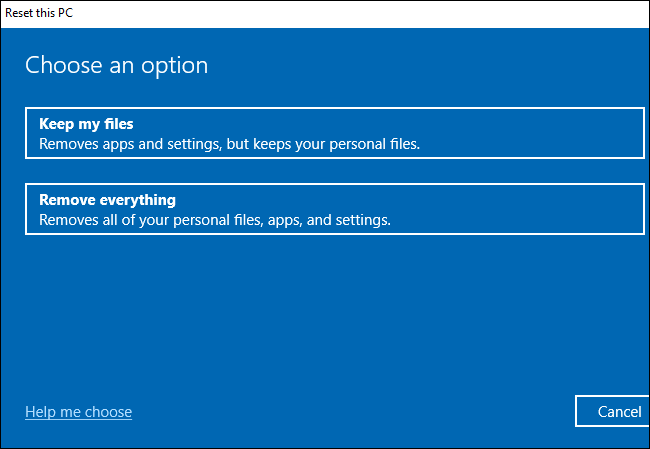
Select “Keep my files” to keep the personal files on your PC or “Remove everything” to remove them. Either way, Windows will remove your installed applications and settings.

Warning: Be sure you have your important files backed up before clicking “Remove everything.”

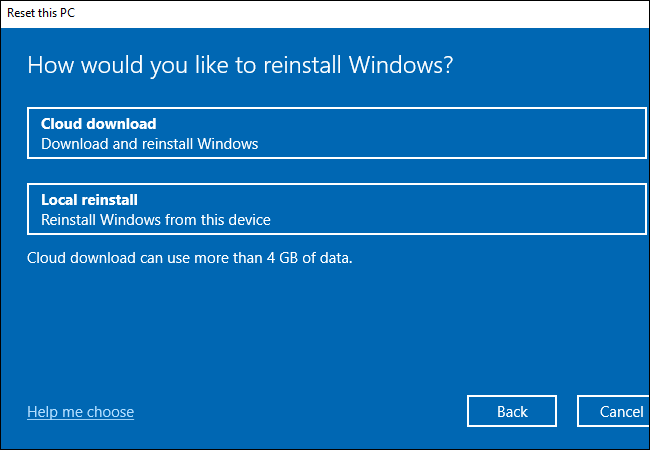
Next, select “Cloud download” to download the Windows 10 installation files from Microsoft or “Local reinstall” to use the Windows installation files on your PC. Cloud Download may actually be faster if you have a speedy internet connection, but your PC will have to download several gigabytes of data. Local Reinstall doesn’t require a download, but it may fail if your Windows installation is corrupted.

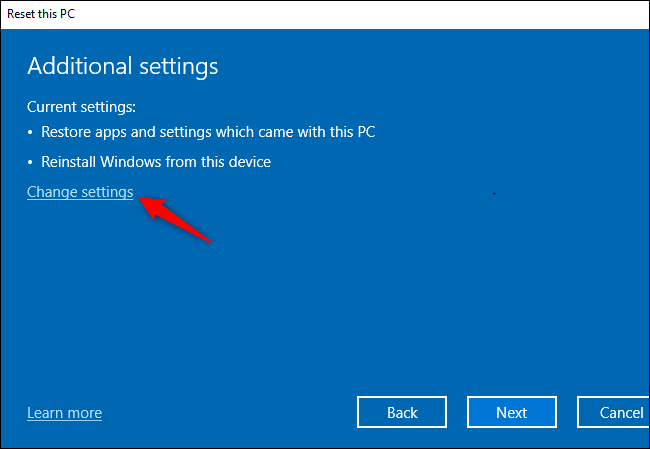
On the Additional settings screen, click “Change settings.”

Set the “Restore preinstalled apps?” option to “No.” With this option disabled, Windows won’t automatically reinstall the applications your PC manufacturer provided with your PC.

Note: If the “Restore preinstalled apps?” option isn’t present here, your PC doesn’t have any preinstalled apps. This can occur if you installed Windows on your PC yourself or if you have previously removed the preinstalled apps from your PC.

Click “Confirm” and continue through the Reset This PC process.

You’ll get a clean Windows installation without any manufacturer-installed apps cluttering up your system afterward.

[mai mult...]

Setare parametrii necesari Contab SQL

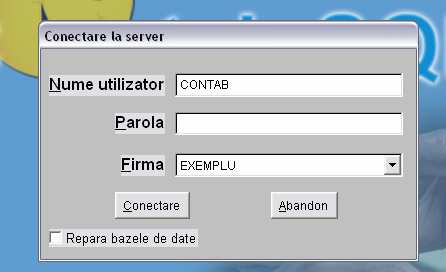
La deschiderea programului Contab SQL, utilizatorul vede pe ecran o fereastra in care apar campurile:

  • Nume utilizator
  • Parola
  • Firma

  • La prima deschidere, programul foloseste utilizatorul implicit Contab, fara a fi necesara o parola si firma implicita – Exemplu.
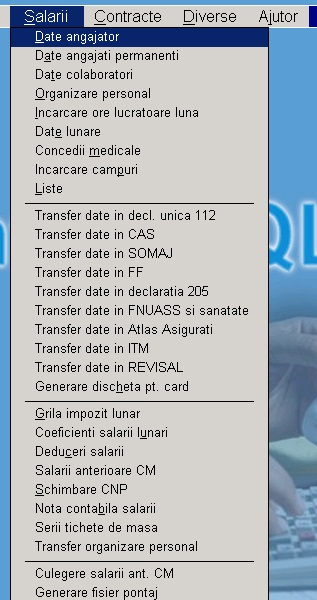
  • Apasand butonul Conectare, din aceasta fereastra, utilizatorul este introdus in program si poate selecta unul din meniurile principale, afisate in partea superioara a ecranului: Administrare, Contabilitate, Gestiune, Mijloace Fixe, Salarii, Contracte, Diverse, Ajutor.

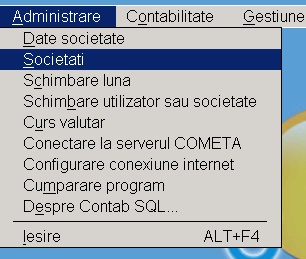
Selectati meniul Administrare si veti vedea componentele sale:

Date societate

Societati

Schimbare luna

Schimbare utilizator sau societate

Curs valutar

– Conectare la serverul COMETA

– Configurare conexiune internet

– Cumparare program

Despre Contab SQL

Iesire

Daca utilizati pentru prima data programul Contab SQL sau doriti sa incepeti activitatea de evidenta contabila

pentru o noua societate, trebuie sa definiti mediul de lucru parcurgand o procedura cu 6 pasi.

[mai mult...]