Stergere fisiere temporare Windows 7
1.Apasam tasta windows + R pentru a deschide casuta de RUN.
2.Introducem textul urmator: %temp%
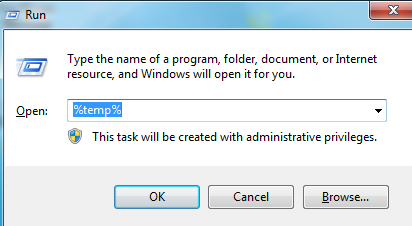
3.Apasam Ok sa deschidem folderul.
4.Selectam cu CTRL+A si stergem tot din folder.
[mai mult...]
Soluții pentru problemele tale IT

1.Apasam tasta windows + R pentru a deschide casuta de RUN.
2.Introducem textul urmator: %temp%
3.Apasam Ok sa deschidem folderul.
4.Selectam cu CTRL+A si stergem tot din folder.
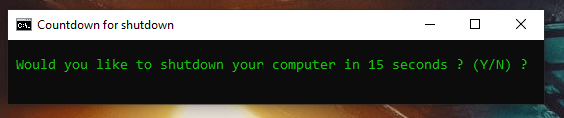
[mai mult...]Urmatorul batch se poate utiliza pentru inchiderea automata a calculatorului. Numaratoarea inversa incepe de la 15 secunde, asistata prin voce.
1. Deschideti notepad sau orice alt editor de text
2. Copiati codul de mai jos:
@echo off
Title Countdown for shutdown
Mode con Cols=67 lines=4 & Color 0A
set /a num=15
:start
echo(
echo Would you like to shutdown your computer in 15 seconds ? (Y/N) ?
Call:Speak “Would you like to shutdown your computer in 15 seconds ?”
set /p “INPUT=”
If /i “%INPUT%” == “y” goto yes
If /i “%INPUT%” == “n” goto no
Exit /b
:yes
cls
echo(
echo Process and Services will be automatically stop after %num% seconds..
Call:Speak “Process and Services will be automatically stop after %num% seconds..”
Goto Countdown
:CountDown
cls
echo(
echo Process and Services will be automatically stop after %num% seconds..
Call:Speak “%num% !”
Timeout /T 1 /NoBreak >nul
set /a num=num-1
if %num% GTR -1 goto :CountDown
goto shutdown
:no
exit
:Speak <msg>
(
echo Set sapi=Createobject(“sapi.spvoice”^)
echo sapi.Speak(“%~1″^)
)>”%tmp%\%~n0.vbs”
Cscript /nologo “%tmp%\%~n0.vbs”
Del “%tmp%\%~n0.vbs”
exit /b
:Shutdown
Call:Speak “We Shutdown the computer !”
shutdown /h
Daca dorim sa modificam timpul. De ex: 4 secundem, modificam urmatoarele:
set /a num=4
echo Would you like to shutdown your computer in 4 seconds ? (Y/N) ?
Call:Speak “Would you like to shutdown your computer in 4 seconds ?”
3. Salvati fisierul cu extensia .bat sau .cmd
4. Il puteti adapta dupa nevoile voastre.
1.Deschidem notepad sau orice alt text editor
2.Copiem codul de mai jos
@echo off
:START
cls
echo Choose your option & echo.
echo [I] IPCONFIG
echo [H] HOSTNAME
echo [D] DATE
echo [E] exit
choice /C IHDE /N /M “->”
goto option-%errorlevel%
:option-1 IPCONFIG
echo IPCONFIG
ipconfig
pause
goto start
:option-2 HOSTNAME
echo Hostname
hostname
pause
goto start
:option-3 DATE
echo Date
date /T
pause
goto start
:option-4 EXIT
echo Bye…
goto :EOF
3. Modificam variantele sau tastele pe care dorim sa le apasam
EX : choice /C IHDE /N /M “->”
unde I = option 1, H = option 2, D = option 3, E = option 4
4.Salvam fisierul cu extensia .bat sau .cmd
5.Modificam codul in functie de nevoie.

Pentru a putea deschide mai multe link-uri in acelasi timp, puteti folosi codul mentionat mai jos, prin urmatorii pasi.
Pasul 1 : Deschidem un notepad sau orice alt text editor
Pasul 2 : Copiem codul urmator:
@echo off
Set URL=”www.google.com www.yahoo.com www.facebook.com www.twitter.com”
For %%a in (%URL%) Do (Start /d “%programfiles%\Mozilla Firefox” Firefox.exe %Newtab% “%%a”)
Pasul 3 : In Set URL=”introduceti adresele pe care doriti sa le deschideti in acelasi timp”
Pasul 4 : Salvam fisierul cu extensia .bat sau .cmd

In cazul in care browserul default nu este Internet Explorer, dar totusi avem nevoie sa deschidem o anumita pagina cu Internet Explorer, putem folosi scriptul de mai jos.
Option Explicit
Dim WS,IE,URL
Set ws = CreateObject(“wscript.shell”)
IE = “%ProgramFiles%\Internet Explorer\iexplore.exe”
URL = “https://askit.ro/solutii/crearea-unui-shortcut-internet-explorer”
WS.run DblQuote(IE) & ” ” & URL
Function DblQuote(Str)
DblQuote = Chr(34) & Str & Chr(34)
End Function
3. Inlocuim URL-ul “https://askit.ro/solutii/creearea-unui-shortcut-internet-explorer” cu linkul dorit.
4. Salvam fisierul cu numele-dorit.vbs
5. Accesam fisierul salvat, iar pagina se va deschide automat in Internet Explorer.
[mai mult...]Se intampla sa avem cateva constructii de cuvinte, propozitii, numere telefon sau adrese pe care le folosim in fiecare zi in Outlook la compunerea unui email. Le putem inlocui cu doar cateva caractere sa nu mai scriem mereu toata adresa si la tastarea acelor caractere Outlook sa afiseze automat ce voiam de fapt. Pentru acest lucru urmati pasii de mai jos.
[mai mult...]