Soluții

Cum printam o lista de e-mailuri dintr-un folder Outlook

It’s simple to print a single email, but what about a list of emails showing information like who sent them and when? Here’s how to print a list of emails from Outlook, including all of the visible information.

First, you’ll need to make all of the emails you want to print visible in the same folder. There are several ways to do this, including moving all of the emails to the same folder, but the simplest way is to perform a search using the Search box just under the ribbon.

The Outlook Search box.

If you’re looking for specific criteria—emails sent by a particular person, including specific words, or sent in a specific time frame—then you’re better off building a dynamic search folder. This lets you build search queries that range from the very simple to the very complex. Search folders are easy to use if you’ve never made one before.

Either way, once you have the list of emails you want to print, the next step is to make sure all of the right information is displayed. After all, if the critical information is who the emails were sent to, but that’s not shown in the folder, the list is pretty useless. Luckily changing the visible columns is quick and easy, so head to this article to find out how.

Once you’ve added or removed whichever columns you want, you’re ready to print. When you print this list, it will be in the order that is displayed in your folder, so don’t forget to order them the way you want.

To print a list of all the emails in your folder, click “File” in the top left of Outlook.

Outlook's File option.

Next, in the menu on the left-hand side, click “Print.”

Outlook's Print option.

By default, printing is set to “Memo Style,” which means the currently selected email will be the only one printed. Change this to “Table Style.”

The Print Settings, with "Table Style" highlighted.

On the right-hand side, you’ll see the preview. This preview should now be displaying the list of emails with all of the columns you want to be printed out. You can click the preview to make it bigger if it’s a bit small.

The preview of how the printed list will look.

Check that everything looks right. If it’s not, click the Back arrow in the top left above the menu to go back into Outlook and change the visible columns and column widths to how you want them to look.

Once the preview looks correct, choose your printer (we’re using Windows’ built-in Print to PDF functionality) and then click “Print.”

Outlook's Print options, with the Printer choice and Print button both highlighted.

You will now have a print-out of the list of emails in the folder, complete with all the column information.

[mai mult...]
Eroare 1935 : Cum rezolvam aceasta problema

Eroarea Windows 1935 este de fapt un cod de eroare destul de generic care acoperă o serie de probleme posibile, dar toate se încadrează în aceeași categorie. Când primiți eroarea Windows 1935 în timpul instalării unei aplicații pe computerul dvs., nu sunt utilizabile una sau mai multe cerințe pentru rularea aplicației. Instalatorul aplicației sau Windows însuși au recunoscut problema care va împiedica instalarea și rularea corectă și a oprit instalarea.

[mai mult...]

Program Java pentru a inchide sau a opri computerul in Linux

Acesta este un program Java pentru inchiderea sau oprirea computerului in Linux.

Mai intai verificam numele sistemului de operare al computerului. Daca este Linux mergem mai departe, daca nu, ne oprim aici. Acum introducem numarul de secunde dupa care sa se stinga computer-ul, urmat de comanda de stingere a computer-ului.

Iata codul sursa al Programului Java pentru inchiderea sau oprirea computerului în Linux. Programul Java este compilat cu succes si rulat pe un sistem Windows.

[mai mult...]

How to Remove/Reset BIOS Password in Dell Laptop

One of the most important password on your computer is BIOS (Basic Input / Output System) password. The information you have over the BIOS is referred as ESCD (Extended System Configuration Data). Setting up a password for BIOS is very helpful if you wish to prevent the system from booting up an operating system under unauthorized access. This does protects your sensitive information that you have over your PC.

Best 4 Ways to Reset/Remove BIOS Password on Dell Laptop

In circumstances where you forget the BIOS password or the information over BIOS get corrupted due to sudden power surge or cut events, hardware incompatibility (for a specific setting) or incorrect settings by the user. In such cases, it becomes vital to remove BIOS password as you may get permanently locked out of your computer. Now, if you’re looking for how to remove bios password using cmd or on dell laptop, you’re reached your destination. We’re going to explore the various means by which you can remove bios password on dell laptop.

1. Reset Defaults Option

First and foremost method is to reset BIOS to its defaults. Here’s the step by step tutorial on it.

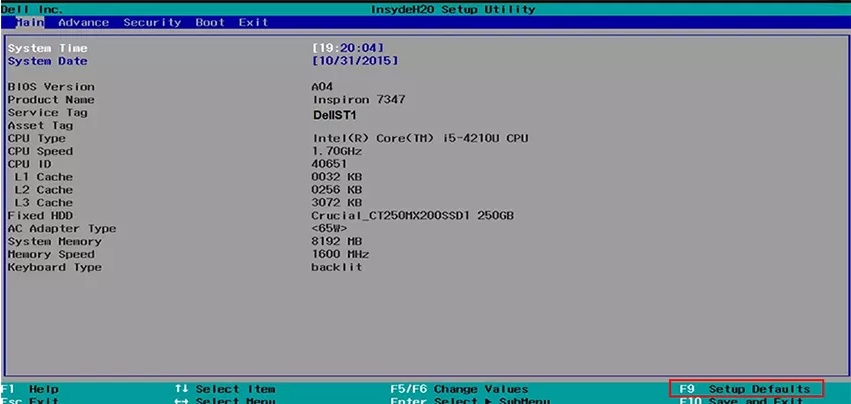
    • First, boot up your computer and when you get to see Dell loading screen, hit the “F2” key to launch the BIOS. You’ll now witness that “Entering Setup” will appear on the screen.
Note: Please ensure what key is defined to boot your laptop into BIOS mode as for certain models, you may have to use a different key. You can check it at the bottom of the screen while the boot process is going through, boot into BIOS key is displayed right there.
  • Once you have the BIOS up and running, depending on the age and its type, you can either make use of the “F9” key to Load Defaults (as is displayed on the bottom of the screen) to force reset the defaults. Or, you can also hit the “Alt” + “F” key combination over your keyboard. Also, hitting the “Load Defaults” button available on your screen will also serve the purpose to load the factory defaults.

  • Now, you need to hit the “Esc” on your keyboard to exit the BIOS menu. Before you exit, it will ask you whether to save the changes or discard them. Opt for “Save and exit” option in order to allow the changes to come into effect, hit “Enter” on it and you’re done.
  • Once your computer reboots, all your BIOS settings are restored back to its factory state now.

2. Using PSWD Jumper

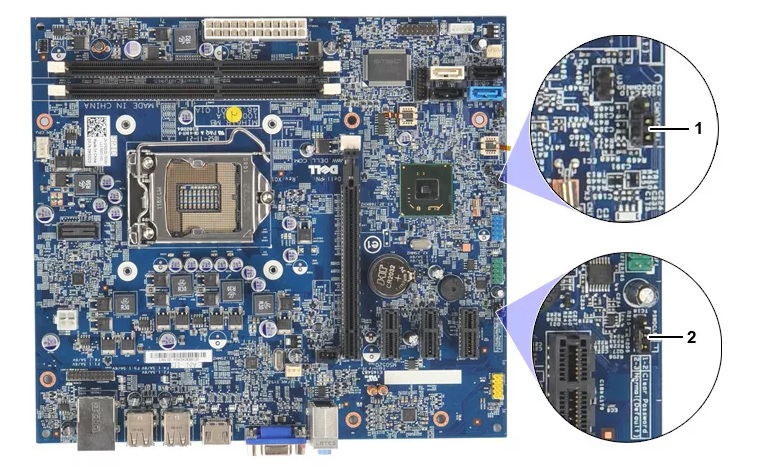
In order to make use of PSWD jumper to remove bios password in dell laptop, first you need to ensure that PSWD on your PC has two or three needles. This is because you need to follow a specific set of instructions to remove bios password in dell laptop for different PSWD needles.

When the PSWD has Two Needles

  • Turn off your computer and remove the power line (battery) and ensure the main board led is not glowing anymore.
  • Now, find the PSWD jumper over your main board.
  • Then, plug out the jumper cap from the PSWD needles and reboot your Dell computer. You shall hear a sound of drop now, this would mean that the BIOS password is removed successfully.
  • Turn off your Dell computer afterwards and plug in the jumper cap back to the PSWD needles.
  • That’s it, you’re no longer required to enter BIOS password in order to access BIOS settings.

When PSWD has Three Needles

  • Step 1 and Step 2 from above, remains the same.
  • In case, you find out that your PSWD jumper has 3 needles, you need to plug out the jumper cap of PSWD placed on the needles 1-2 and plug it into the needles 2-3. Reboot your PC and you shall hear a sound of drop now.
  • Now that you’ve successfully removed the BIOS password on dell laptop computer, turn it off and then reverse the jumper back to its original state i.e. on 1-2 needles.
  • Reboot your PC again and you’re all sorted.

3. Using CMD

In order to reset BIOS password using CMD you must be able to launch the DOS mode over your computer. For this, you need to plug in a bootable media that boots you up in DOS mode where you can execute the following commands (without quotes) followed by Enter after each of them:

  • debug
  • -o 70 2e
  • -o 71 ff
  • -q

That’s it, now reboot your PC and you’re all sorted!

Shortcomings of removing BIOS password

Well, though the aforementioned ways will certainly help you to remove BIOS password, there are several shortcomings for them if you opt to do it on your own. It is known fact that altering the BIOS involves great risks, you may end up corrupting your entire computer system. Eventually, losing your entire data. So in such a case, the safest bet is to reset the BIOS password in a way that won’t harm your PC and here we’re going to explore them up.

Remove Internal CMOS Battery

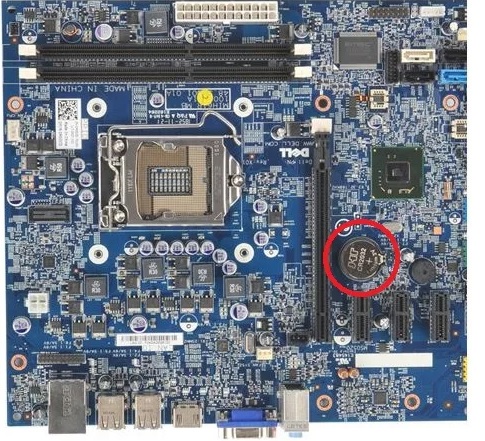
For this, you need to be quite careful as you need to open up your computer’s casing to remove the CMOS battery. Once you’ve done it, plug out the coin cell CMOS battery from the main board. Now, wait for approximately 5 minutes (depending on your motherboard, you may need to wait for longer). Then, slot it back. Congratulations! You’re done clearing everything over your BIOS and resetting the settings to its defaults.

Final Verdict

While moving towards concluding the today’s post, we do hope that you now have full understanding on how to remove bios password using cmd. Since, forgetting password is a common phenomenon, what if you no longer remember your Windows password? Well, fret not. Here comes PassFab 4WinKey for your rescue. With this powerful tool you need to perform such lengthy and technical steps that you were doing while removing bios password in dell laptop. The process is as simple as 1-2-3 thing. Be it local user account or an admin account or a Microsoft account, in just a couple of clicks you can effortlessly reset or remove the passwords of the respective accounts.


[mai mult...]