Soluții

Stop Chrome browser from downloading a Hidden 4GB AI File

If your Mac’s storage has been mysteriously shrinking recently and you use Google Chrome, you may have already identified the culprit. The browser has been downloading a 4GB AI model file onto computers without explicit user consent.

The file in question is called “weights.bin,” which powers Google’s on-device Gemini Nano AI model – the engine behind Chrome features like scam detection, autofill suggestions, and the “Help Me Write” tool. Local models tend to be pretty big storage-wise, and this one is no different. The problem is that Google hasn’t clearly signposted the fact that it’s eating 4GB of your drive with training data.

The issue only recently came to light thanks to security researcher Alexander Hanff, who noticed that Chrome installs the model on any device meeting the minimum hardware requirements, only without prompting you whether you’d like it there in the first place.

How to Check if the File Is on Your Mac
The first thing to do is confirm that the model is actually taking up space on your machine. While there’s no clear answer in Google’s release notes, recent reports suggest that the file started appearing after updating to Chrome version 148.0.7778.97. Here’s how you can find out if your computer was affected:
[mai mult...]

Fix images not showing in Outlook

În Outlook, imaginile din emailuri pot să nu se afișeze deoarece programul le blochează automat din motive de securitate sau pentru a preveni încărcarea conținutului extern fără permisiune.

Activarea afișării imaginilor din Outlook
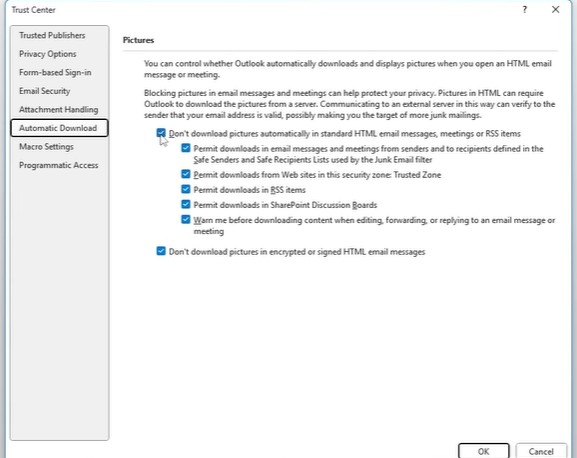
Pentru început, trebuie verificată setarea care controlează descărcarea  imaginilor din emailuri.Acest lucru îl putem seta din File->Options ->Trust Center->Trust Center Settings, apoi accesăm secțiunea Automatic Download și se debifează opțiunea Don’t download pictures automatically in HTML e-mail messages.


Dezactivarea add-in-urilor problematice
Uneori, anumite extensii instalate în Outlook pot împiedica afișarea corectă a imaginilor. Astfel că, din File, intrăm în Options și apoi Add-ins, iar la secțiunea Manage, se selectează COM Add-ins->Go și se dezactivează add-in-urile suspecte sau recent instalate. Acest lucru necesită repornirea Outlook-ului pentru ca modificările să fie aplicate.

Verificarea setărilor de Internet
Problema poate apărea și din cauza unor setări de internet care blochează salvarea anumitor elemente din emailuri. Deschide Control Panel->Internet Options->Advanced și debifează opțiunea Do not save encrypted pages to disk, apoi salvează modificările și repornește Outlook.

[mai mult...]

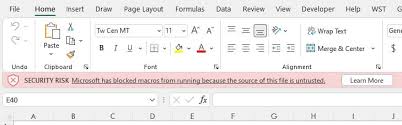
Microsoft has blocked macros-Security risk

Atunci când descarci un fișier de pe internet sau îl primești ca atașament prin email, Windows îi atașează automat un marcaj ascuns numit „Mark of the Web”, prin care îl identifică ca provenind dintr-o sursă externă și potențial nesigură iar Excel, respectând această etichetă, blochează automat rularea oricăror macrocomenzi din fișier până când tu decizi în mod explicit că ai încredere în el.

Pentru a-l face un fișier de încredere, trebuie parcurși următorii pași:

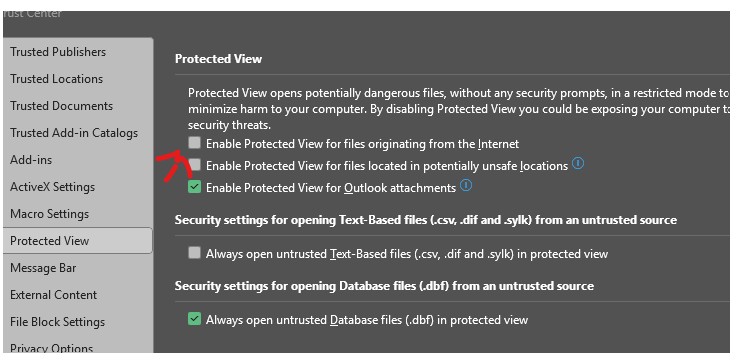
  1. File->Options->Trust center->Protected view->se debifează cele trei casete selectate.
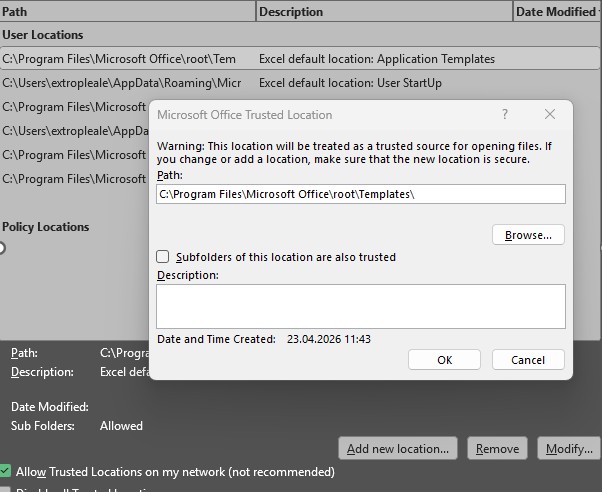
  2. Apoi în Trusted locations-> Add new location->ștergem și lăsăm doar C:\ și apoi bifăm Subfolders of this location are also trusted.
[mai mult...]