How to disable function keys Windows 10
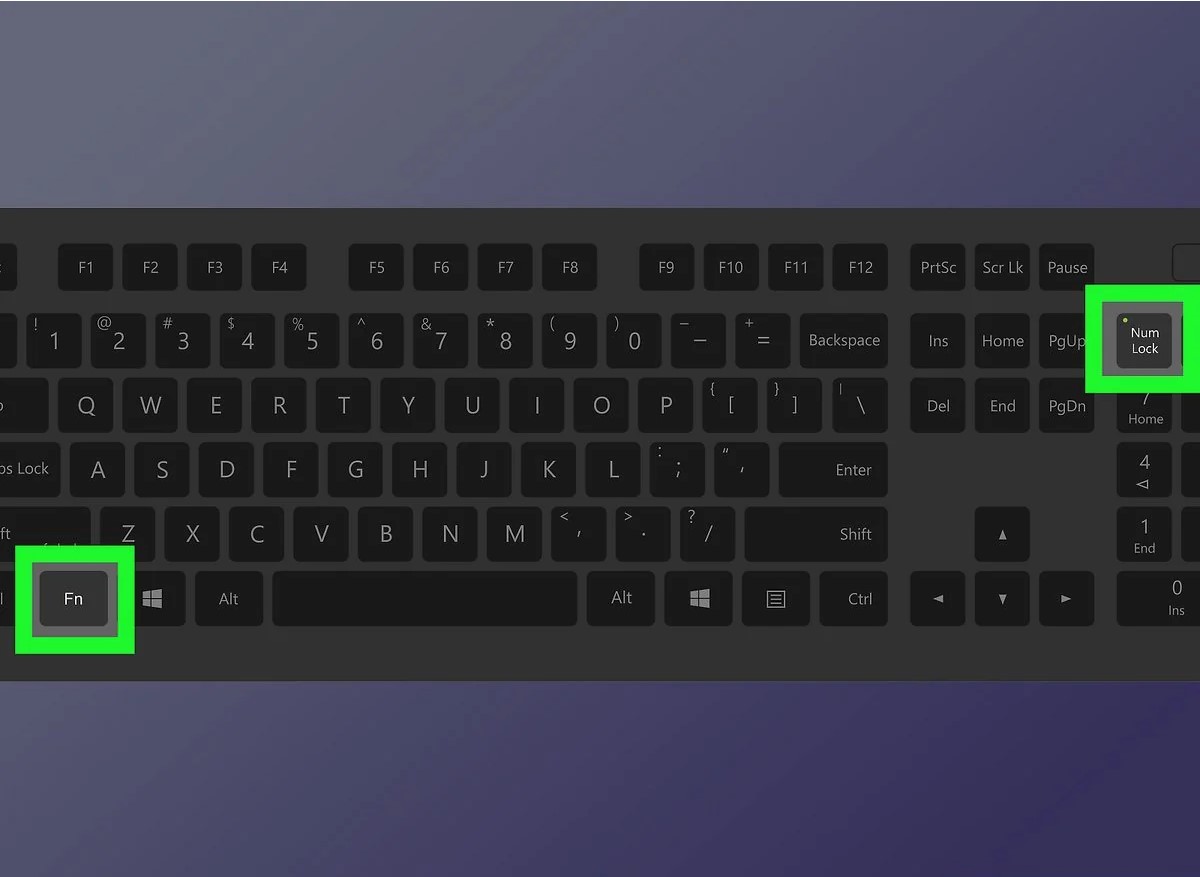
The simplest way to turn off the Function keys is by pressing the Fn + Esc keys at the same time. This will disable the Function keys and you won’t need to use them. However, this is only a temporary solution and you will need to repeat this process every time you want to turn off the Function keys.
Using the BIOS
Another way to turn off the Function keys on Windows 10 is to access the BIOS. To do this, restart your PC and press the appropriate key during the bootup process to enter the BIOS. Once you’re in the BIOS, look for the “Function Key Behavior” option and select the “Disabled” option. This will turn off the Function keys permanently.
The Windows Mobility Center also allows you to turn off the Function keys. To access this, open the Start Menu and type “Windows Mobility Center”. Then, select the “Keyboard” option and toggle the “Function Key Lock” to the “Off” position. This will disable the Function keys on your PC.
Using a Third-Party Software
If you want a more permanent solution, you can use a third-party software like SharpKeys to turn off the Function keys. SharpKeys is a free software that allows you to customize your keyboard and remap keys. To use SharpKeys, download and install the software and then select the “Add” option to create a new mapping. Then, select the “Fn” key as the “From key” and select “Disabled” as the “To key”. This will disable the Function keys on your PC.
Using the Registry Editor
The Registry Editor is another way to turn off the Function keys. To access the Registry Editor, open the Start Menu and type “Regedit” in the search bar. Then, navigate to the following key: HKEY_LOCAL_MACHINE\SYSTEM\CurrentControlSet\Control\Keyboard Layout. Once you’re here, right-click on the key and select “New” > “DWORD (32-bit) Value”. Name this value “Scancode Map” and set the “Value data” to “00000000 000000 00 00 00 00 00 00 00”. This will turn off the Function keys on your PC.
Using Group Policy Editor
The Group Policy Editor is another way to turn off the Function keys. To access the Group Policy Editor, open the Start Menu and type “gpedit.msc” in the search bar. Then, navigate to the following location: Computer Configuration > Administrative Templates > Windows Components > Windows Mobility Center. Once you’re here, double-click on the “Function Key Lock” policy and select the “Disabled” option. This will turn off the Function keys on your PC.