Soluții

How to fix crucial BSOD errors

The first thing you should do if you receive a BSOD is to try and restart your pc and boot into safe mode to try and reset your pc.
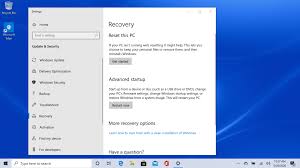
If you are unable to do this,what you need to do is to press the power button of your pc/laptop until it is fully shutdown,do this 3 times until the options below pop up:
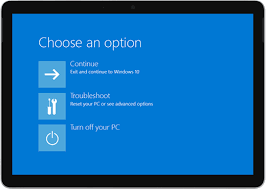
Once this shows up,you have to click on Troubleshoot-Advanced options-Startup Repair and see if this finds an error,if not,go ahead and get back to the upper menu ,Troubleshoot-Advanced Options-Command Prompt
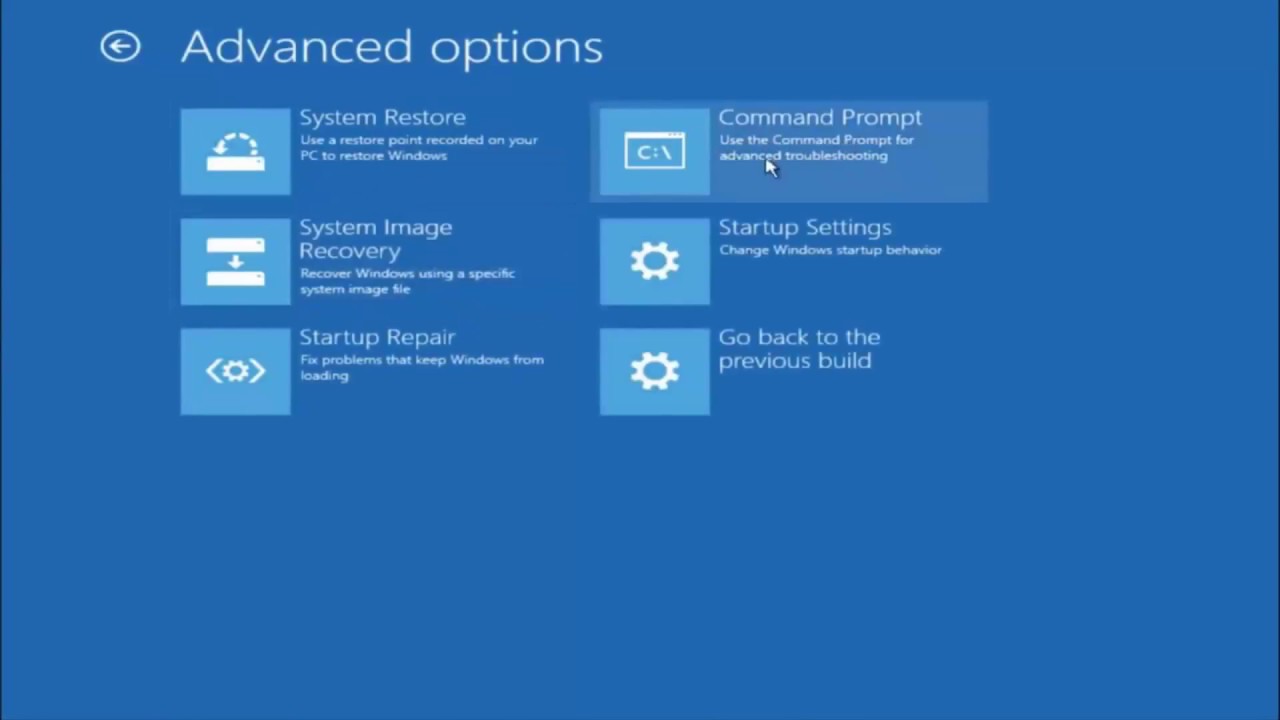
Here you have to run a few commands:

1:bootrec /fixmbr

2.bootrec /fixboot if you get access denied in this step just type : bootsect /nt60 sys

3.bootrec /fixboot

4.bootrec /rebuild

5.sfc /scannow  NOTE: this will take a while,just be patient

6.chkdsk c:  NOTE: this will also take some time.

After these 6 steps,close command prompt and restart your pc,what this does if it finds any software/hardware issuse this will rewrite them with the basic settings.

[mai mult...]
Cum remediați situatia in care OneDrive nu se sincronizează

Dacă ați folosit un computer Windows în ultimii ani, ați interacționat cu OneDrive. Această soluție de stocare în cloud de la Microsoft este încorporată în Windows 10 și sistemele mai noi și, dacă v-ați conectat cu un cont Microsoft la prima configurare a computerului, probabil că sunteți deja configurat pentru a utiliza software-ul. OneDrive, la fel ca majoritatea programelor de backup în cloud, poate fi dificil de depanat atunci când lucrurile nu funcționează așa cum vă așteptați sau dacă fișierele dvs. nu sunt sincronizate atunci când ar trebui să fie.

[mai mult...]

Cum eliminați manual bloatware-ul din Windows 11

Bloatware este o aplicație inutilă și nedorită care vine instalată pe un sistem de operare. Aplicațiile bloatware ocupă spațiu de stocare valoros pe hard disk și pot face dispozitivul să funcționeze mai lent – un scenariu frustrant, mai ales dacă nici măcar nu utilizați acest software preinstalat.

[mai mult...]

Utilizarea instrumentului HashCalc pentru a verifica integritatea fișierelor

Modul simplu este de a verifica integritatea fișierului folosind hash SHA-1 sau altul. Trebuie să comparați suma de control a acelui fișier cu hash-ul fișierului original. Pentru a face acest lucru, veți avea nevoie de un instrument de sumă de control. Puterea acestui instrument este să accepte mai multe tipuri de hash criptografic, cum ar fi MD5, MD4, SHA1, SHA256, SHA384, SHA512, RIPEMD160, PANAMA, TIGER, MD2, ADLER32, CRC32.

[mai mult...]

How to create an Outlook Profile

A profile is a critical part of your Outlook experience. The profile consists of the accounts, data files, and settings that specify where your email messages are saved.

To create a new profile, use the profile picker:

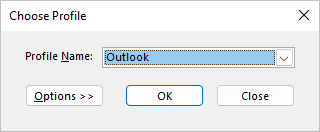
  1. Hold Shift while starting Outlook.

    Tips: You can also use one of these alternative options to access the profile picker:

    • Using a command line switch, right click the Windows Start button and select Run. In the Run dialog box, type: Outlook.exe /profiles and then press Enter.
    • While Outlook is running, select File > Account Settings > Change Profile. Outlook will restart.
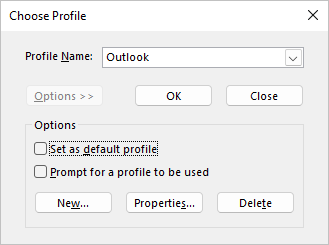
  2. On the profile picker dialog box, select Options.Choose profile dialog box with name of the new profile.

    Note: Before selecting New, consider selecting the check box for “Prompt a profile to be used.” If this is enabled, you will get a prompt every time you start Outlook to pick which profile you want to open. This is helpful when you have multiple profiles and need to switch between them.

  3. Select New.Choose profile dialog box with the name of the new profile and no options are selected.
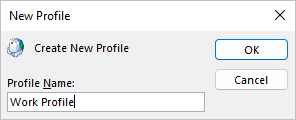
  4. Type a name for the new Outlook Profile and select OK.Enter a profile name.
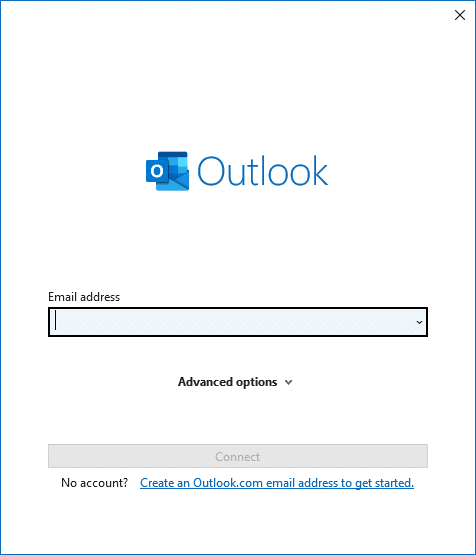
  5. Once the new profile is created, you will need to add an email account to the profile. In the add account dialog, you can optionally add more accounts.Select an email address from the dropdown.
[mai mult...]