
Soluții

Cum eliminați pictograma Mod silențios de pe iPhone 15 Pro

Odată cu eliminarea comutatorului Mute de pe seria iPhone 15 Pro, Apple a adăugat o pictogramă de clopoțel tăiată în bara de stare pentru a ajuta utilizatorii să spună când dispozitivul lor este în modul Silențios. Acest lucru este inutil dacă aveți întotdeauna iPhone-ul dezactivat. Din fericire, este posibil să o ascundem.

  • Este destul de ușor să eliminați pictograma Mod silențios din bara de stare a iPhone-ului. Mai întâi, deschideți aplicația Setări pe iPhone. Apoi, accesați „Sunete și haptic”.
  • În cele din urmă, sub „Mod silențios”, dezactivați comutatorul de lângă „Afișați în bara de stare”.
  • După aceasta, pictograma modului Silențios nu va mai apărea în bara de stare a iPhone-ului tău, chiar dacă este activă. Această modificare se aplică atât ecranului de blocare, cât și ecranului de pornire.
[mai mult...]

How to use Copilot Win 11

Before you begin, you probably want to make sure you’re running the latest version of Windows 11.

  • Open Settings and then pick Windows Update.
  • Depending on where you are located geographically and how far down your PC is on Microsoft’s update list, you may have to enable the Get the latest updates as soon as they’re available toggle switch.

To launch Copilot, which shows up in a panel on the right of your screen, click the Copilot button on the taskbar, or press Win + C on the keyboard.

By the way, if you’d rather Copilot not show up on the taskbar, head to Personalization > Taskbar in Settings, then turn Copilot off.

Don’t expect too much from Copilot’s Windows integration just yet: at the time of writing, it’s still labeled a “preview” feature. Here are some cool little tricks I was able to do with it:

  • Type “turn on dark mode” to switch to Windows dark mode.
  • Type “open Windows Settings” to open the main Settings panel.
  • Type “launch File Explorer” to start browsing files on your PC.
[mai mult...]

What is netstat command used for?

Netstat stands for “network statistics”.  If you’re having difficulties accessing the internet, the netstat command can help you identify where the problem lies. Netstat will display all of your computer’s active network connections and the status of those connections. If a connection is not working, netstat can often provide more information about why it is not working.

Netstat can also be used to monitor your computer for security threats. By default, netstat does not show listening ports, so you will need to use the -l option to see them. If you discover any unusual or unfamiliar listening ports, it’s possible that someone is attempting to gain access to your system without permission.

USING CMD

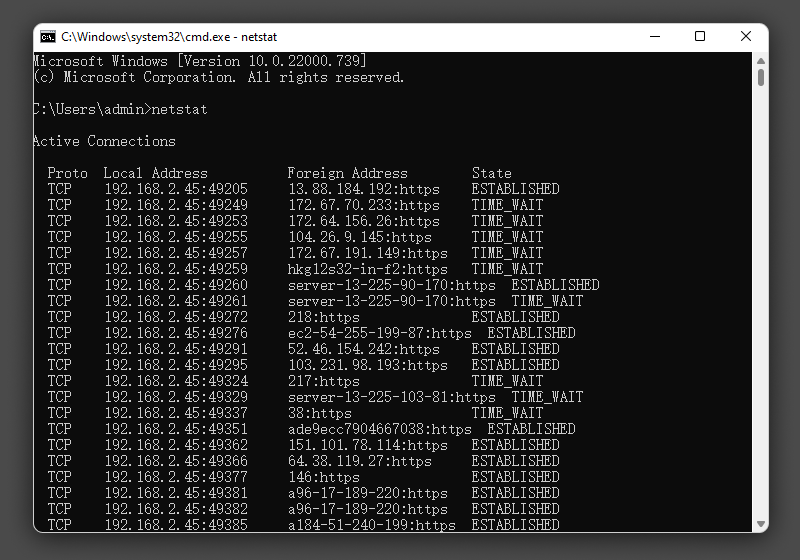
Type netstat at the prompt and press Enter. The netstat command will now display a list of all active network connections.

If you want to view all active network connections, just type netstat -a. Many other netstat options allow you to customize its output; type “netstat /?” for a full list at the command prompt.

To stop netstat output, just press the Control + C keys to exit.

  • Proto -The networking protocol and it could be protocols like TCP, UDP etc.
  • Local Address – The local computer’s IP address and the port number being utilized. Unless the -n switch is used, the hostname and port corresponding to the IP address will be displayed. An asterisk (*) indicates that the port has not yet been assigned if one has not yet been set up.
  • Foreign Address – The remote computer’s IP address and port number to which the socket is linked. The names that relate to the IP address and port are displayed unless the -n switch is used. If no port has yet been assigned, an asterisk (*) appears in place of the port number.
  • State – Indicates an active TCP connection’s status,  including:
    • CLOSE_WAIT
    • CLOSED
    • ESTABLISHED
    • FIN_WAIT_1
    • FIN_WAIT_2
    • LAST_ACK
    • LISTEN
    • SYN_RECEIVED
    • SYN_SEND
    • TIMED_WAIT
[mai mult...]