Soluții

How to fix a computer that is constantly restarting unexpectedly

  1. Check for hardware problems: Use a tool like Memtest86 to test your RAM for errors. If you find any errors, you will need to replace your RAM. You can also use a tool like HWiNFO64 to monitor your CPU temperature. If your CPU is overheating, you may need to clean your computer’s fans or replace the thermal paste.

  2. Disable startup programs: Some startup programs may be causing your computer to restart unexpectedly. To disable startup programs, open Task Manager and click on the “Startup” tab. Right-click on any programs that you don’t want to start automatically and select “Disable”.

  3. Scan for malware: Malware can sometimes cause computers to restart unexpectedly. To scan for malware, use a reputable antivirus or anti-malware program.

  4. Check for system updates: Outdated system drivers or Windows updates can sometimes cause problems. To check for updates, click on the Start button and type “Windows Update”. Click on “Check for updates”.

  5. Use System Restore: If none of the above steps fix the problem, you may need to use System Restore to restore your computer to a previous state. To use System Restore, click on the Start button and type “System Restore”. Click on “Open System Restore”.
[mai mult...]

How to fix “Unable to open a file with the correct program”

  1. Check File Extension:
    • Ensure that the file extension is correct (e.g., “.docx” for Word documents, “.pdf” for PDF files).
    • Right-click on the file, select “Properties,” and check the “Type of file” or “File Type” field.
  2. Install/Reinstall the Relevant Software:
    • Make sure you have the appropriate software installed to open the file type. For example, use Microsoft Word for Word documents or Adobe Reader for PDF files.
    • If the software is already installed, consider reinstalling it to fix any potential issues.
  3. Set Default Programs:
    • Go to Settings > Apps > Default apps.
    • Set the default applications for different file types. For example, set your preferred web browser, email client, or media player.
  4. Use “Open With” Option:
    • Right-click on the file and select “Open with.”
    • Choose the appropriate program from the list or select “Choose another app” to find the correct program.
  5. Repair Microsoft Office (If Applicable):
    • If you are having trouble with Microsoft Office files, you can try repairing the Office installation.
      • Go to Control Panel > Programs > Programs and Features.
      • Find Microsoft Office in the list, right-click, and select “Change.”
      • Choose the “Quick Repair” or “Online Repair” option.
  6. Check for Software Updates:
    • Ensure that both your operating system and the relevant software applications are up to date.
    • Check for updates within the software itself or visit the official website for the latest version.
  7. Use Compatibility Mode:
    • Right-click on the file, select “Properties,” and go to the “Compatibility” tab.
    • Check the box for “Run this program in compatibility mode for:” and choose a previous Windows version.
  8. Convert the File:
    • If possible, convert the file to a different format using online converters or dedicated software.
    • Try opening the converted file with the appropriate program.
  9. Check File Integrity:
    • If the file is corrupted, you may encounter issues opening it. Try obtaining a fresh copy of the file.
[mai mult...]

How to fix slow computer performance

“Slow Computer Performance”:

  1. Check for Malware and Viruses:
    • Run a full system scan using your installed antivirus software.
    • Consider using Windows Defender (built-in antivirus) or a reputable third-party antivirus program.
    • Ensure your antivirus definitions are up to date.
  2. Manage Startup Programs:
    • Press Ctrl + Shift + Esc to open the Task Manager.
    • Go to the “Startup” tab to see a list of programs that start with Windows.
    • Disable unnecessary startup programs to improve boot time.
  3. Disk Cleanup:
    • Press Windows + S, type “Disk Cleanup,” and select the tool.
    • Choose the drive you want to clean and follow the on-screen instructions.
    • Select the types of files to delete, like temporary files and system cache.
  4. Update Drivers:
    • Outdated or incompatible drivers can affect performance.
    • Go to “Device Manager” (Windows + X and select it) and update drivers, especially for graphics and network adapters.
  5. Check for Windows Updates:
    • Ensure your operating system is up to date with the latest updates.
    • Go to Settings > Update & Security > Windows Update and check for updates.
[mai mult...]

How to determine which process is reserving my Serial Port

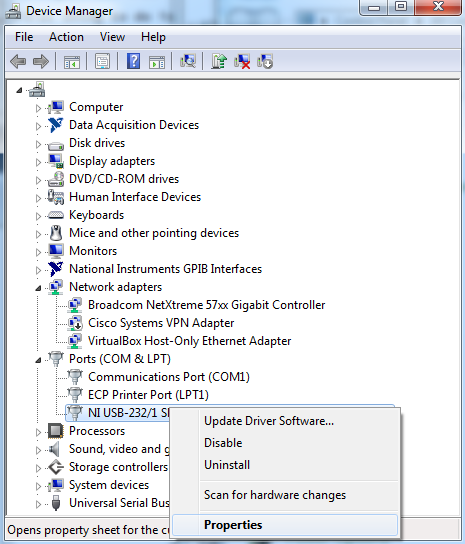
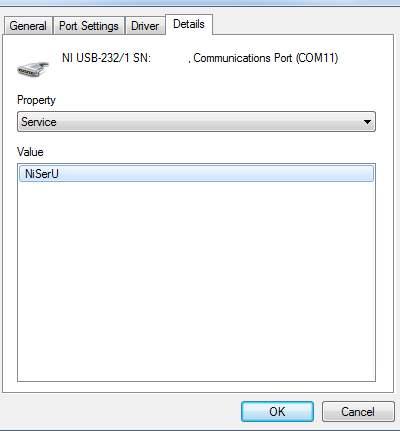
  1. Open Device Manager and expand Ports (COM & LPT). Right click on the target serial port and select Properties.

2. Select the Details tab and change the value in the Property field to Service, as shown in the image below, and note the service value for searching in Process Explorer.

It is worth mentioning that NI-Serial devices use the service NiSerU, while built-in ports use the service Serial.
[mai mult...]

Mouse and touchpad issues

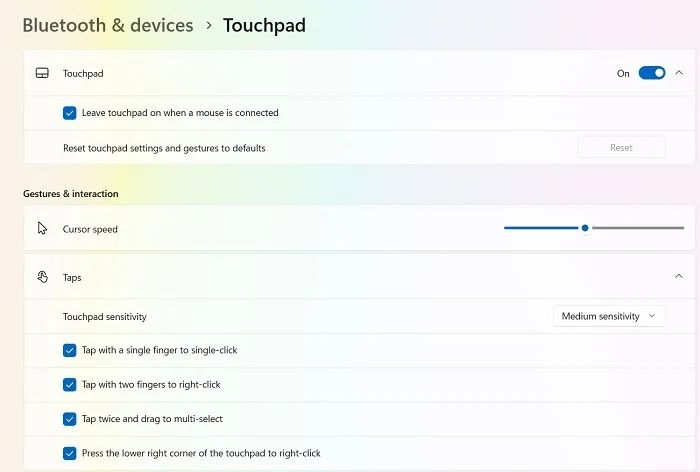
If you’re using a touchpad on a laptop, go to “Settings -> Bluetooth & devices -> Touchpad.” Leave the Touchpad toggle on when a mouse is connected. Enable all default touchpad sensitivity options.

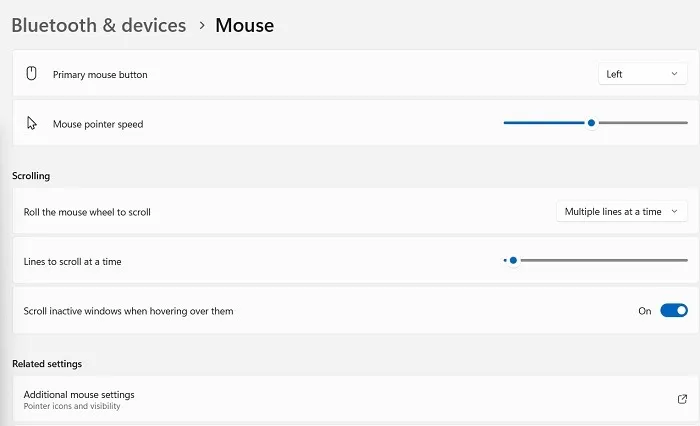
You can correct your mouse settings from “Settings -> Bluetooth & devices -> Mouse.” Make sure “Left” is the primary mouse button and that the mouse pointer speed is at a comfortable level. Keep all the default options enabled.

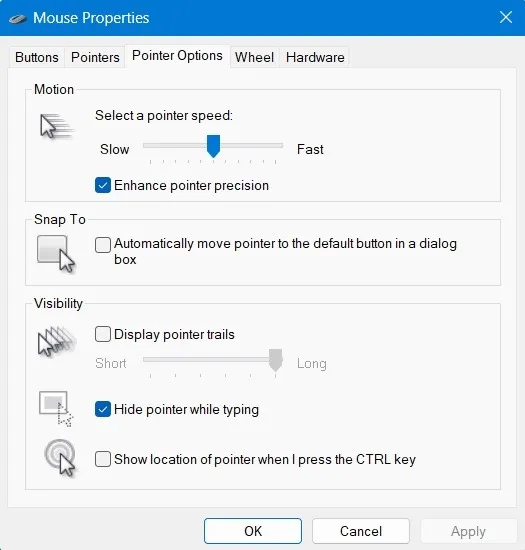
After clicking on additional mouse settings, select a desirable pointer speed from the “Pointer Options” tab.

If the mouse or touchpad just aren’t working properly, they can be fixed via Device Manager. Open it by typing Win + R followed by devmgmt.msc. Select the desired mouse or touchpad hardware drivers. Right-click it to view its “Properties” and update or reinstall the drivers.

[mai mult...]