
Situatie
if you’re trying to get into the terminal app on your Ubuntu computer, why not start with some lighthearted fun? There are some command line Easter eggs that won’t do anything but entertain you, and I’ve gathered some of the best.
Solutie
If you’re like me, you use the ls command a lot to find out what the contents of the current directory are. It’s easy to mistype the command, though, and there’s actually a program dedicated to catching and, taken in one sense, mocking those mistakes.
If you type sl in your terminal (and the command is installed), you’ll get an animation in your terminal of a train rolling across the screen. Specifically, it’s a steam locomotive. Get it? S-L?
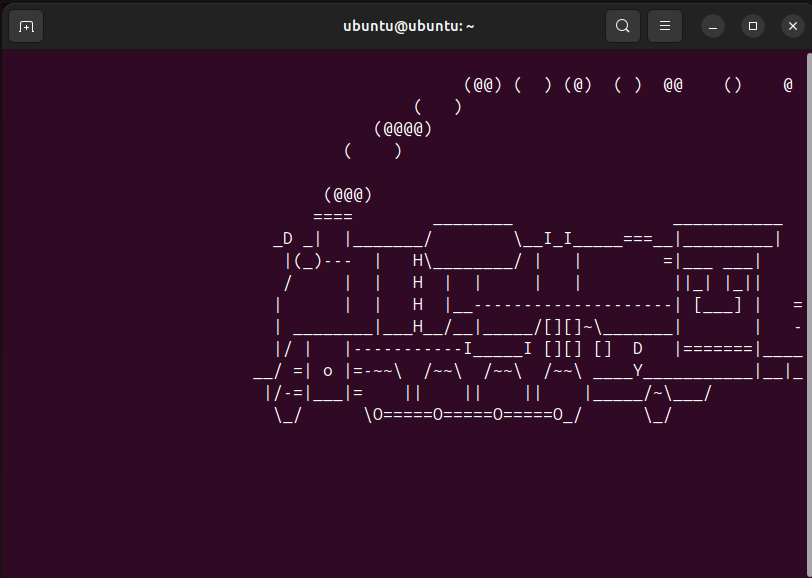
What’s more fun is that there are different locomotives that appear depending on which flags you use. If you pass the -F flag, the train will fly up the window, and the -l flag results in a smaller train.
The APT cow
If you’ve messed with the Ubuntu command line at all, you’re probably at least a little familiar with APT. It’s the package manager you can use to install software from Ubuntu repositories, plus more repositories if you know where to find them.
There’s a bovine joke built into APT. Run apt moo, and you’ll get an ASCII drawing of a cow asking you about your cow vocalizations.
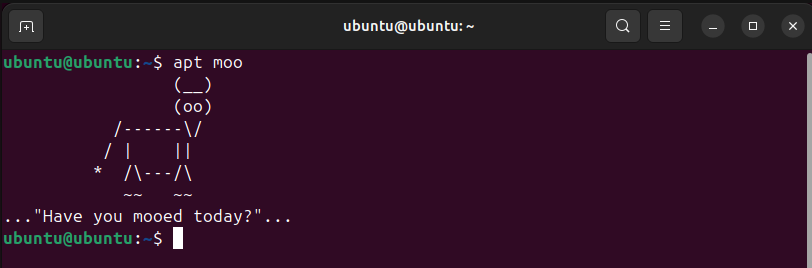
By the way, you can see a hint at this Easter egg if you ask for help with APT like you normally would, with the –help flag, indicating that the command has “cow powers”. If you know APT, then you might know Aptitude as well. It’s an alternative frontend for managing packages, notably including a terminal user interface (TUI), if you prefer that. Note that it may not be installed on your distribution by default, but you can install it with sudo apt install aptitude.
Aptitude continues the “cow powers” tradition with its own spin on the same APT bovine joke. However, Aptitude’s is a multi-step process. You need to first try aptitude moo, at which point you’ll be met with some resistance.
You need to persist though. Demand the output be more “verbose” by adding the -v flag with aptitude -v moo. You’ll be denied again, but keep adding additional v characters until you reach the seventh and final addition with aptitude -vvvvvvv moo.
This Easter egg is best experienced first-hand, which is why I’m not supplying complete screenshots. It’s a deadpan riff on the original cow powers joke.
Sudo password typo insults
You’ve no-doubt mistyped your password before, but the sudo command, which lets you run commands as an administrator, has some choice words if for incorrect typos. However, they’re disabled by default, so this will take a bit of configuration.
First, you need to edit the sudoers file, which is a matter of running this command:
sudo visudo
After (correctly) entering your password, this will open the /etc/sudoers.tmp file in the nano application, which is a terminal-based text editor application. If you’ve never used it before, don’t panic. Just tap the Down Arrow key until you see a series of lines that start with “Defaults.” That’s where you need to insert a new line that reads:
Defaults insults
Note that you need to hit Tab to create the correct amount of space between the two words. Afterward, the file should look similar to this:
The sudoers file open in an Ubuntu terminal, with the insults default in place.
Save the file by hitting Ctrl+O, then quit nano with Ctrl+X. Close the terminal window. (You can type the command exit to do this). Then, open a new terminal window and type any command with sudo, like sudo apt update, but when prompted for the password, type something incorrect.
Sudo command insults in an Ubuntu terminal.
From now on, you’ll get random insults and jeers whenever you make a mistake. If you can’t take being roasted, though, you can always remove the “Defaults insults” line again.
Network mapping in “leetspeak”
If you want to map a network, the nmap command is for you. You can use it to see what devices are on your network, scan it for open ports, and more. If you haven’t already, you can install it with sudo apt install nmap.
Buried deep inside nmap’s numerous options, though, is the ability to print output in nmap calls “kiddie script” and could be called leetspeak. Think “1337 5p34k” and “n00b”. To get the output change, you need to add -oS to the end of your nmap command, followed by a destination for the output. If you just want it printed in the terminal, simply use a dash – character. For example:
nmap scanme.nmap.org -oS –
This will run a scan on nmap’s scan testing website, and you’ll see the results in the characteristic kiddie script.