
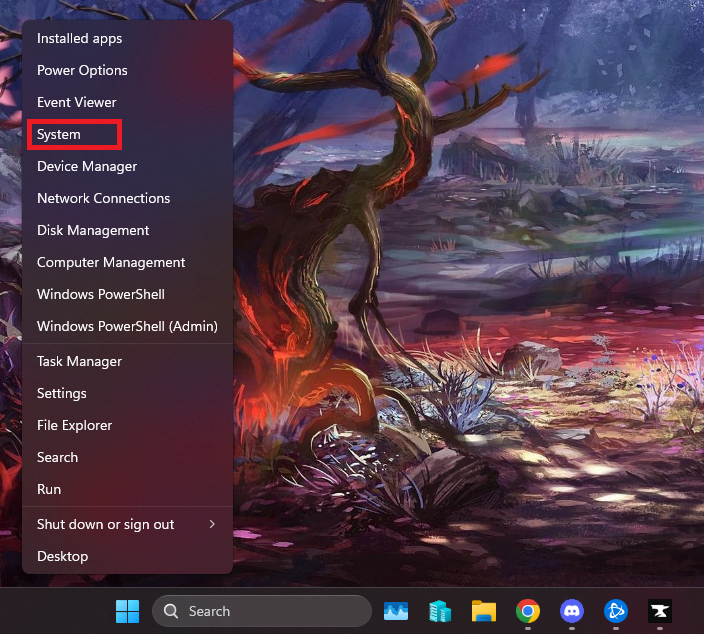
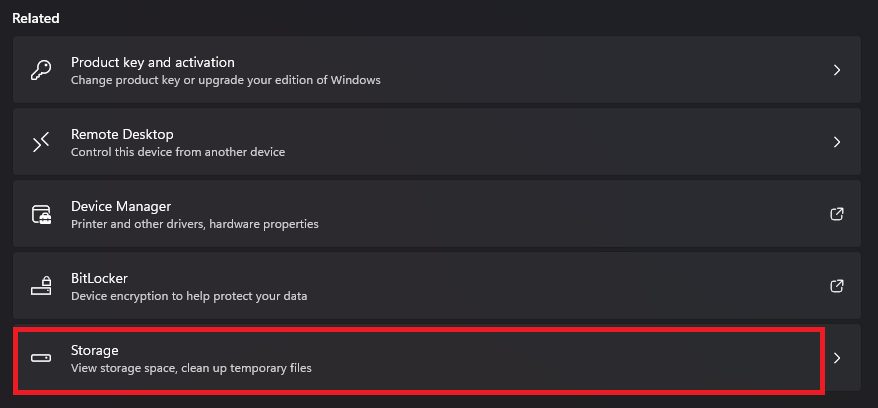
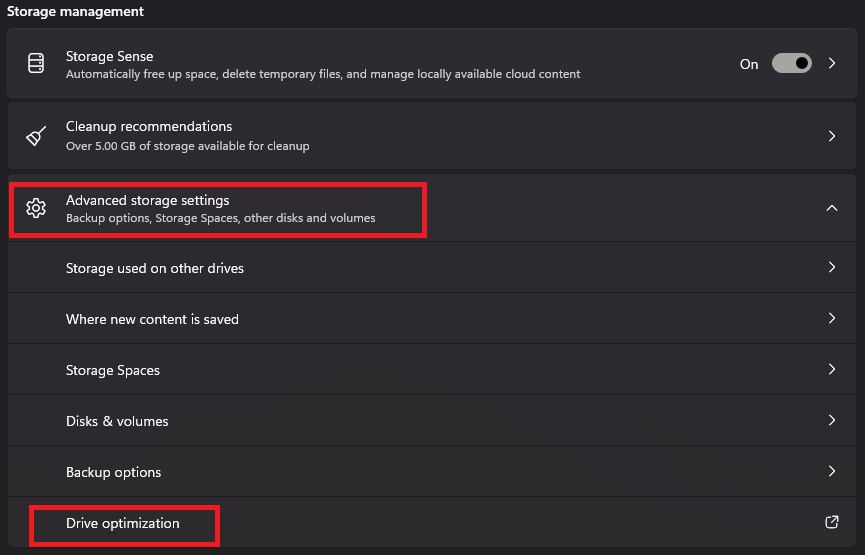
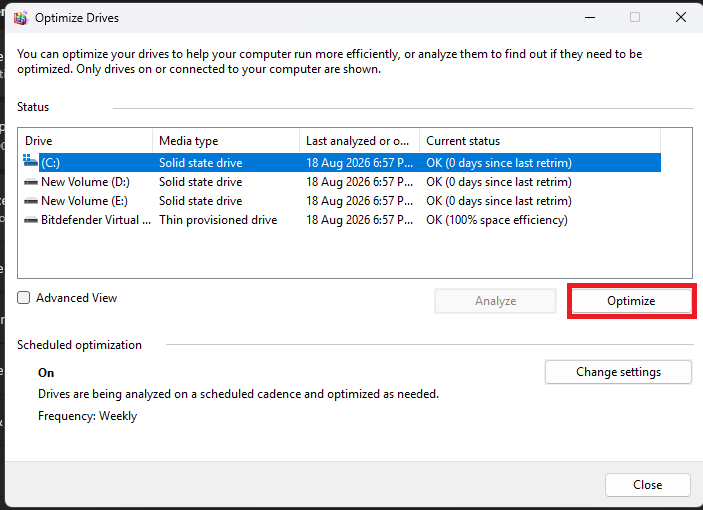
Cum folositi functia de “Optimize drives” pe Windows 11 Pro Data 19/08/2026 Autor preda silviu Categorie Soluții 5 270 Configurare noua (How To) Situatie Solutie Pasi de urmat Prima data faceti click dreapta pe butonul “Start” si selectati “System” Derulati in jos si selectati “Storage” Aici selectati “Advanced storage settings”, dupa care “Drive optimization” Selectati drive-rul dorit si click pe “Optimize”. Tip solutiePermanent Voteaza Up Down (25 din 46 persoane apreciaza acest articol) ShareTweetShare Despre Autor preda silviu Solutii Asemanatoare How to sync your Android phone’s files to a PC for free 1 Use these 7 Linux commands to keep your system tidy and fast 2 How to mass delete emails in Gmail 6 How to bring back classic context menu on Windows 11 5 Cum identifici exact ce aplicație sau proces ascuns oprește calculatorul să intre în modul Sleep 0 Fișierele nu sunt afișate pe hard disk extern în Windows 11 4 Leave A Comment? × Cancel Reply Save my name, email, and website in this browser for the next time I comment. 6 + one =
Leave A Comment?