
Situatie
Solutie
How to turn your old Galaxy phone into a smart sensor
First of all, your old phone or tablet can’t be too old. It needs to be a Galaxy S9, Note 9, or newer. Essentially, most Samsung phones running Android 9 or later will work. The primary device needs to be a Samsung phone as well, unfortunately. Galaxy Upcycle is found in the “Labs” section of the SmartThings app, but it’s not present on non-Samsung phones.With all that out of the way, let’s get down to business.
- First, open SmartThings on your primary phone
- Tap the menu icon in the bottom corner, and then select “Labs”
- Look for the “Galaxy Upcycle” service and tap on it
- You will see a brief explanation of the feature until the app displays a QR code on your primary phone’s screen.

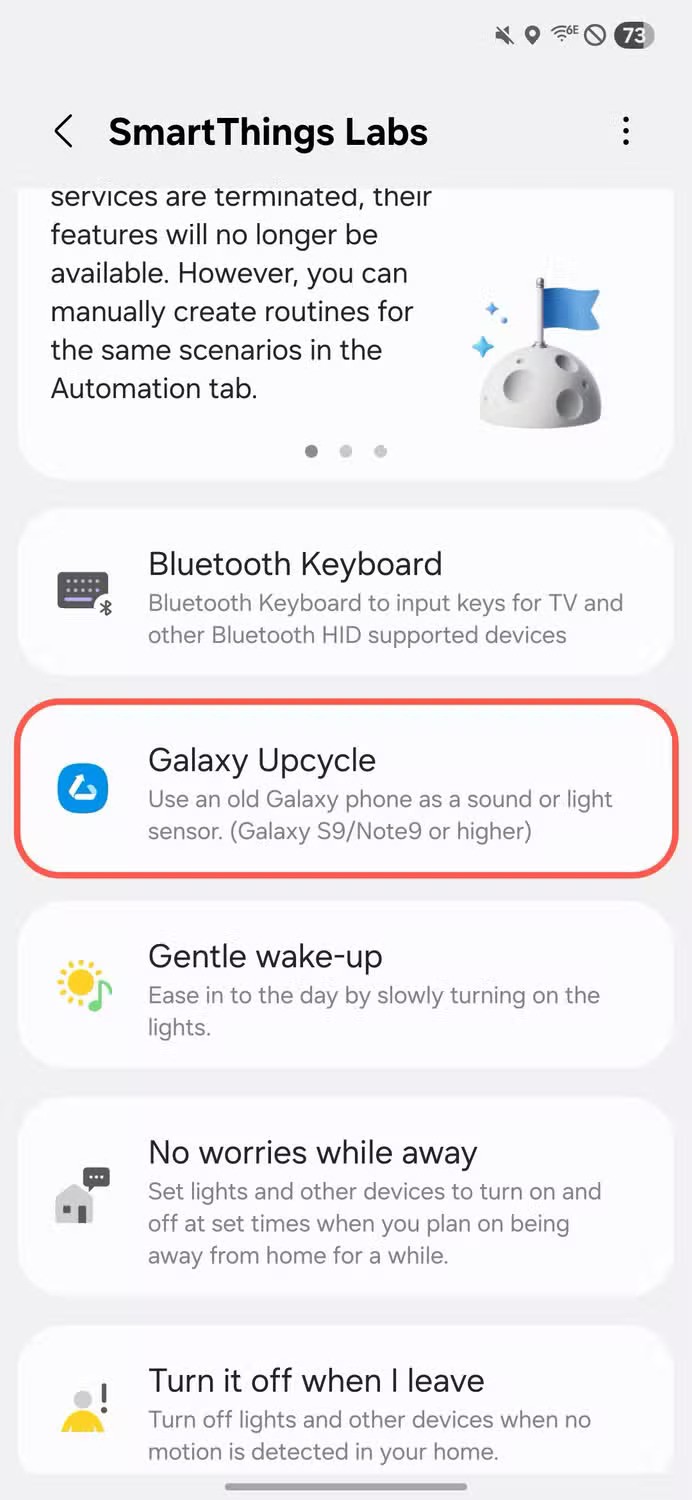
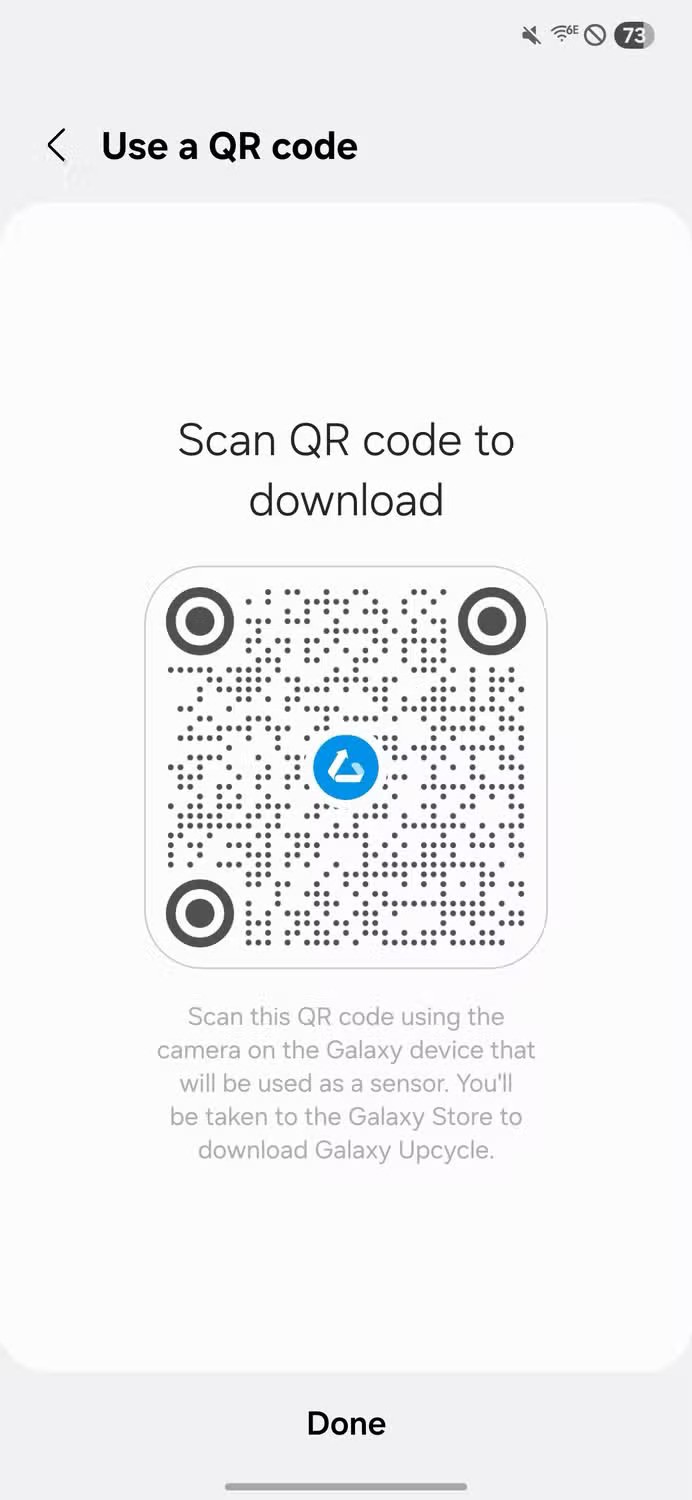
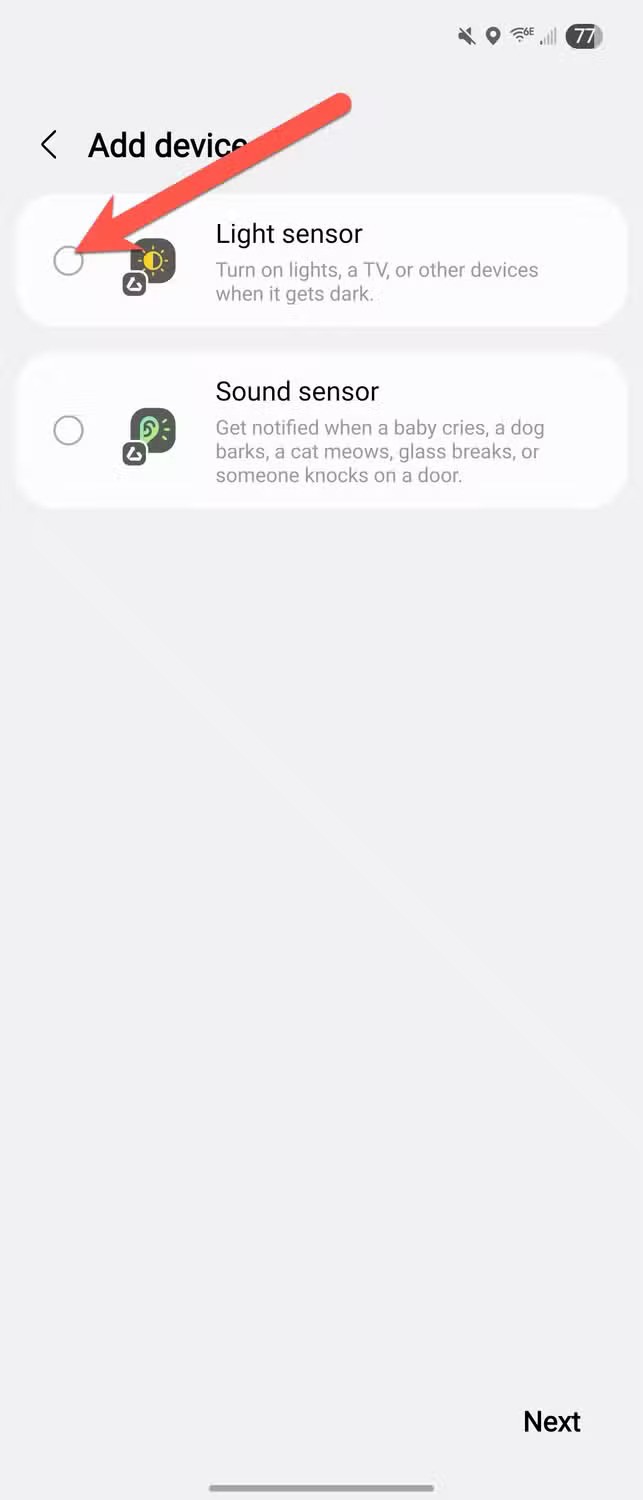
Grab up your old Galaxy phone and use the camera app to scan the QR code. This will automatically open the Galaxy Store page for the Galaxy Upcycle app. Install it. Open the app and go through the prompts. Choose whether you want the device to function as a “Light Sensor” or a “Sound Sensor”.


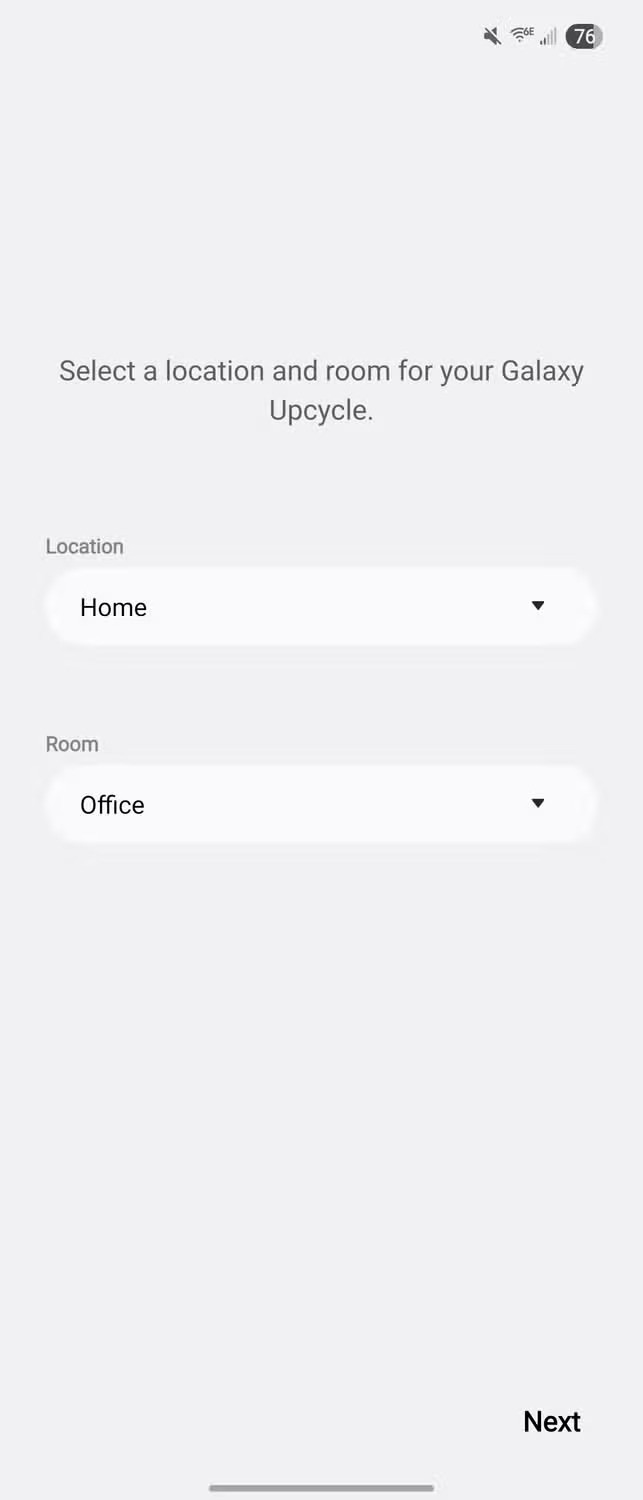
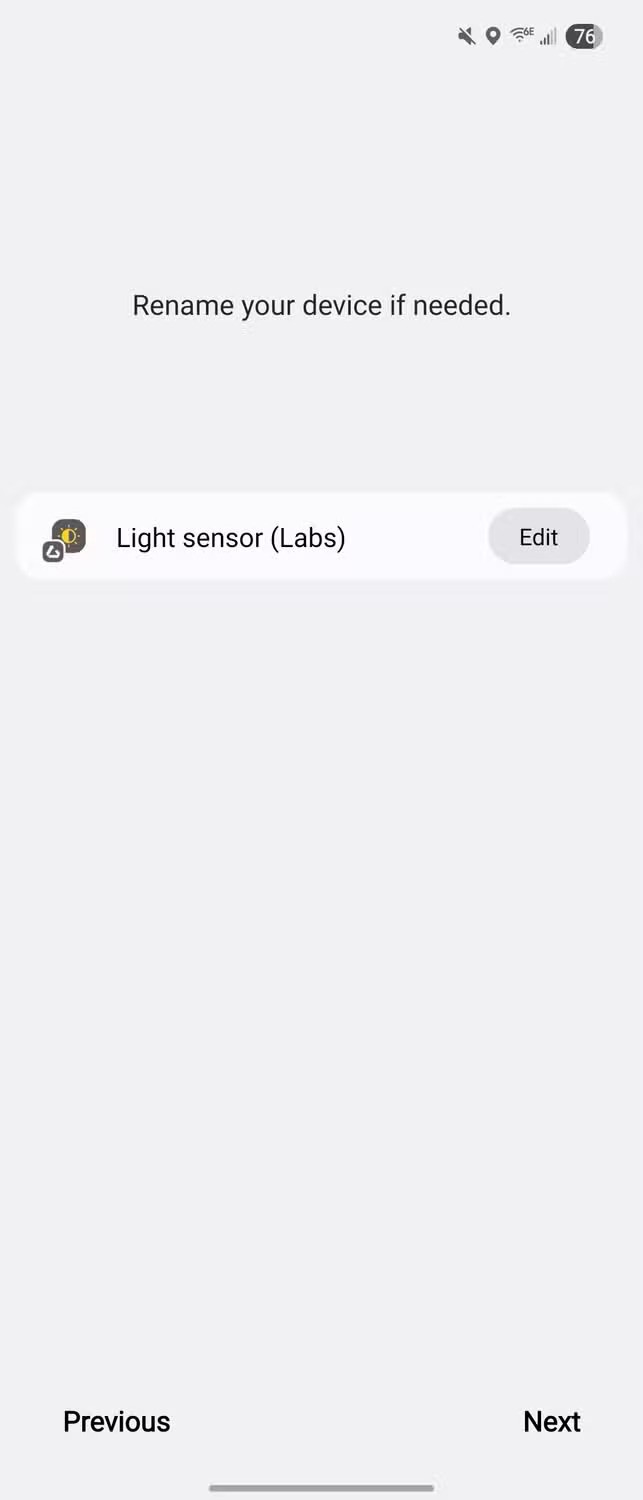
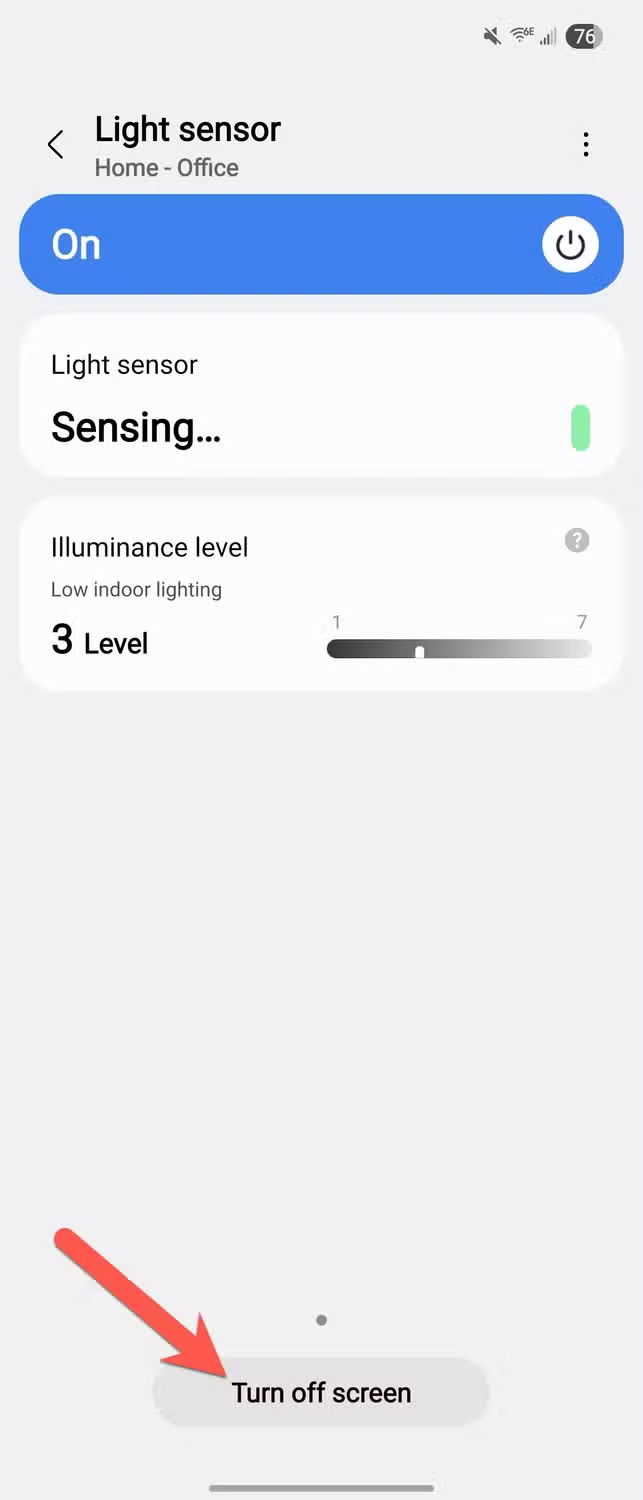
You’ll now add the “sensor” to your home in SmartThings. Assign the sensor to a specific room and then give it a new name if you’d like. After the sensor has been added, you can tap “Turn off screen” to put the phone into a low-power Upcycle monitoring mode. This requires granting the app admin access to your phone.

It’s possible to use your device as both a light sensor and a sound sensor at the same time. Open Galaxy Upcycle and tap the menu icon in the top corner of the sensor screen. Select “Manage Devices” and then tap the plus icon next to the sensor you haven’t enabled yet. Follow the steps to get it set up.


Now that your device is active, you can use it for monitoring and routines.
Leave A Comment?