
Situatie
To back up your BitLocker recovery key on Windows 11, use these steps:
Solutie
1. Open Settings on Windows 11
2. Click on System
3. Click the Storage tab
4. Under the “Storage management” section, click on Advanced storage settings
5. Click the “Disks & volumes” setting
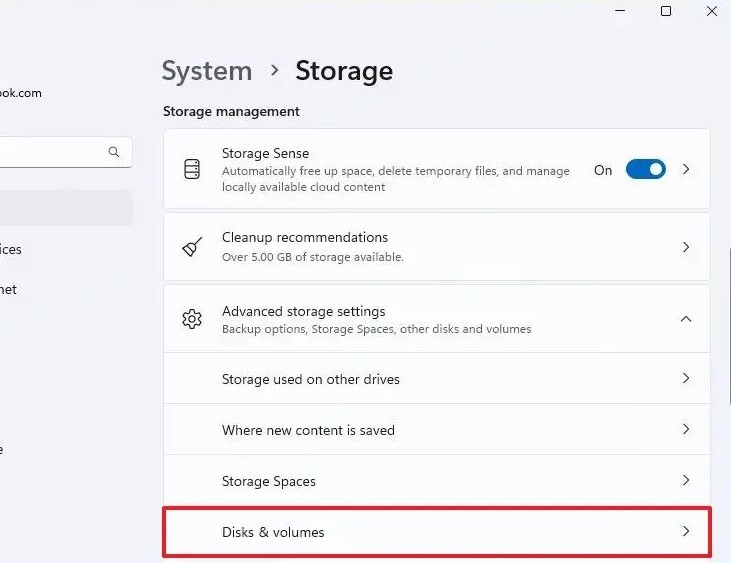
6. Click on the hard drive with the Windows 11 installation partition
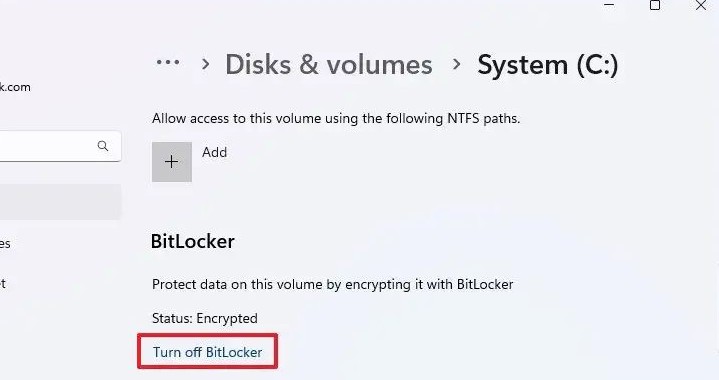
7. Click the Properties button for the “C” drive

8. Click the “Turn off BitLocker” option
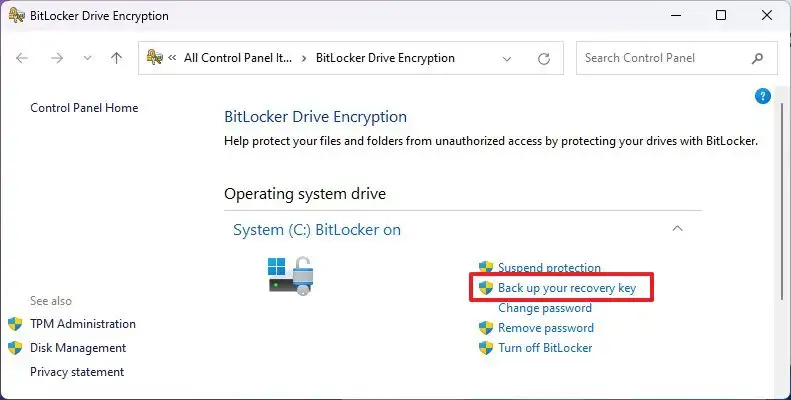
9. Under the “Operating system drive” section, click the “Back up your recovery key” option
10. Choose the option to export the BitLocker recovery key. For example, “Save to your Microsoft account.”
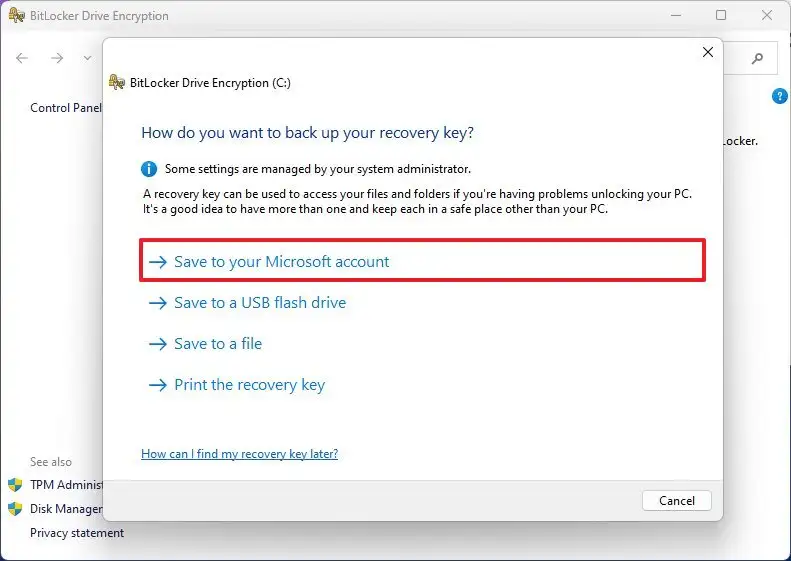
Quick note: You can also save the key to a USB flash drive or file, or you can even print the key.
11. Continue with the on-screen directions (if applicable).
12. Click the Finish button.
Once you complete the steps, the system will export the recovery key, which you can then use to unlock the drive after a computer failure or unexpected changes in the Secure Boot settings.
Leave A Comment?