
Situatie
To find the device specifications with Command Prompt, follow these steps:
Solutie
1. Open Start.
2. Search for Command Prompt and click the top result to open the console.
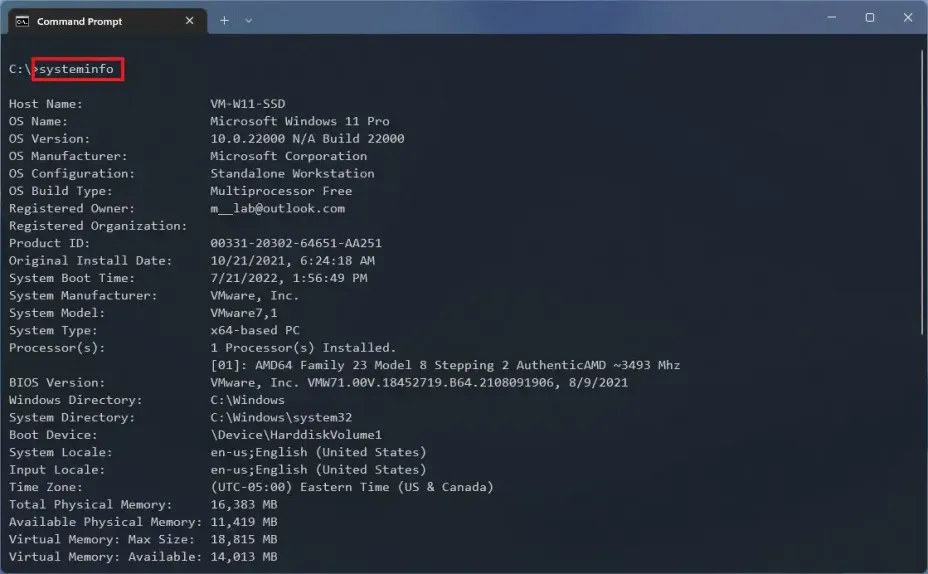
3. Type the following command to list the computer specifications on Windows 11 and press Enter: systeminfo
4. To check the specs on Windows 11 with PowerShell, follow these steps:
5. Open Start.
6. Search for PowerShell and click the top result to open the console.
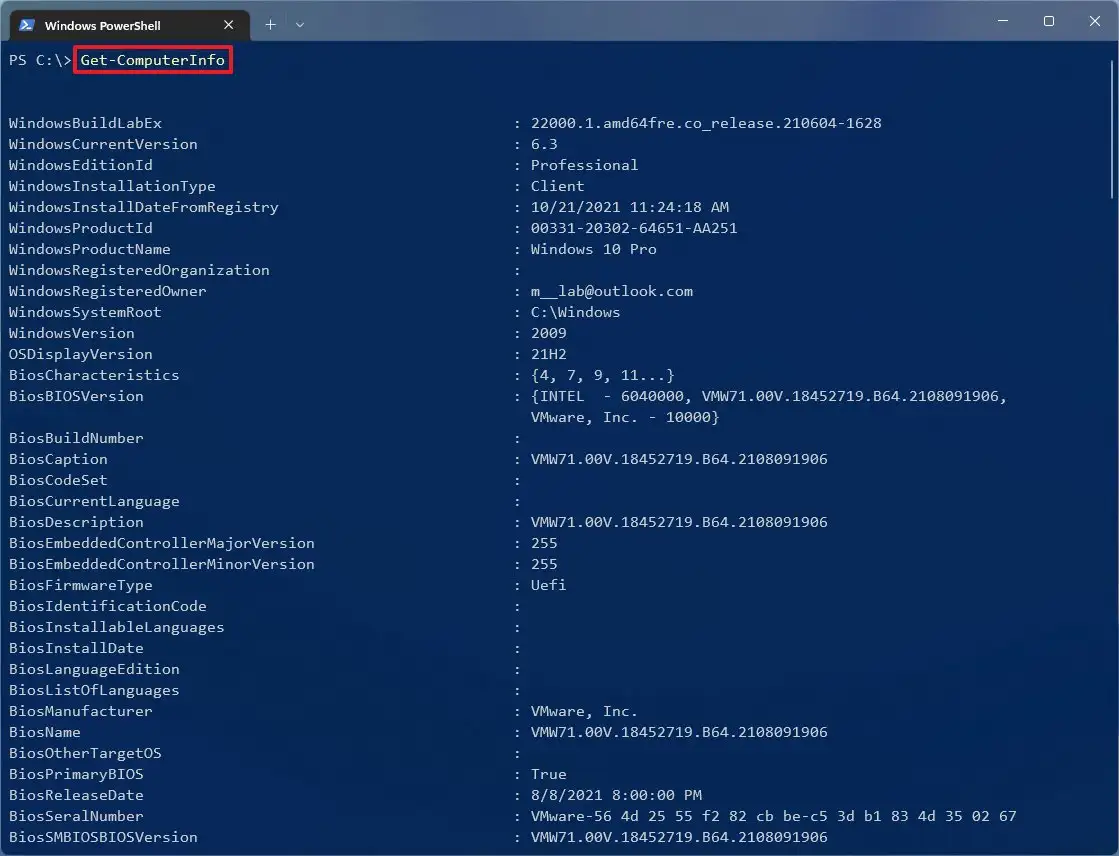
7. Option 1: Type this command to list the Windows 11 hardware specs and press Enter: Get-ComputerInfo
8. Option 2: Type this custom command to generate a list of the most relevant hardware specs about your Windows 11 computer and press Enter:
Get-ComputerInfo |
Select-Object CsManufacturer, CsModel, CsSystemType,
CsProcessorName, CsNumberOfLogicalProcessors,
@{Name=”InstalledRAM(GB)”;Expression={[math]::Round($_.CsTotalPhysicalMemory/1GB,2)}},
OsArchitecture;
Get-CimInstance Win32_Processor |
Select-Object Name, Manufacturer, NumberOfCores,
NumberOfLogicalProcessors,
@{Name=”MaxClockSpeed(GHz)”;Expression={[math]::Round($_.MaxClockSpeed/1000,2)}};
Get-CimInstance Win32_PhysicalMemory |
Select-Object BankLabel,
@{Name=”Capacity(GB)”;Expression={[math]::Round($_.Capacity/1GB,2)}},
Speed, Manufacturer;
Get-CimInstance Win32_BaseBoard |
Select-Object Manufacturer, Product;
Get-CimInstance Win32_DiskDrive |
Select-Object Model, MediaType, InterfaceType,
@{Name=”Size(GB)”;Expression={[math]::Round($_.Size/1GB,2)}};
Get-CimInstance Win32_VideoController |
Select-Object Name,
@{Name=”ReportedVRAM(GB)”;Expression={[math]::Round($_.AdapterRAM/1GB,2)}},
DriverVersion
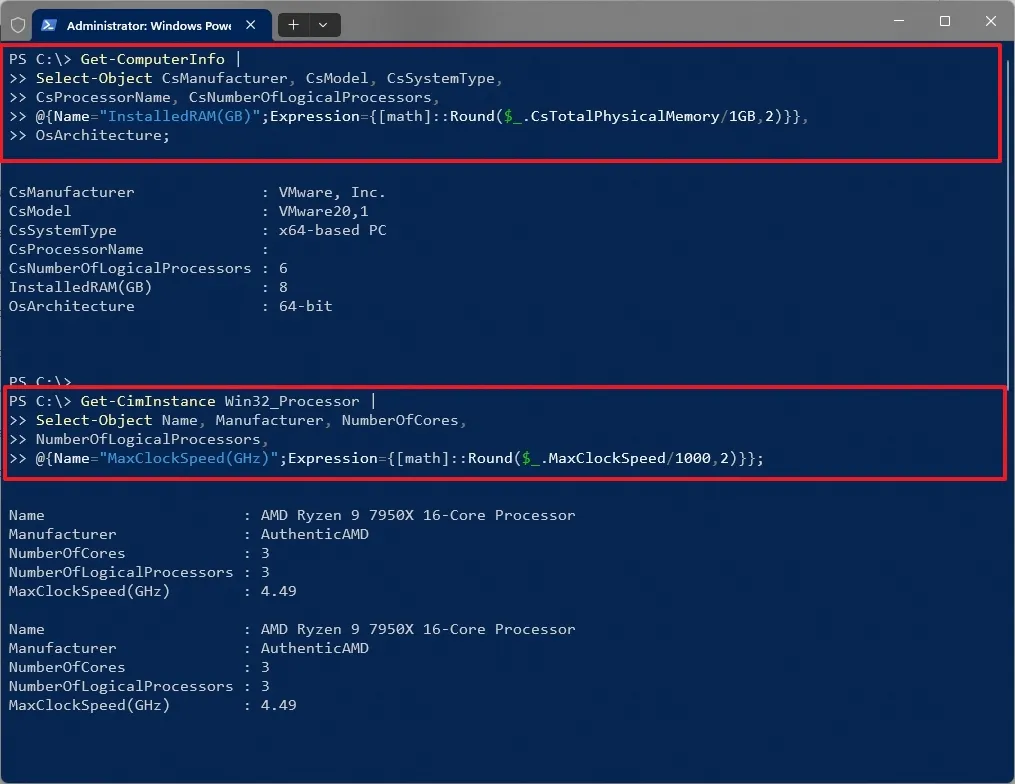
Note: This command generates a list with CPU, RAM, motherboard, storage, and GPU details. While PowerShell cannot reliably report dedicated GPU memory using WMI, you can use the DirectX Diagnostic Tool (DxDiag) from PowerShell to retrieve accurate VRAM information directly from the graphics driver.
Leave A Comment?