
Situatie
If your Linux system crashes and locks you out, you risk losing everything—files, data, time. If you have a bootable Linux USB recovery disk, tough, you’ll be ready to restore, repair, and rescue your system before it’s too late.
Why is it important to have a spare Linux USB disk?
It can happen to the most seasoned Linux users: a corrupted update operation that hoses your system, and you know how frustrating and annoying it can be to get it back up and running. While the temptation may be to start all over again, a recovery drive can save the day. A bootable Linux USB recovery disk is a fully functional Linux distribution that you can run directly on your computer without installing it on its hard drive. There are many important reasons to have a Linux USB recovery disk handy. With it, you can perform essential operations, troubleshoot issues, and access important files without booting the installed operating system.
System Recovery
Chief among the reasons for having a bootable USB disk handy is for system recovery. Linux installations are usually very stable and less prone to failure than other mainstream operating systems. However, bad things can happen, and a bootable USB disk can help you fix issues when your system becomes unbootable or inaccessible. To do this, you’d typically boot from the USB disk and use built-in tools like GRUB to repair the bootloader or fsck to check and repair file system errors.
File Access
If your system does become inaccessible and unresponsive beyond recovery, a bootable USB disk allows you to access and back up important files to another storage device. You can then reinstall the system and then transfer the important files back to the system.
Malware Scanning and Removal
Even Linux has malware. A bootable USB disk allows you to access a clean Linux environment, which you can use to detect and remove malware without directly interacting with the infected system. Typically, you can use a tool like ClamAV or a rootkit detection tool like chkrootkit or rkhunter to scan for malicious files on your system.
Solutie
Create a bootable USB Linux disk
You can create your recovery disk using your distribution’s (distro) desktop environment, but the most straightforward way is to open a terminal and use the command line. Before you begin, however, you will need an ISO file for the distribution you want to use. You can think of an ISO as a single file akin to a complete copy of the data found on CD, DVD, or Blu-ray.
While there are many different distros of Linux out there, your best bet is downloading an ISO for one of the following three: Ubuntu (based on Debian), Fedora (RedHat), and Arch Linux, which is an independent distribution developed from scratch.
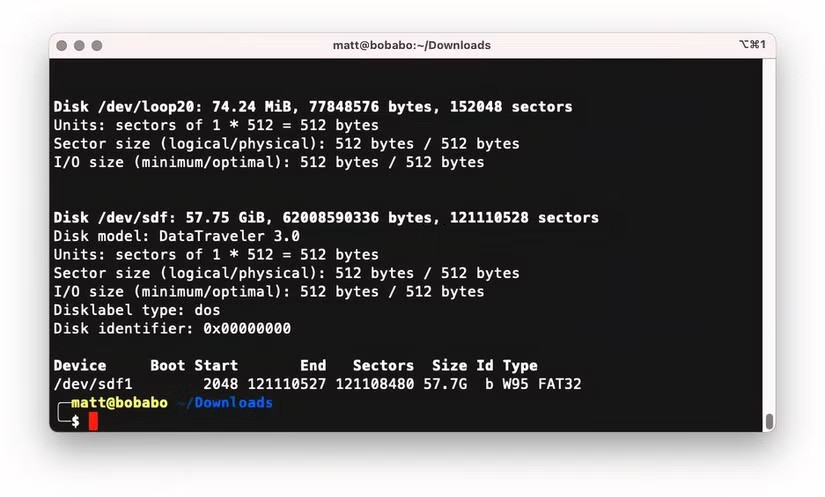
To create a bootable USB Linux disk with the Linux command line, download the Linux ISO and insert the USB drive. Then type the following command to find its identifier.
sudo fdisk -l
In this example, the identifier for our USB disk is “/dev/sdf”.
Use the dd command to create the bootable drive.
sudo dd if=/path/to/linux.iso of=/dev/sdX bs=4M status=progress && sync
Here, we’ve changed to our Downloads directory, so we can point the command directly at the ISO file.
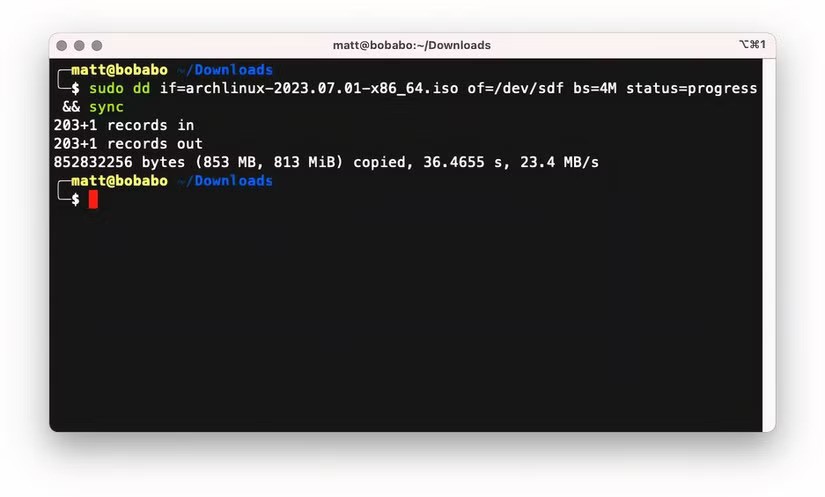
Once the process is complete, you can eject the USB drive.
sudo eject /dev/sdX
If you don’t want to use the command line to create a bootable USB disk, or you can’t because your system is inaccessible, then there are other options. If you’re using Windows, you can use Rufus. If you’re a Mac owner, you can use its built-in tools or balenaEtcher.
Leave A Comment?