
Situatie
Solution 1: Re-enable Widgets
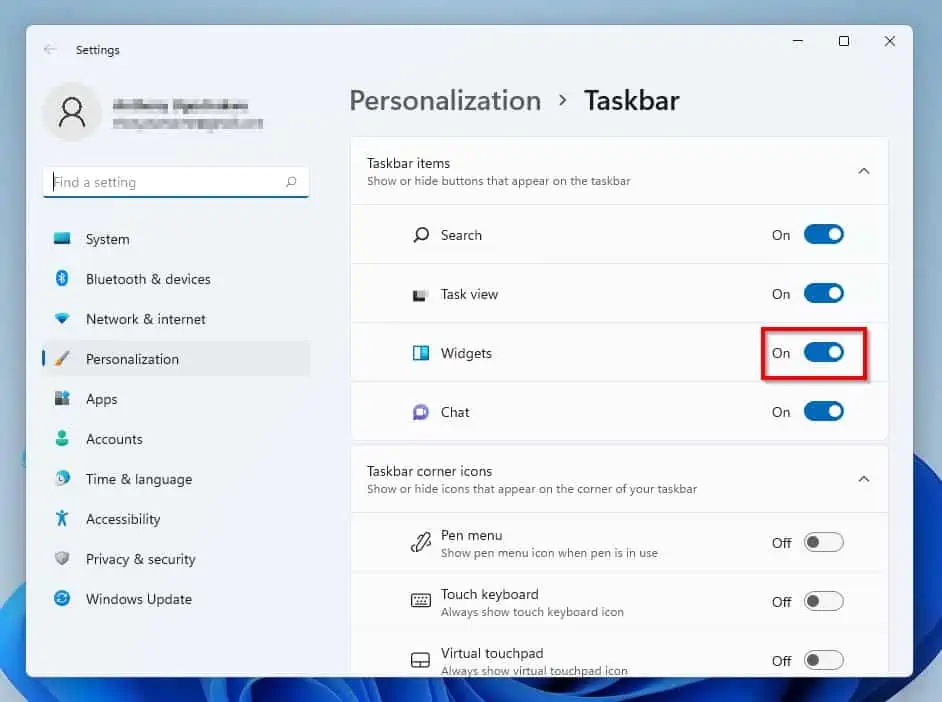
The easiest and fastest way to fix this problem is to disable and re-enable Widgets on your Windows 11 PC. To do that, follow the steps below.
- Right-click a free area on your Windows 11 taskbar and select Taskbar settings
- Following that, turn off and turn on the Widgets toggle on the Settings window’s right pane. After doing that, check if the problem has been fixed.If it hasn’t been fixed, try the other solutions below.
Solution 2: Restart Windows Widgets and Windows Explorer Processes
Another way to fix this problem is to restart the Windows Widgets and Windows Explorer processes on your Windows 11 PC. Follow the procedures below to accomplish that.
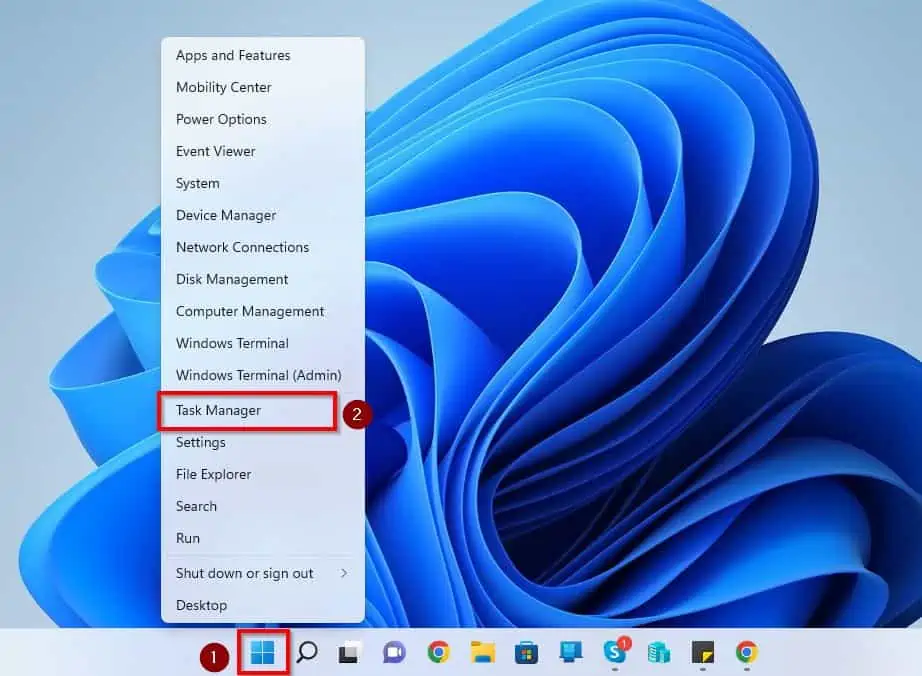
- Right-click your Windows 11 Start menu button and select Task Manager from the displayed options. Alternatively, you can also use the Ctrl + Shift + Esc keyboard shortcut to open Task Manager.
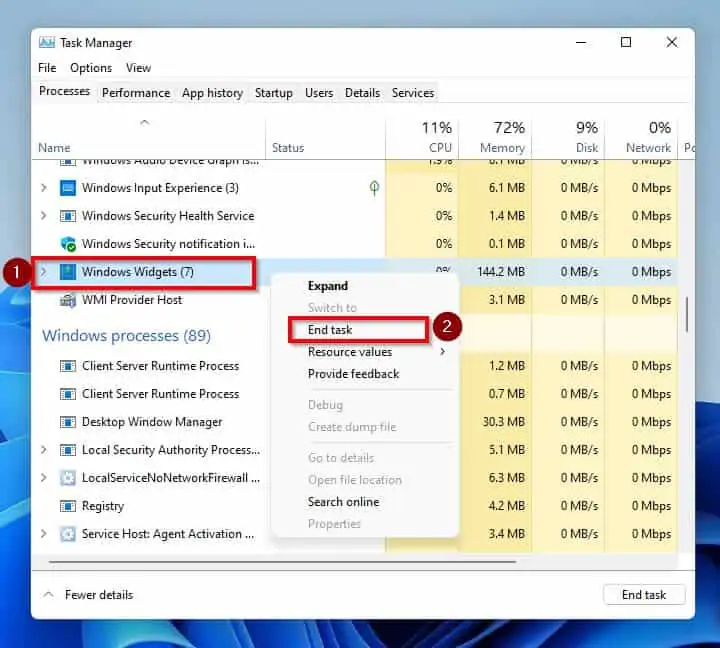
- Under the Background processes section in the Processes tab in Task Manager, right-click Windows Widgets and select End task.
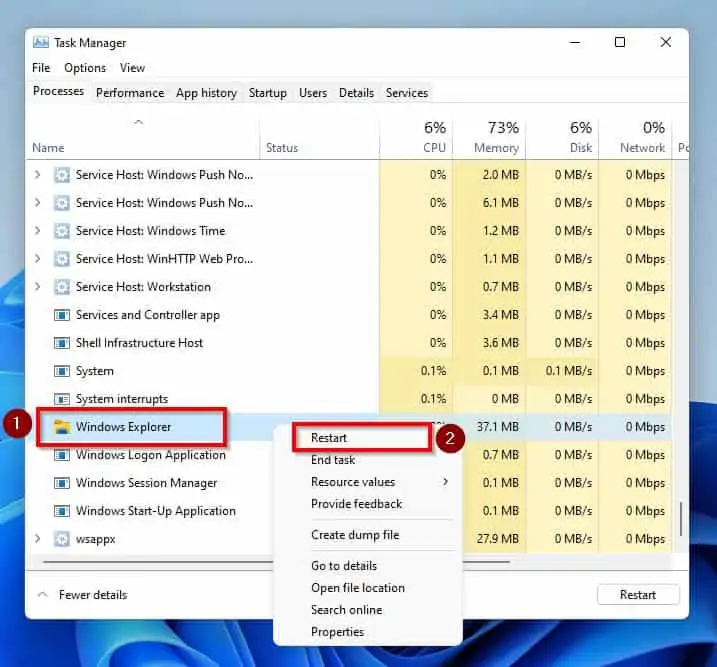
- After doing that, right-click Windows Explorer under the Windows processes section and select Restart.
- After doing all that, check if your Windows 11 widgets are working again. If they are working, cheers!However, if they still aren’t working, check out the last solution of this guide below.
Solution 3: update Graphics Driver
In some instances, an outdated graphics driver can cause the widgets on your Windows 11 PC not to work. If that’s the case, updating the graphics driver on your PC should resolve the issue.
The following steps demonstrate how to update the graphics driver in Windows 11.
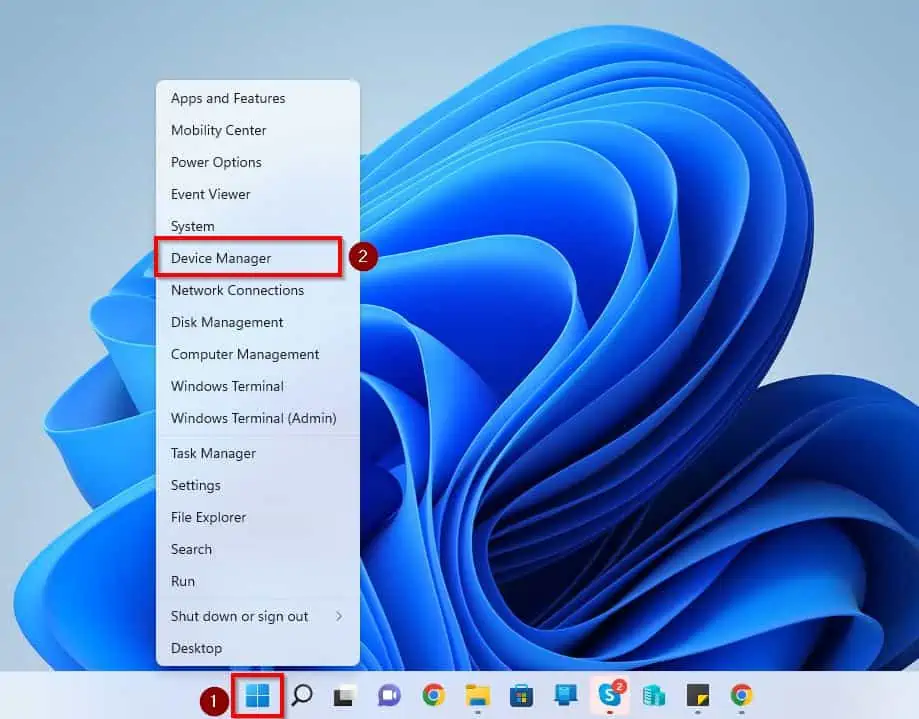
- On your Windows 11 taskbar, right-click the Start menu and select Device Manager from the options that appear
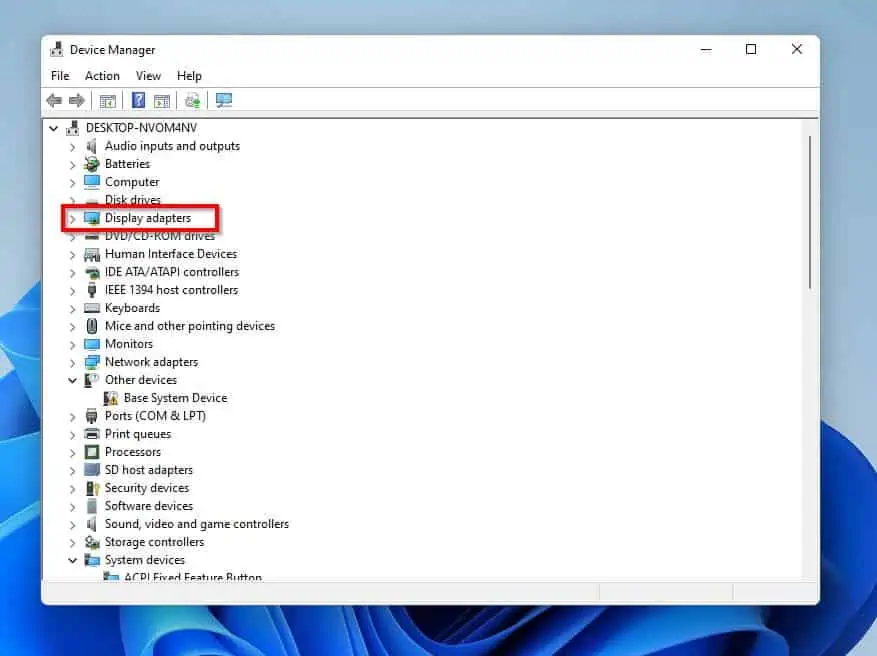
- Following that, double-click Display adapters on the Device Manager window to expand it
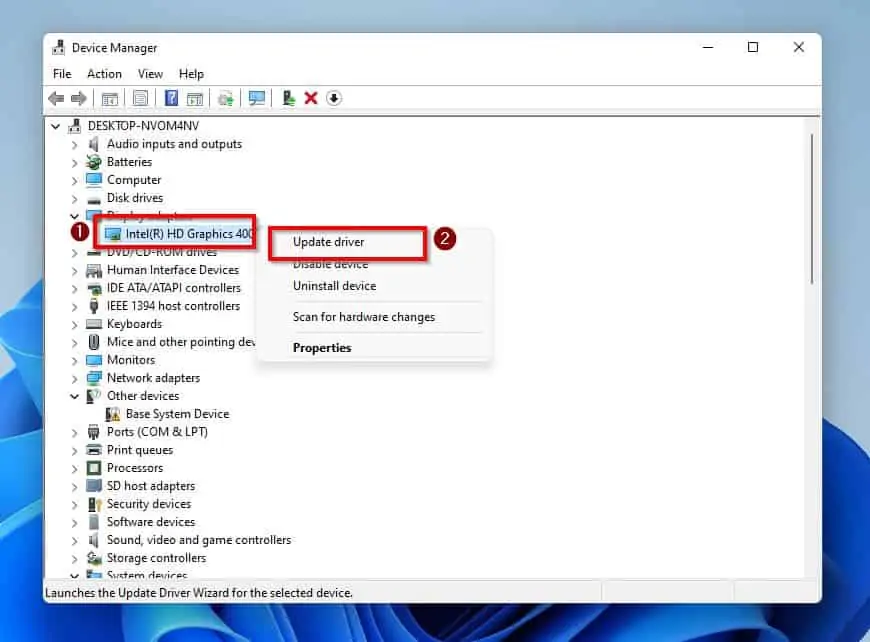
- Under Display adapters, right-click your PC’s graphics driver and select Update driver
- After that, click Search automatically for drivers on the Update Drivers window
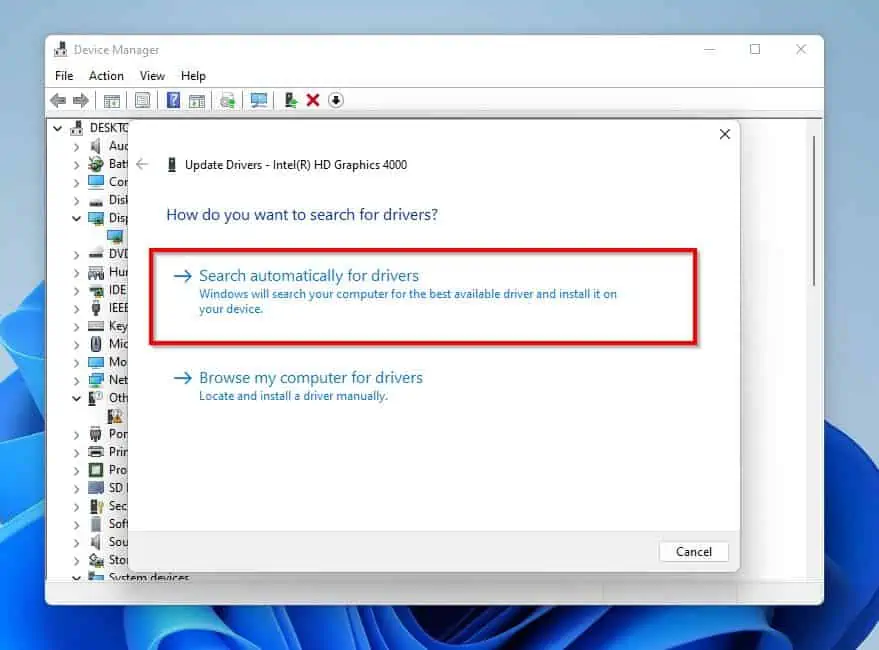
- Consequently, Windows will start searching online for the latest graphics driver and automatically install it on your PC. Hence, ensure your Windows 11 PC is connected to the internet during this process.
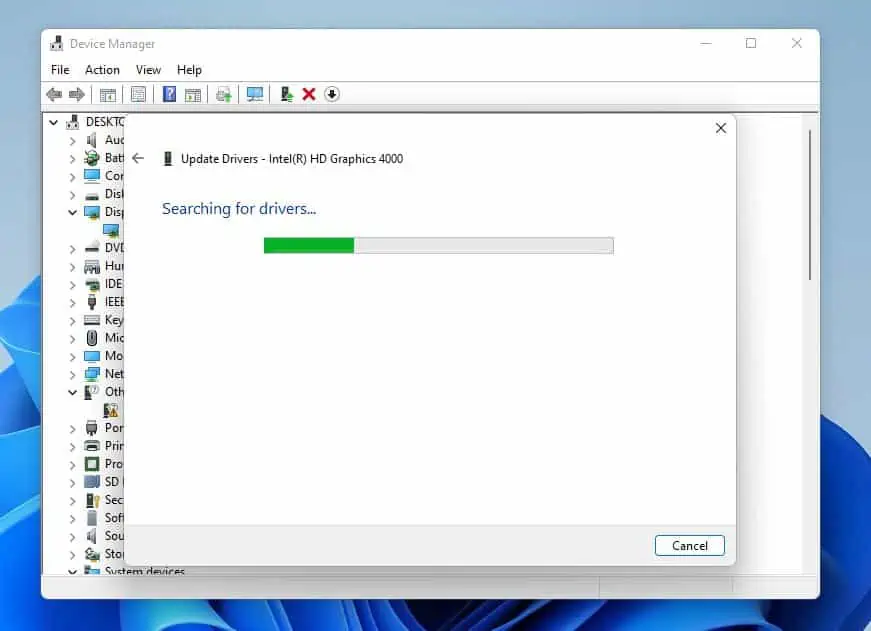
- After updating your computer’s graphics driver, reboot your PC. Optimistically, the problem will be solved, and the widgets will start working again.
Leave A Comment?