
Situatie
To get rid of the All apps section in the Start menu, follow these steps:
Solutie
1. Open Start
2. Search for regedit and click the top result to open the Registry Editor
3. Open to the following path:
HKEY_CURRENT_USER\Software\Microsoft\Windows\CurrentVersion\Policies
4. Right-click the Policies key, select New, and click Key.
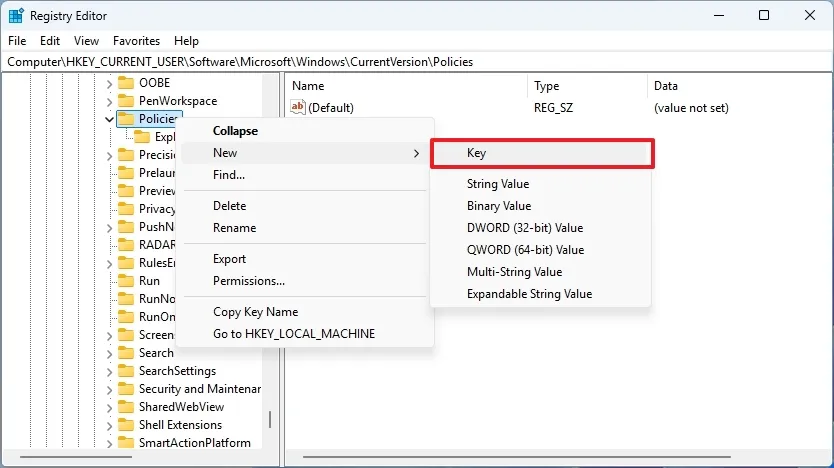
5. Confirm the Explorer name for the key and press Enter
6. Right-click the Explorer key from the right pane, select New, and click the “DWORD (32-bit) Value” option
7. Confirm the value NoStartMenuMorePrograms for the DWORD and press Enter.
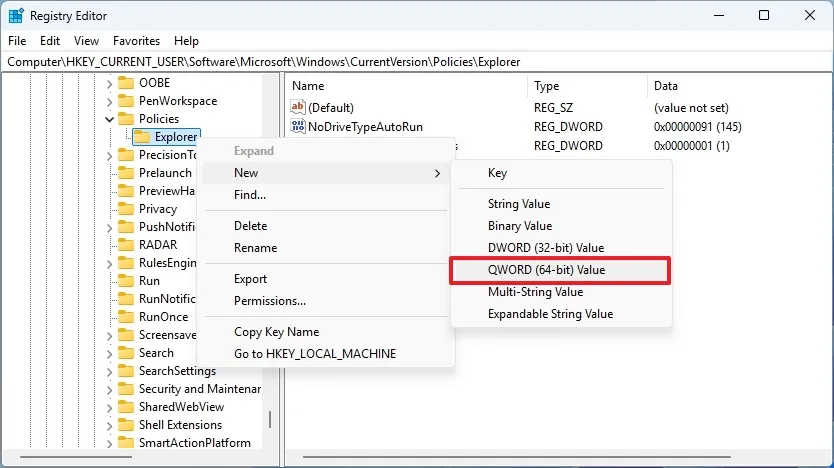
8. Double-click the newly created DWORD and set its data to 1
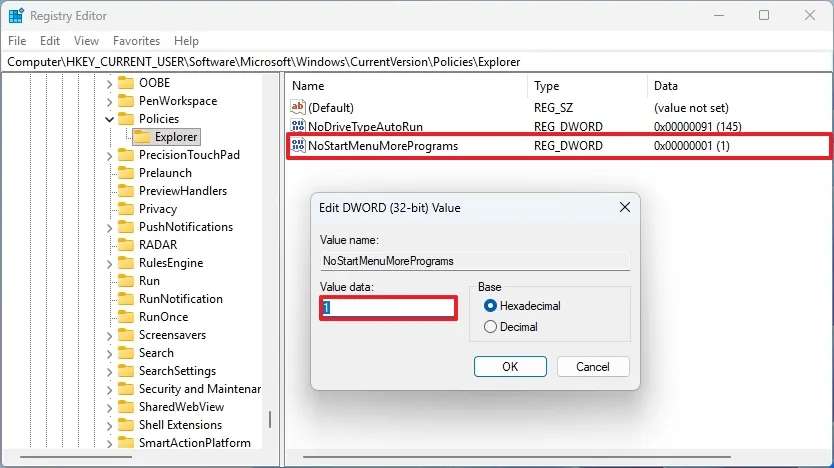
9. Click the OK button
10. Restart the computer.
Once you complete the steps, opening the Start menu will no longer show the All apps list. Only pinned apps will be visible. However, if you proceed with this configuration, you’ll have to use Windows Search to find applications manually if they’re not already pinned to the Start menu.
Leave A Comment?