
Situatie
To move the Taskbar to the top of the screen with ExplorerPatcher, use these steps:
Solutie
1. Open the ExplorerPatcher GitHub page
2. Under the “Assets” section, click the ep_setup.exe link to download the app
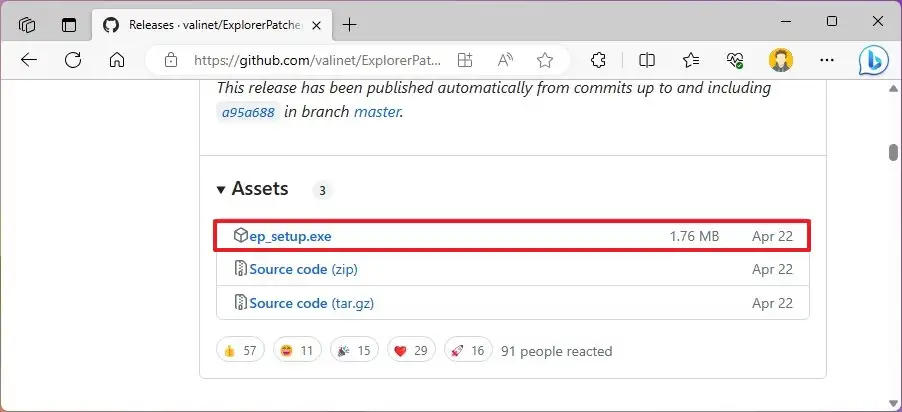
Quick note: The browser may complain that the software is untrusted, but this is only because the app makes system changes. Although the app works as advertised, use it at your own risk.
3. Confirm you want to keep the file in the web browser (if applicable)
4. Double-click the file to install the app
5. Right-click the Taskbar and select the Properties option
6. Click on Taskbar from the left pane
7. Select the “Windows 10” option from the “Taskbar style” setting
8. Use the “Primary taskbar location on screen” setting and select the Top option to move the Taskbar to the top of the screen. (You also have the option to move it to the left or right side)
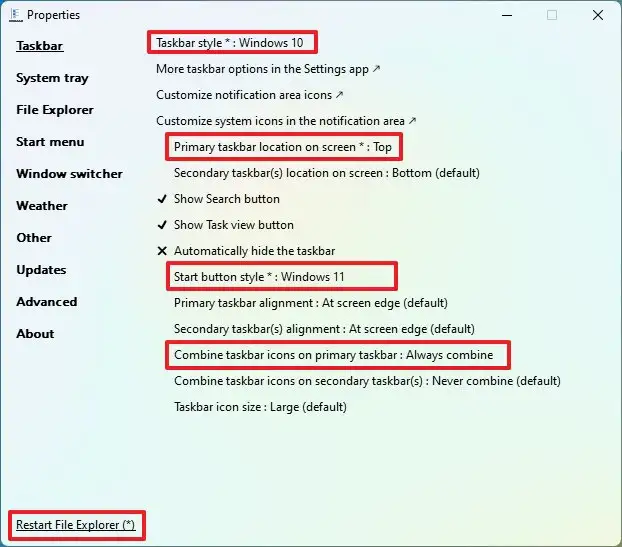
9. (Optional) Use the “Start button style” setting and select the “Windows 11” option.
10. (Optional) Use the “Combine taskbar icons on the primary taskbar” setting and select the Always combine option.
11. Click on Start menu from the left pane.
12. Select the “Windows 11” option from the “Start menu style” setting.
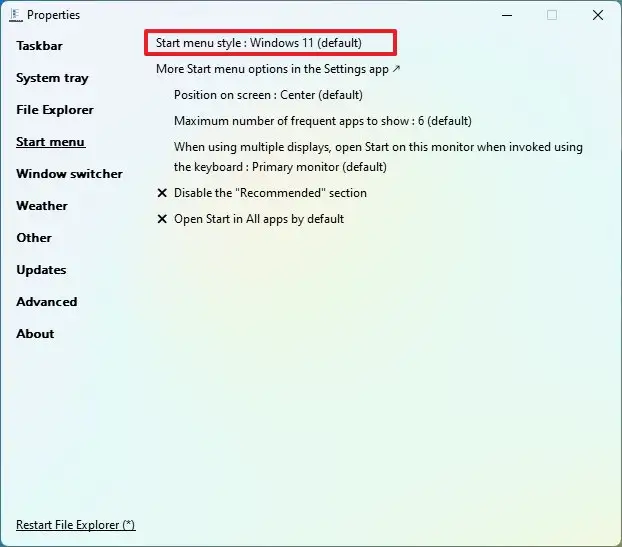
13. Click the Restart File Explorer option in the bottom-left corner (if you don’t see the changes). After you complete the steps, you can start using the Taskbar from the top of the screen.
Leave A Comment?