
Situatie
Solutie
Step 1: Install WSL
- Open Command Prompt as Administrator: Right-click the Start button and select “Command Prompt (Admin)” or “Windows PowerShell (Admin)”
- Install WSL: Run the following command:
wsl --install - Restart your computer.
- Launch Ubuntu: From the desktop or by typing
wslin the Command Prompt.
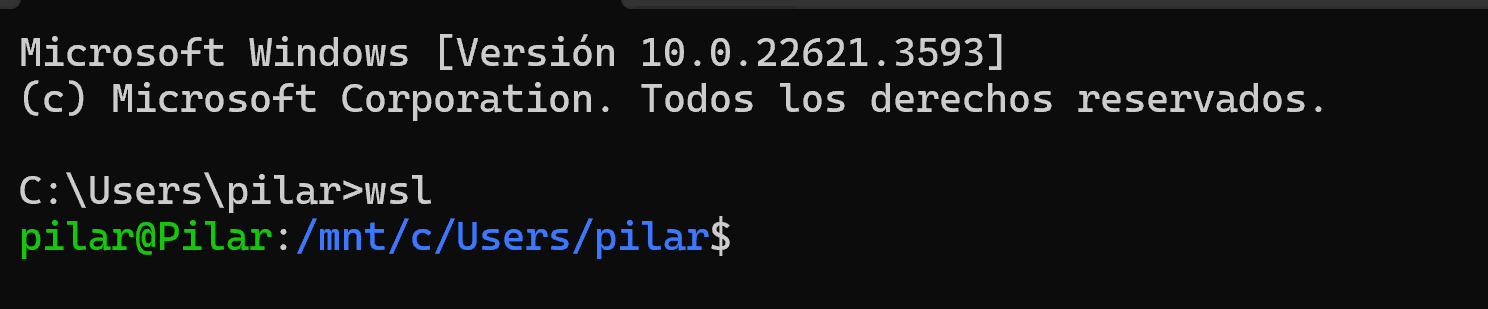
Step 2: Install Ollama
- Open Ubuntu in WSL.
- Install Ollama: Run the following command to download and install Ollama:
curl -fsSL https://ollama.com/install.sh | sh
3. Install GPU requirements (if necessary):
- Check the characteristics of your Linux operating system installed in WSL
- For Ubuntu 22.04, follow the CUDA Toolkit 12.1 Downloads page instructions
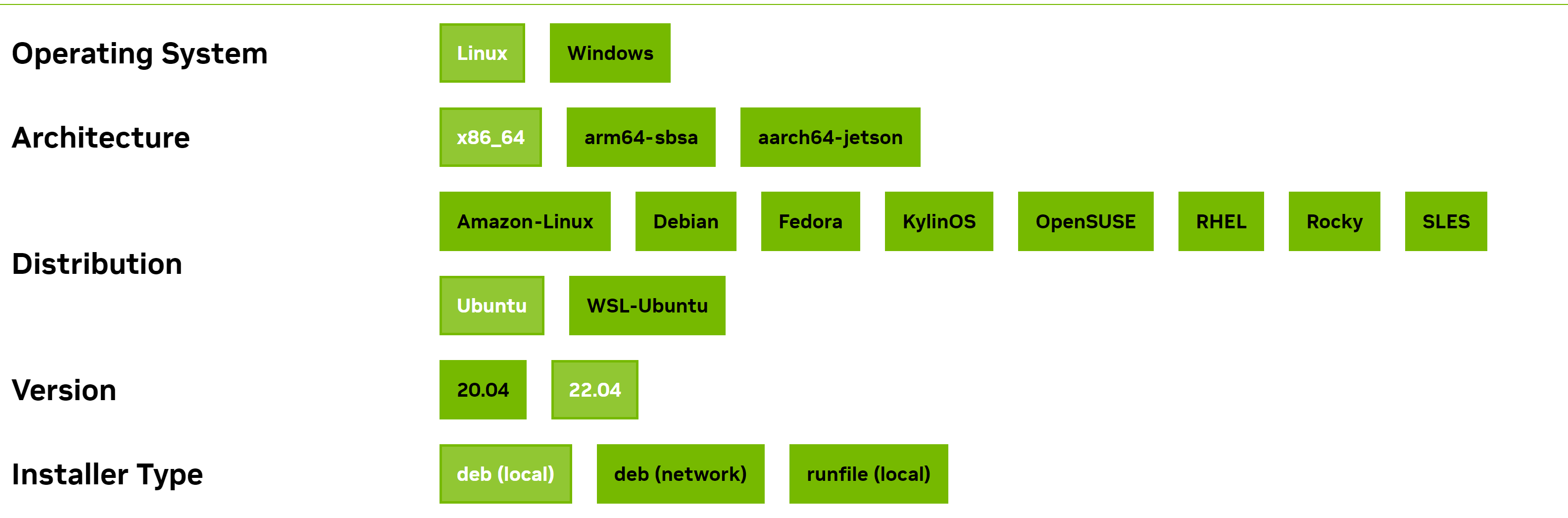
Check it with the “lsb_release -a” command
Step 3: Install the Model
- Run the command “Ollama pull MODEL_NAME” to install the required model.
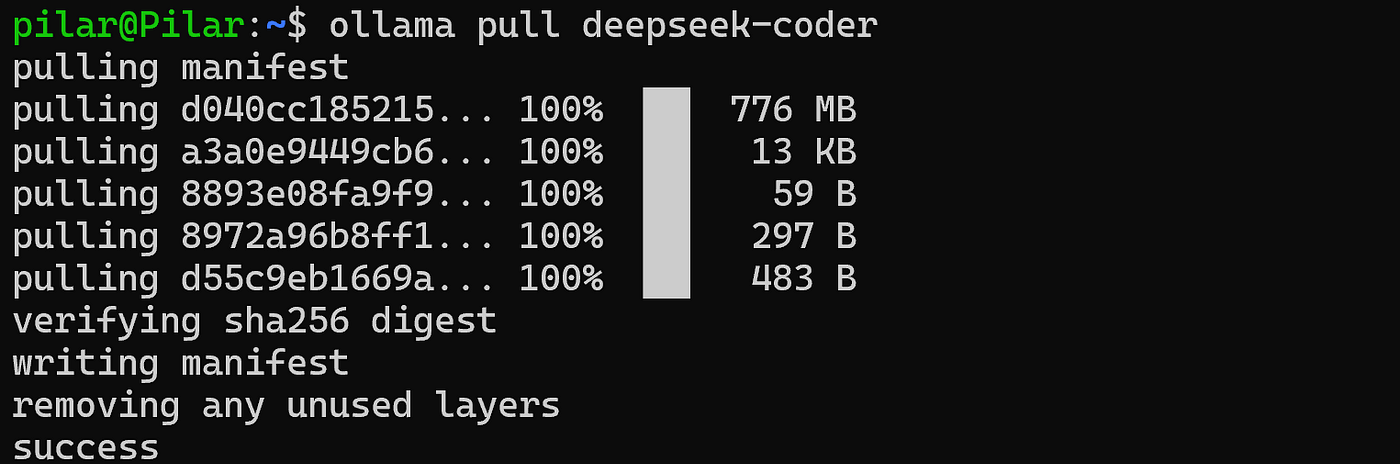
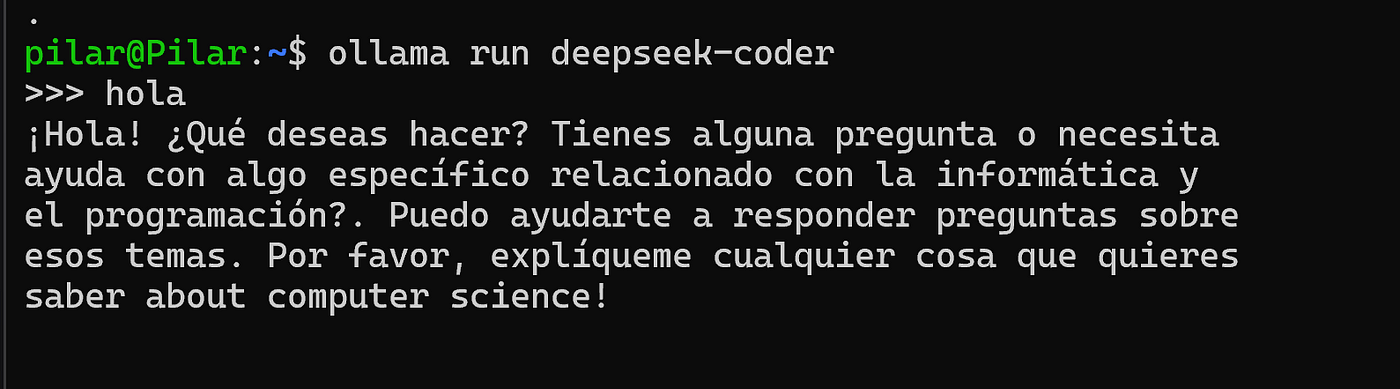
- Test the model: Ensure that the model responds correctly to requests.
Step 4: Verify the Service is Running on localhost
- Ensure that Ollama is running on an IP address
127.0.0.1and port11434.

2. Configure port forwarding in Windows. Open Command Prompt as Administrator and run: netsh interface portproxy add v4tov4 listenport=80 listenaddress=0.0.0.0 connectport=11434 connectaddress=127.0.0.1
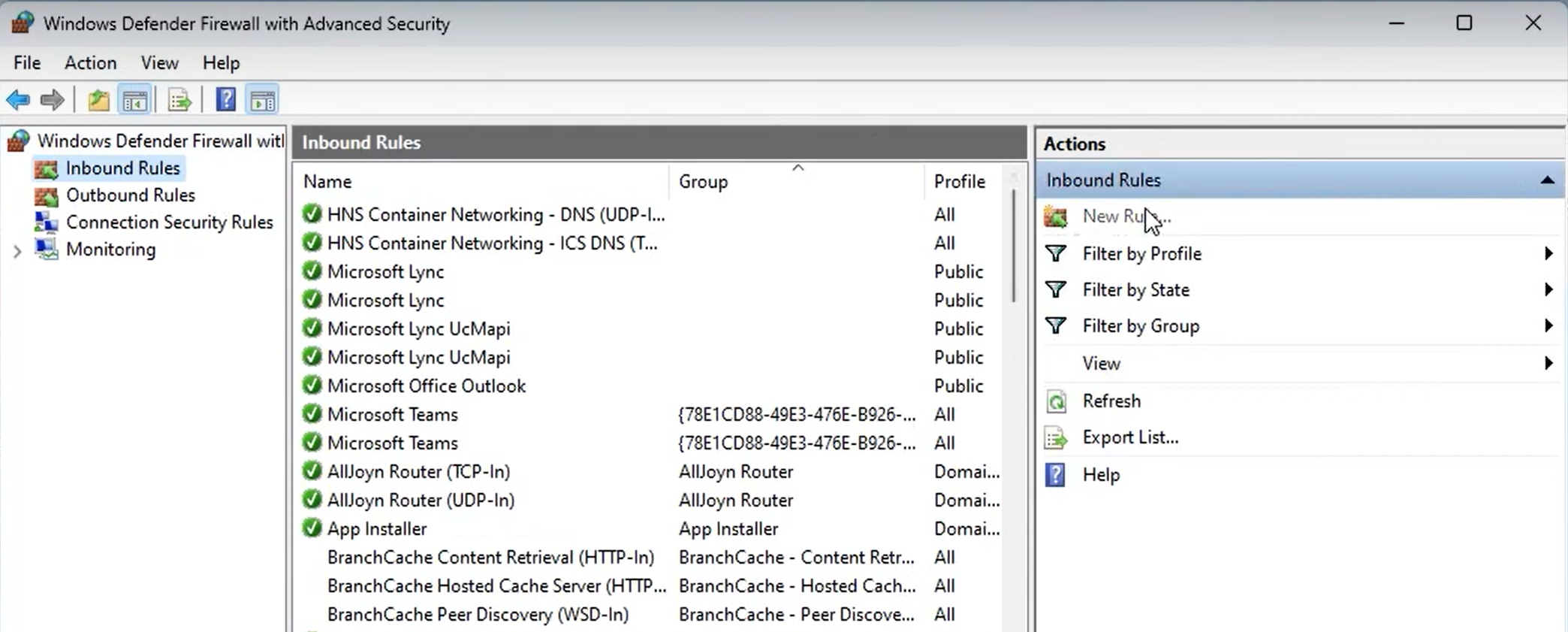
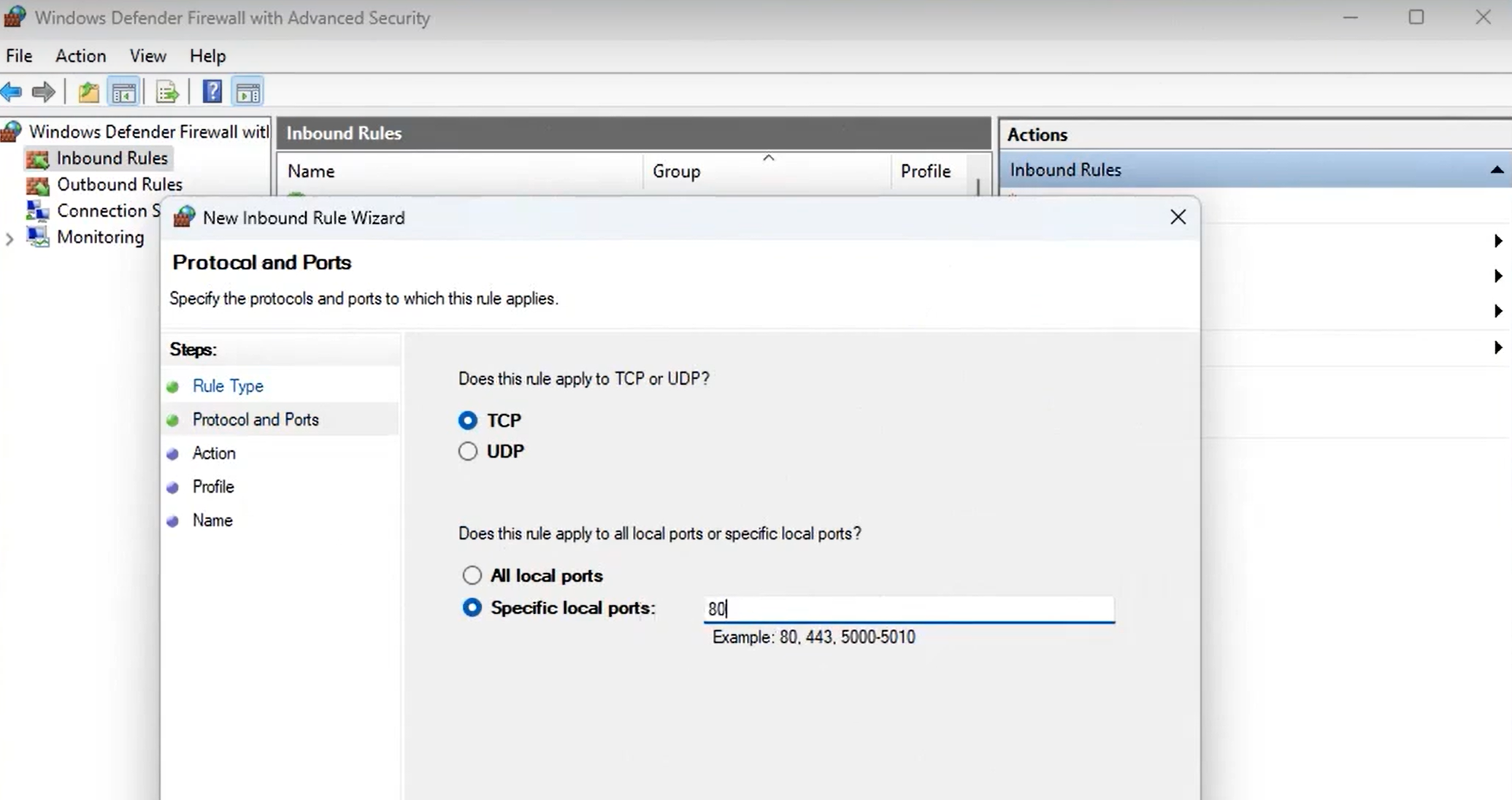
3. Enable the rule in Windows Defender Firewall. Open Windows Defender Firewall and allow connections on the port 11434.
Step 5: Run Ollama
- Do not close WSL: Ensure that the WSL instance and Ollama service remain open.

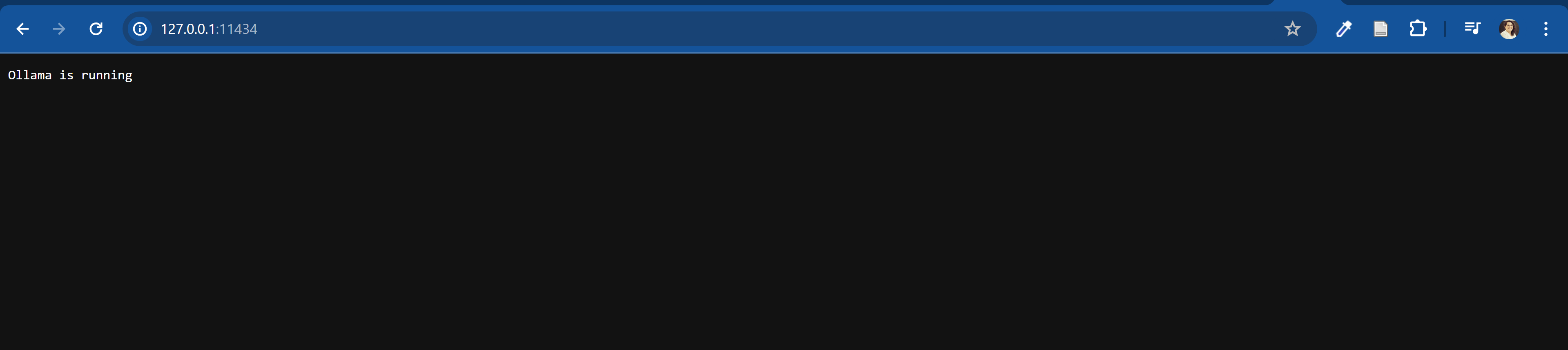
2. Open in the browser from Windows, open a web browser and navigate to http://127.0.0.1:11434 to verify the service is accessible.
Leave A Comment?