
Situatie
A hidden Windows 11 Registry tweak may unlock Server-level NVMe performance gains, but results vary widely across systems. To enable the new NVMe driver to improve SSD performance on Windows 11, follow these steps:
Solutie
1. Open Start on Windows 11
2. Search for PowerShell (or Terminal), right-click the top result, and choose the Run as administrator option
3. Type this command to enable the new storage driver on Windows 11 and press Enter:
reg add “HKEY_LOCAL_MACHINE\SYSTEM\CurrentControlSet\Policies\Microsoft\FeatureManagement\Overrides” /v 735209102 /t REG_DWORD /d 1 /f && reg add “HKEY_LOCAL_MACHINE\SYSTEM\CurrentControlSet\Policies\Microsoft\FeatureManagement\Overrides” /v 1853569164 /t REG_DWORD /d 1 /f && reg add “HKEY_LOCAL_MACHINE\SYSTEM\CurrentControlSet\Policies\Microsoft\FeatureManagement\Overrides” /v 156965516 /t REG_DWORD /d 1 /f
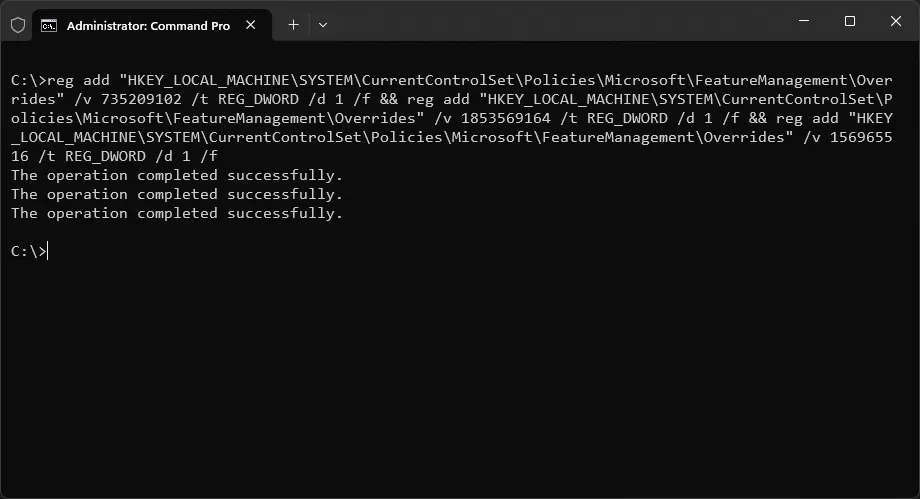
4. Restart the computer
5. Right-click the Start button and choose the Device Manager option
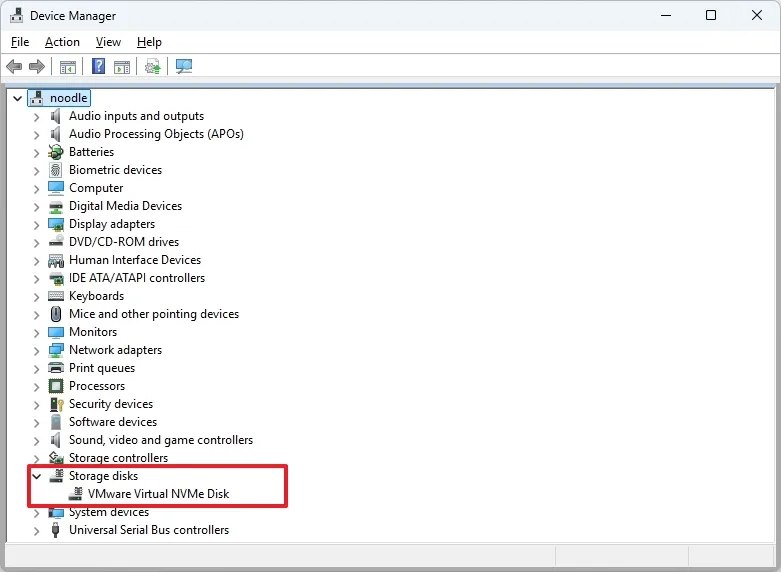
6. Confirm that the Storage disks branch (instead of “Disk drives”) is selected, and that your drive appears on the list.
Once you complete the steps, the new NVMe driver should be enabled, improving the speed of your device’s hard drive.
Leave A Comment?