
Situatie
The “File in use” error when not open is not a new problem. In fact, it’s been an issue with Windows for decades. It has to do with how Windows handles access to files.
When an application opens a file, Windows provides it with a file handle that the application uses to access the file. If another process still has the file open or has locked it, Windows might prevent you from deleting or moving it.
Solutie
Below, we’ve got some fixes to help you finally close that file. Before you begin troubleshooting, try restarting your machine or waiting a few minutes for processes to finish with the file.
A good first step is to close every possible app that might be involved with the file you want to use. Close as many as you can manually, and then try to move or delete the file. If needed, use the Task Manager to end an unresponsive app, but take care not to end processes you don’t recognize.
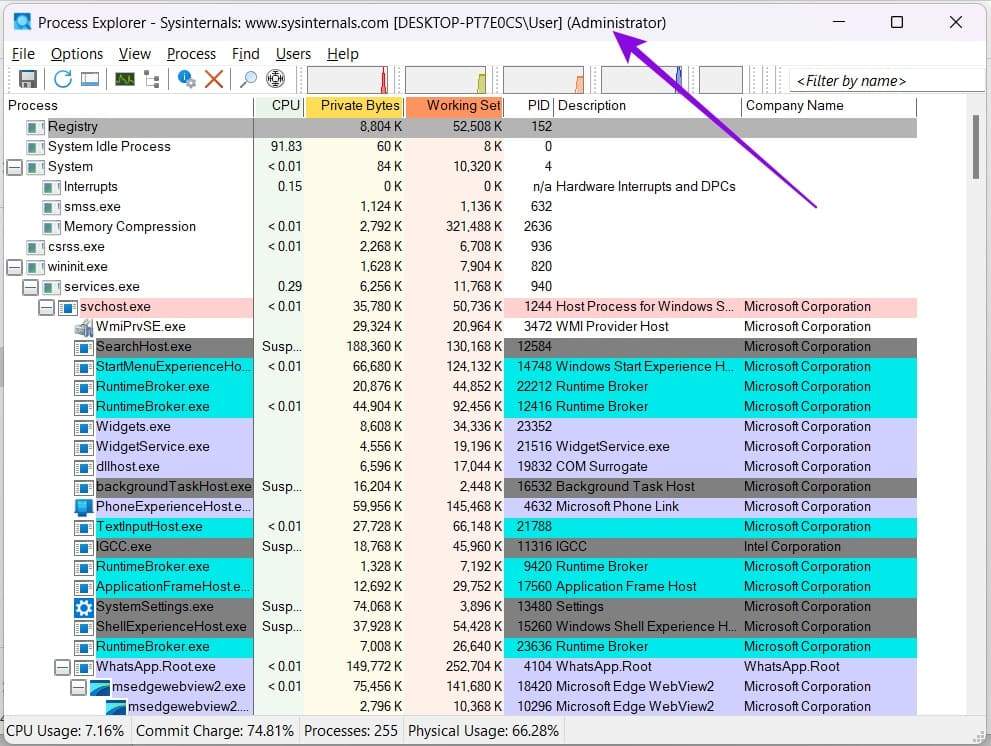
If you want to see exactly what processes have access to your file, then you can download Process Explorer from Microsoft. Here’s what to do:
Step 1. Download Process Explorer from Sysinternals.
Step 2. Right-click the downloaded file and choose to “Run as Admin”
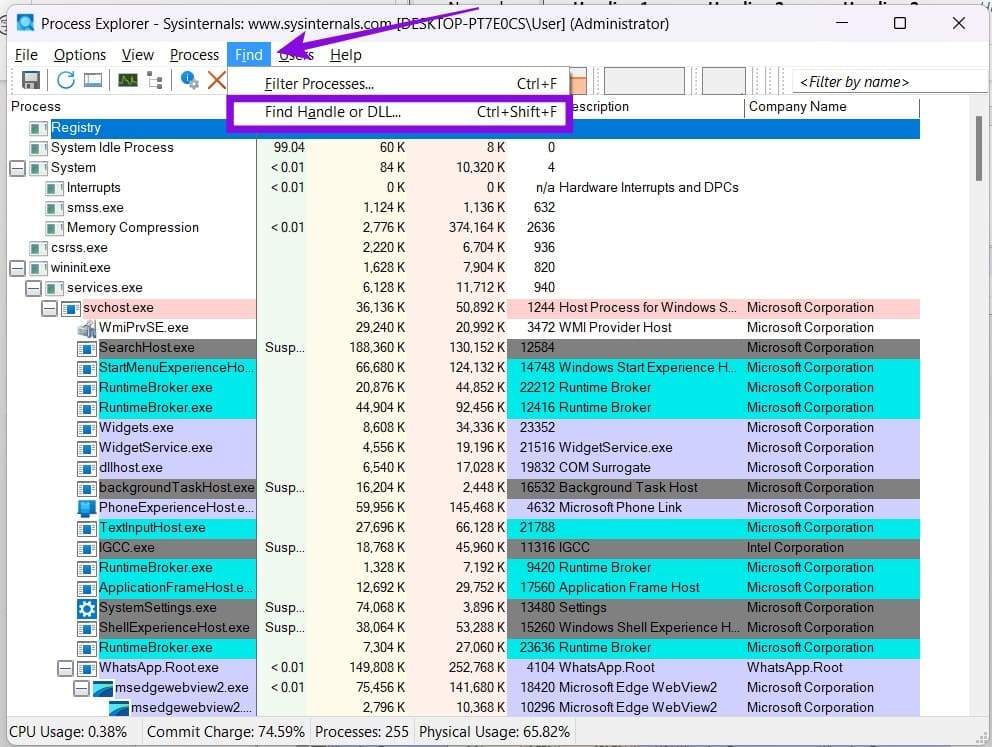
Step 3. Click “Find” in the Menu Bar and select “Find Handle or DLL”
Step 4. In the window that appears, type in your file name and click “Search”

Step 5. If you see any processes appear below, then those are the ones creating the error.
Step 6. Back in the main window, find the process and right-click it.
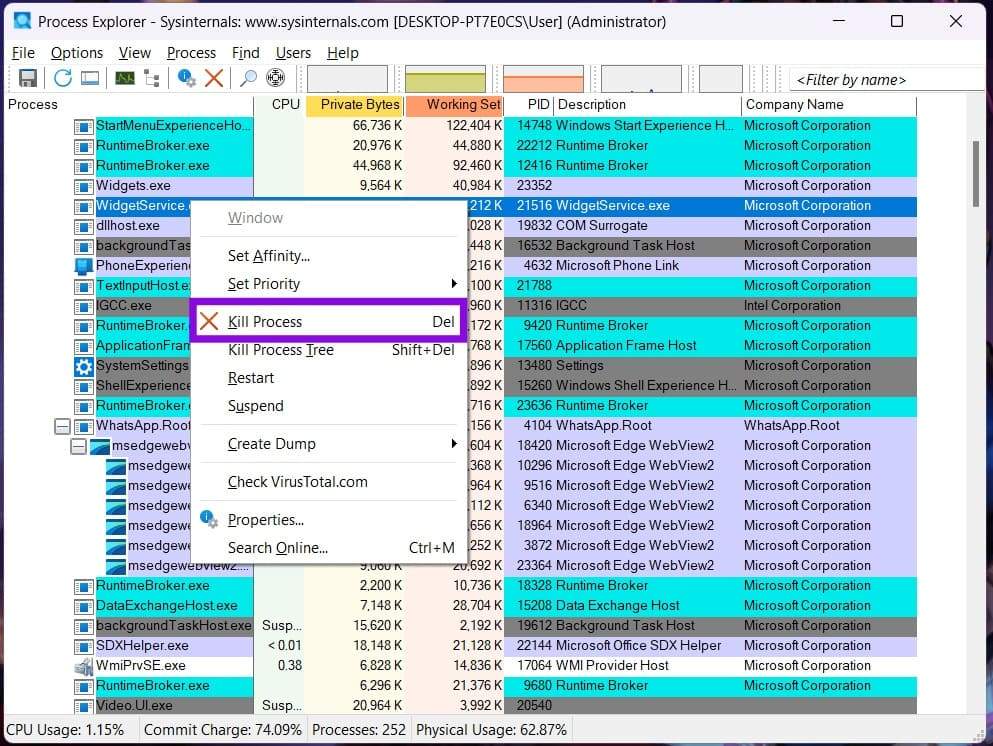
Step 7. Close the app normally if possible. If the app isn’t responding, use Process Explorer or Task Manager to end it and try altering your file again.
Alter the File in Safe Mode
If you suspect a third-party extension or app is to blame and can’t quite pinpoint it, you can always alter the file in Safe Mode. Simply restart your machine in Safe Mode and delete or move the file.
If you’re trying to get rid of the file in question and Windows allows you to rename it, you can try changing its name before deleting it. Here’s how to do so:
Step 1. In Explorer, click the “View” tab and ensure “File name extensions” is enabled.

Step 2. Find your file in Explorer and click the name once to open the editing option.

Step 3. Change the file name, then confirm the pop-up
Step 4. Now try deleting or renaming the file.
Leave A Comment?