
Situatie
Solutie
Moving around is easily the most laborious part of working in the terminal. The cd command is like the telegraph; it served its purpose well, but if you’re still using it, you desperately need to upgrade. Several highly capable tools make the job so much easier, and each has its pros and cons. It’s why there is always room for one more approach, and a terminal file manager such as Yazi works perfectly for me.
So why is it so fast? Vim keymaps, of course! But before you roll your eyes and scroll down, let me explain. Okay, so Yazi also makes use of the arrow buttons, and they serve the same purpose, which is conveniently mapped keys for the enduring presence of my fingers. It may sound trivial, but the constant readiness allows me to move in and out of directories without thinking or pausing. If I reach for the mouse or press awkward keys, it interrupts my flow and makes the interface clunky.
Tools like zoxide use fuzzy matching (assisted by fzf), Warp Directory uses bookmarks, and pushd and popd use a stack-like approach, but none of these make me feel like I’m fluidly moving around my file system. Often, I am not entirely sure what I’m looking for, and I need controls nimble enough to probe directories and recover easily from mistakes, and Yazi does exactly that.
Previews make context switching redundant
If you’ve used the terminal long enough, you may know what I mean when I say using grep and cat to read files has its limits. It’s tiresome work when you’re searching for something specific, and they only function for some file types. The cat and grep commands also lack modern features such as syntax highlighting, which is essential for me.
To add to the directory probing, file probing—a term I just made up—is the act of searching through files. Most terminal file managers support this for text documents, but Yazi does it for rich file formats like images, PDFs, videos, zip files, and probably more—all with previews.
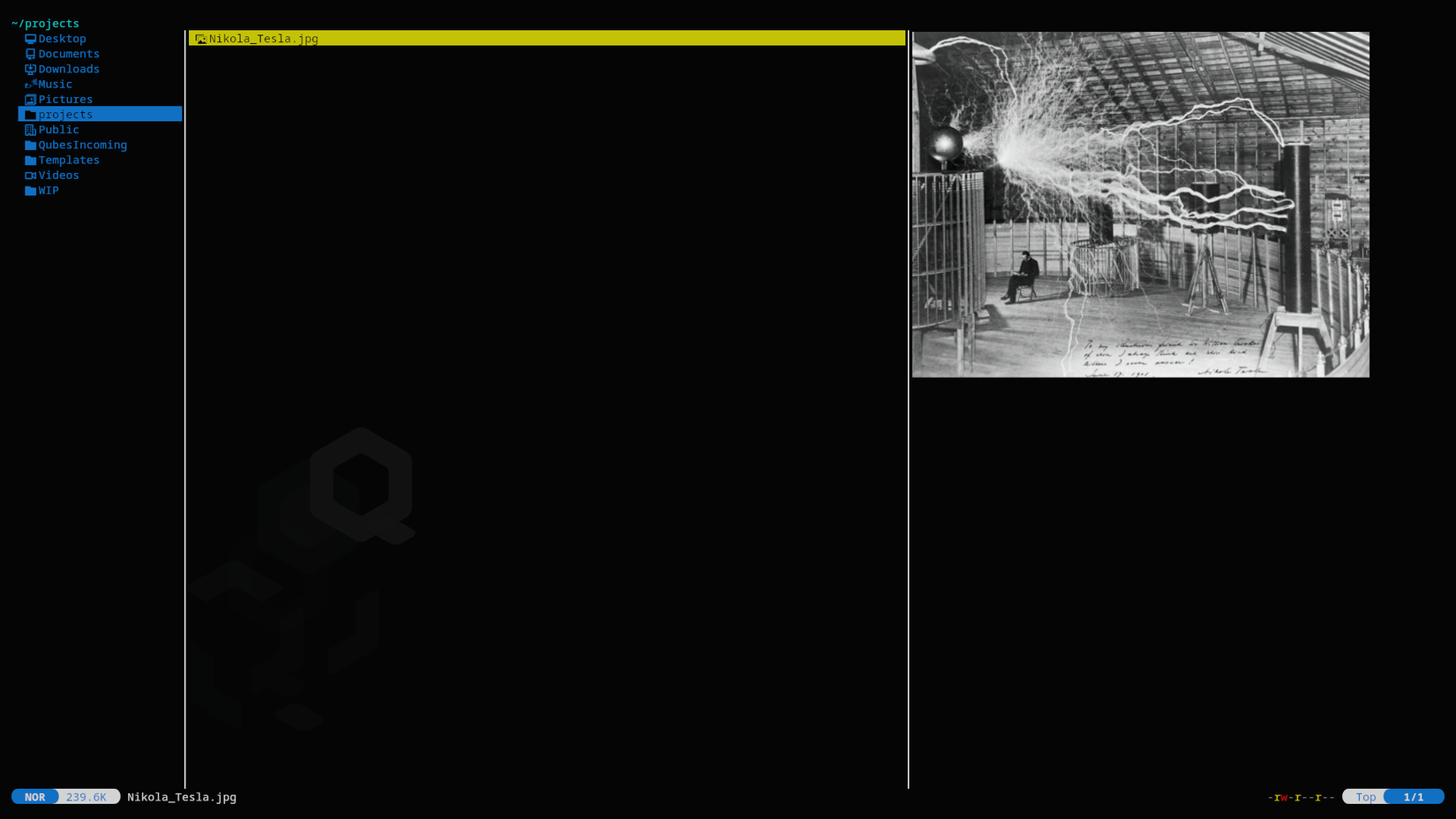
It’s the little things that save me the most time as I rummage around my file system. I can avoid executing dozens of commands and opening and closing files—instead, I glance over them in mere seconds.
Bulk operations replace fiddly shell commands
Bulk operations are the bane of terminal command life, and unless you have some considerable command-line fu at your disposal, you’ll probably find yourself writing a script or falling back to a graphical interface. While it’s possible to craft highly refined commands, it’s often not practical and can take longer than dozens of smaller, targeted ones. This is what applications are for, and Yazi delivers again on this front.
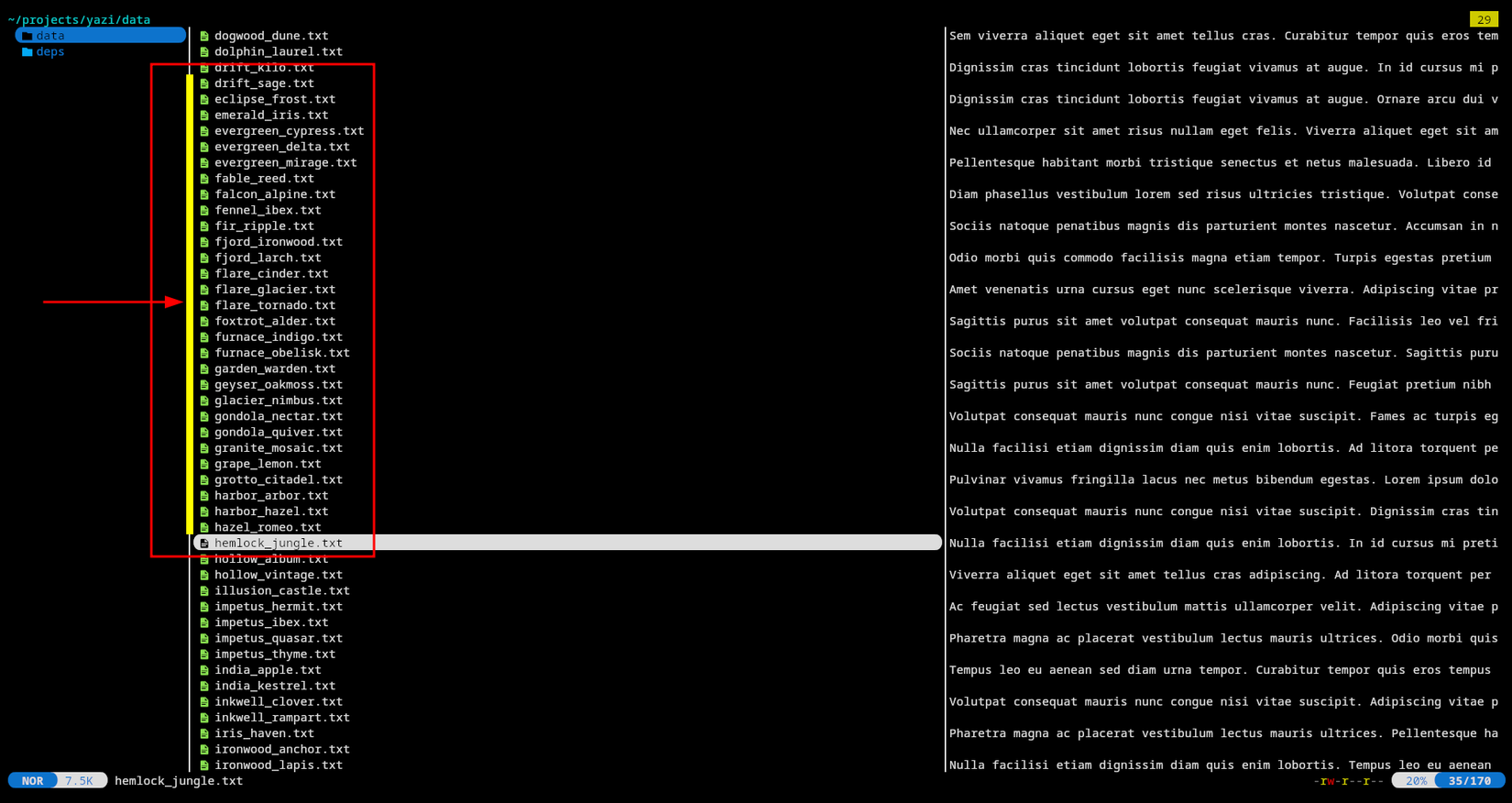
What about bulk renaming? You may use parameter expansions for that, but again, it requires some thought and is often error-prone. Yazi allows you to rename multiple files conveniently in your text editor of choice; simply visually select the files and hit the R key.
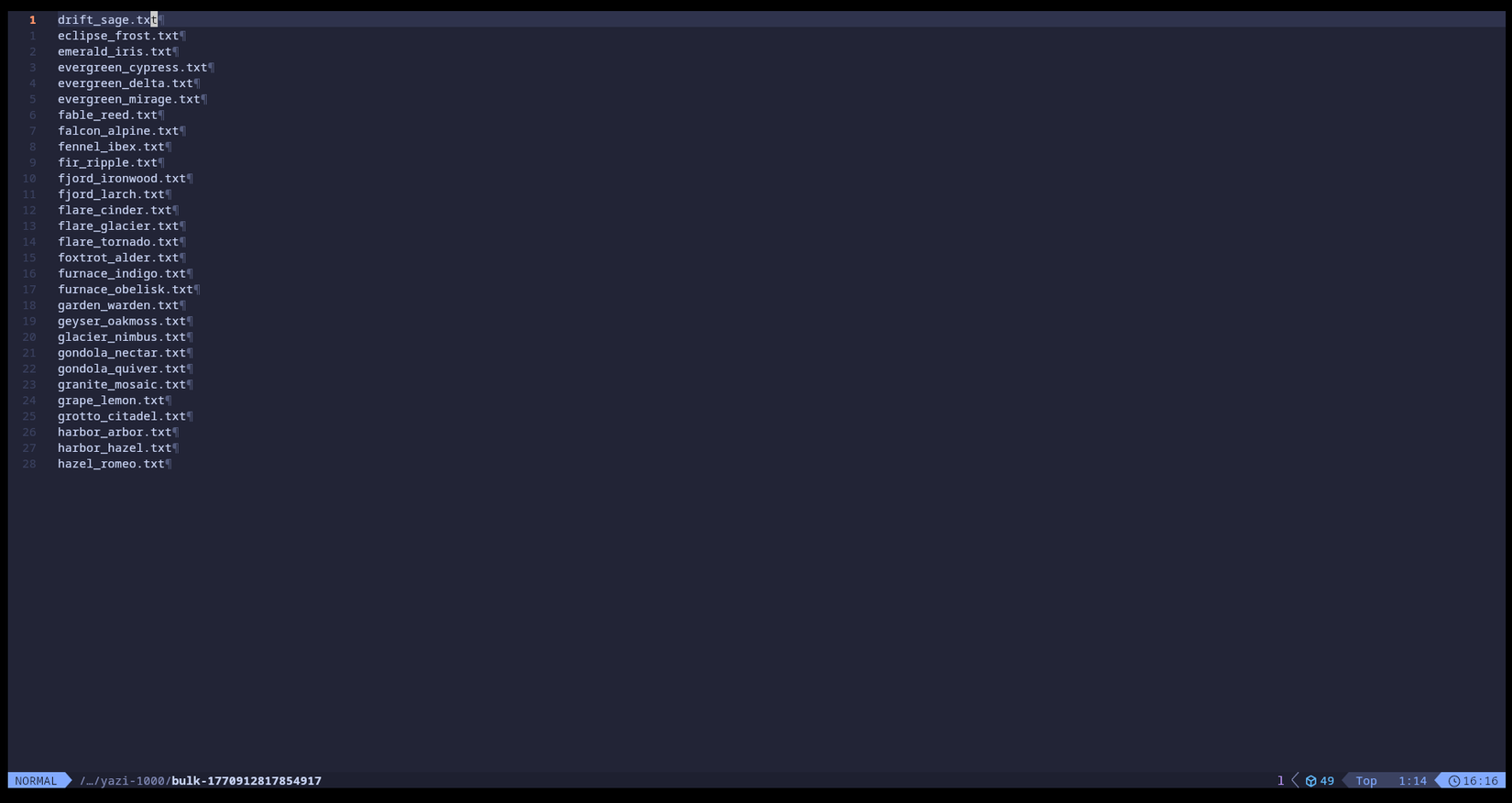
Furthermore, you can open dozens of files with a single operation or execute configured commands on the selected files. It may not be apparent, but performing these bulk operations not only saves me time but also mental effort.
Leave A Comment?