
Situatie
To create a Windows To Go USB drive for Windows 11, follow these steps:
Solutie
2. Click the link to download the latest version under the “Download” section
3. Double-click the rufus.4.xx.exe file to launch the tool
4. Select the USB flash drive to create the Windows To Go bootable media under the “Device” section
5. Click the Select button
6. Select the Windows 11 ISO file
7. Click the Open button
8. Select the “Windows To Go” option from the “Image option” setting
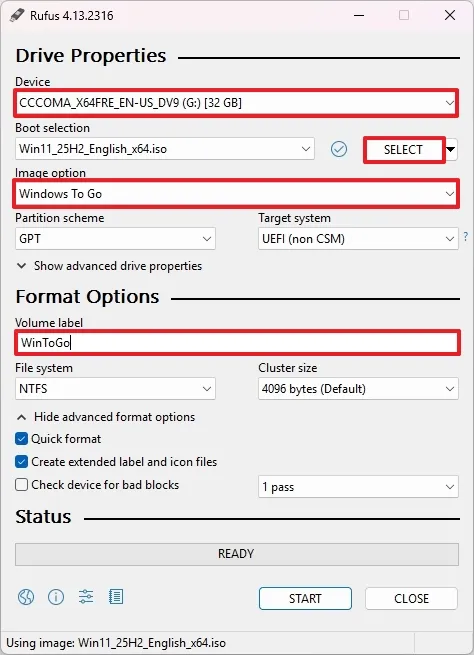
9. (Optional) Confirm a name for the USB drive. For example, WinToGo
10. Continue with the default settings
11. Click the OK button
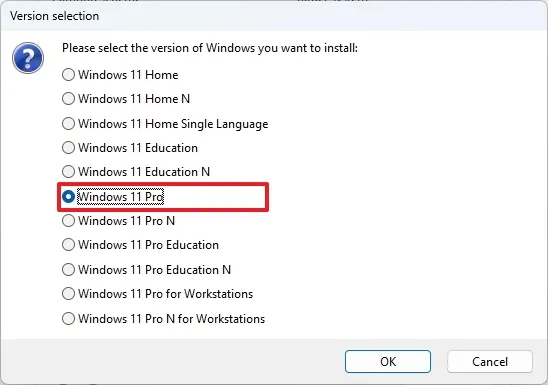
12. Select the edition of the operating system to install on the USB drive. For example, Windows 11 Pro
13. (Optional) Check the “Prevent Windows To Go from accessing the internal disks” option
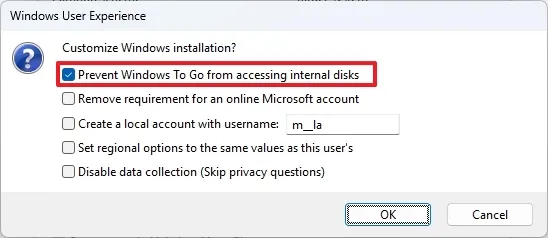
14. Continue with the default settings (as necessary)
15. Click the OK button
16. Click the OK button one more time to confirm the process
Once you complete the steps, the Rufus tool will create a bootable USB with an installation of Windows 11.
Leave A Comment?