
Situatie
Windows Fast Startup can reduce your Windows PC’s boot time, but in certain situations, it can cause issues and limit access to your Windows disk partition. While undoubtedly useful, you might think about disabling.
Solutie
Windows Fast Startup is an official Windows feature Microsoft first introduced on Windows 8 under a different name (Fast Boot). Starting with Windows 10, the feature was renamed Fast Startup, and it has retained the same name in Windows 11. Its purpose is to make Windows PCs boot faster after a shutdown.
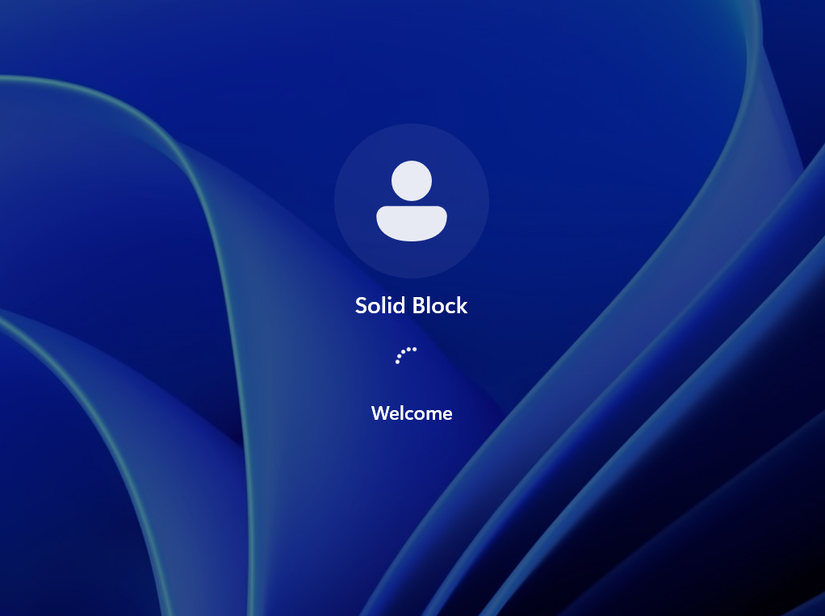
Fast Startup works similarly to Windows 11’s hibernation feature. Whereas Hibernate saves open applications (including games), folders, documents, and logged users—the entire Windows session—to disk before turning the PC off, Fast Startup only saves the Windows kernel and loaded drivers to the disk before shutting the computer down. Every other element of the active Windows session gets closed, and users are logged off..
When you turn the PC back on, it boots up faster because it doesn’t have to load the kernel and drivers, thus not having to go through the usual hardware initialization. The saved state is loaded into memory, and you’re off to the races.
Note that Windows Fast Startup is not the same as the Fast Boot option found in the BIOS/UEFI of most modern motherboards. The former speeds up boot times by saving parts of the Windows session to disk, while the latter skips certain BIOS checks performed before Windows even begins loading, which also results in faster startup times.
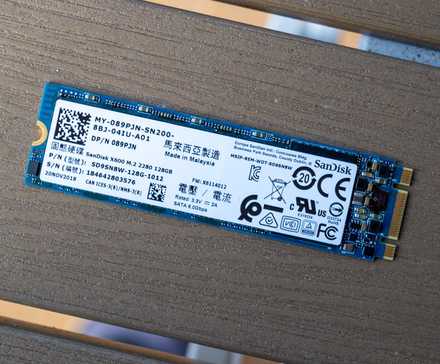
Fast Startup can drastically improve your PC’s boot-up time on HDDs, but the difference is usually only a couple of seconds on SSDs, regardless of whether it’s a SATA or an NVMe drive.
You can test boot times with Fast Startup enabled and disabled, and if you’re happy with how quickly your PC boots without it, you may want to keep it disabled. Fast Startup’s only boon is faster boot times, but it can cause multiple issues.
For instance, since your PC never fully shuts down with Fast Startup, Windows updates might not be applied as they often require a proper, cold shutdown to be fully applied. Restarting the PC can resolve this issue. However, in some cases, you may get stuck in an endless loop displaying the “Preparing to configure Windows. Don’t turn off your computer” message (or a similar notification), where forcing a restart could corrupt the system.
If you dual-boot, it is highly recommended to disable Fast Startup. Since the feature locks down the Windows partition when you turn off the PC, you won’t be able to access it from the other operating system you’re using. Worse still, if both operating systems are installed on the same storage drive, changing anything on said drive, even without accessing the Windows partition, could lead to corruption. Disabling Fast Startup is just one of the options you should change when dual-booting.
Fast Startup often interferes with Wake-on-LAN, so it’s best to disable it if you plan on remotely managing the PC.
Some devices and components don’t support Fast Startup, especially ones with outdated drivers that aren’t configured to play nice with the feature. If you’re running into issues and are using an older device (such as a retro sound card), disabling Fast Startup might help remedy the problem.
Having Fast Startup enabled can make it harder to enter the BIOS on your PC because it reduces boot-up time, which in turn shortens the window to press the key that opens the BIOS during startup.
If you have Fast Startup enabled and don’t plan to disable it, make sure to restart your PC after each Windows update to ensure it’s fully applied. You should also restart your PC after updating drivers, or installing any software that requires a cold boot to work properly after installation, because shutting the computer down likely won’t do the trick.
How to safely turn off Windows Fast Startup
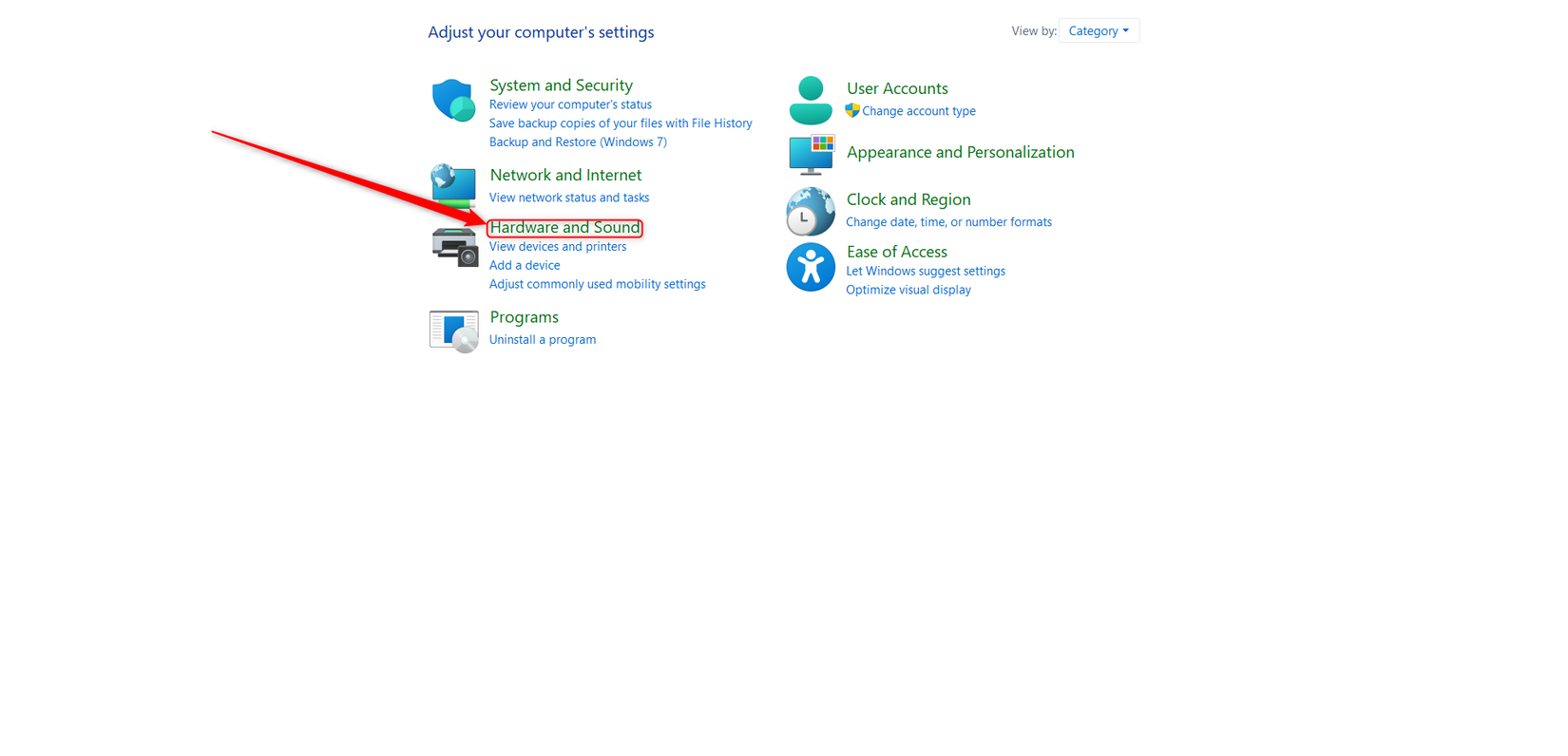
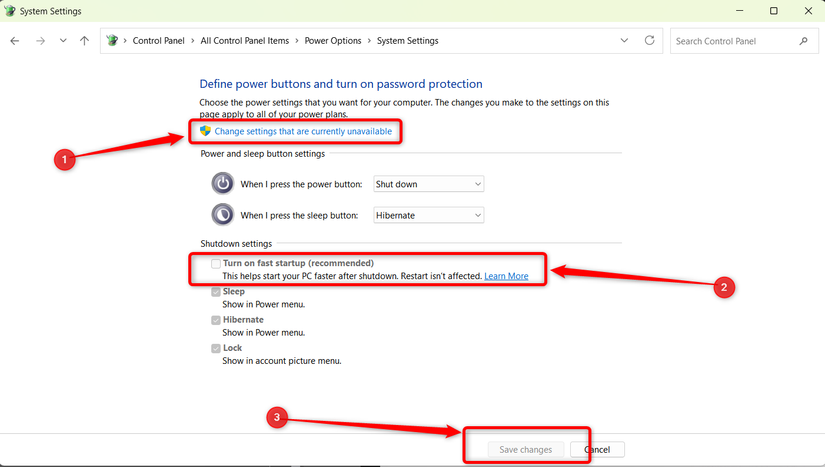
Turning off Windows Fast Startup is a simple procedure you can perform in a jiff. To begin, open the Control Panel and select the “Hardware and Sound” category.
Next, click “Choose what the power buttons do”
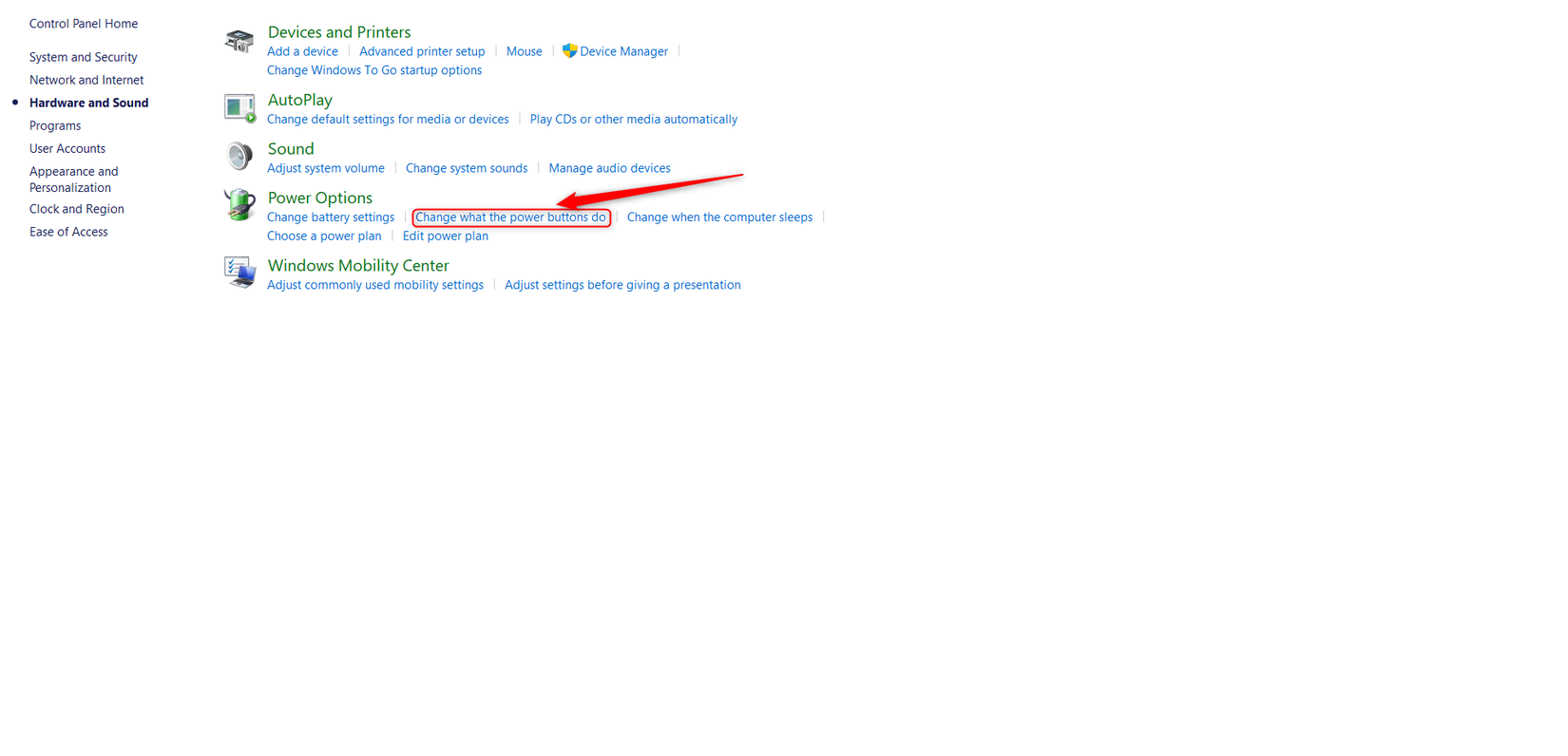
Now, you should click the “change settings that are currently unavailable” option. Once you do that, disable Fast Startup, click “Save Changes” and you’re good to go.
Having Fast Startup enabled made sense back when most people used hard drives. But in the world of SSDs, Fast Startup doesn’t noticeably reduce boot-up times, and it can cause many a headache. While you might use it without issues, disabling it likely won’t noticeably slow down your boot times, and it may prevent various problems from occurring in the first place.
Fast Startup isn’t the only Windows feature you might want to turn off. There are a number of features you Should disable if you want to improve security. You ought to also disable some of the annoying Windows features that are enabled by default.
Leave A Comment?