
Situatie
Windows updates are normally downloaded and installed automatically trough Windows Update. However, in some situations, an update may fail to download or install. In these cases, the required update can be downloaded manually from the Microsoft Update Catalog and installed directly on the affected computer.
Solutie
Step 1 – Identify the Failed Update
- Open: Settings > Windows Update
- Check the list of available or failed updates.
- Identify the KB number associated with the update.
For example:
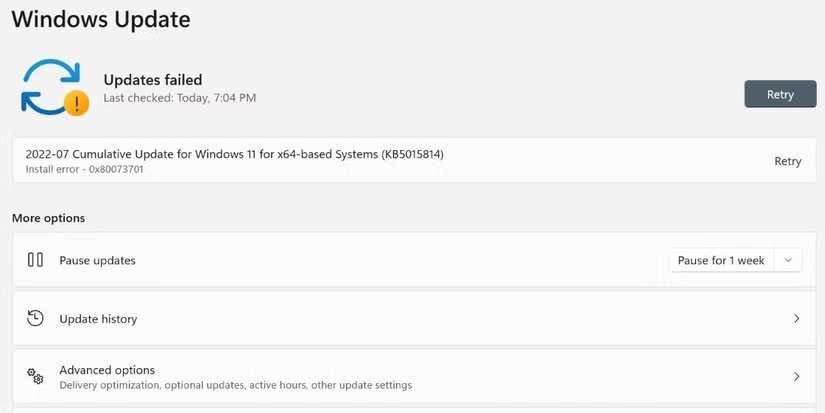
The important information is the KB number: KB5015814
Step 2 – Check the Windows Version
Press: Windows + R
Type: winver
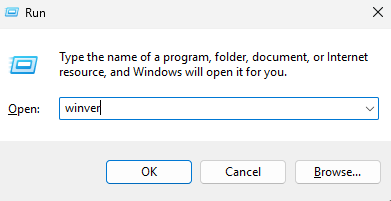
Press Enter.
The About Windows window will display the installed Windows version.
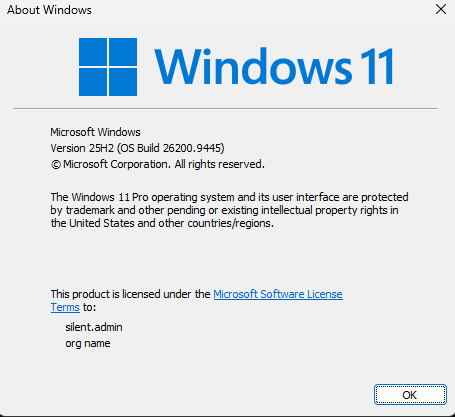
In our case that is Version 25H2.
Make sure you download an update that is compatible with the installed Windows version.
Step 3 – Check the System Architecture
Open: Settings > System > About
Locate System type
For most modern computers, this will be:

This architecture is important because the Microsoft Update Catalog may provide separate packages for:
- x64-based systems
- ARM64-based systems
- Other supported architectures
Select the package that matches the affected computer.
Step 4 – Open the Microsoft Update Catalog
Open a web browser and navigate to the Microsoft Update Catalog:
https://www.catalog.update.microsoft.com
The Microsoft Update Catalog allows administrators to manually search for and download Windows update packages.
Step 5 – Search for the Update
Enter the KB number identified earlier into the search field.
For our example: KB5015814
Click Search.
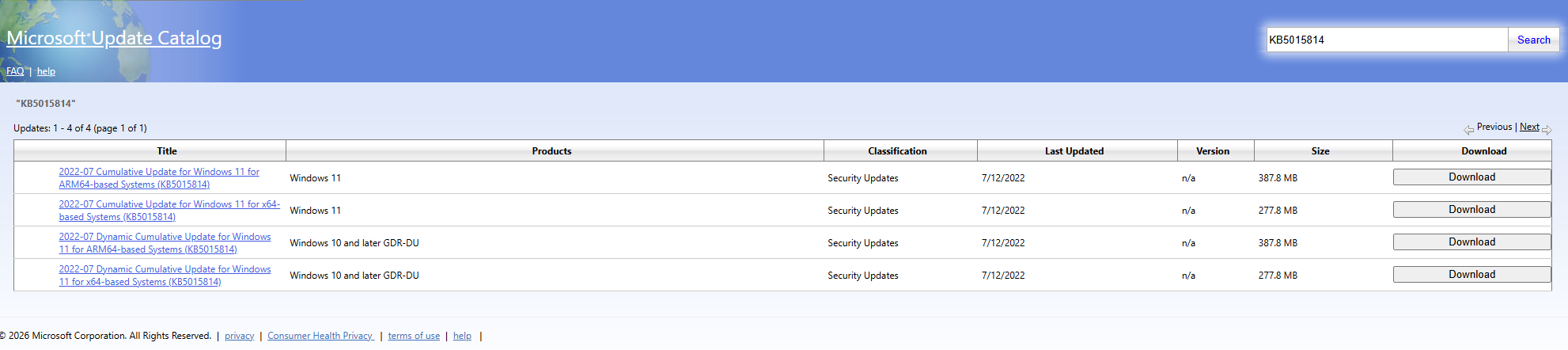
The catalog may display several versions of the same update.
Step 6 – Select the Correct Update
Carefully verify the following information before downloading:
- Windows version
- Windows edition or product
- System architecture
- Update KB number
- Update date
Do not install a package intended for another Windows version or architecture.
Step 7 – Download the Update
- Click Download next to the appropriate update.
- A new window will appear containing the download link.
- Click the update package link to start the download.
Windows updates are commonly provided as:
.msu
or
.cab
For standard manual installations .msu packages are generally the easiest to install.
Step 8 – Install an MSU Update
Locate the downloaded .msu file.
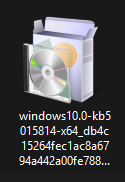
Double-click the file.
Windows Update Standalone Installer will open and verify whether the update is applicable to the computer.
If prompted, confirm the installation.
Depending on the update, the process may take several minutes.
Step 9 – Restart the Computer
If Windows requests a restart, save all open files and restart the computer.
Some updates are not fully applied until Windows has restarted.
Step 10 – Verify the Installation
- After the restart, open: Settings > Windows Updates > Update History
- Locate the update and confirm that it appears as successfully installed.
You can also check installed updates trough: Control Panel > Programs > Programs and Features > View installed updates. Search for the KB number to confirm that the update is installed.
Leave A Comment?