
Situatie
Disconnect any Logitech gear connected to G HUB. If G HUB won’t open, you may be able to fix it by closing any running G HUB processes and then restarting the app. First, unplug any external Logitech webcams or other gear you use with G HUB.
Solutie
Pasi de urmat
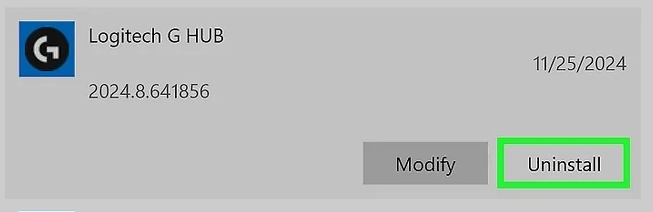
Uninstall Logitech G HUB. Another fix that tends to work is to uninstall G HUB, delete its leftover folder, reinstall, and then disable automatic updates. You will lose any custom G HUB settings in the process. To uninstall G HUB:
- Windows 11: Press the Windows key, click Settings, and go to Apps > Installed apps. Type g hub into the search bar to find Logitech G Hub. Click ••• next to “Logitech G HUB” and select Uninstall. When prompted, uncheck the “Save my current settings” box, then click Uninstall.
- Windows 10: Press the Windows key, click Settings, and go to Apps > Apps & features. Select “Logitech G HUB” and click Uninstall. When prompted, uncheck the “Save my current settings” box, then click Uninstall.
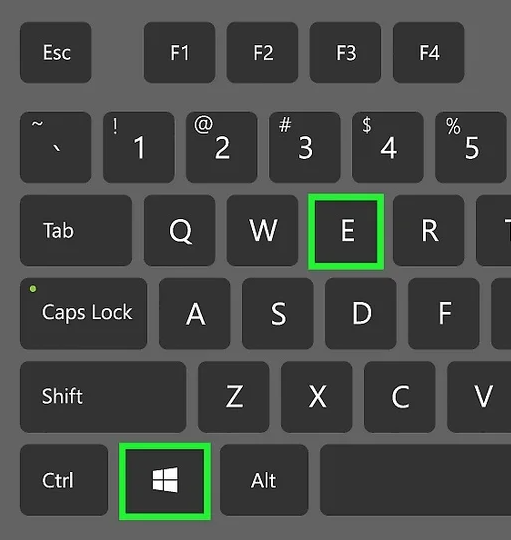
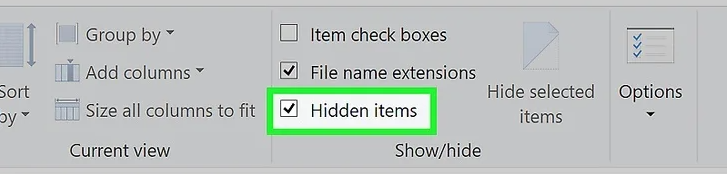
Show hidden files and folders.To make sure you can find the folders and files you need, you’ll need to turn this feature on:
- Windows 11:
- Go to View > Show and select Hidden items.
- Windows 10:
- Click the View menu.
- Go to Options > Change folder and search options.
- Click the View tab’.
- Select Show hidden files, folders, and drives and click OK.
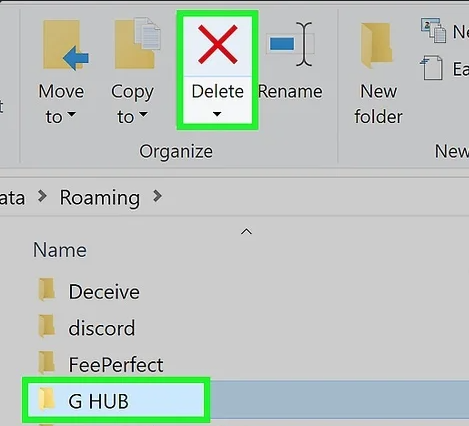
Delete any remaining G HUB files and folders. If you unchecked the “Save my current settings” box while uninstalling, you shouldn’t have to do any of this. If you forgot or just want to make sure there’s nothing left, here’s how to check:
- Click This PC and navigate to C:\Program Files.
- If there’s a folder called LGHUB, delete it.
- Now navigate to C:\Program Data.
- If there’s a folder called LGHUB, delete it as well.
- Go to C:\Users and double-click your own username.
- Open the AppData folder. You should see three folders here—Local, LocalLow, and Roaming.
- Open each of these folders and look for subfolders called LGHUB. If you see them, delete them.
Leave A Comment?