Soluții

How to Install EPM Add-in for Microsoft Office (standalone)

1. Executați setarea corespunzătoare aflată în folderul de instalare SAP BusinessObjects\EPM Add-In. – Dacă computerul rulează o versiune pe 32 de biți a Microsoft Office, executați fișierul EPM Add-in_x32.exe. – Dacă computerul rulează o versiune de Microsoft Office pe 64 de biți, executați fișierul EPM Add-in_x64.exe.

2. Faceți click pe Următorul.

3. Faceți click pe Accept termenii din acordul de licență și faceți click pe Următorul.

4. Specificați un nume de utilizator și organizația dvs. și bifați caseta Oricine folosește acest computer (toți utilizatorii).

5. Faceți click pe Următorul.

6. Specificați aplicația (aplicațiile) pe care le utilizați.

7. Selectați limba aplicației de care aveți nevoie. Puteți schimba ulterior limba selectând Opțiuni EPM Opțiuni utilizator.

8. Faceți click pe Următorul.

9. Selectați folderul în care doriți să instalați aplicația și faceți click pe Următorul.

10. Faceți click pe Instalare pentru a începe instalarea programului de completare EPM.

11. Odată ce instalarea este finalizată, faceți click pe Terminare.

[mai mult...]

How to fix automatic repair loop in Windows 10

1. Reporniți computerul și apăsați tasta F8 în timpul pornirii pentru a deschide meniul de depanare de pornire Windows.

2. Selectați Vezi opțiuni avansate de reparație > Depanare > Opțiuni avansate > Setări de pornire > Repornire.

3. Acum, veți vedea o listă cu diferite opțiuni de repornire. Alegeți Activați modul sigur cu rețea selectând F5 de pe tastatură.

4. Odată ce Windows pornește în modul Safe, faceți click dreapta pe meniul Start și selectați Windows PowerShell (Administrator).

5. În fereastra PowerShell, tastați următoarea comandă și apăsați Enter: DISM /Online /Cleanup-Image /RestoreHealth

6. Acest lucru va dura ceva timp pentru a se termina. Când instrumentul DISM termină de rulat, reporniți computerul și urmați pașii de mai sus pentru a deschide din nou fereastra PowerShell în Safe Mode.

7. De data aceasta, tastați următoarea comandă și apăsați Enter: sfc /scannow

8. Acest lucru va verifica integritatea fișierelor de sistem Windows și ne va permite să verificăm dacă Windows este reparat complet.

[mai mult...]

How to Flush DNS in Linux

Is your internet browsing experience slow on your Linux device, or are the websites you’re visiting outdated or the wrong website altogether? Let’s discuss flushing the DNS cache on Linux, and how to know whether you really need to.

[mai mult...]

How to Enable Battery-Saving Mode in Google Chrome

Chrome is notorious for using a lot of resources and taking a chunk out of your device’s battery life. Google Chrome 108 added an “Energy Saver” mode for Chrome on Windows, Mac, Linux, and Chromebooks. We’ll show you how it works.

As the name implies, “Energy Saver” is a special mode designed to stretch battery life a little longer. It does this by limiting background activity, visual effects, and video frame rates. Chrome will feel a little less polished, but you’ll get some extra juice out of your computer.

[mai mult...]

How to update your Apple watch

First, make sure that your Apple Watch works with the latest software. watchOS 9 is compatible with these Apple Watch models:

  • Apple Watch Series 4 and later
  • Apple Watch SE (1st generation) and later
  • Apple Watch Ultra

Updating to watchOS 9 also requires one of these iPhone models:

  • iPhone 8 or later with iOS 16
  • iPhone SE (2nd generation) or later with iOS 16

If your Apple Watch isn’t compatible with the latest version of watchOS, Software Update will show you the newest version that your watch can use.

Get ready to update

Next, check these things:

  1. Make sure that your iPhone is updated at last version of iOS.
  2. Make sure that your Apple Watch is at least 50 % battery charged.
  3. Make sure that your iPhone is connected to wi-fi/internet.
Update your Apple Watch using your iPhone

You can wait until Apple Watch notifies you when a new update is available. Tap Update Tonight in the notification, then go to your iPhone to confirm that you want to update overnight. At the end of the day, leave your Apple Watch and iPhone charging overnight so the update can complete.

Or you can update your Apple Watch with your iPhone manually:

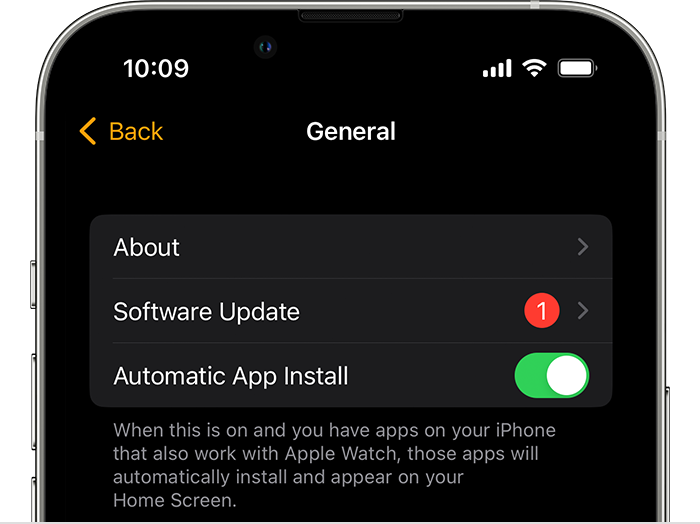
  1. On your iPhone, open the Apple Watch app, then tap the My Watch tab.
  2. Tap General > Software Update.
  3. Download the update. If asked for your iPhone passcode or Apple Watch passcode, enter it.
  4. Wait for the progress wheel to appear on your Apple Watch. It could take from several minutes to an hour for the update to complete.
Update directly on your Apple Watch

If your Apple Watch has watchOS 6 or later, you can install updates without your iPhone:

  1. Make sure that your watch is connected to internet/wi-fi.
  2. On your watch, open the Settings app.
  3. Tap General > Software Update.
  4. Tap Install if a software update is available, then follow the onscreen instructions.
[mai mult...]