Cum dezactivam redarea automata in Windows 11 Microsoft Store
Uneori pot fi deranjante videoclipurile redate automat in Microsoft Store de pe Windows 11.Putem rezolva asta oprindu-le.
[mai mult...]
Soluții pentru problemele tale IT

Uneori pot fi deranjante videoclipurile redate automat in Microsoft Store de pe Windows 11.Putem rezolva asta oprindu-le.
[mai mult...]Putem accesa lista cu driverele imprimantelor/multifunctionalelor si a device-urilor de pe sistemul nostru in mai multe moduri, dar cel mai rapid mod pe care il folosesc este tool-ul Run.
[mai mult...]Sunt momente cand apar diverse probleme cu widgeturile din bara de activitati in Windows 11. Exista mai multe moduri pentru a elimina sau ascunde widgeturile din bara de activitati din Windows 11.
[mai mult...]When your printer refuses to print, it could be a problem preventing the print spooler from running correctly.
1. Boot your PC into the BIOS. Here’s an easy way to do so from Windows 10:
2. Go to the CPU/processor configuration screen. The BIOS will look different depending on who manufactured your motherboard. In most cases, the setting for Turbo Boost will be in a menu called CPU Specifications, CPU Features, Advanced Core Features, or something similar.

3. Locate ″Intel® Turbo Boost Technology″ in the menu. You’ll usually see either ″Enabled″ or ″Disabled″ beside it. If you see ″Enabled,″ you don’t need to change anything in the BIOS.
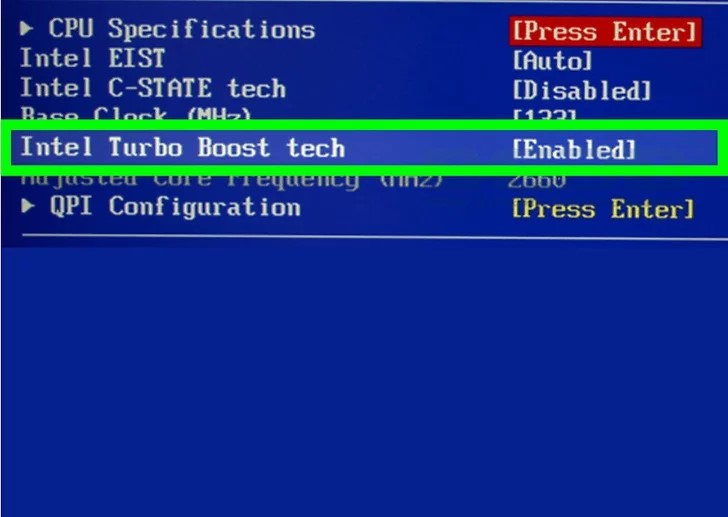
4. Select Enabled from the menu.
5. Save your changes. The exact key to press should appear at the bottom of the BIOS. In most cases, it’ll be F10.
