How to recover deleted files in Linux using TestDisk
Have you ever gotten that horrible feeling? The one you get when you realize that you accidentally deleted files and it’s not even in the trash? Often it is immediately preceded by denial: I know I have another copy of it somewhere.
You need to install the TestDisk tool first. Most Linux distributions already have this tool in their official repository. In Ubuntu and other Ubuntu-based Linux distributions such as Linux Mint, elementary OS etc, you can use the command below to install TestDisk:
sudo apt install testdisk
Arch Linux users can install it from AUR. You can download it for other Linux distributions from the link below:
https://www.cgsecurity.org/wiki/TestDisk_Download
Run TestDisk in the terminal using the command below:
testdisk
When you open it, you’ll see something that looks like this. Be patient! The interface is actually straightforward but you do have to carefully read the text. Use the arrow keys to navigate and “enter” to select.

Now, at this point, if you’re lucky, you should see your drive. And you can proceed to the last steps. But let’s assume you’re not, that you have, say, a multi-boot machine. In this case, ownerships can get blurry, and Testdisk needs your permission to open them.
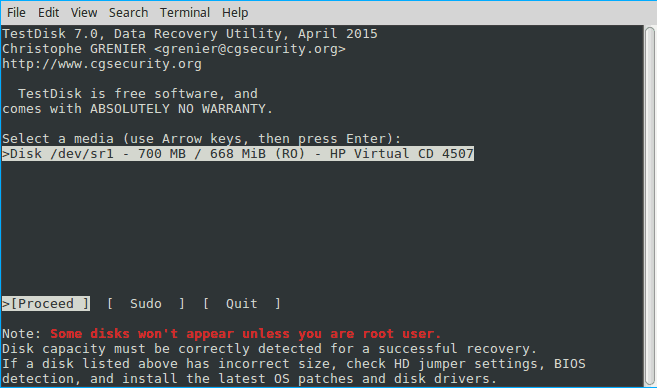
- Select “sudo” and enter your password. Hit “enter” and “enter” again on the next screen to create another log file.
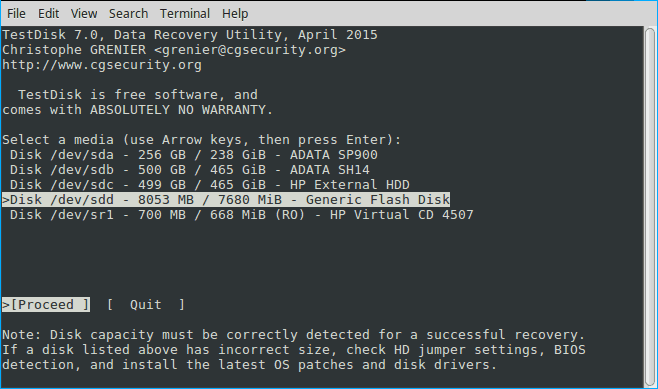
- This time Testdisk displays all your drives. Arrow key to the drive in question and hit enter.
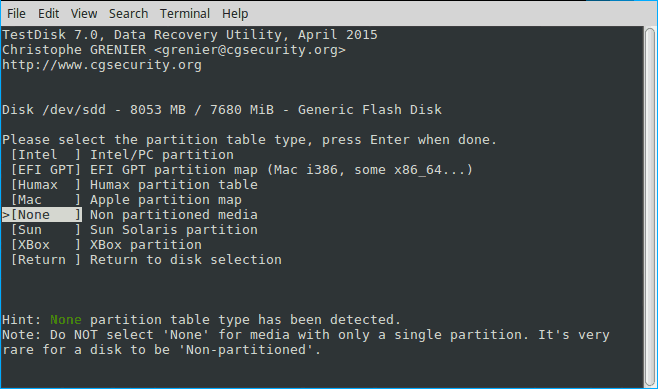
Testdisk has again selected the correct setting. This makes sense since a simple storage device is seldom partitioned. Again hit enter.
And finally, we have to do a little thinking to do. If you read the first screen, this program isn’t just for recovering deleted files. It’s a powerful disk utility. But if we remember what we’re trying to do the choice is fairly obvious: we’re not trying to fix a disk, we’re trying to recover a file. Select “Advanced” and hit “enter”.


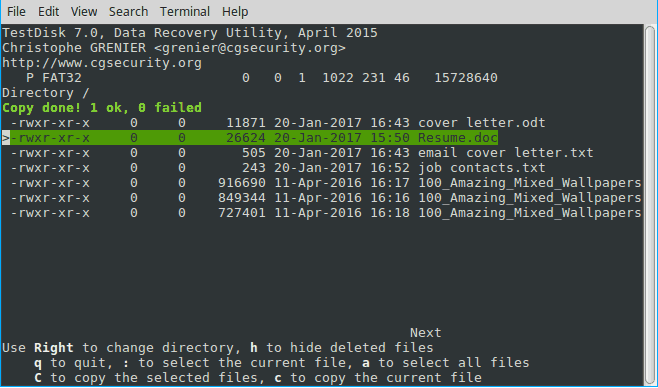
Testdisk will scan for files and produce a list of deleted files highlighted in red. Arrow down to it and carefully read the choices at the bottom
.
Hit c to copy and thus recover the deleted file.