Soluții

Remedierea Erorii 403 – Forbidden – Linux

Eroarea 403 – Forbidden indică faptul că serverul a înțeles cererea, dar refuză să o îndeplinească. Aceasta poate fi cauzată de mai multe motive. Iată câteva sugestii pentru a remedia această problemă pe un server Linux:

  1. Verificarea permisiunilor fișierelor și directoarelor:
    • Asigură-te că permisiunile pentru fișierele și directoarele web sunt corecte. De obicei, pentru directoarele ar trebui să ai permisiuni de 755 și pentru fișiere 644.
    • Poți schimba permisiunile corespunzătoare folosind comenzile:
      chmod 755 /cale/catre/director
      chmod 644 /cale/catre/director/*
      
  2. Verificarea configurației serverului web:
    • Dacă folosești Apache, verifică fișierul .htaccess. Asigură-te că nu există directive care interzic accesul. De exemplu:
      Order Deny,Allow
      Deny from all
      
    • Verifică și configurația virtual host-ului în apache2.conf sau httpd.conf.
  3. Configurația de securitate:
    • Dacă serverul folosește SELinux (disponibil pe distribuții precum CentOS sau Fedora), este posibil ca politicile SELinux să blocheze accesul. Poți verifica statusul cu:
      sestatus
      
    • Dacă SELinux este activat, poți încerca să îl dezactivezi temporar pentru a verifica dacă aceasta este cauza. Dar, pentru o soluție pe termen lung, ar trebui să ajustezi politicile SELinux corespunzător.
  4. Verificarea fișierului de loguri:
    • Consultă logurile serverului web pentru mesaje de eroare specifice. De obicei, pentru Apache, logurile se găsesc în /var/log/apache2/error.log sau /var/log/httpd/error_log (în funcție de distribuție).
    • Logurile Nginx se găsesc de obicei în /var/log/nginx/error.log.
  5. Verificarea indexării directoarelor:
    • Dacă încerci să accesezi un director care nu conține un fișier index (de exemplu, index.html sau index.php), serverul poate returna un 403. Asigură-te că ai un fișier index valid sau activează listarea directoarelor în configurația serverului, deși nu este recomandat din motive de securitate.
  6. Restricții de IP sau utilizator:
    • Verifică dacă există restricții de IP sau reguli de acces în configurația serverului care ar putea bloca cererile. Poți verifica fișierul de configurare pentru orice reguli de permisiuni bazate pe IP.
  7. Verificarea grupului utilizatorului:
    • Asigură-te că utilizatorul sub care rulează serverul web (de obicei www-data pentru Apache sau nginx pentru Nginx) are acces la fișiere și directoare.
[mai mult...]

Creating a cloudflare tunnel (for safely accessing your SOHO from outside your LAN)

This is useful if you want to access your internal network applications from outside by creating a secure tunnel linked to your domain

1. Create a tunnel

  • Log in to Zero Trust and go to Networks > Tunnels
  • Select Create a tunnel
  • Choose Cloudflared for the connector type and select Next
  • Enter a name for your tunnel. We suggest choosing a name that reflects the type of resources you want to connect through this tunnel (for example, enterprise-VPC-01)
  • Select Save tunnel
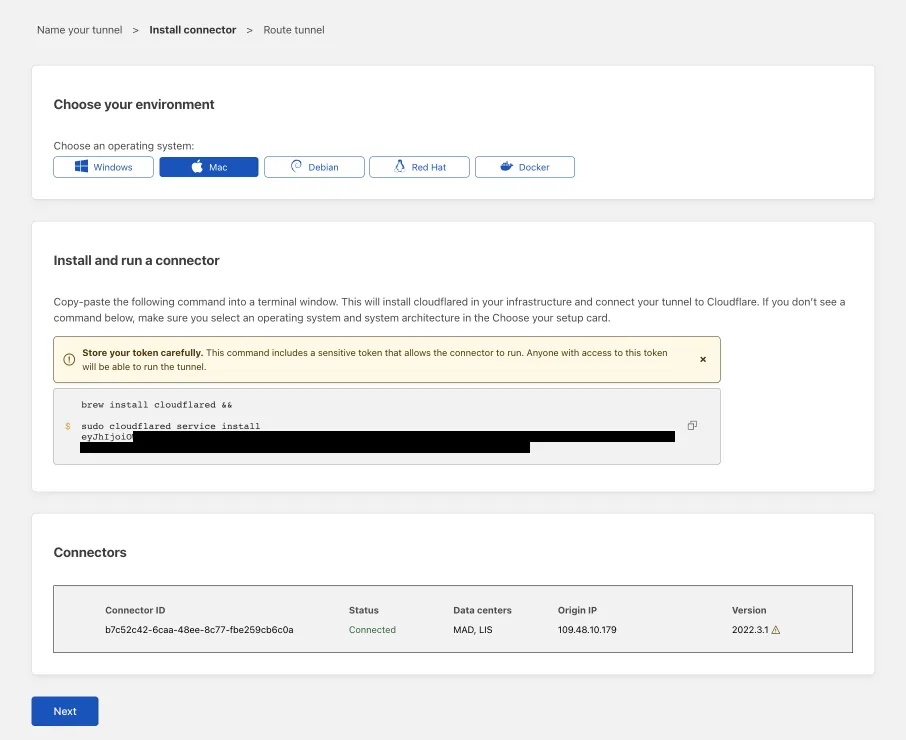
  • Next, you will need to install cloudflared and run it. To do so, check that the environment under Choose an environment reflects the operating system on your machine, then copy the command in the box below and paste it into a terminal window. Run the command.
  • Once the command has finished running, your connector will appear in Zero Trust.Connector appearing in the UI after cloudflared has run
  1. Select Next.

The next steps depend on whether you want to connect an application or connect a network.

2a. Connect an application

Before you connect an application through your tunnel, you must:

Follow these steps to connect an application through your tunnel. If you are looking to connect a network, skip to the Connect a network section.

  1. In the Public Hostnames tab, select Add a public hostname.
  2. Enter a subdomain and select a Domain from the dropdown menu. Specify any subdomain or path information.
  3. Specify a service, for example https://localhost:8000
  4. Under Additional application settings, specify any parameters you would like to add to your tunnel configuration
  5. Select Save hostname.

The application is now publicly available on the Internet. To allow or block specific users, create an Access application.

2b. Connect a network

Follow these steps to connect a private network through your tunnel.

  1. In the Private Networks tab, add an IP or CIDR
  2. Select Save tunnel.

To configure Zero Trust policies and connect as a user, refer to Connect private networks.

3. View your tunnel

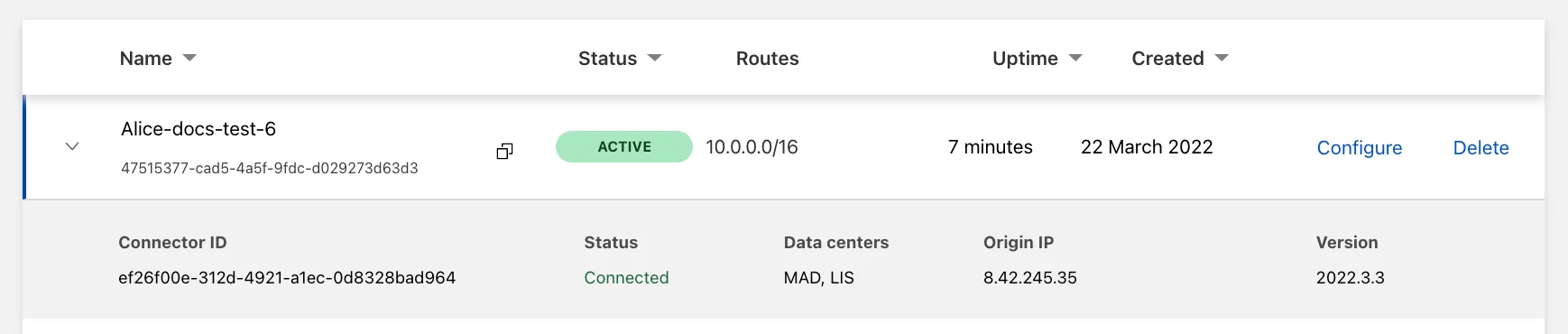
After saving the tunnel, you will be redirected to the Tunnels page. Look for your new tunnel to be listed along with its active connector.

Tunnel appearing in the Tunnels table

[mai mult...]

Creating a ZFS pool in Proxmox-VE

We can use ZFS as a local or external storage option for the VMs and containers with Proxmox VE. In order to do so, we must run the following steps:

Steps to add ZFS storage to Proxmox

1. Set Proxmox VE on the servers we intend to use for managing VMs and containers.

2. Create a ZFS pool on the disks we need to assign to VMs and containers using local storage on the VE server. Make that the pool is already established and reachable from the Proxmox VE host if we install external ZFS storage from a different server.

3. Proxmox VE employs LVM as its storage backend by default. In order to use ZFS as a storage option, enable ZFS on the Proxmox VE host. It includes installing the ZFS package and turning on the ZFS service.

4. With ZFS enabled, a ZFS dataset will be created and used by VE as a pool. Typically, this dataset is connected to a particular ZFS pool path.

5. We’ll add this dataset as storage using the VE web interface (GUI). Choose “ZFS” as the storage type by going to “Datacenter” >> “Storage” >> “Add”. After that, give the pertinent information, such as the dataset path and storage choices.

6. In order to give VE the access rights necessary to read and write data to the storage, we need to modify the permissions of the ZFS dataset.

7. After installing the ZFS storage, it’s crucial to make that Proxmox VE can access and use the ZFS dataset as needed.

8. Finally, create Virtual Machines and Containers that Use ZFS Storage. Now that the ZFS storage has been configured, we may produce virtual machines and containerized software that utilizes the ZFS storage. We can pick the ZFS storage pool we previously installed while creating a virtual machine (VM) or container by selecting the storage location option.

[mai mult...]