How to fix: 100% Disk Usage in Task Manager
Your PC is slow, and Task Manager shows your disk at 100% usage, even when idle.
[mai mult...]
Soluții pentru problemele tale IT

Your PC is slow, and Task Manager shows your disk at 100% usage, even when idle.
[mai mult...]Your Wi-Fi icon shows you’re connected, but you can’t browse, stream, or ping websites.
[mai mult...]When you try to open a program, Windows shows: “This app can’t run on your PC. To find a version for your PC, check with the software publisher”.
[mai mult...]PAS.1 Se deschide Task Manager->Services si dam restart serviciului Print Spooler.
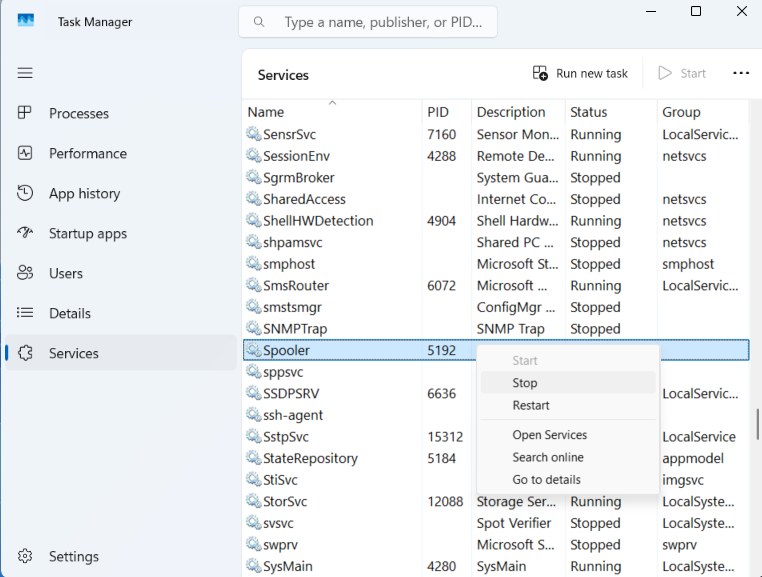
PAS 2. De asemenea, ne asigurăm că este selectată opțiunea Automatic.

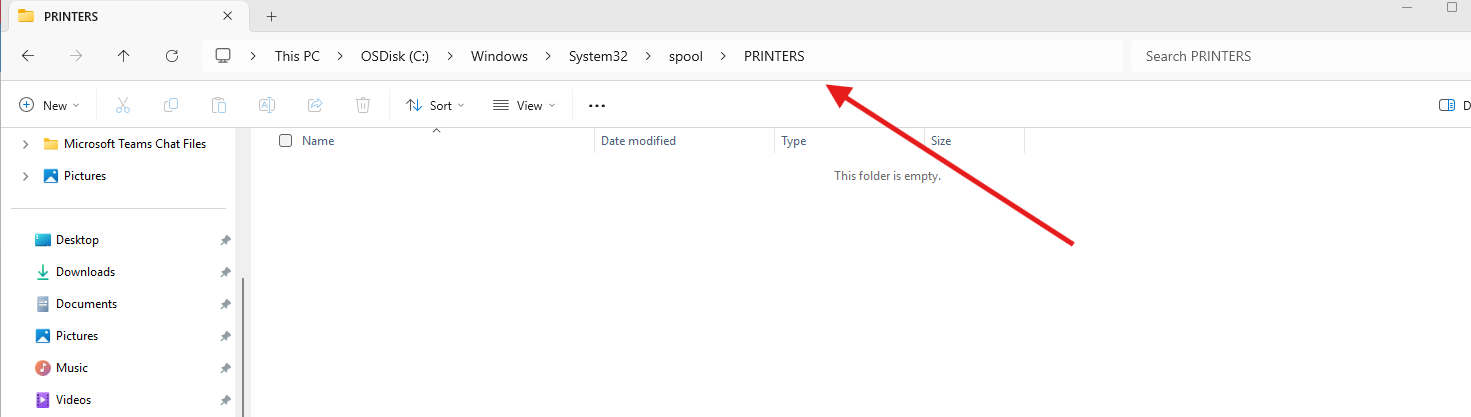
PAS 3. Se intră în secțiunea C:\Windows\System32\spool\PRINTERS și se sterg toate fișierele regăsite, mai puțin folderul PRINTERS.
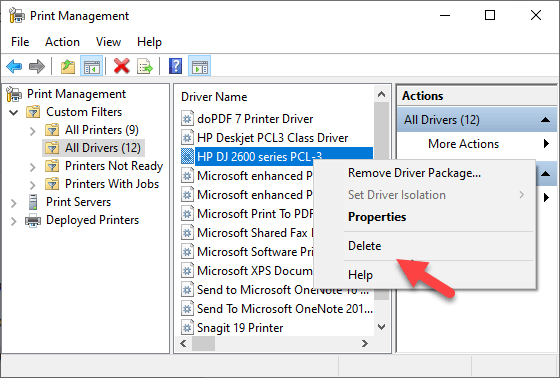
Din server, se poate șterge din Control Panel, din lista imprimantelor, iar dacă problema persistă, se reinstalează imprimanta.
Se intră în Print Manager cu drept de admin->All Drivers->se selectează imprimanta.
1. Boot into Arch ISO
Boot from USB and select the Arch Linux option
Confirm internet connection:
2. Set Keyboard Layout (if needed)
3. Update System Clock
4. Partition the Disk
Use fdisk or cfdisk (UEFI example):
Create:
EFI System Partition (e.g. 512M, type: EFI System)
Linux filesystem partition
5. Format Partitions
6. Mount Partitions
7. Install Base System
8. Generate fstab
9. Chroot into New System
10. Set Timezone
11. Localization
Uncomment your locale in /etc/locale.gen, e.g., en_US.UTF-8 UTF-8, then:
12. Set Hostname and Hosts File
Edit /etc/hosts:
13. Set Root Password
14. Install Bootloader (Systemd-boot for UEFI)
Create loader config:
Create entry:
Get PARTUUID:
15. Enable Networking
16. Add a User
Enable sudo for wheel group:
17. Install Essential Packages
18. Install a Desktop Environment (Optional)
Example: GNOME
Or KDE:
Or XFCE:
19. Exit, Unmount, and Reboot
Remove installation media when rebooting.
[mai mult...]To turn off sync:
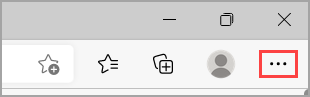
To clear your browsing data in Microsoft Edge:
Clear browsing data stored in the cloud (if you’ve turned on sync or personalization)
To manage and delete data saved in the Microsoft cloud, see the privacy dashboard. On the privacy dashboard you can view or delete your data. Data that you delete on the privacy dashboard won’t be deleted from your device.
Browsing data you can delete in Microsoft Edge
| Types of info | What will be deleted | Where it’s stored |
|---|---|---|
| Browsing history | The URLs of sites you’ve visited, and the dates and times of each visit. | On your device (or, if sync is turned on, across your synced devices) |
| Download history | The list of files you’ve downloaded from the web. This only deletes the list, not the actual files that you’ve downloaded. | On your device |
| Cookies and other site data | Information and data that websites store on your device to remember your preferences, such as sign-in info, your location, or media licenses. | On your device |
| Cached images and files | Copies of pages, images, and other media content stored on your device. The browser uses these copies to load content faster the next time you visit those sites. | On your device |
| Passwords | Site passwords that you’ve saved. | On your device (or, if sync is turned on, across your synced devices) |
| Autofill form data (includes forms and cards) | Info that you’ve entered into forms, such as your email, credit card, or a shipping address. | On your device (or, if sync is turned on, across your synced devices) |
| Site permissions | Go to Settings and more > Settings > Cookies and site permissions to see a list for each website, including location, cookies, pop-ups, and media autoplay. | On your device |
| All data from the previous version of Microsoft Edge | All data including history, favorites, passwords, and more from the legacy version of Microsoft Edge. | On your device (or, if sync is turned on, across your synced devices) |
| Media Foundation data | Includes licenses, certificates, keys, and more. Data is cleared after you restart the Microsoft Edge browser. | On your device (or, if sync is turned on, across your synced devices) |