Soluții

How to view wireless driver details on Win11

To generate a list of the driver information for the wireless adapter on Windows 11, use these steps:

  1. Open Start.
  2. Search for Command Prompt, right-click the top result, and select the Run as administrator option.
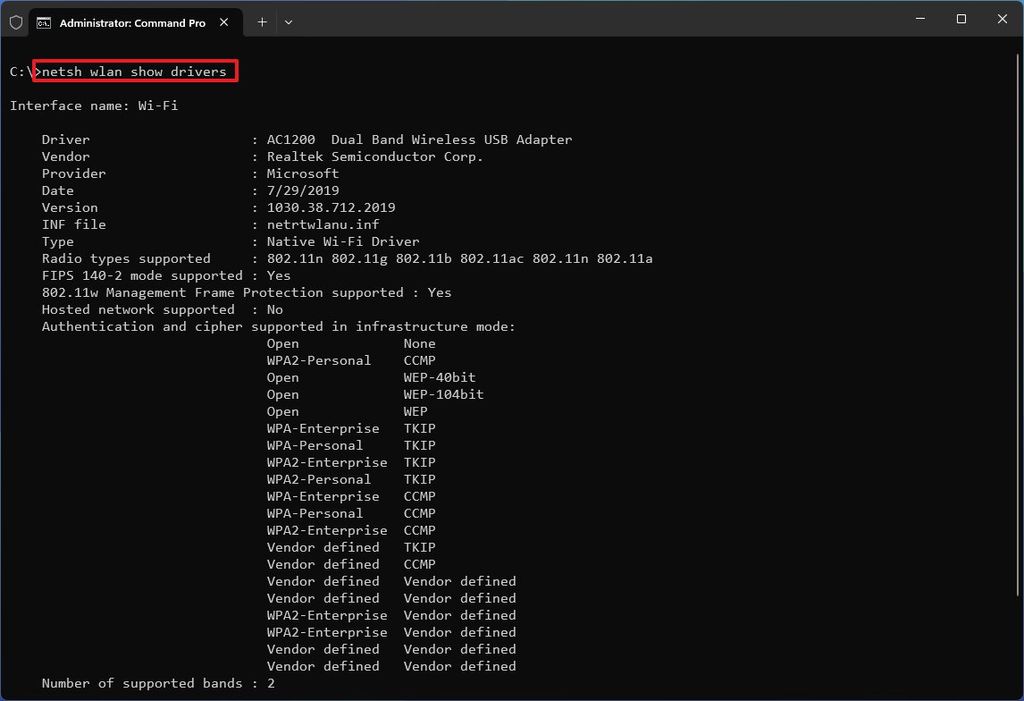
  3. Type the following command to view the wireless profiles stored on the computer and press Enternetsh wlan show drivers

After you complete the steps, the netsh command will print the driver details, including vendor, version, radio type (802.11ax, 802.11a, 802.11n, etc.), wireless authentication support, and other relevant information.

[mai mult...]

How to reset network adapter Win 11

  1. Left-click on the Start button Windows logo to bring up the Start menu and select Settings in the pinned apps.
  2. In the left-hand column, left-click on the Network and internet category.
  3. In the right-hand column, left-click on Advanced network settings.
  4. In the right-hand column, left-click on Network reset.
  5. Left-click on Reset now. You will get a prompt asking you are sure you want to reset your network settings.
  6. Left-click on Yes, and your computer will restart within five (5) minutes.

or

  1. Right-click on the Start button Windows logo to bring up the Power User menu.
  2. Left-click on Settings.
  3. In the left-hand column, left-click on the Network and internet category.
  4. In the right-hand column, left-click on Advanced network settings.
  5. In the right-hand column, left-click on Network reset.
  6. Left-click on Reset now. You will get a prompt asking you are sure you want to reset your network settings.
  7. Left-click on Yes, and your computer will restart within five (5) minutes.

or

  1. Press the Windows logo key Windows logo key + X to bring up the Power User menu.
  2. Press the letter N to select Settings.
  3. In the left-hand column, left-click on the Network and internet category.
  4. In the right-hand column, left-click on Advanced network settings.
  5. In the right-hand column, left-click on Network reset.
  6. Left-click on Reset now. You will get a prompt asking you are sure you want to reset your network settings.
  7. Left-click on Yes, and your computer will restart within five (5) minutes.

or

  1. Press the Windows logo key Windows logo key + I to bring up Settings.
  2. In the left-hand column, left-click on the Network and internet category.
  3. In the right-hand column, left-click on Advanced network settings.
  4. In the right-hand column, left-click on Network reset.
  5. Left-click on Reset now. You will get a prompt asking you are sure you want to reset your network settings.
  6. Left-click on Yes, and your computer will restart within five (5) minutes.
[mai mult...]

How to use layers in Paint in Windows 11

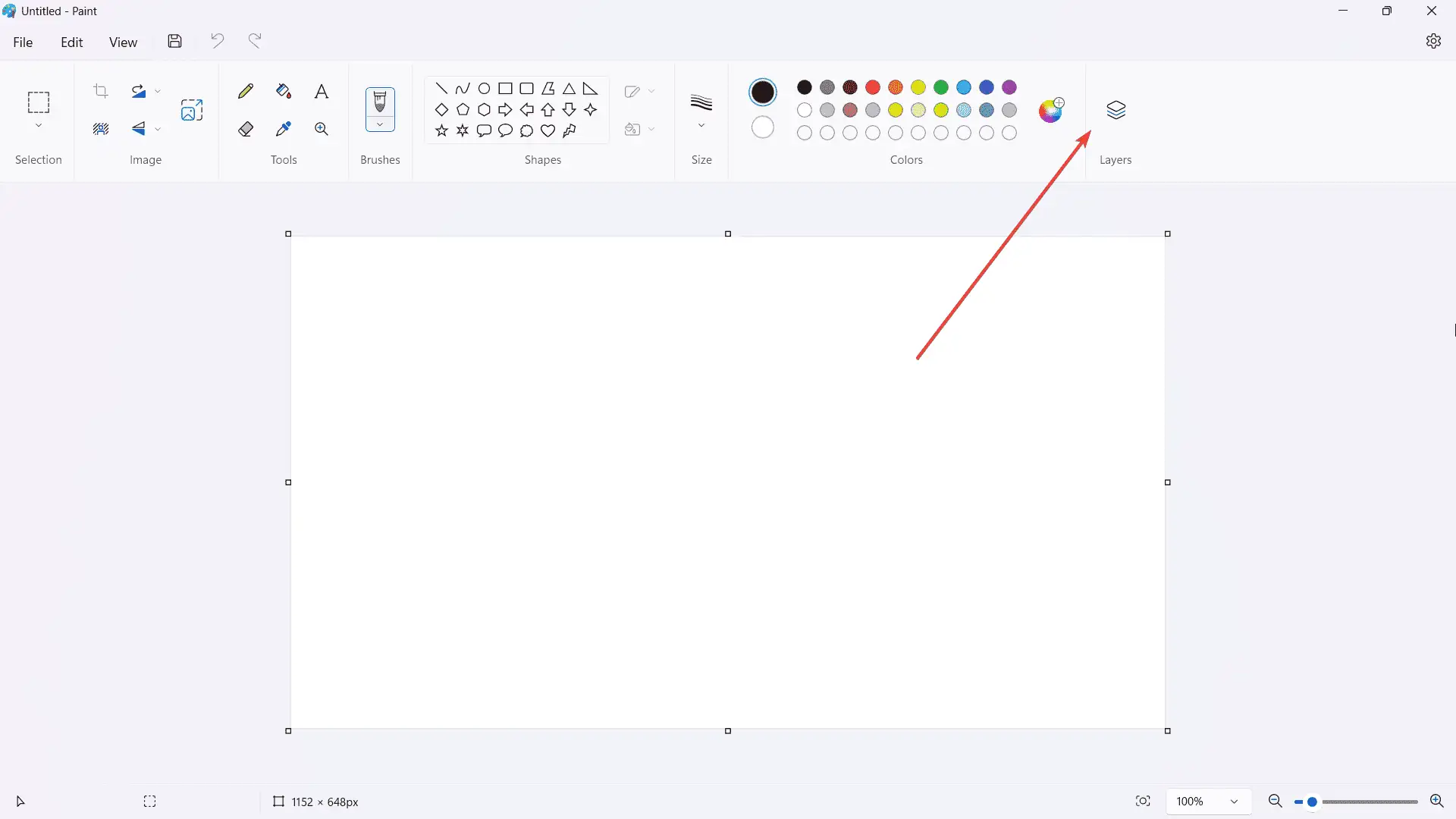
  • Click Layers on the top right of the ribbon. Alternatively, you can also click on it again to completely turn off the layers feature.

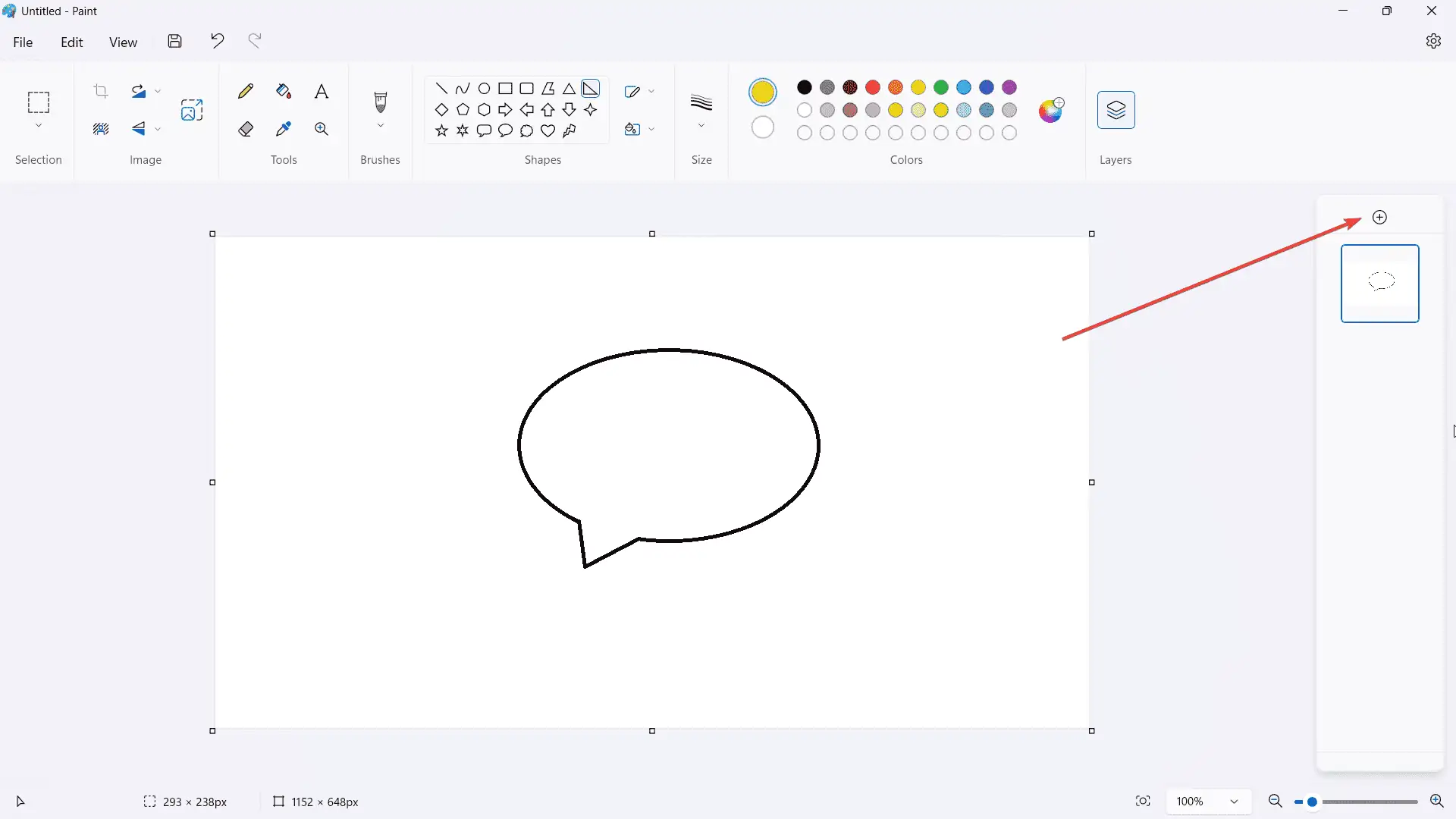
  • Draw any object that you want, then click + to add a new layer

  • If you right-click on the layer, there are options to hideduplicatemerge, or delete — pretty much self-explanatory.

[mai mult...]

How to read an Email header

How to Read an Email Header

The layout and procedures of reading an email header vary depending on the email service provider (ESP). To inspect it, go to the email header and search for the lines that concern you.

Email Headers in Gmail

With over 1.5 billion active users worldwide, Gmail is one of the most prominent online email services. It’s no surprise that Google regularly packs Gmail with a slew of handy features and capabilities.

You can easily view email headers in Gmail by following the steps below on a desktop computer or laptop (this option isn’t available on mobile devices):

  1. Open your Gmail client and select the email that has the message header you want to view.
  2. Access the kebab menu by clicking on the three dots beside the “Reply” button once you see the message body.Next, select “Show Original” in the dropdown menu.
  3. A new window will pop up, displaying the longer header in its original HTML format. You’ll be able to view header details such as authentication statuses, IP addresses, MIME version, and DKIM signature.
  4. Click on “Download Original” if you want to install and inspect the header data individually, or if you want to email it to your tech team.
Email Headers on Yahoo

Yahoo Mail isn’t bad—it includes a lot of the same options as Gmail. Still, it can’t match with the quantity of benefits Gmail offers.

If you have a Yahoo Mail account, use the following instructions to quickly display your desired email header in detail.

  1. Open your Yahoo webmail client in a separate tab and click on the message whose header you want to view.
  2. Access the meatballs menu by clicking on the three horizontal dots located beside the “Spam” button.
  3. Next, choose the “View raw message” option on the dropdown menu.
  4. Now, a new window will open, enclosing the entire email header data.
Email Headers in Outlook

Many corporations prefer using Microsoft Outlook to enhance their mailing strategies. Thanks to the app’s organized folder system, users can reduce mail clutter by categorizing tasks and messages in a variety of ways.

In this section, we’ll be using Microsoft Outlook version 2202 (64-bit). Here’s how to access any email header’s details:

  1. Open any email from your folders that you want to see the header of. Make sure to double-click on it to open it in a separate window.
  2. Click on “Actions” from the menu at the top of the window. Next, select “More Actions,” then choose “View Source.”
  3. The header details will automatically open in a Notepadfile.
Email Headers in Apple Mail

Apple Mail (Mac) has grown to be a particularly useful email client since its inception. It’s easy to set up and use. Recent OS releases now include fresh formatting settings, the ability to add more attachments, and a spruced “Reply” menu.

Getting email headers from Apple Mail couldn’t be simpler. Just follow the directions below:

  1. First, open your Apple Mail client, then click to open the email whose header you want to view.
  2. From the menu, hover your mouse over “View,” then click on it to expand the dropdown menu.
  3. Select “Message,” then choose “Raw Source.” Now you’ll be able to see the full content of the email header and copy it if you’d like.

Despite the explosive growth of various communication channels, email remains a highly useful tool for any business. It’s proven to be one of the most cost-effective strategies to promote different ventures, generate new leads, and improve customer retention.

Consequently, email has become a popular target for hackers. Therefore, it’s critical to have adequate security to safeguard your organization from malicious email attacks and avoid the spam folder. Owing to their ability to troubleshoot delivery issues swiftly, email headers are a crucial asset for all users, particularly marketers focused on the technical requirements of sending emails and ensuring their delivery.

[mai mult...]