Soluții

Can you see your recently watched Reels on Instagram?

Instagram doesn’t have a built-in feature to view recently watched Reels, but some workarounds make this possible. You can find the lost Reel from your feed if you haven’t closed the app yet, locate it in the history of your interactions, manually search for the account that posted it, or look for the Reel itself with the help of a caption, tag, and audio track.

[mai mult...]
Registry Errors

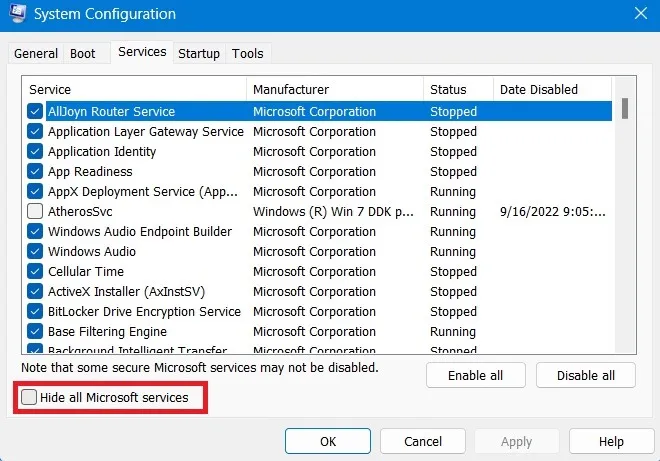
  1. Open the “System Configuration” app from the search bar or by typing msconfig in the Run menu.
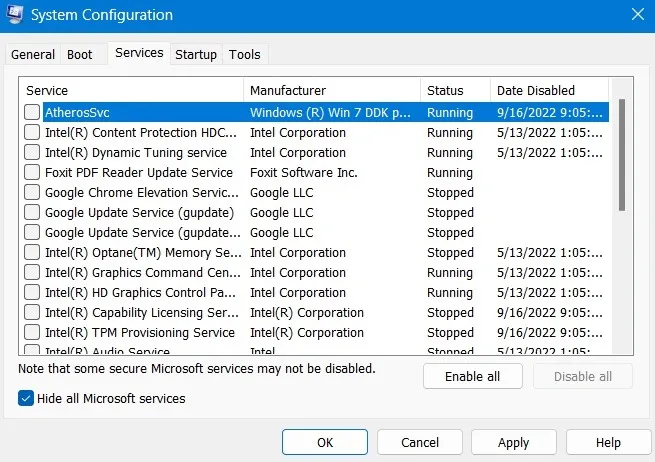
  2. Head to “Services” and check “Hide all Microsoft services.”
  1. Click all third-party services, such as Google and other apps. They will need to be disabled. After a restart, Windows will offer a clean boot environment.
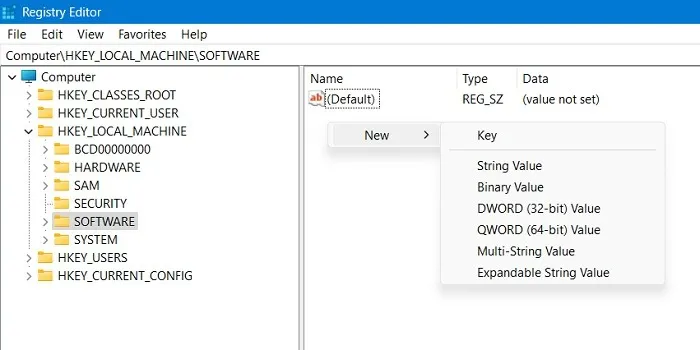
  1. The DLL errors in the registry can be traced to one of the key classes in the Registry Editor. Open it from Run command by typing regedit.
  2. Navigate to the exact path of any software causing trouble and create new keys or DWORD (32-bit) values by following troubleshooting requirements.
  1. The issues due to a corrupt registry are generally resolved after a simple Windows update. You can also use the sfc/scannow and DISM.exe commands in Command Prompt for additional protection.
[mai mult...]

Bluetooth not working – Windows 10

Make sure Bluetooth is turned on.You can do this by going to the taskbar and selecting Action Center (it looks like a message square). If you don’t see Bluetooth, select Expand. You should then see Bluetooth, and be able to select it to turn it on. If your device isn’t paired with any Bluetooth accessories, it will say “Not connected.” Your other option is to go to Start > Settings > Devices > Bluetooth and turn it on there.

Check your Bluetooth device. Make sure your accessory is turned on, is charged or has fresh batteries and is close to your Windows 10 device. You can then try turning off the Bluetooth device and turning it back on after a few seconds. If it’s still not working, make sure it’s not too close to any other USB device plugged into a USB 3.0 port, since those can interfere.

Check your Windows 10 device. Make sure airplane mode is turned off (Start > Settings > Network & Internet > Airplane mode). Try turning Bluetooth on and off (see above). Finally, try removing the device and adding it again (Start > Settings > Devices > Bluetooth & other devices. Select the device you’re having trouble connecting, and choose Remove device > Yes).

[mai mult...]

How to Fix “Download Pending” in the Play Store

What is the Play Store “Download Pending” Error?

The Google Play Store “Download Pending” error occurs when there’s a problem with the download process. It means that your device is waiting for the download to start. The most common reason why this happens is that you’re trying to download too many apps or updates at once. Downloads happen one after the other, and your download will not start until the apps in the queue have been downloaded. Another major culprit is a poor internet connection. Downloads happen over the internet; if your connection is unstable, it can halt the download and leave it pending. Also, full storage space can affect your downloads on the Play Store. If you do not have space on your Android phone, your download will not be completed. You need enough space for the app to store its files.

[mai mult...]

How to fix no Wi-Fi network connectivity when installing Windows 11

  1. Please download the latest version of the Wireless Lan driver installation package
  2. After the driver’s download is completed, please copy the installation package to a USB flash drive.

Install Wireless Lan driver

  1. If Windows is unable to find an available Wi-Fi network to connect to during the installation of Windows 11, please connect the USB flash drive with the WLAN driver on it (previous step) to your computer.
  2. Press Shift + F10 keys to open Command Prompt window.
  3. In the Command Prompt window, type [C:\Windows\explorer.exe & exit] and press Enter
  4. The system will open the File Explorer window. Find the Wireless Lan driver that you’ve uploaded to your USB flash drive, then double-click it to start the installation
  5. After the WLAN driver setup wizard opens, please close the File Explorer window by clicking the  icon in the upper-right corner before proceeding.
  6. In the driver installation window, select [Next] to start the Wireless Lan driver installation.
  7. Please read the License Agreement, and check the [I accept the agreement] box, then select [Next] to proceed with the installation.
  8. Follow the on-screen instructions to complete the Wireless Lan driver installation.
  9. After completing the installation, click [Finish] and restart your computer to finish the installation.
  10. After restarting your computer, you should be able to find the available Wi-Fi network connections.
[mai mult...]