Soluții

Wireshark ‘no interfaces found’ error explained

When you start up Wireshark to capture network packets, the tool has to go through a series of initialization routines. Towards the end of its startup procedures, Wireshark scans the host computer for network connections. On the initial scan, if the program cannot find any networks attached to the computer on which it is running, it will show the message “No interfaces found.”

The error message appears in the area of the application window where you would expect to see a list of available networks. To capture network traffic packets, you first need to select one of these networks. So, if Wireshark can’t find any networks at all, you can’t progress to the packet capture phase.

[mai mult...]

How do I read TLS packets in Wireshark?

Wireshark makes decrypting SSL traffic easy

I really like the way Wireshark handles the SSL decryption process. Cryptography is complicated, and the standards are constantly changing to be more secure. But once Wireshark and your environment are set up properly, all you have to do is change tabs to view decrypted data. It doesn’t get any easier than that.

[mai mult...]

How to Decrypt SSL with Wireshark

Using Wireshark, you can look at the traffic flowing across your network and dissect it, getting a peek inside of frames at the raw data. SSL is an encryption protocol that operates on the Transport layer of the OSI model. It uses various encryption methods to secure data as it moves across networks. Note: In this guide, I’ll mostly be referring to SSL as a catchall term for SSL and TLS, its successor.

SSL encryption makes using Wireshark more challenging because it prevents administrators from viewing the data that each relevant packet carries. When Wireshark is set up properly, it can decrypt SSL and restore your ability to view the raw data.

[mai mult...]

Cum partajați parola Wi-Fi de pe iPhone pe Android

Pentru a face acest lucru, va trebui să folosim o comandă rapidă pentru iPhone numită “QR Your Wi-Fi”.

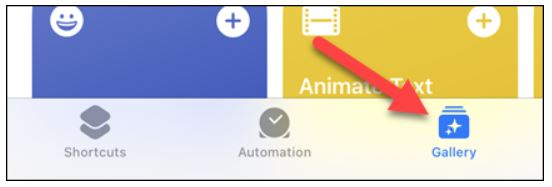
  • În primul rând, deschideți aplicația “Shortcuts” de pe iPhone și accesați fila “Gallery”.

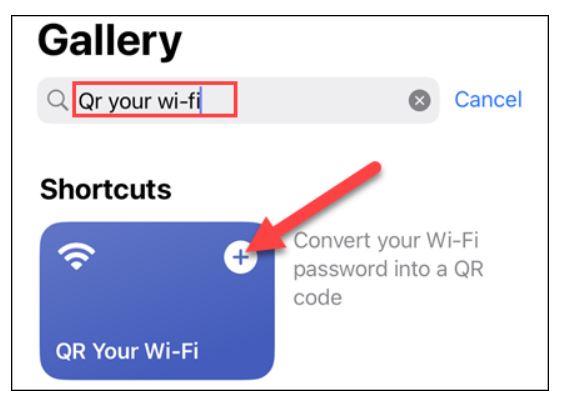
  • Utilizați bara de căutare pentru a introduce “QR Your Wi-Fi” și atingeți pictograma plus de pe Shortcut.

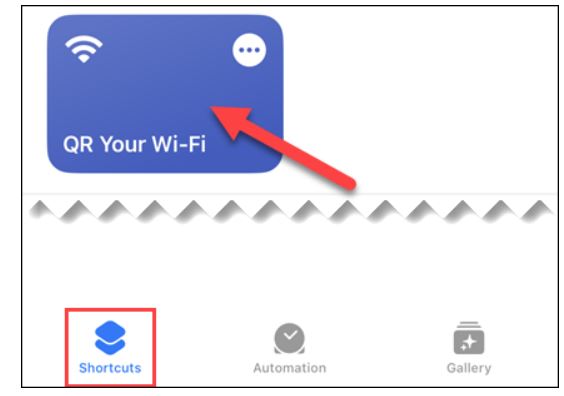
  • Apoi, accesați fila “Shortcuts” din aplicația Shortcuts și selectați “QR Your Wi-Fi”.

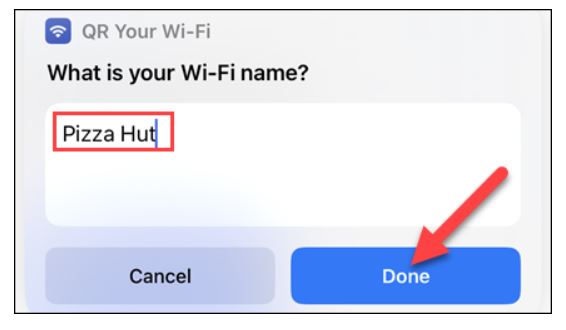
  • Mai întâi vi se va cere să introduceți numele rețelei Wi-Fi. Faceți acest lucru și atingeți “Done”.

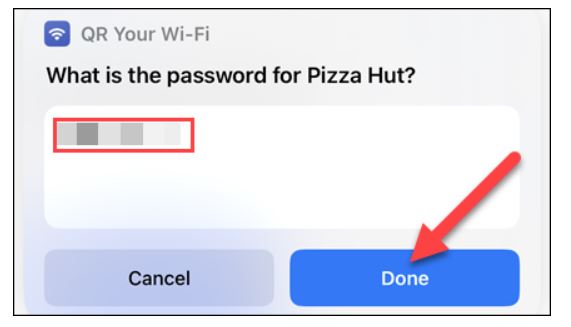
  • Introduceți acum parola pentru rețeaua Wi-Fi și atingeți “Done”.

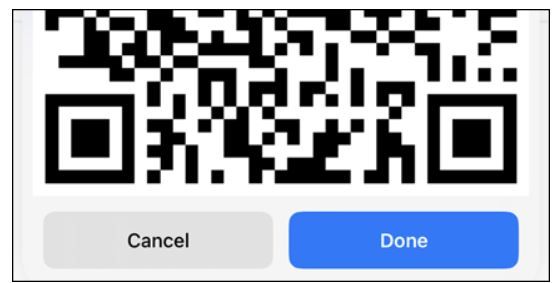
  • Va apărea un cod QR, care poate fi scanat de pe un telefon Android.

Va trebui să introduceți detaliile Wi-Fi de fiecare dată pentru a genera codul QR.

[mai mult...]

Cum vizualizați parolele Wi-Fi pe Android

Android vă permite să vizualizați foarte ușor parola salvată a rețelei Wi-Fi pe care o utilizați – cu excepția cazului în care aveți un dispozitiv Samsung Galaxy. Pașii din această secțiune se aplică la Google Pixel și la majoritatea celorlalte dispozitive Android care nu sunt Samsung.

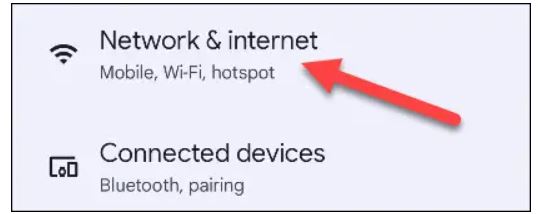
În primul rând, glisați în jos din partea de sus a ecranului o dată sau de două ori pentru a dezvălui panoul complet Quick Settings (Setări rapide). Atingeți pictograma in forma de rotiță pentru a deschide Setări. Apoi, atingeți “Network & Internet”.

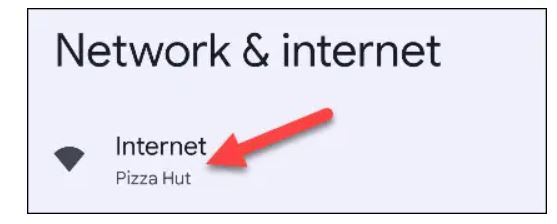
Atingeți “Internet” în partea de sus a ecranului.

Selectați pictograma în formă de rotiță de lângă rețeaua Wi-Fi conectată.

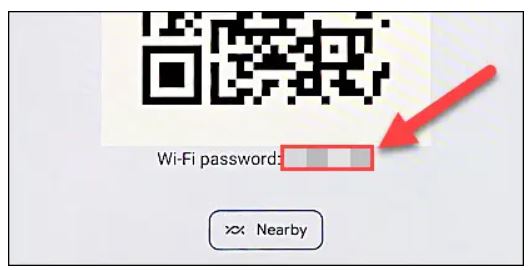
Acum atingeți butonul “Share” (Partajează) cu pictograma codului QR.

În cele din urmă, veți vedea un cod QR pe care alții îl pot scana pentru a se conecta la rețeaua Wi-Fi. Sub codul QR se află parola pentru rețea.

[mai mult...]