How to Disable Fast Startup on Windows 10
Windows 10’s Fast Startup feature helps turn on your computer faster, but there are times when you may want to disable Fast Startup.
[mai mult...]
Soluții pentru problemele tale IT

Windows 10’s Fast Startup feature helps turn on your computer faster, but there are times when you may want to disable Fast Startup.
[mai mult...]When you shut down your PC, Windows gives a bit of time to running applications to save their data before it force closes them. This ensures that no unsaved app data is lost and no app functions get corrupted due to force stopping in the middle of working.
However, if faster shutdown matters to you and you have the good habit of closing all apps and saving data before you shut down, then you can decrease this timer to speed up shutdown.
[mai mult...]Windows 11, version 22H2 is a feature update for Windows 11. It includes all features and fixes in previous cumulative updates to Windows 11, version 21H2, the original Windows 11 release version.
[mai mult...]Whether you are troubleshooting network connectivity issues or configuring a firewall, one of the first things to check is what ports are actually opened on your system.
View the listening ports with the netstat command:
netstat -lntu
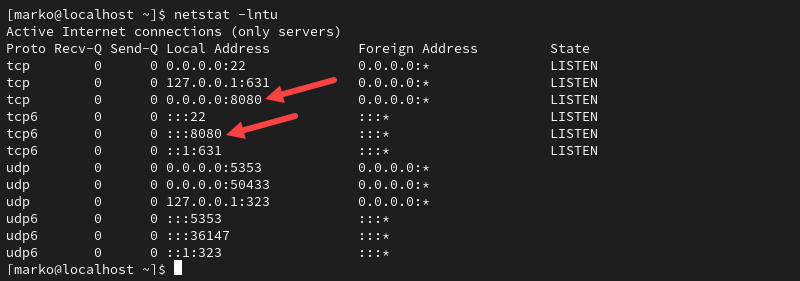
The output above shows the port 8080 is opened.
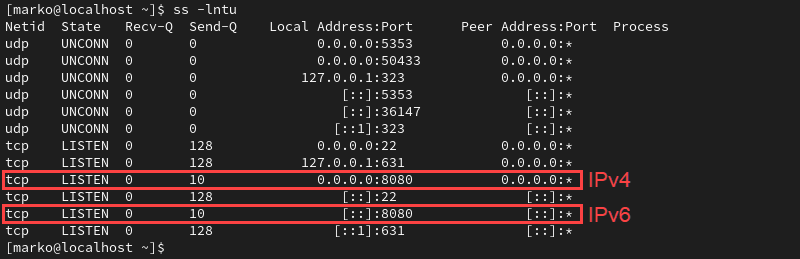
List the open sockets with the ss command:
ss -lntu
The port appears as part of the socket.
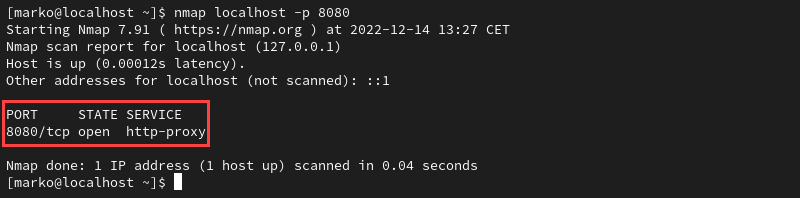
Test the port by specifying its number to the nmap command.
nmap localhost -p 8080
The Netcat tool features the nc command that you can use to test an open port. To do so:
1. Use a command such as echo to pipe output to Netcat and specify the port to listen to. The example below pipes a message to test port 8
echo “Testing port 8080” | nc -l -p 8080
2. Leave the command running and open another terminal window.
3. In that terminal window, use a command such as telnet to query the local socket.
telnet localhost 8080
If the port is open, the output of the telnet command contains the message piped to nc in step 1.

The port number is a virtual concept in computer networking that provides a network identifier for a service or application. The number is a 16-bit integer from 0 to 65535 that combines with the IP address to create a network communication socket.
Prerequisites
Before opening a port on a system, check if the port you need is already open. The simplest way to do this is to pipe the output of the netstat command to the grep command.
netstat -na | grep :[port-number]
The syntax above tellsgrepto look for a specific port number in the port list provided bynetstat. For example, to check if port8080is available on the system, type:
netstat -na | grep :8080
If the port is closed, the command returns no output.
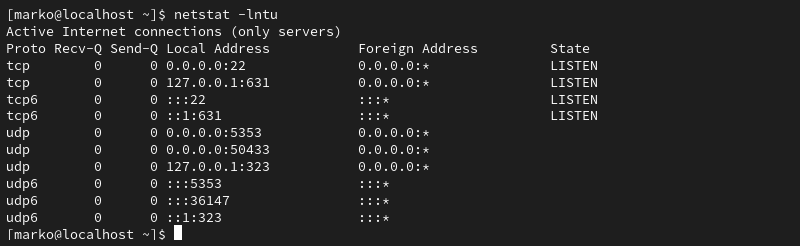
Alternatively, use the following netstat command to display a list of listening ports:
netstat -lntu
The -l option looks for the listening ports, -n provides numerical port values, while -t and -u stand for TCP and UDP, respectively.
The correct procedure for opening a port depends on the Linux distribution and the firewall you are using. The following sections provide steps for the three most common scenarios:
UFW (Uncomplicated Firewall) for Ubuntu allows you to open a port with a single command:
sudo ufw allow [port-number]

Alternatively, open the port used by a specific service without stating the port number:
sudo ufw allow [service-name]
Note: After you finish creating the rules, ensure UFW is active on your system by typing:
sudo ufw enable
The firewalld tool on CentOS, Fedora, and other related distributions, enables users to control port access on their system. The following command opens a specific port:
sudo firewall-cmd –zone=public –add-port=[port-number]/[protocol] –permanent

Note: The --zone=public argument is necessary only in multi-zone system configurations. By default, firewalld assigns all interfaces to the public zone.
While installing a full-fledged firewall is the recommended way of maintaining system security, some Linux distributions still use the legacy iptables solution. The iptables utility allows configuring rules to filter IP packets using the Linux kernel firewall.
Use the following command to create an iptables rule for opening a port:
sudo iptables -A INPUT -p [protocol] –dport [port] -j ACCEPT
The command creates an IPv4 rule. To create an IPv6 rule, use the ip6tables command:
sudo ip6tables -A INPUT -p [protocol] –dport [port] -j ACCEPT
The port number is specified with the --dport option. The -p flag allows you to define the protocol (tcp or udp). For example, to create an IPv4 rule for the TCP port 8080, type:
sudo iptables -A INPUT -p tcp –dport 8080 -j ACCEPT
The rules created using iptables do not persist after reboots.
Follow the steps to restore iptables rules after a reboot on Debian-based systems:
iptables-save > /etc/iptables/rules.v4
ip6tables-save > /etc/iptables/rules.v6
iptables-persistent package:sudo apt install iptables-persistent
This package automatically reloads the contents of the rules.v4 and rules.v6 files when the system restarts.
RHEL-based systems store the iptables configuration in a different location. Type the commands below to save the IPv4 and IPv6 rules, respectively:
iptables-save > /etc/sysconfig/iptables
ip6tables-save > /etc/sysconfig/ip6tables
iptables-services package is installed:sudo dnf install iptables-services
sudo systemctl start iptables
sudo systemctl enable iptables
sudo service iptables save

Restart the service to enforce the rule:
sudo systemctl restart iptables
Opening a port can be helpful for various reasons, such as allowing incoming traffic to access a specific service or application on your system.
Avem mai multe situatii in care se mai intampla sa pierdem datele de pe telefonul nostru cu sistem Android. Exista mai multe metode pentru a recupera datele pierdute.