
Situatie
Git is an enormous program, with nearly 200 sub-commands and countless options among them. You probably only use a handful, those reliable stalwarts like init, add, commit, and branch. But some commands go way further than the basics, and can radically improve your coding life if you get to know them.
Solutie
Use git clean to spring-clean your working tree
We’re starting fairly simple, with a pragmatic command that can help you keep your repository clean. It sounds obvious in hindsight, but you’ve probably done this manually before, so prepare yourself to save a lot of time with:
git clean
The git clean command removes untracked files from the working tree. So any compiled files, backups, .DS_Store Mac files, or anything else that isn’t actually part of your repository, will be removed. For example, this simple repository has one untracked file:
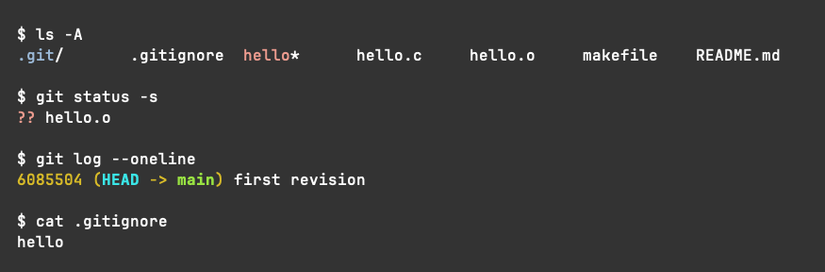
Running git clean removes that file, but leaves others alone, including the git-ignored hello file:

If you’re this is somewhat analogous to a make clean command.
By default, git clean will leave untracked directories alone, but you can use the -d option to recurse into them. I recommend using the -n option to carry out a dry run first, where git will show you the files it would have removed, without actually deleting them. You can also use the -i for interactive mode, which will give you finer-grained choices to handle the files:
Employ git bisect to find which commit introduced a bug
The bisect command helps you narrow down which commit introduced a particular bug or regression. Without it, such a task would involve repeatedly checking every single revision, maybe with some educated guesswork as to which might be the culprit. In a small codebase, or one that you have a complete grasp of, this may not be such an ordeal. With larger, collaborative projects, it could easily consume far too much precious time.
To be clear, git bisect is far from magic. In fact, it offers a trivial solution to the problem: binary search. Binary search is a form of “divide and conquer” problem-solving. In the case of git bisect, it involves a simple process:
- Identify the earliest bad revision, one that definitely contains the problem. Often, this is the current (or HEAD) revision.
- Identify the latest good revision. This is usually a bit trickier, but you can always start much earlier than you need to, even with your very first revision.
- Check a revision in the middle of those two. If it’s good, the bug must be newer; otherwise, it’s older.
- Keep repeating 3 until you identify the commit that introduced the bug.
This example shows a repository with five commits and the bisect start, bad, and good commands setting the scope
At each step, git bisect checks out a new commit that you can then test to see if it contains the bug or not
Once it’s exhausted all possibilities, git bisect reports the earliest bad commit that it found according to your initial choices. You can now run git bisect reset to finish the process and resolve the bad commit accordingly. This may still sound like a laborious process, but that’s bug-fixing for you. It’s much better than jumping into revisions randomly, trying to narrow down the problem. git bisect really speeds up the task, shielding you from inspecting git logs and checking out individual commits.
Discover git cherry-pick and merge less than a branch
Usually, when you combine work from two distinct branches, it’s an all-or-nothing operation. The git merge command creates a new commit with each commit from another branch applied to the current one. This makes a lot of sense for many workflows, but sometimes, you want to be a little more nuanced.
lets you pick a specific commit and apply its changes to your current branch, as a new commit. You’ll usually run cherry-pick on a commit from a different branch, so it’s a great way to pull in a singular change from a much larger feature branch, for example. By default, cherry-pick will reuse the commit message, making this a very quick operation. If you want, though, you can edit the new commit message using git cherry-pick -e commit-id.
If the commit doesn’t apply cleanly, cherry-pick will follow a similar procedure to git merge and ask you to resolve the conflicts manually.
Try git revert to undo unwanted commits
Ever regret making a commit after the event? If you do, and you spot it soon enough. But for isolated commits, or if you don’t want to destroy part of your repo’s history, git revert is the tool you should reach for.
Use git revert against a specific commit, and you effectively remove that single commit. The repository will end up exactly as it would have had that commit never occurred. All its changes will be gone.
Run it like:
git revert <commit>
In response, Git will create a brand new commit that’s the opposite of , undoing the original changes. It will also prompt you to edit the new commit’s message, prefilling it with a note that it reverts the specific commit. As with cherry-pick, if your revert creates conflicts, you’ll be asked to resolve them manually before running git revert –continue to confirm.