
Situatie
Solutie
Using a GUI file browser
The best option for beginners
If you’re already using a file manager like GNOME’s File (Nautilus), you can easily delete a file, typically by right-clicking it and selecting Move to Trash.
You can also drag a file to the Trash folder to delete it:

Alternatively, you can use a keyboard shortcut to delete the selected file(s). In Nautilus, it’s Delete to send to trash and Shift + Delete to permanently delete the file instead.
The tool you should reach for 99% of the time
Short for “remove,” rm is one of the essential Linux commands you’ll use nearly every day. With its most useful, portable options, usage looks like this:
rm [-f | -i] [-drv] file ...To delete a file, run the command rm filename. To delete several files, you can list them all as arguments:
rm fileone filetwo filethree
You can use your shell’s various expantion features to abbreviate this command, as appropriate:
rm file*
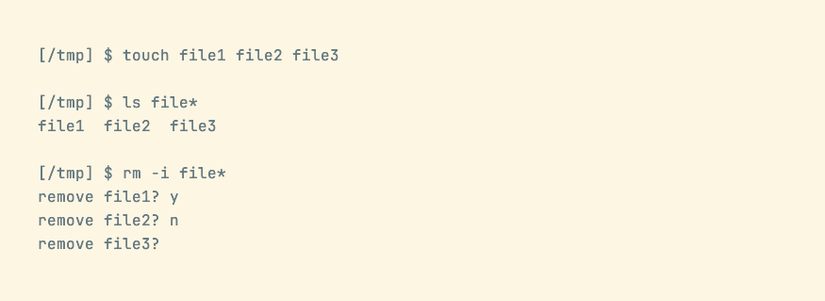
If you run rm like this, you need to be careful to ensure your glob pattern matches exactly those files you intend. If you want to be a bit cautious, use the -i option to prompt before every removal:
The unlink program
A slightly safer alternative to rm
The unlink command is a highly restricted equivalent of rm. It lacks all of rm’s options and only works if you pass it a single argument, a valid file.
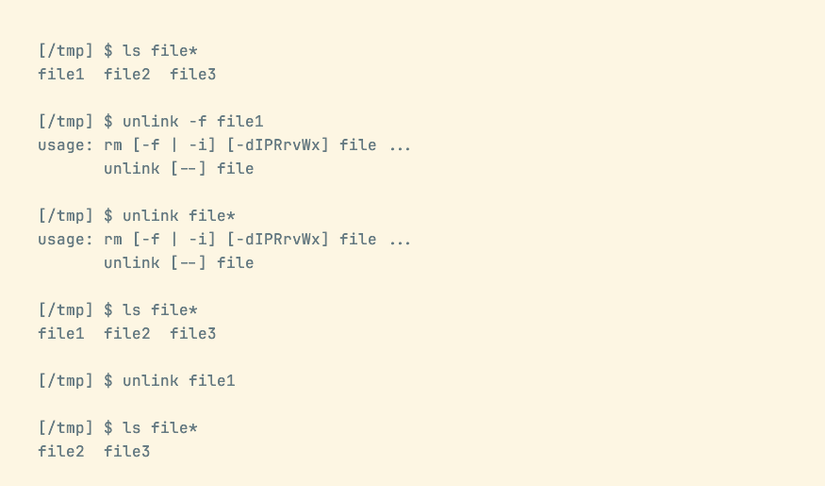
You can use unlink to delete files one at a time, safe in the knowledge that very little can go wrong.
This command is described as “Remove a directory entry,” and its name reflects the way Linux represents files. Each physical file on disk can have many links to it, each with its own path. Unlink removes the directory entry, but not necessarily the underlying file. If there are remaining links, the file will stay on the disk, accessible via them.
With find, the file searching command
A superpowered alternative to rm
The rm command can remove many files at once, but it can be inconvenient to list them all, even using globbing. If you want to delete, for example, every .txt file with only one link that’s older than a certain date, you’ll need to utilize the power of another command, find.
find /dir -name ".DS_Store" -exec rm {} \;
Remember that you can use rm’s interactive option as a safety net: -exec rm -i {} \;.
Some versions of find also support a built-in delete option, which is a bit more convenient:
find /dir -name ".DS_Store" -delete
find processes its arguments strictly in order, so -delete must come after filtering options like -name. Again, if you want to check first, just use -print instead of -delete.
Using the trash command
For peace of mind
Installed by default on macOS and available on Linux via your package manager, the trash tool is a command-line alternative to sending a file to trash using your file manager.
At its simplest, trash is a drop-in replacement for rm, so you can use it like this:
trash -v a b c
The difference is what trash does behind the scenes. Instead of deleting the file, trash moves it to your trash folder. Note that, like most of these tools, trash supports a -v (–verbose) option. It also supports a -s (–stopOnError) option to exit with an error if any file move fails.
With shred -u
Like rm, but more private
When it comes to deleting a file, it’s not quite that straightforward. Because physically removing the data from disk is a costly operation, your OS usually takes a shortcut. Instead of actually overwriting all the bits that represent that file’s contents on disk, your system will usually just mark it as deleted.
The result is that deleting a file will mark it as deleted, but the original data may be recoverable. Most of the time, that’s fine, but it can be a problem if you’re working with extra sensitive data. In such cases, you need a tool that not only marks a file as deleted, but also wipes the original data. shred is that tool.
Part of GNU coreutils, shred’s default behavior is to overwrite a file’s data with random bits. However, shred -u will remove the file after shredding, which is what you’ll usually want to do.
Because shred does so much more than rm, it can take longer to run. This will be more noticeable with larger files.
Run gio, if you have it
If you need to delete files on other devices
Gio is a GNOME library that provides an API for working with virtual file systems and local files using the same interface. It provides alternatives to many common tasks, and you can use the command-line gio program even if you’re not running the GNOME desktop environment.
Gio’s equivalent of rm is the remove subcommand, which you can use like this:
gio remove [-f] file ...
Note that the only option gio supports is -f, which suppresses the error for nonexistent files. There’s also gio trash, which is an equivalent of the trash command.
Write a program
For the ultimate flexibility
At the operating system level, files get deleted using the unlink system call. In C, the unistd.h header file provides a wrapper to it:
#include <unistd.h>

int main() {
    unlink("filename");
}
Most programming languages offer a very simple way to delete files, usually with a single function call:
Leave A Comment?